How Do I Clear Corrupted Cache On Xbox Once And For All
Clearing corrupted cache on your Xbox can fix freezing, lag, and error messages that ruin your gaming experience. This guide covers simple power cycles, full cache resets, and advanced troubleshooting for both Xbox One and Xbox Series X/S. You will learn exactly how to clear corrupted cache on Xbox in just a few minutes, plus tips to prevent it from happening again.
Your Xbox is supposed to be a smooth, lag-free gaming machine. But what happens when it starts freezing mid-game, throwing error codes, or refusing to load your favorite titles? More often than not, the culprit is a corrupted cache. The good news is that fixing this problem is usually quick, painless, and something you can do at home without calling support.
In this guide, we will walk you through exactly how to clear corrupted cache on Xbox step by step. Whether you own an Xbox 360, Xbox One, or the latest Xbox Series X/S, we have you covered. You will learn simple methods that take just a few minutes, plus advanced fixes for stubborn problems that refuse to go away.
By the end of this article, you will understand what causes cache corruption, how to identify the symptoms, and exactly what buttons to press to get your console running smoothly again. Let us dive in and get your Xbox back to performing at its best.
Key Takeaways
- Power cycling your Xbox is the simplest and fastest way to clear minor cache issues without losing any data.
- Clearing corrupted cache on Xbox One requires a full shutdown and holding the power button for 10 seconds to wipe temporary files.
- Xbox Series X/S users can use the same power cycle method but also have access to a network cache reset option.
- Corrupted cache causes include sudden power loss, outdated system software, and full storage drives.
- Preventing future cache problems involves regular console restarts, keeping firmware updated, and managing storage space wisely.
- Advanced fixes like factory resets should only be used as a last resort when all other methods fail.
📑 Table of Contents
- What Is Xbox Cache and Why Does It Get Corrupted?
- Signs Your Xbox Cache Is Corrupted
- How to Clear Corrupted Cache on Xbox One
- How to Clear Corrupted Cache on Xbox Series X and Series S
- Advanced Troubleshooting for Stubborn Cache Issues
- Preventing Future Cache Corruption on Your Xbox
- Expert Insights and Pro Tips
- Key Takeaways
- Conclusion
What Is Xbox Cache and Why Does It Get Corrupted?
Before we jump into the fixes, let us quickly understand what the Xbox cache actually is. Think of it like a temporary notebook your console keeps. Every time you play a game, download an update, or browse the dashboard, your Xbox saves small pieces of data. This cache data helps the console load things faster the next time you need them.
Most of the time, this system works beautifully. But sometimes, that temporary data becomes corrupted. When this happens, your console tries to read files that are incomplete or damaged. The result? Freezing, crashing, slow performance, and annoying error messages.
Common Causes of Cache Corruption
Several things can lead to a corrupted cache on your Xbox. Understanding these causes helps you prevent the problem from coming back.
- Sudden power loss. If your Xbox shuts off unexpectedly during an update or while saving data, temporary files can become incomplete or damaged.
- Full storage drive. When your console’s hard drive or SSD is nearly full, the system struggles to manage temporary files properly.
- Outdated system software. Running an older version of Xbox firmware can cause compatibility issues with cache management.
- Network interruptions. A weak or unstable internet connection during downloads can corrupt cached game data.
- Overheating. When your console runs too hot for too long, it can affect how data is stored and retrieved from the cache.
Knowing these causes means you can take steps to avoid them. And if the problem does happen, you will know exactly what to look for.
Signs Your Xbox Cache Is Corrupted
Not sure if your Xbox has a cache problem? There are some telltale signs that point straight to corrupted cache data. Watch for these symptoms:
- Games freeze or crash randomly, especially when loading new levels or areas.
- The dashboard runs slowly or takes forever to respond to button presses.
- Error messages pop up with codes you have never seen before.
- Game installs or updates fail partway through, even with a strong internet connection.
- Audio or video glitches during gameplay that were not there before.
- Your profile or saved data does not load correctly or shows old information.
- Apps and games take forever to start even though they installed fine yesterday.
If you are experiencing two or more of these issues, there is a very good chance your Xbox cache is corrupted. The next section will show you exactly how to fix it.
How to Clear Corrupted Cache on Xbox One
Clearing the cache on an Xbox One is straightforward. You do not need any special tools or technical skills. Just follow these steps carefully, and your console should be back to normal in minutes.
Method 1: The Full Power Cycle
This is the most common and effective method for clearing corrupted cache on Xbox One. It completely wipes temporary files without deleting any of your games, saves, or profiles.
- Press and hold the Xbox button on the front of your console for about 10 seconds. The console will fully shut down.
- Unplug the power cable from the back of the console. Wait at least 30 seconds.
- Press and hold the Xbox button on the console again for another 10 seconds. This drains any remaining power from the capacitors.
- Plug the power cable back in and press the Xbox button to turn the console on.
- Let the console boot up completely. It may take a little longer than usual on the first restart. This is normal.
Once your Xbox is back on, test a game or app that was giving you trouble. The corrupted cache files should now be gone. If the problem persists, move on to Method 2.
Method 2: Clearing the System Cache Through Settings
For a deeper cache reset, you can clear temporary files through the Xbox settings menu. This method targets system-level cache data that a simple power cycle might miss.
- Go to Settings by pressing the Xbox button and selecting the gear icon.
- Navigate to System and then select Storage.
- Select your internal drive. You will see a breakdown of used and available space.
- Look for temporary files. Select them and choose Delete.
- Confirm the deletion. Your console will now remove all temporary system cache files.
After this, restart your Xbox one more time to let the system rebuild clean cache files. This method is especially helpful if your console has been running for months without a full shutdown.
Method 3: The Network Cache Reset
If your cache problems are related to online gaming or downloading, clearing the network cache can help. This method resets your Xbox’s network connections and clears any corrupted download data.
- Go to Settings and select Network.
- Select Advanced Settings. You will see options related to your DNS and IP configuration.
- Select Alternate DNS. Enter a public DNS server like 8.8.8.8 or 1.1.1.1.
- Restart your console. The new DNS settings will force a fresh network connection.
This method is particularly useful if you notice download errors or if online games are loading slowly. It clears the network-related cache that stores connection data and download fragments.
How to Clear Corrupted Cache on Xbox Series X and Series S
The Xbox Series X and Series S use a similar cache clearing process to the Xbox One, but with a few modern improvements. The fast SSD in these consoles means cache files are managed differently, but the same basic principles apply.
Power Cycle Method for Series X/S
The power cycle method works exactly the same way on the Xbox Series X and Series S. Hold the Xbox button for 10 seconds, unplug the power for 30 seconds, hold the button again for 10 seconds, then plug back in and restart.
One advantage of the newer consoles is that they handle cache rebuilding much faster thanks to the SSD. You will notice your console returns to normal performance more quickly after a cache clear.
Using the New Xbox Startup Options
Xbox Series X/S users also have access to a special startup feature that can help with cache issues. This feature lets you boot the console in different modes that can clear certain types of corrupted data.
- Press and hold the Xbox button for 10 seconds to fully power off the console.
- Press the Xbox button again to turn it back on.
- When the Xbox logo appears, hold the Xbox button again for 10 seconds until you hear two beeps.
- The console will enter recovery mode. Follow the on-screen prompts to select Reset or Restart.
- Choose Restart to clear the cache without losing any data.
This recovery mode is a powerful tool for fixing stubborn cache problems. It essentially gives your console a fresh start while keeping all your games and saves intact.
Advanced Troubleshooting for Stubborn Cache Issues
Sometimes, a simple power cycle is not enough. If you have tried the methods above and your Xbox is still acting up, it is time to dig deeper. Here are some advanced troubleshooting steps that can resolve even the most persistent cache corruption.
Reset Your Xbox Without Losing Data
Xbox consoles have a built-in reset option that refreshes the entire system. This is more thorough than a simple power cycle and can fix cache issues that have been lingering for weeks.
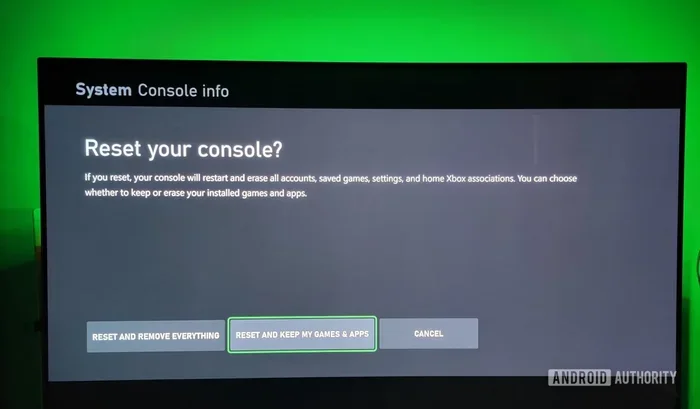
To access this option, go to Settings, select System, then select Console Info. Choose Reset Console and select the option that keeps your games and apps but refreshes the system files. This process can take 20 to 30 minutes but often solves problems that nothing else can touch.
Check for System Updates
Outdated system software is one of the most overlooked causes of cache corruption. Microsoft regularly releases updates that fix bugs and improve how the console manages temporary files. To check for updates:
- Go to Settings and select System.
- Select Updates & Downloads.
- Choose Update Console.
- Wait for the update to download and install.
- Restart your Xbox after the update completes.
Keeping your console updated is one of the best ways to prevent cache problems from developing in the first place.
Clear Individual Game Caches
Sometimes the corruption is not in the system cache but in a specific game’s cached data. If only one game is giving you trouble, you can clear its individual cache by uninstalling and reinstalling it. This sounds extreme, but it is actually very effective and much faster than a full factory reset.
- Go to My Games & Apps.
- Find the problematic game.
- Select Manage.
- Choose Uninstall.
- Reinstall the game from your library.
This method clears all cached data for that specific title and replaces it with fresh files. Your saved progress usually stays safe in the cloud as long as you are signed into Xbox Live.
When to Consider a Factory Reset
A factory reset should be your absolute last resort. This wipes everything from your console and restores it to the exact state it was in when you first took it out of the box. Only use this method if nothing else has worked and your console is still severely affected by corrupted cache.
Before doing a factory reset, make sure you have backed up any important save data. You can use Xbox cloud saves or transfer your data to a USB drive. Once the reset is complete, you will need to reinstall all your games and apps, so make sure you have enough storage space available.
Preventing Future Cache Corruption on Your Xbox
Fixing a corrupted cache is one thing, but preventing it from happening again is just as important. Here are some simple habits that will keep your Xbox running smoothly for years to come.
Regular Console Restarts
One of the easiest ways to prevent cache buildup is to restart your Xbox regularly. You do not need to turn it off completely every time. A simple restart clears out old temporary files and gives the system a fresh start. Try to restart your console at least once a week, especially after long gaming sessions.
Keep Your Storage Manageable
When your Xbox storage is nearly full, the system has less room to manage cache files effectively. Make it a habit to review your storage regularly and delete games or apps you no longer play. A good rule of thumb is to keep at least 15 to 20 percent of your storage free at all times.
Use a Stable Power Supply
Sudden power loss is one of the biggest causes of cache corruption. Using a surge protector or uninterruptible power supply (UPS) can protect your console from unexpected shutdowns. This is especially important if you live in an area with frequent power fluctuations or storms.
Keep Your Console Cool
Overheating can affect how your Xbox handles data. Make sure your console has plenty of ventilation and is not stacked on top of other electronics. If your console feels hot to the touch, give it a break and let it cool down before resuming your gaming session.
Stay Updated
Microsoft releases system updates frequently, and many of these include fixes for cache management and data handling issues. Turn on automatic updates so your console always has the latest improvements. This small habit can save you a lot of troubleshooting time in the long run.
Expert Insights and Pro Tips
Here are some extra tips from experienced Xbox users and technicians who deal with cache issues regularly:
- Do not force your Xbox to shut off during updates. Wait for the process to complete fully, even if it takes longer than expected.
- Use a wired connection when downloading large games or updates. A stable ethernet connection prevents network-related cache corruption.
- Clean your console’s vents every few months. Dust buildup can cause overheating, which in turn affects how the cache manages data.
- If you use Bluetooth headphones with your Xbox, make sure the connection is stable, as Bluetooth interference can sometimes cause system lag that mimics cache problems.
- Keep a log of when issues occur. Noting when your Xbox starts acting up can help you identify patterns and pinpoint the real cause of the problem.
These small habits might seem minor, but they add up to a much healthier console experience over time.
Key Takeaways
- Power cycling your Xbox is the simplest and fastest way to clear minor cache issues without losing any data.
- Clearing corrupted cache on Xbox One requires a full shutdown and holding the power button for 10 seconds to wipe temporary files.
- Xbox Series X/S users can use the same power cycle method but also have access to a recovery mode that clears stubborn cache data.
- Corrupted cache causes include sudden power loss, outdated system software, full storage drives, and network interruptions.
- Preventing future cache problems involves regular console restarts, keeping firmware updated, and managing storage space wisely.
- Advanced fixes like factory resets should only be used as a last resort when all other methods fail.
Conclusion
Clearing corrupted cache on Xbox does not have to be a stressful experience. With the right steps, you can get your console back to running smoothly in just a few minutes. Whether you use the simple power cycle method or the more advanced recovery mode, the key is to act quickly when you notice the first signs of cache corruption.
Remember to restart your console regularly, keep your system updated, and manage your storage space. These simple habits will go a long way in preventing cache problems from returning. If you ever find yourself stuck, come back to this guide and work through the steps one by one.
Your Xbox is a powerful entertainment machine, and with a clean cache, it will perform at its best. Now go enjoy your games without any interruptions or annoying error messages. Happy gaming!
Frequently Asked Questions
What happens when I clear the cache on my Xbox?
Clearing the cache removes temporary files that your console stores to load games and apps faster. You will not lose any games, saved progress, or profiles. The console simply rebuilds fresh cache files the next time you use it. Think of it like clearing out a cluttered desk so you can work more efficiently.
How often should I clear my Xbox cache?
You do not need to clear your Xbox cache regularly. Most users only need to do it when they notice performance issues like freezing, slow loading, or error messages. As a preventive measure, restarting your console once a week is usually enough to keep the cache healthy without doing a full clear.
Will clearing the cache delete my games or saved data?
No. Clearing the cache only removes temporary system files. Your games, saved data, achievements, and profiles remain completely safe. However, it is always a good idea to make sure your saves are backed up to the cloud before performing any major troubleshooting steps on your console.
Why does my Xbox cache get corrupted again after I clear it?
If your cache keeps getting corrupted, the root cause is likely something else. Common culprits include sudden power loss, an almost full storage drive, outdated system software, or a weak internet connection during downloads. Addressing these underlying issues will help prevent the problem from recurring.
Can I clear the cache on my Xbox while a game is running?
It is best to fully shut down your Xbox before clearing the cache. Attempting to clear cache while a game is running can lead to data loss or further corruption. Always save your game progress, close all apps, and power off the console completely before performing any cache clearing steps.
How long does it take to clear corrupted cache on Xbox?
A simple power cycle takes about 2 to 3 minutes. A full system cache reset through settings takes around 5 to 10 minutes. If you need to use the recovery mode or factory reset option, the process can take 20 to 30 minutes depending on your console model and the amount of data stored.