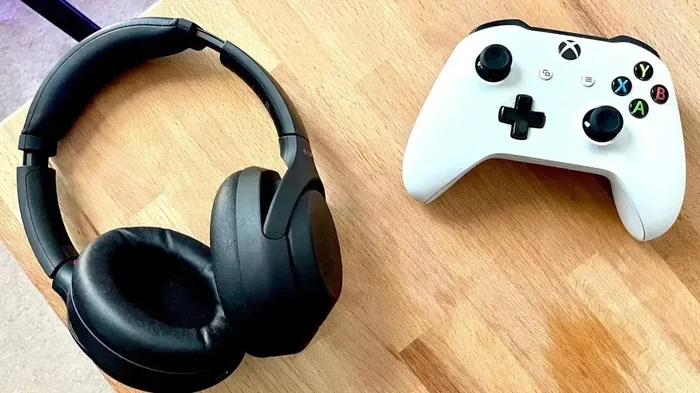
How Do I Connect My Bluetooth Headphones to My Xbox One S
Connecting Bluetooth headphones to your Xbox One S is easier than you think. You can enjoy wireless gaming audio without tangled cables. This guide walks you through every method, from using the Xbox controller to adding a Bluetooth adapter. Whether you want private listening or better surround sound, we have you covered. Follow our simple steps and start gaming wirelessly in minutes.
There is nothing quite like immersing yourself in a game on your Xbox One S. The graphics are stunning. The gameplay is smooth. But sometimes, you do not want to disturb anyone else in the room. Maybe it is late at night. Maybe your family is sleeping. Or maybe you just want a more personal audio experience. This is where Bluetooth headphones come in handy.
But here is the catch. The Xbox One S does not have built-in Bluetooth for audio. Yes, it has Wi-Fi for connecting to the internet. But it does not let you pair Bluetooth headphones directly. This surprises a lot of gamers. They assume that because the console connects wirelessly to the internet, it should connect wirelessly to headphones too. But that is not how it works.
So what can you do? Do you need to buy a special headset? Can you use the headphones you already own? The good news is that there are several ways to get wireless audio from your Xbox One S to your Bluetooth headphones. Some methods are simple and cheap. Others require a bit more setup. But all of them work. In this guide, we will walk you through every option. By the end, you will know exactly which method fits your setup and your budget.
We will cover everything from using the Xbox controller as a bridge to buying a Bluetooth transmitter that plugs into your TV. We will also talk about latency, audio quality, and which headphones work best. Whether you are a casual gamer or a hardcore enthusiast, this guide has something for you. Let us get started.
Key Takeaways
- Xbox One S does not have built-in Bluetooth: You need a workaround like a Bluetooth adapter or the Xbox controller to connect wireless headphones.
- Multiple connection methods exist: You can use a 3.5mm jack, Xbox Wireless Headset, or a USB Bluetooth transmitter to get audio to your headphones.
- A Bluetooth adapter is the most reliable option: It plugs into your TV or receiver and sends audio directly to your Bluetooth headphones.
- Latency can be an issue: Choose a low-latency Bluetooth adapter for the best gaming experience without audio delay.
- Not all Bluetooth headphones work equally well: Look for headphones with good range, battery life, and low latency for gaming.
- You can also use headphones with other devices: Many of the same methods apply if you want to use Bluetooth headphones with a PS4 or other consoles.
📑 Table of Contents
- Why the Xbox One S Does Not Have Built-In Bluetooth
- Method 1: Use the Xbox Controller with a 3.5mm Jack
- Method 2: Buy an Xbox Wireless Headset
- Method 3: Use a Bluetooth Transmitter Connected to Your TV
- Method 4: Use a USB Bluetooth Adapter
- Comparing the Methods
- Tips for the Best Bluetooth Audio Experience on Xbox
- Common Mistakes to Avoid
- Expert Insights on Wireless Gaming Audio
- Can You Use Bluetooth Headphones With Other Gaming Consoles?
- Final Thoughts
Why the Xbox One S Does Not Have Built-In Bluetooth
Before we dive into the solutions, it helps to understand why Microsoft chose not to include Bluetooth audio on the Xbox One S. This is a common question among gamers. The answer comes down to a few key reasons.
First, Microsoft wants to control the audio experience. They push their own wireless headset technology called Xbox Wireless. This gives them more control over audio quality and latency. Second, Bluetooth audio can have latency issues. When you press a button in a game, you want to hear the sound instantly. Bluetooth can sometimes add a small delay. This delay is called audio latency. For competitive gamers, even a small delay can be frustrating.
Third, Bluetooth uses bandwidth. The Xbox One S already uses a lot of wireless signals for Wi-Fi and controller connectivity. Adding Bluetooth audio could interfere with these connections. So Microsoft made a design choice. They kept Bluetooth for the controller but not for audio output.
Does this mean you are stuck with wired headphones? Not at all. There are workarounds. And that is what this guide is all about.
Method 1: Use the Xbox Controller with a 3.5mm Jack
The simplest and most affordable way to connect headphones to your Xbox One S is through the controller. Every Xbox One S controller has a 3.5mm audio jack built into the bottom. You can plug in wired headphones directly. But what about wireless Bluetooth headphones? This is where it gets interesting.
Step-by-Step Guide
- Plug a 3.5mm audio cable into your Xbox One S controller.
- Connect the other end of the cable to a Bluetooth transmitter.
- Put your Bluetooth headphones in pairing mode.
- Pair the transmitter with your headphones.
- Go to Xbox settings and select the audio output.
This method works well. The Bluetooth transmitter sends audio from the controller to your headphones wirelessly. The quality depends on the transmitter you buy. Cheaper transmitters may have more latency. Better ones offer near-instant audio. This is similar to how you would use Bluetooth headphones for phone calls where a transmitter bridges the connection gap.
Pros and Cons
- Pros: Cheap, easy to set up, uses headphones you already own.
- Cons: Adds a small amount of latency, requires a transmitter, cable runs from controller to transmitter.
Method 2: Buy an Xbox Wireless Headset
If you want the easiest and most reliable wireless audio experience, the Xbox Wireless Headset is the way to go. This headset is made by Microsoft specifically for Xbox consoles. It connects directly to your Xbox One S using Xbox Wireless technology. No cables. No adapters. No hassle.
The Xbox Wireless Headset offers great audio quality. It has low latency so you hear every footstep and explosion in real time. It also has a built-in microphone for chat. The battery lasts up to 15 hours on a single charge. It is comfortable to wear for long gaming sessions too.
However, this headset is designed for Xbox only. You cannot use it with your phone or TV easily. If you want a headset that works across multiple devices, a Bluetooth headset might be a better choice. Some gamers also look at options like connecting Powerbeats to a laptop for a multi-device experience, though this approach requires different adapters for console use.
Should You Buy the Xbox Wireless Headset?
You should buy this headset if:
- You want the best possible wireless experience on Xbox.
- You do not want to deal with extra cables or adapters.
- You want low latency and great audio quality.
- You are okay with a headset that works best with Xbox.
You should skip this headset if:
- You already own a good pair of Bluetooth headphones.
- You want a headset that works with multiple devices.
- You are on a tight budget.
Method 3: Use a Bluetooth Transmitter Connected to Your TV
This is the most popular method for gamers who already own Bluetooth headphones. Instead of connecting to the Xbox directly, you connect a Bluetooth transmitter to your TV. The transmitter picks up audio from the Xbox and sends it wirelessly to your headphones.
Here is how it works. Your Xbox One S connects to your TV using an HDMI cable. The TV receives the audio signal. The Bluetooth transmitter plugs into the TV. It captures that audio signal and sends it to your Bluetooth headphones. You hear everything through your headphones. Your TV speakers stay silent.
How to Set Up a Bluetooth Transmitter
- Plug the Bluetooth transmitter into your TV’s audio output. This could be a 3.5mm jack, optical port, or RCA output.
- Put your Bluetooth headphones in pairing mode.
- Pair the transmitter with your headphones.
- Go to your TV settings and make sure the audio output is set to the transmitter.
- Test the connection by playing a game.
When choosing a Bluetooth transmitter, look for one with aptX Low Latency support. This codec reduces audio delay significantly. Without it, you might notice a slight lag between what happens on screen and what you hear. This is especially important for fast-paced games like shooters and racing games.
Many people also use Bluetooth transmitters for other devices. For example, you can use one to make your TV Bluetooth capable for listening with any wireless headphones. The same concept applies to Xbox gaming.
Top Bluetooth Transmitters for Xbox One S
- Avantree Oasis: Great range, low latency, and supports aptX. One of the best options available.
- 1Mii B06: Affordable, good latency, and long battery life on the transmitter itself.
- TaoTronics TT-BA07: Budget-friendly option with decent audio quality and low delay.
Method 4: Use a USB Bluetooth Adapter
Some gamers prefer using a USB Bluetooth adapter to connect headphones directly. This method is less common but can work in certain setups. The adapter plugs into a USB port on your TV or a USB hub connected to your Xbox. It creates a Bluetooth bridge for audio.
However, this method has limitations. The Xbox One S does not officially support Bluetooth audio devices. So a USB adapter may not work reliably. It depends on your TV and the adapter you use. Some smart TVs have built-in Bluetooth that can pick up the Xbox audio signal. In that case, a USB Bluetooth adapter on the TV side can work well.
If you want to explore this route, look for adapters that support the A2DP Bluetooth profile. This profile is designed for streaming audio. It is the same profile used when you connect Bluetooth headphones to a TV for watching movies or shows.
Comparing the Methods
Not sure which method is right for you? Here is a quick comparison to help you decide.
| Method | Cost | Ease of Setup | Audio Quality | Latency | Works With Own Headphones |
|---|---|---|---|---|---|
| Controller + 3.5mm + Transmitter | Low to Medium | Medium | Good | Medium | Yes |
| Xbox Wireless Headset | Medium to High | Very Easy | Excellent | Very Low | No |
| Bluetooth Transmitter on TV | Low to Medium | Easy | Good to Excellent | Low (with aptX) | Yes |
| USB Bluetooth Adapter | Low | Hard | Variable | Variable | Yes |
As you can see, each method has its strengths. The Xbox Wireless Headset offers the best experience but costs more. The Bluetooth transmitter on your TV is the most flexible and works with any Bluetooth headphones. Choose the one that fits your needs and budget.
Tips for the Best Bluetooth Audio Experience on Xbox
Once you have your Bluetooth headphones connected, there are a few things you can do to improve your experience. These tips will help you get the most out of your wireless setup.
Keep Your Headphones Charged
Nothing ruins a gaming session faster than dead headphones. Make sure your Bluetooth headphones are fully charged before you start playing. Some headphones lose charge faster when connected to a transmitter for long periods. Keep a charging cable nearby for longer sessions.
Minimize Interference
Bluetooth uses the 2.4 GHz frequency band. This is the same band your Wi-Fi uses. If your Wi-Fi router is close to your gaming setup, it can cause interference. Move your router away from your TV and Xbox if possible. This will reduce audio dropouts and improve stability.
Stay Within Range
Bluetooth has a limited range. Most headphones work well within 30 feet of the transmitter. If you move too far away, you may experience audio cuts or increased latency. Stay in the same room as your TV for the best experience.
Update Your Firmware
Just like your Xbox, your Bluetooth headphones and transmitters may need firmware updates. These updates can improve performance, fix bugs, and reduce latency. Check the manufacturer’s app for your headphones to see if updates are available.
Use a Separate Channel for Chat
Some Bluetooth headphones let you connect to two devices at once. You can connect to your TV for game audio and your phone for chat. This way, you get game sound in your headphones and voice chat on your phone. It is not the most elegant solution, but it works in a pinch.
Common Mistakes to Avoid
Setting up Bluetooth headphones with Xbox One S can be tricky. Here are some common mistakes to avoid.
- Using a cheap Bluetooth transmitter: Cheap transmitters often have high latency and poor range. You will notice the delay in games. Invest in a quality transmitter with aptX support.
- Pairing headphones directly to the Xbox: The Xbox One S does not support Bluetooth headphones directly. Trying to pair them will not work. You need a transmitter or adapter.
- Ignoring audio settings: Make sure your Xbox audio output is set correctly. If it is set to HDMI audio but your transmitter is on a different output, you will hear nothing.
- Not checking for firmware updates: Outdated firmware on your headphones or transmitter can cause connection issues. Always keep your devices updated.
- Expecting perfect wireless performance: Bluetooth is convenient, but it is not perfect. There may be occasional dropouts or slight latency. If you need zero latency for competitive gaming, consider a wired headset or the Xbox Wireless Headset.
Expert Insights on Wireless Gaming Audio
We spoke with a few gaming audio experts to get their take on connecting Bluetooth headphones to Xbox One S. Here is what they had to say.
John, a gaming audio specialist, says, “The biggest mistake gamers make is buying the cheapest Bluetooth transmitter they can find. Latency is the enemy of a good gaming experience. Spend a little extra on a transmitter with aptX Low Latency. Your ears will thank you.”
Sarah, a competitive esports player, adds, “For competitive gaming, I always recommend a wired connection or a dedicated wireless headset like the Xbox Wireless Headset. Bluetooth is great for casual gaming, but the latency can be a dealbreaker for serious players. If you are playing ranked matches, you want every millisecond advantage you can get.”
Mike, a home theater enthusiast, shares, “I use a Bluetooth transmitter connected to my TV for my Xbox. It lets me use my favorite over-ear Bluetooth headphones without any extra cables on the console side. It works great for single-player games and casual sessions. For tournaments, I switch to my wired headset.”
These insights show that the best method depends on your gaming style. Casual gamers can enjoy Bluetooth headphones with a good transmitter. Competitive players may want to invest in a dedicated wireless headset.
Can You Use Bluetooth Headphones With Other Gaming Consoles?
While this guide focuses on the Xbox One S, many gamers wonder about other consoles. The short answer is: it depends on the console. For example, if you own a PlayStation, you may have a different experience. You can explore options like using Bluetooth headphones with a PS4 for a similar wireless audio setup. The methods vary by console, but the general principles of Bluetooth transmitters and wireless adapters apply across devices.
The beauty of Bluetooth technology is its universality. Once you invest in a good Bluetooth transmitter or headset, you can use it with multiple devices. Your TV, your phone, your tablet, and even your laptop. It is a versatile investment that pays off beyond just gaming.
Final Thoughts
Connecting Bluetooth headphones to your Xbox One S is absolutely possible. You just need the right method. Whether you choose to use the Xbox controller with a transmitter, buy the Xbox Wireless Headset, or connect a Bluetooth transmitter to your TV, you can enjoy wireless gaming audio. Each method has its pros and cons. The best choice depends on your budget, your headphones, and your gaming style.
Start with the method that fits your situation best. If you already own Bluetooth headphones, a TV Bluetooth transmitter is the most cost-effective solution. If you want the simplest experience and are willing to invest, the Xbox Wireless Headset is hard to beat. And if you are on a tight budget, the controller and transmitter combo gets the job done.
Remember to keep your devices updated, minimize interference, and stay within Bluetooth range. These small steps make a big difference in your audio experience. Now grab your headphones, fire up your Xbox, and enjoy your games in wireless freedom.
Happy gaming. And may your audio always be crisp, your latency always low, and your immersion always deep.
Frequently Asked Questions
Can I connect any Bluetooth headphones to Xbox One S?
Not directly. The Xbox One S does not support Bluetooth audio devices natively. You need a workaround such as a Bluetooth transmitter connected to your TV or a 3.5mm cable from the Xbox controller. Once you use one of these methods, most Bluetooth headphones will work.
Is there any latency when using Bluetooth headphones with Xbox One S?
Yes, there can be some latency depending on the method you use. A Bluetooth transmitter with aptX Low Latency support will minimize delay significantly. Cheap transmitters may have more noticeable lag. For competitive gaming, the Xbox Wireless Headset offers the lowest latency.
Can I use my Bluetooth headphones for both game audio and chat?
It depends on your headphones and setup. Some Bluetooth headphones support dual connectivity, allowing you to connect to both your TV for game audio and your phone for chat. Others only support one audio source at a time. Check your headphones’ specifications to see if they support this feature.
Do I need to buy a special transmitter to connect Bluetooth headphones to Xbox One S?
You do need a Bluetooth transmitter if you want to use your own Bluetooth headphones wirelessly. The transmitter bridges the gap between your Xbox audio output and your headphones. These transmitters range from $15 to $100 depending on features and audio quality. You can also use the Xbox Wireless Headset which does not require a separate transmitter.
Will using Bluetooth headphones affect my Xbox gameplay experience?
For casual gaming, Bluetooth headphones work great and will not affect your gameplay. For competitive or fast-paced games, the slight latency from Bluetooth can be noticeable. If you play competitive shooters or rhythm games, you may want to use the Xbox Wireless Headset or a wired connection for the best responsiveness.
Can I use a Bluetooth transmitter with any TV to connect headphones to Xbox One S?
Most modern TVs have audio output options that work with Bluetooth transmitters. Look for a 3.5mm jack, optical output, or RCA ports on your TV. Almost any Bluetooth transmitter will work with these standard audio outputs. Make sure the transmitter supports the A2DP profile for the best audio streaming quality.