Do Any Printers Connect Via Bluetooth Without Effort
Yes, many printers connect via Bluetooth, and setting them up is easier than you think. Bluetooth printers let you print directly from your phone, tablet, or laptop without cables. In this guide, we walk you through compatible printers, setup steps, and common pitfalls to avoid.
Do any printers connect via Bluetooth? The short answer is yes. A growing number of printers now come with built-in Bluetooth, making it possible to print from your phone, tablet, or laptop without a single cable. Whether you are at home, in the office, or on the go, Bluetooth printing offers a level of convenience that traditional USB or Wi-Fi setups simply cannot match.
But here is the thing not every printer supports Bluetooth. And even among those that do, the setup process and performance can vary quite a bit. That is exactly why we wrote this guide. We will walk you through everything you need to know about Bluetooth printers, from compatibility and setup to troubleshooting and best practices.
By the end of this article, you will know exactly which printers connect via Bluetooth, how to set them up in minutes, and what to watch out for. Let us dive in.
Key Takeaways
- Bluetooth printers exist and work well: Many brands offer Bluetooth-enabled models for cable-free printing.
- Setup is simple: Pairing a Bluetooth printer takes just a few minutes on most devices.
- Not all printers support Bluetooth: Always check compatibility before buying.
- Mobile printing is a breeze: You can print directly from your phone or tablet using Bluetooth.
- Range matters: Bluetooth has a limited range, so keep your printer within about 30 feet.
- A Bluetooth adapter can help: Older printers can gain Bluetooth capability with a simple adapter.
- Speed is decent for everyday tasks: Bluetooth printing works great for documents and photos.
📑 Table of Contents
- What Does It Mean When a Printer Connects via Bluetooth?
- Which Printers Connect via Bluetooth?
- How to Set Up a Bluetooth Printer
- Can You Add Bluetooth to a Non-Bluetooth Printer?
- Bluetooth Printing: Common Problems and Solutions
- Do You Need an App to Print via Bluetooth?
- Is Bluetooth Printing Right for You?
- Final Thoughts
What Does It Mean When a Printer Connects via Bluetooth?
When a printer connects via Bluetooth, it means the device uses short-range wireless signals to communicate with your phone, tablet, or computer. You do not need a Wi-Fi network or a USB cable. You simply pair the two devices, and you are good to go.
Bluetooth printing works through a technology called Bluetooth Low Energy (BLE) in most modern printers. This keeps power consumption low and connection stable. The typical Bluetooth range for printers is about 30 feet, which gives you plenty of freedom to move around your workspace.
It is important to understand that Bluetooth printing is different from Wi-Fi printing. With Wi-Fi, your printer connects to your home network and can be accessed by any device on that network. With Bluetooth, the connection is direct between your device and the printer. This makes Bluetooth ideal for quick, one-off prints or situations where Wi-Fi is not available.
Bluetooth vs Wi-Fi Printing
Both Bluetooth and Wi-Fi offer wireless printing, but they serve different needs. Bluetooth is best for simple, direct connections. Wi-Fi is better for shared printing across multiple devices. Here is a quick comparison:
- Bluetooth printing: Direct device-to-printer connection, no router needed, easy setup, limited range.
- Wi-Fi printing: Network-based connection, supports multiple users, longer range, requires a router.
Many modern printers now offer both Bluetooth and Wi-Fi. This gives you the flexibility to choose the best connection method for each situation.
Which Printers Connect via Bluetooth?
Not all printers support Bluetooth, but the list of compatible models is growing every year. Let us look at some of the most popular categories and brands.
Popular Bluetooth Printer Brands
Several major printer manufacturers now offer Bluetooth-enabled models. Here are some of the most well-known brands that support Bluetooth printing:
- Brother: Brother offers several models with Bluetooth connectivity. For example, you can connect your Brother printer via Bluetooth with minimal effort.
- HP: HP has a wide range of Bluetooth-capable printers, from budget models to premium office units.
- Canon: Canon printers often include Bluetooth alongside Wi-Fi for flexible connectivity.
- Epson: Epson offers portable and home office printers with Bluetooth support.
- Samsung: Samsung printers are known for reliable Bluetooth connectivity and easy mobile printing.
Portable Bluetooth Printers
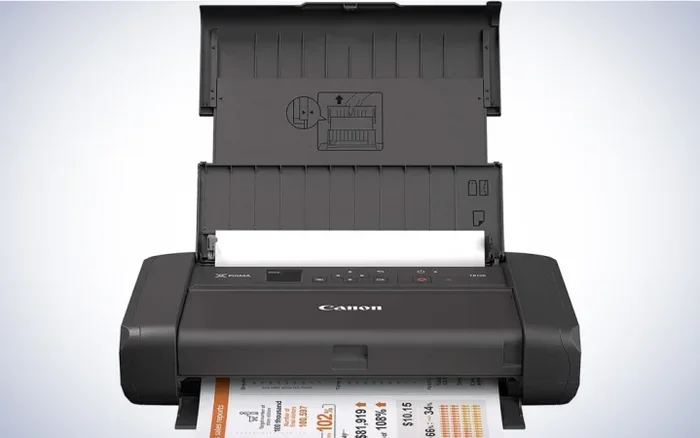
Portable printers are where Bluetooth really shines. These small, lightweight devices are designed for on-the-go printing. They are perfect for travel, events, or quick prints when you do not want to deal with cables. Many portable printers connect exclusively through Bluetooth, making them incredibly convenient.
Some popular portable Bluetooth printer options include models from brands like Shiny, HP Sprocket, and Canon SELPHY. These are great for printing photos directly from your phone.
Home Office Printers with Bluetooth
Home office printers have also embraced Bluetooth technology. These printers often combine Bluetooth with Wi-Fi and USB options, giving you maximum flexibility. If you work from home and need to print documents quickly from your laptop or phone, a Bluetooth-enabled home office printer is a solid choice.
How to Set Up a Bluetooth Printer
Setting up a Bluetooth printer is straightforward. The exact steps vary slightly depending on your printer model and device, but the general process is similar across the board.
Step-by-Step Setup Guide
Follow these steps to get your Bluetooth printer connected:
- Turn on your printer: Make sure the printer is powered on and in pairing mode. Most printers have a Bluetooth or Wi-Fi button that you need to press and hold.
- Open Bluetooth settings on your device: On your phone, tablet, or computer, go to the Bluetooth settings menu and make sure Bluetooth is turned on.
- Search for available devices: Your device will scan for nearby Bluetooth devices. Your printer should appear in the list.
- Select the printer: Tap on the printer name to initiate pairing.
- Confirm the connection: Some printers require you to enter a PIN or confirm a code on both devices. Follow the on-screen prompts.
- Print a test page: Once paired, try printing a test page to confirm everything is working.
The entire process usually takes less than five minutes. It really is that simple.
Quick Tips for a Smooth Setup
- Keep your printer and device within 10 feet of each other during setup.
- Make sure your printer firmware is up to date before pairing.
- Turn off other Bluetooth devices that might interfere with the connection.
- If the printer does not show up, try turning Bluetooth off and on again on your device.
Can You Add Bluetooth to a Non-Bluetooth Printer?
Yes, you can. If your current printer does not have built-in Bluetooth, you can add Bluetooth capability using a Bluetooth adapter. This is a great option if you want to enjoy wireless printing without buying a new printer.
Using a Bluetooth Adapter
A Bluetooth adapter plugs into your printer’s USB port and enables wireless connectivity. These adapters are affordable and widely available. You can even use a USB Bluetooth dongle with many devices to add Bluetooth support.
Keep in mind that not all Bluetooth adapters work with all printers. Check your printer’s manual or the manufacturer’s website for compatible adapter models. Some adapters may require additional software or drivers to function properly.
Limitations of Bluetooth Adapters
While Bluetooth adapters are a convenient workaround, they do have some limitations. The connection speed may be slower than built-in Bluetooth. Compatibility is not guaranteed with every printer model. And the adapter adds an extra device that needs power, which can be a minor hassle.
Bluetooth Printing: Common Problems and Solutions
Bluetooth printing is generally reliable, but you may run into some issues from time to time. Here are the most common problems and how to fix them.
Printer Not Showing Up in Bluetooth List
This is the most common issue. If your printer does not appear in the Bluetooth list, try these steps:
- Make sure the printer is in pairing mode.
- Restart Bluetooth on your device.
- Move closer to the printer.
- Check if the printer is already paired with another device and disconnect it first.
Slow Printing Speed
Bluetooth printing can sometimes be slower than USB or Wi-Fi printing. If you notice slow speeds, try moving closer to the printer. Also, check if other Bluetooth devices are causing interference. Printing in draft mode can also speed things up.
Connection Drops Frequently
If your Bluetooth printer keeps disconnecting, the issue is often related to distance or interference. Stay within the Bluetooth range, and avoid placing the printer near microwaves, cordless phones, or other wireless devices that can cause signal disruption.
For more Bluetooth troubleshooting tips, you might find it helpful to explore whether you can uninstall Bluetooth drivers and reinstall them for a fresh connection.
Do You Need an App to Print via Bluetooth?
Many Bluetooth printers work best with a dedicated mobile app. These apps make it easy to send print jobs, adjust settings, and monitor ink levels. The good news is that you often do not need a separate app for basic printing.
Most modern smartphones and tablets have built-in Bluetooth printing support. On iOS, you can use the built-in AirPrint feature (though AirPrint primarily works over Wi-Fi). On Android, the Google Print service supports many Bluetooth printers directly.
However, for the full range of features, downloading the printer manufacturer’s app is recommended. These apps often provide access to advanced settings, photo editing tools, and cloud printing options. You can also learn more about whether you need an app to print from your phone to make the best choice for your setup.
Popular Printer Apps for Bluetooth Printing
- HP Smart: Works with HP Bluetooth printers and offers a full suite of features.
- Brother iPrint&Scan: Great for Brother printers with Bluetooth connectivity.
- Canon PRINT: Supports Canon Bluetooth printers with easy photo printing.
- Epson iPrint: Ideal for Epson Bluetooth printers with mobile-friendly controls.
Is Bluetooth Printing Right for You?
Bluetooth printing is a fantastic option for many people. It is especially useful if you want to print quickly from your phone without dealing with Wi-Fi setup or cables. But it is not perfect for every situation.
Bluetooth printing works best for: quick document prints, photo printing, small office environments, and situations where Wi-Fi is unavailable. It is less ideal for: high-volume printing, shared printing across a network, and large file transfers.
If you need a printer that can handle both Bluetooth and Wi-Fi, look for models that offer dual connectivity. This gives you the best of both worlds and ensures you are never stuck without a printing option.
For those wondering about broader Bluetooth device compatibility, you might also be curious about whether any Bluetooth headphones work with your TV or whether you can use a Bluetooth adapter on your TV. These questions share the same core principle of Bluetooth connectivity across devices.
Final Thoughts
So do any printers connect via Bluetooth? Absolutely. The market is full of Bluetooth-enabled printers that make wireless printing simple and convenient. From portable photo printers to full-featured home office models, there is a Bluetooth printer for nearly every need.
The setup process is quick and straightforward. Most printers pair with your device in under five minutes. And if your current printer does not have Bluetooth, a simple adapter can add this capability.
Bluetooth printing is not without its limitations. The range is shorter than Wi-Fi, and speeds can be slower for large jobs. But for everyday printing tasks, Bluetooth delivers a reliable and cable-free experience that is hard to beat.
Now that you know the ins and outs of Bluetooth printers, you can make an informed decision about which printer is right for you. Whether you are buying a new printer or upgrading your current setup, Bluetooth connectivity is a feature worth having.