How Do I Connect My Bose Soundlink To My Phone Easily
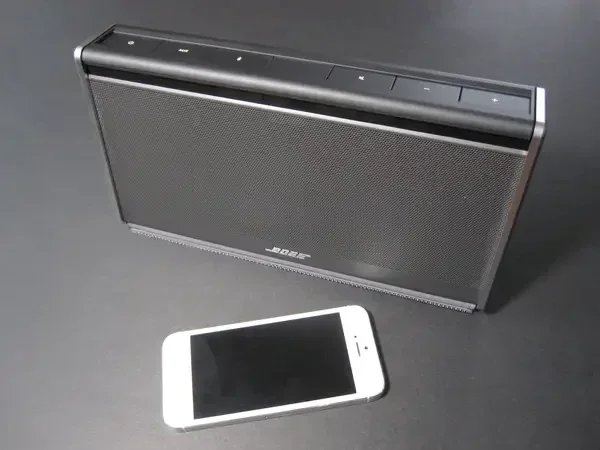
Connecting your Bose Soundlink to your phone is simple and fast when you follow the right steps. This guide walks you through Bluetooth pairing, troubleshooting, and pro tips for the best wireless audio experience. Whether you own a Soundlink Mini, Revolve, or newer model, you will be streaming music in minutes.
There is something magical about pressing play on your phone and hearing your favorite song fill the room through a Bose Soundlink speaker. These portable wireless speakers deliver rich, room-filling sound that makes every listening session feel special. But before you can enjoy that premium audio, you need to get your phone and speaker talking to each other.
If you have ever stared at your Bose Soundlink wondering how to get it connected to your phone, you are not alone. The good news is that the process is straightforward, and this guide will walk you through every step. Whether you are pairing a Bose Soundlink Mini, a Revolve, or a newer model, you will find clear instructions here. We will also cover common problems, pro tips, and everything else you need to know about Bluetooth audio streaming with your Bose speaker.
Key Takeaways
- Bluetooth Pairing is Easy: Most Bose Soundlink speakers connect to phones in under a minute using standard Bluetooth.
- Multiple Connection Methods Exist: You can pair via Bluetooth, use the Bose Connect app, or even connect through auxiliary cables if needed.
- Troubleshooting is Simple: Most connection issues resolve with a quick reset, firmware update, or by moving closer to the speaker.
- Multipoint Pairing is a Game Changer: Some Soundlink models let you connect two devices at once, so switching between phones is seamless.
- Sound Quality Depends on Settings: Adjusting your phone’s audio settings and keeping your speaker firmware updated ensures the best performance.
- Bose Speakers Offer Great Range: Bluetooth connectivity typically reaches up to 30 feet, giving you freedom to move around.
- Regular Maintenance Helps: Keeping your speaker charged and cleaned extends its lifespan and keeps connections stable.
📑 Table of Contents
- Understanding Your Bose Soundlink and Phone Connectivity
- How to Connect Your Bose Soundlink to Your Phone
- Troubleshooting Common Connection Problems
- Tips for Getting the Best Sound Quality
- Advanced Features of the Bose Soundlink
- Maintaining Your Bose Soundlink for Longevity
- Frequently Asked Questions
- Conclusion
Understanding Your Bose Soundlink and Phone Connectivity
Before you jump into the pairing process, it helps to understand what is happening behind the scenes. Your Bose Soundlink uses Bluetooth technology to communicate wirelessly with your phone. Bluetooth is a short-range wireless protocol that sends audio data from your device to the speaker without any cables. Most modern phones support Bluetooth, which makes the connection process quick and convenient.
The Bose Soundlink line includes several models, each with slightly different features. Some models support multipoint Bluetooth, which means you can pair two devices at the same time. Others offer extra features like voice prompts, NFC pairing, or built-in microphones for calls. Knowing which model you have helps you take full advantage of what your speaker can do.
If you are new to wireless speakers, think of Bluetooth like a invisible string between your phone and the speaker. As long as both devices have Bluetooth turned on and are within range, they can find each other and form a connection. It is really that simple. If you want to learn more about connecting Bluetooth devices to other equipment, check out Can I Make My Old Bose Speakers Bluetooth for additional Bluetooth setup tips.
How to Connect Your Bose Soundlink to Your Phone
Now let us get into the actual steps. The process is nearly identical across all Bose Soundlink models, so you should be able to follow along no matter which version you own. The entire pairing process usually takes less than two minutes.
Step 1: Turn On Your Bose Soundlink
Press and hold the power button on your speaker until you hear the startup chime and see the Bluetooth indicator light start flashing. A flashing blue light means the speaker is ready to be discovered by your phone. If the light is solid, the speaker is already connected to another device, and you will need to disconnect it first.
Step 2: Enable Bluetooth on Your Phone
Open your phone settings and turn on Bluetooth. On most phones, you can swipe down from the top of the screen to access quick settings and tap the Bluetooth icon. Once Bluetooth is on, your phone will start scanning for nearby devices.
Step 3: Find Your Bose Soundlink
Go to your phone’s Bluetooth settings and look for your speaker in the list of available devices. It should appear as “Bose Soundlink” followed by the model name. Tap on it to initiate pairing.
Step 4: Confirm the Connection
You may see a pairing request on your phone screen. Tap “Pair” or “Connect” to confirm. Within a few seconds, the Bluetooth light on your speaker should stop flashing and stay solid. You will also hear a confirmation tone. Your phone is now connected to the speaker, and any audio you play will stream through the Bose Soundlink.
Step 5: Test the Connection
Play a song or video on your phone to make sure the audio comes through the speaker. If you hear sound, congratulations, you are all set. If not, do not worry, we will cover troubleshooting in the next section.
Some users also like to download the Bose Connect app, which makes managing paired devices even easier. The app lets you switch between connected devices, update firmware, and adjust settings. If you are interested in connecting other Bluetooth audio devices, you might find Can I Use Any Bluetooth Headphones With My Tv helpful for broader Bluetooth audio insights.
Troubleshooting Common Connection Problems
Even though connecting a Bose Soundlink to your phone is usually smooth, sometimes things do not go as planned. Here are the most common issues and how to fix them.
The Speaker Does Not Show Up on Your Phone
This is the most frequent problem people face. The first thing to check is that your speaker is in pairing mode. The Bluetooth light should be flashing. If it is not, turn the speaker off and back on, then hold the Bluetooth button until the light starts blinking.
Another common cause is that your phone has already connected to a different Bluetooth device. Go to your Bluetooth settings and disconnect from any other paired devices before searching again. Sometimes simply turning Bluetooth off and back on does the trick.
Audio Cuts Out or Sounds Scratchy
Wireless audio interference can cause dropouts or poor sound quality. Move closer to the speaker and make sure there are no thick walls or large metal objects between your phone and the speaker. Other wireless devices like Wi-Fi routers and microwaves can also interfere with the Bluetooth signal.
If the problem persists, try turning off other Bluetooth devices in the area. The more devices competing for the same frequency, the more likely you are to experience connection issues. This is similar to how pairing Airpods to a Switch can sometimes face interference when too many wireless devices are nearby.
The Speaker Connects But No Sound Plays
Check your phone’s volume and the speaker volume. Sometimes the phone volume is turned all the way down, or the speaker volume is set low. Also make sure your phone is not muted. On some phones, you need to select the Bose Soundlink as the audio output device in your media settings.
Resetting Your Bose Soundlink
If none of the above fixes work, try resetting your speaker. To do this, press and hold the power button for about 10 seconds until the speaker turns off. Wait a few seconds, then turn it back on and try pairing again. A reset clears any stored pairing information and gives you a fresh start.
Tips for Getting the Best Sound Quality
Once your Bose Soundlink is connected to your phone, you will want to get the best possible audio experience. Here are some practical tips to help you do just that.
Keep Your Firmware Updated
Bose regularly releases firmware updates that improve Bluetooth stability, sound quality, and add new features. Use the Bose Connect app to check for updates and install them. Keeping your speaker updated ensures you always have the best performance.
Position Your Speaker Wisely
Place your Bose Soundlink on a flat, hard surface for the best sound projection. Avoid placing it in corners or against walls, as this can muffle the audio. If you are using the speaker outdoors, keep it elevated and away from obstacles that might block the Bluetooth signal.
Use High-Quality Audio Files
The quality of the audio you stream matters. If you are playing low-quality compressed files, the speaker cannot magically make them sound better. Use high-resolution audio files or streaming services that offer lossless quality for the best results from your Bose Soundlink.
Charge Your Speaker Fully
Bluetooth speakers perform best when fully charged. A low battery can cause reduced volume, distorted sound, or connection instability. Make it a habit to charge your speaker after each use, especially if you plan to use it for an extended listening session.
For those who also want to connect their speaker to laptops or other devices, Can I Connect My Powerbeats To My Laptop offers useful Bluetooth pairing guidance that applies to many wireless speakers and headphones.
Advanced Features of the Bose Soundlink
Your Bose Soundlink comes with some features that go beyond basic Bluetooth pairing. Understanding these features helps you get more out of your speaker.
Multipoint Bluetooth Connection
Some Bose Soundlink models support multipoint Bluetooth, which allows you to pair two devices simultaneously. This means you can have your phone and tablet connected at the same time. When a call comes in on your phone, the speaker automatically switches to your phone, and when the call ends, it switches back to your tablet. It is incredibly convenient for people who use multiple devices throughout the day.
Voice Prompts and Announcements
Many Bose Soundlink models offer voice prompts that tell you when a device connects or disconnects. You can turn these on or off through the Bose Connect app. These prompts are helpful for confirming that your Bluetooth connection is active without having to look at the speaker.
Auxiliary Input Option
If you ever want to connect your phone to the speaker using a cable instead of Bluetooth, most Bose Soundlink models have an AUX input. This is useful in situations where Bluetooth is not available or when you want a more stable connection. Simply plug a 3.5mm cable from your phone’s headphone jack into the AUX port on the speaker.
Built-In Microphone for Calls
The built-in microphone on your Bose Soundlink allows you to take phone calls directly through the speaker. When a call comes in, just press the multi-function button on the speaker to answer. The microphone picks up your voice clearly, and the caller can hear you without any issues. This feature makes the speaker a great option for speakerphone calls in a home office or during a gathering.
Maintaining Your Bose Soundlink for Longevity
Your Bose Soundlink is an investment, and proper care keeps it performing at its best for years. Here are some simple maintenance tips.
- Clean the speaker regularly: Use a soft, dry cloth to wipe down the exterior. Avoid using harsh chemicals or liquids that could damage the speaker mesh.
- Store it properly: When not in use, keep the speaker in a cool, dry place. Extreme heat or cold can damage the battery and internal components.
- Avoid overcharging: While most modern speakers have overcharge protection, it is still a good habit to unplug the charger once the battery is full.
- Update firmware regularly: Software updates often include performance improvements and bug fixes that keep your speaker running smoothly.
- Use the original charger: Third-party chargers may not deliver the correct voltage, which can affect battery health over time.
Taking care of your speaker ensures that every wireless audio streaming session sounds as good as the first one. A well-maintained Bose Soundlink delivers consistent performance and reliable Bluetooth connectivity every time you use it.
Frequently Asked Questions
How do I put my Bose Soundlink in pairing mode?
Press and hold the Bluetooth button on your speaker until the Bluetooth indicator light starts flashing blue. This means the speaker is ready to be discovered by your phone or any other Bluetooth device. The flashing light is your signal that pairing mode is active.
Can I connect my Bose Soundlink to more than one phone?
Yes, you can connect your Bose Soundlink to multiple phones, but only one phone can stream audio at a time. To switch between phones, simply pause audio on the current phone and play audio on the other phone. Some models support multipoint pairing, which allows two devices to stay connected simultaneously.
Why does my Bose Soundlink keep disconnecting from my phone?
Disconnections usually happen when the speaker is too far from your phone or when there is interference from other wireless devices. Try moving closer to the speaker, turning off nearby Bluetooth devices, or resetting the speaker. Keeping your firmware updated also helps reduce unexpected disconnections.
Do I need the Bose Connect app to connect my speaker to my phone?
No, you do not need the app to pair your Bose Soundlink with your phone. The Bluetooth pairing process works without the app. However, the Bose Connect app gives you access to extra features like firmware updates, multipoint management, and voice prompt settings that enhance your overall experience.
How far can my phone be from the Bose Soundlink while staying connected?
The Bluetooth range for most Bose Soundlink models is about 30 feet (9 meters) in open space. Walls, furniture, and other obstacles can reduce this range. For the best connection, keep your phone within a reasonable distance from the speaker.
Can I connect my Bose Soundlink to a phone that does not have Bluetooth?
Without Bluetooth, you can still connect your Bose Soundlink to a phone using an auxiliary cable. Simply plug a 3.5mm audio cable from your phone’s headphone jack into the AUX input on the speaker. This wired connection provides a stable audio link without the need for Bluetooth.
Conclusion
Connecting your Bose Soundlink to your phone is a quick and rewarding process that opens up a world of wireless audio. From the initial Bluetooth pairing to troubleshooting and optimizing sound quality, you now have everything you need to get the most out of your speaker. The steps are simple, the connection is reliable, and the audio quality is outstanding.
Remember to keep your speaker updated, maintain it properly, and explore the advanced features like multipoint pairing and the Bose Connect app. Whether you are hosting a party, relaxing at home, or enjoying music outdoors, your Bose Soundlink delivers the kind of sound that makes every moment better.
Now that you know how easy it is to set up your wireless speaker, go ahead and connect your phone. Press play, sit back, and let the music flow. Your Bose Soundlink is ready to deliver an audio experience that you will love every single time.