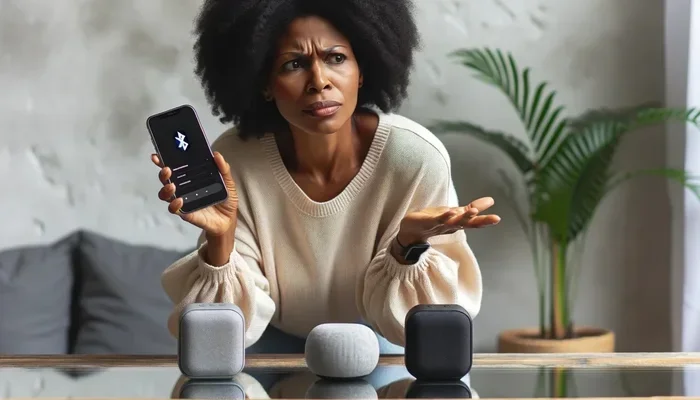
How To Connect My Iphone To Multiple Bluetooth Speakers
Connecting your iPhone to multiple Bluetooth speakers lets you fill any room with rich, immersive sound. You can use built-in AirPlay, free third-party apps, or speaker chaining to achieve this. This guide walks you through every method step by step so you can set up your wireless audio system quickly and confidently.
Have you ever wanted to fill your entire room or backyard with music from your iPhone but found that one speaker just isn’t enough? You are not alone. Many people want to know how do I connect my iPhone to multiple Bluetooth speakers and get that full, room-filling sound they crave. The good news is that it is totally doable, and you do not need to be a tech expert to pull it off.
Whether you are hosting a backyard barbecue, setting up a home theater, or just want louder music in your living room, connecting more than one speaker to your iPhone can change the game. In this guide, I will walk you through every method, from the simplest built-in options to clever workarounds. You will learn what works, what does not, and how to avoid the common pitfalls that trip most people up.
By the time you finish reading, you will have all the knowledge you need to set up a multi-speaker Bluetooth system with your iPhone. Let us dive right in.
Key Takeaways
- AirPlay is the easiest built-in method to connect your iPhone to multiple compatible speakers without extra apps.
- Third-party apps like AmpMe and SoundSeeder offer more flexibility for mixing different speaker brands together.
- Not all Bluetooth speakers support multi-device connections, so always check compatibility before buying.
- Bluetooth range and interference can affect performance, so placement matters a lot.
- Keeping your iPhone and speakers updated ensures the smoothest connection experience.
- You can extend your Bluetooth range with adapters, making larger spaces easier to cover.
📑 Table of Contents
- Why Connect Your iPhone To Multiple Bluetooth Speakers
- How To Connect My iPhone To Multiple Bluetooth Speakers
- Things To Keep In Mind Before You Start
- Comparing The Different Connection Methods
- Common Mistakes And How To Avoid Them
- Expert Tips For The Best Multi-Speaker Experience
- Can You Connect More Than Two Speakers?
- Final Thoughts
Why Connect Your iPhone To Multiple Bluetooth Speakers
There are many reasons people want to link their iPhone to more than one speaker. Understanding these reasons can help you choose the right setup for your needs.
Louder Sound For Bigger Spaces
A single Bluetooth speaker works great in a small room. But if you are outside at a party or in a large open space, one speaker just will not cut it. Adding a second or third speaker boosts the volume and spreads the sound evenly across the area.
Better Sound Quality And Depth
When you use multiple speakers, you get richer bass and more detailed audio. The sound feels fuller and more balanced. This is especially true when you place speakers at different spots in the room. The audio bounces around and creates a more immersive listening experience.
Flexibility And Convenience
Having multiple speakers means you can move around without losing sound quality. You can take one speaker to the kitchen and keep another in the living room. Both play the same music from your iPhone at the same time.
Replacing Expensive Stereo Systems
Instead of buying a costly stereo setup, you can use your existing Bluetooth speakers. This is a budget-friendly way to upgrade your audio experience at home or outdoors.
How To Connect My iPhone To Multiple Bluetooth Speakers
Now let us get to the main event. There are several ways to connect your iPhone to multiple speakers. Each method has its own strengths. I will break them all down so you can pick the one that works best for you.
Method 1: Using AirPlay (The Easiest Way)
AirPlay is Apple’s built-in wireless streaming feature. It lets you send audio from your iPhone to compatible speakers without any extra apps. This is the simplest and most reliable method.
Here is how to do it:
- Make sure all your Bluetooth speakers are powered on and in pairing mode.
- Open the Control Center on your iPhone by swiping down from the top right corner.
- Tap the Music Control panel.
- Hit the AirPlay icon, which looks like a triangle with circles above it.
- Select “Multiple Speakers” from the list.
- Choose all the speakers you want to connect.
- Tap “Connect” and your music will start playing on all selected speakers at once.
One of the best things about AirPlay is that it keeps all the speakers in sync. You will not hear annoying delays or echo between them. This method works with any speaker that supports AirPlay, including many smart speakers and home audio systems.
If you want to learn more about connecting your iPhone to other devices, check out our guide on connecting your iPhone to USB for additional connectivity options.
Method 2: Using Third-Party Apps
Not all your speakers may support AirPlay. In that case, third-party apps come to the rescue. These apps use clever software to sync multiple Bluetooth speakers together, even if they are different brands.
Here are the top apps to try:
- AmpMe: This free app is one of the most popular options. It lets you sync an unlimited number of speakers over Bluetooth or Wi-Fi. You simply create a party, invite friends, and everyone’s speakers play the same track in perfect sync.
- SoundSeeder: This app works similarly to AmpMe. It supports multiple devices and is great for group gatherings. The setup is simple, and it handles different speaker brands well.
- Bose Connect: If you own Bose speakers, this app lets you pair two Bose speakers together for a stereo experience. It is not as flexible as AmpMe, but it works great within the Bose ecosystem.
Most of these apps are free to download. Some have premium features you can unlock with a small fee. All of them make it easy to stream audio wirelessly to multiple speakers at once.
For more on using Bluetooth with your devices, you might also enjoy our article on connecting your Brother printer via Bluetooth for tips on Bluetooth pairing.
Method 3: Speaker Chaining With Bluetooth Adapters
This method works well if you have older speakers that do not have Bluetooth built in. You can add a Bluetooth adapter to each speaker and then connect them to your iPhone. This is a great way to breathe new life into old equipment.
Here is what you need:
- A Bluetooth transmitter or receiver for each speaker.
- A 3.5mm audio cable or RCA cable, depending on your speaker’s input.
- Your iPhone with Bluetooth turned on.
The process is straightforward. Plug the adapter into each speaker, pair them one by one with your iPhone, and use an app that supports multi-output streaming. This method takes a bit more setup, but the results are worth it.
If you are interested in using Bluetooth adapters with your TV, our guide on making your TV Bluetooth with an adapter has helpful tips that apply here too.
Things To Keep In Mind Before You Start
Before you rush into connecting multiple speakers, there are a few important things to consider. These tips will save you time and frustration.
Check Speaker Compatibility
Not every Bluetooth speaker supports multi-device connections. Some speakers can only pair with one device at a time. Before you buy or set up, check the manufacturer’s specs. Look for terms like “stereo pairing,” “multi-room,” or “party mode.” These features mean the speaker was designed to work with others.
Understand Bluetooth Range
Bluetooth has a typical range of about 30 feet (10 meters). Walls, furniture, and other obstacles can reduce this range. If your speakers are spread far apart, you may experience connection drops. For large spaces, consider using Wi-Fi-based apps like AmpMe, which have a longer range than standard Bluetooth.
Watch Out For Audio Lag
When you connect multiple speakers, there can be a slight delay between them. This is called audio lag or latency. It is more noticeable with Bluetooth than with Wi-Fi streaming. Apps like AmpMe and SoundSeeder use advanced syncing technology to minimize this issue, but it is still something to be aware of.
Battery Life Matters
Running multiple speakers at full volume drains batteries faster. Make sure your speakers are fully charged before your event. If you are using a long party or gathering, keep charging cables nearby. Some speakers also let you plug in while playing, which solves this problem.
iOS Version And Updates
Make sure your iPhone is running the latest version of iOS. Apple frequently improves Bluetooth performance and AirPlay stability in software updates. Also, update your speakers’ firmware if the manufacturer provides an app for it. Updated software means fewer connection issues and better performance.
Comparing The Different Connection Methods
It can be helpful to see how each method stacks up against the others. Here is a quick comparison table to guide your decision.
| Method | Ease of Setup | Speaker Compatibility | Audio Sync Quality | Cost |
|---|---|---|---|---|
| AirPlay | Very Easy | AirPlay-compatible speakers only | Excellent | Free |
| Third-Party Apps | Easy | Almost all Bluetooth speakers | Very Good | Free or Low Cost |
| Bluetooth Adapters | Moderate | Any speaker with audio input | Good | Medium (adapter cost) |
As you can see, AirPlay is the simplest option if your speakers support it. Third-party apps give you the most flexibility. Bluetooth adapters are your best bet for older, non-Bluetooth speakers.
Common Mistakes And How To Avoid Them
Even with the best setup, things can go wrong. Here are the most common mistakes people make when connecting multiple Bluetooth speakers to their iPhone, along with simple fixes.
Not Turning Off Other Bluetooth Devices
If you have other Bluetooth devices nearby, like headphones or a smartwatch, they can interfere with your speaker connections. Before you start, turn off any Bluetooth devices you are not using. This frees up bandwidth and reduces connection conflicts.
Placing Speakers Too Far Apart
It is tempting to spread speakers across a large room or yard. But the farther apart they are, the weaker the Bluetooth signal becomes. Try to keep speakers within 15 to 20 feet of each other for the best sync and connection quality.
Ignoring Speaker Volume Settings
When you connect multiple speakers, each one may have a different default volume. This creates an uneven sound. Adjust the volume on each speaker individually before you start playing music. Some apps let you control speaker volume from your iPhone, which makes this much easier.
Using Outdated Apps
If you rely on a third-party app, make sure it is always updated. Developers release updates that fix bugs and improve compatibility. An outdated app can cause sync issues and connection drops.
Overloading the iPhone’s Bluetooth
Your iPhone can only handle so many Bluetooth connections at once. If you try to connect too many speakers, the connection may become unstable. Stick to two or three speakers for the best results. If you need more, consider using a Bluetooth hub or receiver to manage the connections.
Expert Tips For The Best Multi-Speaker Experience
Here are some pro tips that will take your multi-speaker setup to the next level.
- Place speakers at ear level when possible. This gives the best sound projection and avoids muffled audio from being placed on the floor or behind furniture.
- Use speakers of the same brand and model. Matching speakers deliver the most consistent sound and sync quality. Different brands can still work, but you may notice slight variations in tone.
- Test your setup before the big event. Do a trial run before your party or gathering. This lets you find and fix any issues in advance.
- Use Wi-Fi when available. Wi-Fi streaming is more stable than Bluetooth for multi-speaker setups. Apps like AmpMe use Wi-Fi to keep all speakers perfectly in sync.
- Keep your iPhone close to the center speaker. This ensures the strongest signal to the primary speaker, which then relays audio to the others in most setups.
- Consider a Bluetooth transmitter for non-Bluetooth speakers. A quality transmitter can convert any speaker with an aux input into a wireless receiver. This is a great way to expand your setup without buying new speakers.
Can You Connect More Than Two Speakers?
Yes, absolutely. Both AirPlay and third-party apps support connecting more than two speakers at the same time. AirPlay can handle up to six speakers in the same room. Apps like AmpMe can sync an even larger number, limited mainly by your Wi-Fi network’s capacity.
The key is to make sure your Wi-Fi network is strong enough to handle the load. If you are connecting many speakers, a dedicated Wi-Fi network or a mesh system will give you the best results. This prevents your music from stuttering or cutting out when multiple devices are streaming at once.
For those who want to explore more iPhone connectivity options, our guide on connecting your iPhone to USB covers additional ways to expand your setup.
Final Thoughts
Connecting your iPhone to multiple Bluetooth speakers is easier than most people think. You have several great options, from the simple built-in AirPlay feature to powerful third-party apps that work with almost any speaker. The key is to choose the method that fits your gear and your needs.
Start with the basics. Check your speaker compatibility. Pick the right connection method. Follow the setup steps carefully. And remember to avoid the common mistakes we covered. With a little patience and the right approach, you will be enjoying rich, room-filling sound from your iPhone in no time.
Whether you are throwing a party or just want a better listening experience at home, a multi-speaker setup makes a huge difference. So go ahead, grab your speakers, and give it a try. You will be amazed at how good it sounds.
Frequently Asked Questions
Can I connect different brands of Bluetooth speakers to my iPhone at the same time?
Yes, you can. Third-party apps like AmpMe and SoundSeeder are designed to work with speakers from different brands. AirPlay also supports multiple speakers, but they need to be AirPlay-compatible. Mixing brands works best with app-based solutions.
Do I need Wi-Fi to connect multiple Bluetooth speakers to my iPhone?
No, you do not need Wi-Fi for basic Bluetooth connections. However, Wi-Fi-based apps like AmpMe use your wireless network to achieve better audio sync across multiple speakers. If you want perfect sync, Wi-Fi is recommended.
Can I connect more than two Bluetooth speakers to my iPhone?
Yes, you can connect more than two speakers. AirPlay supports up to six speakers in the same room. Third-party apps can handle even more, depending on your Wi-Fi network strength. Keep in mind that too many connections can strain your iPhone’s Bluetooth capabilities.
Why is there a delay between my speakers when using Bluetooth?
Audio delay, or latency, happens because Bluetooth transmits data in small packets. Different speakers process these packets at slightly different speeds. Wi-Fi-based apps reduce this delay significantly. Keeping speakers close together also helps minimize the gap.
What should I do if one speaker keeps disconnecting from my iPhone?
First, make sure the speaker is fully charged and within Bluetooth range. Restart both your iPhone and the speaker. If the problem continues, forget the Bluetooth pairing and reconnect. Also, check for software updates on both your iPhone and the speaker.
Can I use my iPhone while music plays on multiple Bluetooth speakers?
Yes, you can. Once the connection is established, you can use your iPhone for other tasks. The music will continue playing on all connected speakers. However, if you turn off Bluetooth or leave the range of the speakers, the music will stop.