How Do I Troubleshoot Google Nest Thermostat and Cameras
Troubleshooting your Google Nest thermostat and cameras is simpler than you think. This guide covers the most common problems like Wi-Fi drops, offline cameras, and error codes. You will find clear, step-by-step fixes that get your devices working again quickly. Google Nest troubleshooting saves you time, money, and frustration. Read on to become your own expert fixer.
Your Google Nest thermostat or Nest camera is acting up, and you are not sure what to do next. Maybe the screen is frozen, the camera keeps going offline, or you are seeing a confusing error code on your Nest thermostat screen. These problems happen to everyone, and they do not mean your device is broken beyond repair.
This Google Nest troubleshooting guide walks you through every common issue you might face. You will learn how to fix Wi-Fi problems, power issues, and camera glitches in just a few simple steps. Whether you set up your Google Nest setup yesterday or years ago, these tips will help you get things running smoothly again.
Key Takeaways
- Restart First: A simple restart fixes most Google Nest thermostat and camera issues.
- Check Your Wi-Fi: Weak or unstable internet is the top cause of Nest device problems.
- Keep Firmware Updated: Regular updates prevent many common errors and bugs.
- Use the Google Home App: It is your main tool for monitoring and fixing Nest devices.
- Know When to Reset: A factory reset solves stubborn issues but erases your settings.
- Contact Support When Needed: Some problems require professional help from Google Nest support.
📑 Table of Contents
- Why Your Google Nest Might Need Troubleshooting
- How to Troubleshoot Google Nest Thermostat Issues
- How to Troubleshoot Google Nest Camera Problems
- Common Google Nest Error Codes Explained
- Quick Fixes and Reset Steps for Google Nest Devices
- When to Contact Google Nest Support
- Preventing Future Google Nest Problems
- Conclusion
Why Your Google Nest Might Need Troubleshooting
Google Nest devices are smart and reliable, but they are still tech products. Like any gadget, they can run into problems from time to time. Understanding why issues happen helps you fix them faster and prevent them in the future.
Most Nest troubleshooting situations fall into a few categories. Wi-Fi connection problems are the biggest culprit. Power issues come in second. Software bugs, outdated firmware, and incorrect settings also cause plenty of headaches. The good news is that most of these problems have easy solutions you can do right at home.
Before you start any fix, it helps to know what your device is trying to tell you. Blinking lights, error messages, and unresponsive screens all carry clues. Paying attention to these signs makes Google Nest troubleshooting much easier and faster.
How to Troubleshoot Google Nest Thermostat Issues
Thermostat Not Responding to Commands
If your Nest thermostat does not respond when you adjust the temperature or use the Google Home app, do not panic. This is one of the most common issues, and it usually has a simple fix.
Start by checking the power source. A Nest power issue can make your thermostat look like it is working but not actually respond. Here is what to do:
- Check if the thermostat screen is on or completely dark.
- Look at the base plate to make sure it is securely mounted.
- Verify that your home’s HVAC system is receiving power.
- Try pressing the ring or touchscreen to wake the display.
If the screen is on but still unresponsive, a restart often does the trick. Turn off the device at the breaker for 30 seconds, then turn it back on. This simple Google Nest reset step clears temporary glitches and restores normal function.
Temperature Readings Seem Off
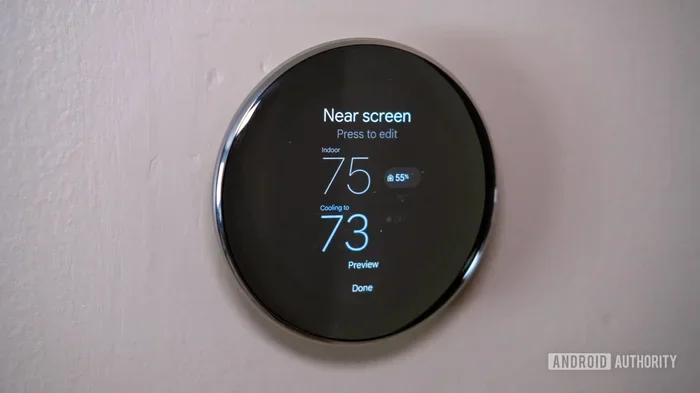
Sometimes your Nest temperature sensor gives readings that do not match how the room actually feels. This can make your heating or cooling system run when it does not need to.
First, check where the thermostat is placed. Direct sunlight, drafts, or nearby electronics can trick the sensor. Move any heat sources away from the unit. If the problem continues, you may need to calibrate the sensor through the Google Home app.
You can also check your Nest thermostat settings to see if the temperature offset feature is enabled. This setting lets you adjust the reading by a few degrees to match your comfort level. It is a quick fix that many people overlook.
Wi-Fi Connection Keeps Dropping
A Nest Wi-Fi connection problem is probably the most annoying issue you can face. Your thermostat works fine one minute and then goes offline the next. This usually happens because of a weak signal or router issues.
Try these steps to stabilize your connection:
- Move your router closer to the thermostat if possible.
- Remove any thick walls or metal objects between the router and the device.
- Restart your router by unplugging it for 30 seconds.
- Check if other devices on the same network are working properly.
- Reconnect the thermostat to Wi-Fi through the Google Home app.
If your router is old or too far away, consider adding a Wi-Fi extender. A strong and stable Wi-Fi connection is essential for all smart home devices to work their best.
How to Troubleshoot Google Nest Camera Problems
Camera Shows Offline or Disconnected
Seeing a “camera offline” message on your Google Nest camera can be scary, especially if you rely on home security. But this problem is very common and fixable in most cases.
The first thing to check is your internet connection. If your Wi-Fi is down or weak, the camera will drop offline. Try restarting your router first. Then check the camera’s power cable to make sure it is firmly connected.
If power and internet look fine, try removing the camera from your account and adding it back. Open the Google Home app, select the camera, and choose the remove option. Then set it up again as if it were new. This refreshes the connection and often solves the problem.
Also check for a Nest firmware update. Outdated software can cause compatibility issues that make your camera disconnect randomly. The Google Home app will notify you when updates are available, so keep an eye on that.
Video Quality Is Poor or Blurry
A blurry or pixelated video feed on your Google Nest camera makes it hard to see what is happening at home. Several factors can cause poor video quality.
First, check your internet speed. A slow connection means the camera cannot stream high-quality video. Run a speed test on your phone near the camera to see what you are working with. You need at least 2 Mbps for decent video quality.
Next, clean the camera lens with a soft cloth. Dust, fingerprints, and cobwebs can build up over time and blur your footage. This sounds too simple, but it works more often than you would think.
If the video is still choppy, try moving the camera closer to your router. Walls and floors can weaken the signal significantly. A strong Wi-Fi signal at the camera’s location makes a huge difference in video clarity.
Night Vision Is Not Working
Your Nest camera has built-in night vision, but sometimes it stops working in the dark. This can leave your home unmonitored when you need it most.
Start by checking the camera’s settings in the Google Home app. Make sure night vision is turned on and not set to manual mode. Some cameras also have an “infrared” setting that you can toggle.
If the setting is correct but night vision still fails, the infrared LEDs might be blocked. Check if furniture, curtains, or decorations are covering the camera’s sensor area. Also, a dirty lens can interfere with night vision. Clean the lens gently and test again in a dark room.
In rare cases, the infrared sensor may be damaged. If cleaning and settings adjustments do not help, it might be time to contact Google Nest support for a replacement.
Common Google Nest Error Codes Explained
Google Nest error codes can look intimidating, but they are actually helpful. Each code tells you what went wrong so you can fix it. Here are the most common ones you might see on your Nest thermostat screen or in the app.
Error E193 means your thermostat lost power. Check the circuit breaker and the C-wire connection. Error E294 points to a wiring problem, often caused by loose connections at the base plate. Error E303 relates to the heating system and usually means the furnace or air handler is not responding.
For cameras, you might see error codes related to the Google Home app connection. These often resolve after restarting both your phone and the camera. Always make sure your Google Home app is updated to the latest version, as older versions can cause compatibility errors.
Keep a note of any error code you see and search for it in Google’s official support pages. Google provides detailed explanations and fixes for every code they use across their Nest product line.
Quick Fixes and Reset Steps for Google Nest Devices
When you are not sure what is causing the problem, a few quick fixes can often save the day. These steps work for both Google Nest thermostat and camera devices.
Quick Tip: Always try the simplest fix first before moving on to more advanced steps. Most issues resolve with a restart or a reconnection.
- Restart the device: Turn it off, wait 30 seconds, and turn it back on.
- Restart your router: Unplug it for 30 seconds, then plug it back in.
- Check the Google Home app: Make sure it is updated and your device is online.
- Reconnect Wi-Fi: Go to settings and reconnect the device to your network.
- Remove and re-add the device: This refreshes all settings and connections.
If none of these quick fixes work, a factory reset might be necessary. A Google Nest reset wipes all your settings and returns the device to its original state. Use this as a last resort, and be prepared to set up the device again from scratch.
To factory reset a thermostat, press and hold the ring for about 10 seconds until the screen goes blank. For cameras, you can usually find the reset option in the Google Home app under device settings. Always refer to the official Google Nest troubleshooting guide for the exact steps for your specific model.
When to Contact Google Nest Support
Most Nest troubleshooting tasks you can handle on your own. But some problems need professional help. Knowing when to reach out to Google Nest support saves you time and prevents you from accidentally making things worse.
Contact support if your device shows physical damage like cracks or water damage. If your Nest thermostat or camera still does not work after a factory reset, that is another sign to get expert help. Hardware failures, such as a broken display or a camera that will not power on, should always be handled by the support team.
Also reach out if your device is still under warranty. Google often replaces faulty Google Nest thermostat or camera units free of charge during the warranty period. Keep your purchase receipt and model number handy when you call or chat with support.
You can contact Google Nest support through the Google Home app, the official website, or by phone. They are usually very helpful and can walk you through advanced steps that are not covered in standard guides.
Preventing Future Google Nest Problems
Once you get your devices working again, you want to keep them running smoothly. Prevention is always better than cure when it comes to smart home tech.
Keep your Nest firmware update settings turned on. This ensures your devices always have the latest security patches and bug fixes. Check for updates once a month to stay ahead of any issues.
Make sure your Wi-Fi network is strong and stable. Consider upgrading to a mesh Wi-Fi system if you have a large home or thick walls. A reliable Wi-Fi connection is the backbone of every smart home device.
Finally, keep your devices clean and well-ventilated. Dust buildup can cause overheating and sensor problems. A quick wipe-down every few weeks goes a long way in keeping your Google Nest thermostat and cameras in top shape.
By following these simple maintenance tips, you can avoid most common problems and enjoy a seamless smart home experience. A little prevention today saves you a lot of troubleshooting tomorrow.
Conclusion
How Do I Troubleshoot Google Nest devices? Now you know the answer. From Wi-Fi connection problems to offline cameras and unresponsive thermostats, most issues have straightforward fixes. A quick restart, a firmware update, or a Wi-Fi reconnect solves the majority of problems you will encounter.
Remember to always check the basics first, like power sources, internet connections, and app updates. When those do not work, move on to more advanced steps like factory resets or removing and re-adding your device. And when all else fails, Google Nest support is just a message or call away.
Your Google Nest thermostat and cameras are valuable tools for comfort and security. With the right troubleshooting knowledge, you can keep them running at their best for years to come. Start with the tips in this guide and enjoy a smarter, smoother home experience.
Frequently Asked Questions
Why is my Google Nest thermostat showing “No Wire” error?
This error usually means the C-wire, or common wire, is not connected properly. Check your wiring at the base plate and make sure all wires are snug and in the right slots. If you do not have a C-wire, you may need to install a Nest power connector or use the Nest power sharing feature.
How do I reconnect my Nest camera to Wi-Fi?
Open the Google Home app, select your camera, and go to device settings. Choose the Wi-Fi option and follow the prompts to reconnect. Make sure your phone is near the camera and connected to the same network you want the camera to join.
What should I do if my Nest thermostat keeps restarting?
A thermostat that keeps restarting often has a wiring issue or a power problem. Check the C-wire connection and make sure the base plate is securely mounted. If the wiring looks fine, try removing and re-adding the device in the Google Home app to reset its configuration.
Can I troubleshoot my Nest devices without the Google Home app?
Some basic troubleshooting can be done without the app, like checking power sources and restarting the device. However, most advanced fixes, including firmware updates and Wi-Fi reconnections, require the Google Home app. Make sure the app is installed on your phone for the full troubleshooting experience.
How often should I update my Nest device firmware?
Google pushes firmware updates automatically, but it is good practice to check manually once a month. Open the Google Home app, select your device, and look for any available updates. Keeping your firmware current prevents many common bugs and security issues.
Is it safe to factory reset my Google Nest device?
Yes, it is safe, but it erases all your settings and preferences. You will need to set the device up again from scratch after a reset. Always try other fixes first, and only use a factory reset as a last resort when nothing else works.