How Do I Turn On SOS On My iPhone Step by Step Guide
Learn how to Turn On SOS iPhone quickly and safely. This guide covers the exact steps for every iPhone model, from iPhone 8 to the latest iPhone 15. You’ll discover how to enable emergency SOS, set up auto-calls, add emergency contacts, and use satellite SOS if your phone supports it.
Ever wondered how to Turn On SOS iPhone when every second counts? This step-by-step guide shows you exactly how to enable emergency SOS on any iPhone model. You’ll learn the simple steps to activate SOS, set up auto-calls, and add emergency contacts. Knowing how to Turn On SOS iPhone can make a life-or-death difference. You don’t need to be a tech expert to set this up. The process is simple and takes just a few minutes.
The emergency SOS feature on iPhone is designed to connect you to local emergency services like 911 in a crisis. It can also alert your emergency contacts and share your location. Whether you’re traveling alone or just want peace of mind, setting up SOS takes only a few minutes. This guide walks you through every step clearly. You’ll also learn how to avoid common mistakes and speed up the process.
Key Takeaways
- Know the SOS shortcut: Press and hold the side button and a volume button to activate emergency SOS on any iPhone.
- Set up auto-call: Enable Emergency SOS auto-call so your iPhone dials 911 automatically after a countdown.
- Add emergency contacts: Configure them in the Health app so they receive alerts and can be reached quickly.
- Use SOS via satellite: Newer iPhones can send SOS messages when no cellular or Wi-Fi signal is available.
- Avoid common mistakes: Don’t panic, practice the steps, and keep your medical ID updated.
- Check your model: Older iPhones use a different button sequence; this guide covers all models.
📑 Table of Contents
What Is SOS on iPhone and Why It Matters
SOS on iPhone is a powerful emergency feature. It lets you call local emergency services without unlocking your phone. When you activate it, your iPhone makes a loud countdown sound. It then places an emergency call to 911 or your local equivalent. If you have auto-call turned on, it dials automatically after the countdown ends. The feature also sends a text message to your emergency contacts with your current location. This is called cellular SOS and works on any iPhone with a cellular connection. Newer models add SOS via satellite, which works even when you have no cell signal. This can be a literal lifesaver in remote areas. Understanding what SOS does helps you use it confidently when you need it most.
How to Turn On SOS on iPhone
The way you activate SOS depends on your iPhone model. Below, I’ll cover the exact steps for every major group of iPhones. I’ll also share a quick tip to help you remember the gesture.
For iPhone X and Later (iPhone X, 11, 12, 13, 14, 15)
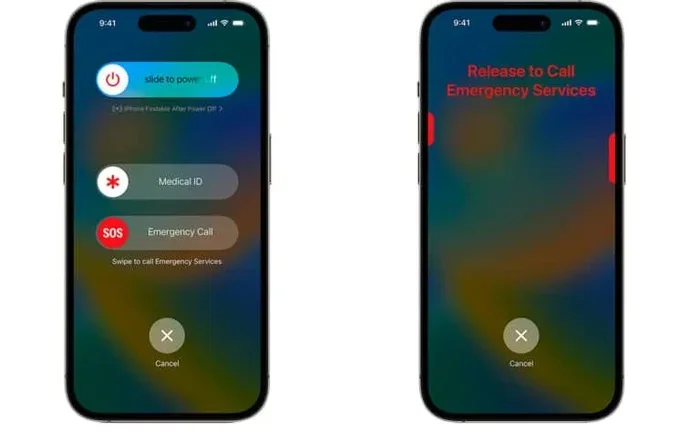
These models use the side button and a volume button. Here’s how to Turn On SOS iPhone on these devices:
- Press and hold the side button and either volume button at the same time.
- Keep holding both buttons until the SOS countdown slider appears.
- Drag the slider to start the emergency call.
- If you hold the buttons instead of dragging, your iPhone will automatically call emergency services after a short countdown.
Quick Tip: Practice this motion once a month. It builds muscle memory so you can do it in the dark or under stress. You can also enable auto-call so you don’t even need to drag the slider (see the next section).
For iPhone 8 and Earlier (iPhone 8, 7, SE, 6s)
Older iPhones have a different button layout. To Turn On SOS iPhone on these models:
- Press the side button (or top button on iPhone 8) five times quickly.
- The SOS slider will appear on the screen.
- Slide it to call emergency services.
- On some older models, holding the side button for a few seconds also triggers SOS.
Quick Tip: If you have an iPhone 8, go to Settings > Emergency SOS to toggle the “Call with Side Button” option. This ensures the five-press gesture works reliably.
Comparison Table: SOS Activation by iPhone Model
| iPhone Model | How to Activate SOS | Satellite SOS Available? |
|---|---|---|
| iPhone 14 and later | Hold side button + volume button | Yes (in supported regions) |
| iPhone 13 and earlier | Hold side button + volume button | No |
| iPhone 8 and SE (1st gen) | Press side button 5 times quickly | No |
This table makes it easy to see the difference at a glance. The core SOS function works on all models, but satellite support is limited to iPhone 14 and newer.
Setting Up Emergency SOS Auto-Call
Auto-call is one of the most valuable SOS settings. When enabled, your iPhone dials 911 automatically after a short countdown, without you needing to drag the slider. This is perfect when you are injured and cannot interact with the screen. Here’s how to set it up.
How to Enable Auto-Call
- Open the Settings app on your iPhone.
- Scroll down and tap Emergency SOS.
- Toggle on Auto Call.
- Your iPhone will now automatically call emergency services after you hold the buttons for a few seconds.
Expert Insight: Auto-call can save precious seconds. According to emergency responders, the first few minutes after an accident are critical. Enabling auto-call removes the need to interact with the screen, which is especially helpful if you’re in shock or unable to speak.
Adjusting the SOS Countdown
By default, the countdown lasts about 3 seconds before auto-call kicks in. You cannot change this duration, but you can control how long you hold the buttons. If you hold the buttons for the full countdown, auto-call starts. If you release them, the call is cancelled and your iPhone stops ringing. This gives you a safety net to cancel accidental calls.
Quick Tips for Auto-Call
- Test it safely: You can call your local non-emergency number to test auto-call without triggering a real emergency response.
- Turn it off temporarily: If you have young children who might accidentally trigger SOS, you can disable auto-call in Settings.
- Keep your location on: Auto-call shares your location with emergency services. Make sure Location Services are enabled for Emergency SOS.
Common Mistake: Forgetting to Turn Off Auto-Call
Some users disable auto-call but forget to re-enable it after testing. I recommend keeping auto-call on at all times. The five-press or hold gesture gives you full control, so accidental calls are rare. If you do trigger one, just tell the operator it was a mistake. They will appreciate the heads-up.
Adding Emergency Contacts and Medical ID
SOS is not just about calling 911. It also notifies your emergency contacts and shares your medical ID. This information can be critical for first responders. Setting it up takes only a few minutes.
How to Add Emergency Contacts
- Open the Health app on your iPhone.
- Tap your profile picture in the top right corner.
- Tap Medical ID.
- Tap Edit and scroll down to Emergency Contacts.
- Tap the plus sign (+) to add a contact from your phone.
- Save your changes.
When you trigger SOS, your iPhone sends a text message to these contacts with your current location. They can then relay information to emergency services or come to your aid.
Updating Your Medical ID
Your Medical ID can include allergies, blood type, and medical conditions. First responders can view this information from the lock screen without needing your passcode. To update it:
- Go to the Health app > Medical ID > Edit.
- Add or update fields like allergies, medications, and emergency notes.
- Make sure Show When Locked is turned on so anyone can access it in an emergency.
Quick Tip: Review your Medical ID every six months. Update it after any change in your health or medications. This small habit can make a big difference.
Common Mistake: Leaving Emergency Contacts Empty
Many people set up SOS but forget to add emergency contacts. If you trigger SOS, the text alert goes to no one. Take two minutes right now to add at least one trusted contact. It could save your life.
Expert Insight: The Power of Medical ID
Emergency medical technicians (EMTs) are trained to look for a Medical ID on a patient’s phone. It provides them with vital information before they even arrive at the hospital. A complete Medical ID can prevent dangerous drug interactions and help paramedics make faster decisions. It’s one of the simplest yet most powerful safety tools on your iPhone.
SOS via Satellite: A Lifeline When You Have No Signal
iPhone 14 and newer models include SOS via satellite. This feature connects you to emergency services through satellites when you have no cellular or Wi-Fi coverage. It works in remote areas like mountains, deserts, and oceans. Here’s how it works and how to use it.
Which iPhones Support Satellite SOS?
Satellite SOS is available on iPhone 14, iPhone 15, iPhone 16, and later models. It requires a software update and is free for the first two years after purchase. After that, it may require an active cellular plan or subscription, depending on your carrier.
How to Use SOS via Satellite
- Go to a location with no cellular signal.
- Open the Settings app > Emergency SOS.
- Toggle on SOS via Satellite (if available in your region).
- When you trigger SOS without a signal, your iPhone will prompt you to connect to a satellite.
- Follow the on-screen instructions to point your phone at the sky.
- The iPhone will connect and allow you to send an SOS message with your location.
Quick Tip: Satellite SOS works best when you have a clear view of the sky. Stand away from tall buildings or dense tree cover. The connection process may take a minute, so stay patient.
Common Mistake: Assuming Satellite SOS Works Everywhere
Satellite SOS is not available in all countries or regions. Apple provides a list of supported countries in the Settings app. If you travel internationally, check if the feature is available before you rely on it. Also, satellite SOS currently supports text-based messages only, not voice calls.
Expert Insight: Satellite SOS and Emergency Bypass
Even with satellite SOS, it’s important to set up emergency bypass for your contacts. This ensures that calls and messages from your emergency contacts come through even if your phone is on silent. Go to Settings > Sounds & Haptics > Ringtone > Emergency Bypass and toggle it on for your key contacts.
Conclusion: Turn On SOS iPhone and Stay Prepared
Learning how to Turn On SOS iPhone is one of the most important things you can do for your safety. Whether you have the latest iPhone 15 or an older iPhone 8, the steps are simple and the payoff is huge. You now know the exact button combinations, how to set up auto-call, and how to add emergency contacts. You also understand the power of SOS via satellite and the importance of a complete Medical ID. Take a few minutes today to go through these settings. Practice the SOS gesture once a month so it becomes second nature. Share this guide with friends and family so they can stay safe too. Your iPhone is more than a phone—it’s a lifeline. Make sure it’s ready when you need it most.
Frequently Asked Questions
Can I turn on SOS on iPhone without pressing any buttons?
Yes, if you have auto-call enabled, you just need to hold the side button and a volume button for a few seconds. The iPhone will automatically dial emergency services after the countdown. You don’t need to drag the slider. This is ideal if you are injured and cannot interact with the screen.
What happens when you turn on SOS on iPhone?
When you activate SOS, your iPhone starts a loud countdown and places an emergency call to 911 or your local emergency number. It also sends a text message to your emergency contacts with your current location. On iPhone 14 and later, if you have no cellular signal, it can connect to satellites to send an SOS message.
How do I know if SOS via satellite is working?
When you trigger SOS without a signal, your iPhone will display a satellite connection screen. It will guide you to point the phone at the sky. Once connected, you can send a text message with your location. You’ll see a satellite icon in the status bar to confirm the connection.
Can I turn off SOS on my iPhone?
Yes, you can disable certain SOS features in Settings > Emergency SOS. You can turn off auto-call, toggle off the call with side button option, or disable SOS via satellite. However, I recommend keeping at least the basic SOS feature enabled for safety.
Why does my iPhone say SOS no service?
This message means your iPhone has no cellular service but can still connect to satellites for emergency SOS. It appears on iPhone 14 and later models when you are in a remote area with no cell towers. The phone will guide you through the satellite connection process.
How do I add emergency contacts for SOS on iPhone?
Open the Health app, tap your profile picture, tap Medical ID, then tap Edit. Scroll down to Emergency Contacts and tap the plus sign to add a contact from your phone. Make sure to save your changes. These contacts will receive an alert with your location when you trigger SOS.