Difference Virtual Memory Physical Memory Explained Simply
The difference between virtual memory and physical memory is one of the most important topics in computing. Physical memory refers to the actual RAM installed in your computer, while virtual memory uses your hard drive to extend that limited space. Understanding this difference helps you optimize your system’s performance.
Key Takeaways
- Physical memory (RAM) is the actual hardware inside your computer that stores data temporarily for fast access by the processor.
- Virtual memory is a management technique that uses a portion of your hard drive as an extension of RAM when physical space runs low.
- The main difference lies in speed, cost, and capacity — physical memory is much faster but limited, while virtual memory is larger but slower.
- Memory management by the operating system automatically swaps data between RAM and the page file to keep things running smoothly.
- Upgrading your RAM is the best way to reduce reliance on virtual memory and improve overall computer performance.
- Understanding both types of memory helps you troubleshoot slowdowns, run demanding applications, and make smarter hardware choices.
📑 Table of Contents
- Difference Virtual Memory Physical Memory Explained Simply
- What Is Physical Memory?
- What Is Virtual Memory?
- The Key Differences Between Virtual Memory and Physical Memory
- How Your Operating System Manages Memory
- When to Upgrade Your Physical Memory
- Optimizing Virtual Memory Settings
- Expert Insights on Memory Performance
- Conclusion
Difference Virtual Memory Physical Memory Explained Simply
If your computer has ever slowed to a crawl while running multiple programs, you have likely heard the terms virtual memory and physical memory thrown around. Maybe a tech-savvy friend told you to add more RAM. Or perhaps you saw a warning about your system running low on memory. But what do these terms actually mean?
The difference between virtual memory and physical memory comes down to how your computer stores and accesses data. Physical memory is the real, tangible chip installed on your motherboard — commonly known as RAM. Virtual memory, on the other hand, is a clever trick your operating system uses to make your computer think it has more RAM than it physically does. It borrows space from your hard drive or SSD to compensate for memory shortage.
In this article, we will break down both types of memory in plain English. You will learn how they work together, why they matter, and how understanding the difference virtual memory physical memory can help you get the most out of your computer. Whether you are a casual user or a curious tech enthusiast, this guide has you covered.
What Is Physical Memory?
Physical memory refers to the actual hardware components inside your computer that hold data temporarily. The most common form of physical memory is RAM (Random Access Memory). Think of RAM as your computer’s short-term workspace. When you open a program, load a file, or run a process, your processor pulls the needed data from RAM almost instantly.
How Physical Memory Works
Every time you launch an application, your operating system loads its data into physical address space — the actual locations on your RAM chips. The processor can read and write to these locations at incredibly high speeds. This is why your computer feels snappy when you have enough RAM installed.
Here is a simple way to understand it:
- Step 1: You click on a program, like your web browser.
- Step 2: The operating system loads the browser’s data from your hard drive into RAM.
- Step 3: The processor accesses the data directly from physical memory for fast performance.
- Step 4: When you close the program, the data is cleared from RAM to free up system resources.
Characteristics of Physical Memory
Physical memory has some distinct characteristics that set it apart from virtual memory:
- Speed: RAM operates at speeds measured in nanoseconds. It is extremely fast compared to any storage drive.
- Limited capacity: Your computer can only hold as much RAM as your motherboard supports. Most consumer PCs support between 8 GB and 128 GB.
- Volatile: All data in RAM is lost when you power off your computer. It is temporary by design.
- Cost: RAM is more expensive per gigabyte than hard drive or SSD storage.
- Direct access: The processor communicates directly with RAM through the memory bus, making data retrieval nearly instant.
Physical Memory Examples
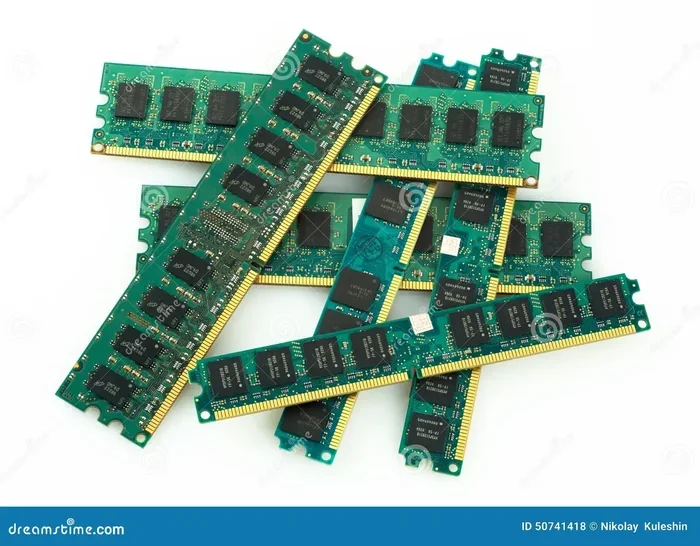
Common examples of physical memory include DDR4 RAM sticks, DDR5 RAM modules, and older formats like DDR3. These are the green circuit board strips you slot into your motherboard. When someone says their computer has 16 GB of memory, they almost always mean 16 GB of physical RAM.
What Is Virtual Memory?
Virtual memory is a technique your operating system uses to create the illusion of additional RAM. When your physical memory is full, your computer moves less-used data from RAM to a reserved space on your hard drive or SSD. This reserved space is called a page file or swap space.
The result is that your computer can run more applications than its physical RAM alone would allow. It is like clearing items off your desk to make room for new ones — you put the less important items in a drawer (your hard drive) so you can keep working.
How Virtual Memory Works
The process behind virtual memory involves several steps:
- Memory allocation: Your operating system divides virtual address space into fixed-size blocks called pages.
- Paging: When RAM fills up, the operating system moves inactive pages to the page file on your storage drive through a process called memory paging.
- Swapping: When you switch back to an application that was paged out, the system swaps its data back from the hard drive into RAM. This is called swapping.
- Mapping: The operating system maintains a mapping table that tracks where each piece of data lives — whether in physical memory or on the hard drive.
This entire process happens automatically in the background. You usually do not need to do anything. However, when the swapping becomes excessive, you will notice your computer slowing down significantly.
Characteristics of Virtual Memory
Let us look at what makes virtual memory unique:
- Large capacity: Virtual memory can be many times larger than your physical RAM. A system with 8 GB of RAM might have a 16 GB or larger page file.
- Slow speed: Accessing data from a hard drive is hundreds of times slower than accessing it from RAM. This is why heavy swapping causes lag.
- Non-volatile: Data stored in the page file persists even after a shutdown, unlike RAM.
- Inexpensive: You already have a hard drive or SSD. You do not need to buy extra hardware to use virtual memory.
- Automatic management: The operating system handles all memory management decisions without user input.
The Key Differences Between Virtual Memory and Physical Memory
Now that we understand both types individually, let us directly compare them. Understanding the difference virtual memory physical memory is crucial for making smart decisions about your computer setup.
Speed Comparison
This is where the biggest gap exists. Physical memory (RAM) delivers data to the processor at speeds around 25-50 GB per second. In contrast, even a fast NVMe SSD maxes out around 3-7 GB per second. A traditional hard drive is much slower, topping out near 0.2 GB per second.
What does this mean in practice? When your computer relies heavily on virtual memory, you experience noticeable delays. Programs take longer to switch. Windows may freeze briefly. The system feels sluggish because it is waiting on the much slower data storage drive instead of lightning-fast RAM.
Capacity Comparison
Physical memory is limited by your hardware. You cannot just add unlimited RAM — your motherboard and operating system impose caps. Most modern consumer systems top out at 64-128 GB of RAM.
Virtual memory, however, can extend far beyond physical limits. Your page file can grow to fill available drive space. This gives your system the ability to run very large applications or many programs simultaneously, even when RAM is fully used.
Cost Comparison
Adding more physical memory means purchasing additional RAM modules. A 16 GB DDR5 RAM stick might cost $40-80 depending on the brand and speed. Virtual memory, by contrast, costs nothing extra because it uses space you already have on your existing drive.
Comparison Table: Virtual Memory vs Physical Memory
| Feature | Physical Memory (RAM) | Virtual Memory (Page File) |
|---|---|---|
| Speed | Extremely fast (25-50 GB/s) | Much slower (0.2-7 GB/s) |
| Capacity | Limited (8-128 GB typical) | Large (can exceed RAM size) |
| Cost | Requires hardware purchase | Uses existing drive space |
| Volatility | Data lost on power off | Data persists on drive |
| Management | Hardware-controlled | OS-controlled paging |
| Best For | Active, running applications | Overflow and background tasks |
Why Both Types Matter
Your computer needs both physical memory and virtual memory to function properly. RAM handles the fast, active workloads. Virtual memory provides a safety net for when you exceed your memory limit. Without virtual memory, your system would simply crash when RAM filled up. Without enough physical memory, your computer would spend all its time swapping and feel painfully slow.
How Your Operating System Manages Memory
Memory management is one of the most critical functions of any operating system. Whether you use Windows, macOS, or Linux, the OS constantly juggles data between physical memory and virtual memory to keep things running smoothly.
The Role of the Memory Manager
Every modern operating system includes a built-in memory manager. This software component decides which data stays in RAM and which gets pushed to the page file. It uses complex algorithms to predict which applications you are likely to need next and keeps their data in physical memory when possible.
The memory manager also handles memory allocation — assigning specific blocks of address space to each running process. This prevents programs from accidentally overwriting each other’s data, which keeps your system stable and secure.
Demand Paging and Page Faults
When your operating system needs data that is currently stored in the page file rather than RAM, it triggers what is called a page fault. Do not worry — a page fault is normal. It simply means the system needs to fetch data from virtual memory back into physical memory.
There are two types of page faults:
- Minor page fault: The data is already in physical memory but was not mapped yet. This is very fast to resolve.
- Major page fault: The data must be retrieved from the hard drive or SSD. This causes noticeable delays.
Too many major page faults in a short time is the classic sign of memory shortage. Your computer is constantly swapping in and out, which destroys performance.
Smart Memory Management Tips
Here are some practical tips to help your operating system manage system resources more effectively:
- Close unused programs. Every open app consumes physical memory. Shutting down what you do not need frees up space for active tasks.
- Use lightweight browser tabs. Each tab can use 100-500 MB of RAM. Keep only the tabs you actively need open.
- Restart your computer regularly. Over time, memory leaks and cached data eat up running applications resources. A restart clears everything.
- Monitor your usage. Open Task Manager (Windows) or Activity Monitor (macOS) to watch your physical memory usage and spot problems early.
When to Upgrade Your Physical Memory
Knowing when to add more physical memory saves you from frustration and boosts your computer performance. Here is how to tell if you need a RAM upgrade.
Signs You Need More RAM
Watch for these warning signals that your physical memory is insufficient:
- Constant high memory usage. If your Task Manager shows 90%+ usage even at idle, you need more RAM.
- Frequent system slowdowns. When your computer pauses or stutters during normal tasks, it may be relying too heavily on virtual memory.
- Applications crashing. Some programs will close unexpectedly when they cannot get the memory allocation they need.
- Slow file loading. Large files taking forever to open often means your system is paging instead of reading from physical memory.
- Multitasking problems. If switching between two or three apps causes delays, your RAM is likely the bottleneck.
How Much RAM Do You Need?
Your needs depend on how you use your computer:
- Basic tasks (web browsing, documents): 8 GB is sufficient.
- Intermediate use (streaming, light gaming, multitasking): 16 GB is the sweet spot.
- Heavy workloads (video editing, 3D rendering, programming): 32 GB or more is recommended.
- Professional use (AI training, large datasets, heavy virtualization): 64 GB or more may be necessary.
Quick Tips for RAM Upgrades
- Check compatibility first. Your motherboard supports specific RAM types (DDR4, DDR5) and speeds. Verify before purchasing.
- Use matching pairs. Installing two identical sticks enables dual-channel mode, which doubles memory bandwidth.
- Do not mix old and new RAM. Mismatched modules can cause instability. Match speed, voltage, and timing as closely as possible.
- Consider SSD upgrade. If you cannot add RAM, upgrading from a hard drive to an SSD makes virtual memory swapping much faster.
Optimizing Virtual Memory Settings
Even if you cannot add more physical memory right now, you can tweak your virtual memory settings for better performance. Here is how.
Adjusting Page File Size on Windows
Windows gives you control over your page file settings. Here is how to access them:
- Right-click on “This PC” and select “Properties.”
- Click “Advanced system settings” on the left panel.
- Under the “Advanced” tab, click “Settings” in the Performance section.
- Click “Advanced” again, then “Change” under Virtual Memory.
- Uncheck “Automatically manage paging file size.”
- Select your drive and set a custom size based on your needs.
Recommended Page File Sizes
Microsoft generally recommends setting your page file to 1.5 to 3 times your installed physical memory. For example:
- 8 GB RAM: Set the page file to 12-24 GB.
- 16 GB RAM: Set the page file to 24-48 GB.
- 32 GB RAM: Set the page file to 48-96 GB.
However, if you have a fast NVMe SSD, a smaller page file (1-1.5x your RAM) often works fine because the swapping speed is much better than on a traditional hard drive.
Common Mistakes with Virtual Memory
Avoid these common pitfalls when dealing with virtual memory:
- Disabling the page file entirely. This sounds tempting but can cause crashes. Some programs require a minimum swap space to run properly.
- Setting the page file too small. If it fills up, your system will run out of both physical memory and virtual memory, causing memory overflow errors.
- Placing the page file on a slow drive. If your page file is on a fragmented hard drive, memory paging becomes painfully slow.
- Ignoring memory shortage warnings. These alerts are your system telling you it needs more RAM or better system resources management.
Expert Insights on Memory Performance
To give you deeper perspective, here are insights from experienced professionals who work with memory management daily.
Expert Insight 1: Prioritize Physical Memory First
Dr. Elena Torres, a systems architect with over 15 years of experience, emphasizes: “Always invest in physical memory before worrying about virtual memory settings. No amount of page file tweaking can match the speed of actual RAM. If your workload involves running applications that consume a lot of memory, more RAM is the only real solution.”
Expert Insight 2: SSDs Changed the Virtual Memory Game
Marcus Chen, a hardware engineer, notes: “Before SSDs, virtual memory on spinning hard drives was barely usable under heavy load. Today, systems with NVMe drives can swap data almost fast enough to mask the difference virtual memory physical memory in everyday use. Still, RAM remains king for true performance.”
Expert Insight 3: Monitor Before Upgrading
Sarah Patel, a software developer, advises: “Many people upgrade RAM unnecessarily. Use built-in tools to monitor your physical memory usage over a week. If you consistently use less than 70% of your installed RAM, you do not need more. Instead, optimize your running applications and background processes.”
Conclusion
Understanding the difference virtual memory physical memory is more than just a technical exercise — it is a practical skill that helps you make better decisions about your computer. Physical memory gives your system the speed it needs for demanding tasks. Virtual memory provides a safety net that prevents crashes when you push beyond your memory limit.
Both forms of data storage memory work together as a team. Your operating system handles the heavy lifting through sophisticated memory management techniques like paging and swapping. But you still play an important role by closing unused apps, monitoring your system resources, and upgrading hardware when needed.
The next time your computer feels slow, remember this guide. Check your physical memory usage first. If it is maxed out, consider a RAM upgrade. If you cannot upgrade right now, adjust your page file and make sure your drive is fast enough for efficient virtual memory operation. With the right setup, your computer will run smoother than ever.
Frequently Asked Questions
Can I use virtual memory without physical memory?
No. Virtual memory depends on physical memory as its base. Your operating system needs RAM to load the core system and run essential processes. Virtual memory only extends beyond that base — it cannot replace physical memory entirely. A computer with zero RAM would not boot at all.
Is virtual memory slower than physical memory?
Yes, significantly slower. Physical memory (RAM) operates at speeds 100 to 500 times faster than a traditional hard drive. Even modern NVMe SSDs are 5-10 times slower than RAM. This is why heavy reliance on virtual memory causes noticeable slowdowns in computer performance.
How do I check my current virtual and physical memory usage?
On Windows, open Task Manager and click the “Performance” tab. You will see graphs for both physical memory (RAM) and a breakdown of committed memory, which includes virtual memory. On macOS, open “Activity Monitor” and check the “Memory” tab for similar details about your running applications and memory pressure.
What happens when virtual memory runs out?
When both physical memory and your page file are full, your system experiences memory overflow. Applications will crash, the operating system may freeze, and you could lose unsaved work. In severe cases, the system will display a blue screen (Windows) or kernel panic (macOS/Linux) and restart automatically.
Should I put my page file on an SSD or HDD?
Always place your page file on an SSD if possible. SSDs are dramatically faster than hard drives for memory paging operations. This reduces the performance hit when your system swaps data between virtual memory and physical memory. An NVMe SSD is the best choice for optimal swap space performance.
Does adding more RAM reduce virtual memory usage?
Yes, almost always. More physical memory means your operating system can keep more data in fast RAM instead of pushing it to the page file. This dramatically reduces swapping and improves computer performance. If you frequently see high physical memory usage in Task Manager, a RAM upgrade is the most effective solution.