How Do I Use An External Microphone With My iPhone 15
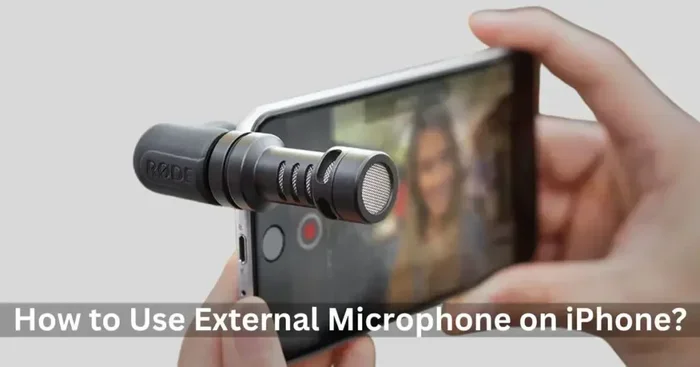
Using an external microphone with your iPhone 15 is one of the easiest ways to dramatically improve your audio quality for recordings, podcasts, and videos. The iPhone 15 lineup supports multiple connection types, including USB-C and Lightning adapters, making it compatible with a wide range of microphones. Whether you are a content creator, a student, or someone who just wants clearer phone calls, this guide covers everything you need to know about connecting and using an external microphone with iPhone 15 devices.
Your iPhone 15 has a decent built-in microphone, but it cannot match what an external mic delivers. If you have ever tried recording a video outdoors and ended up with wind noise, or joined a call and wondered why your voice sounded muffled, you already know the frustration. The good news is that connecting an external microphone to your iPhone 15 is easier than you think. You do not need expensive gear or technical skills to get started. This guide walks you through every step, from choosing the right mic to fixing common problems.
Whether you are a content creator looking to improve your audio quality or someone who just wants clearer phone calls, an external microphone makes a huge difference. Let us dive into how you can use an external microphone with your iPhone 15 and get professional-grade sound right from your pocket.
Key Takeaways
- Multiple connection options: iPhone 15 models use USB-C, and you can also use Lightning adapters for older mics.
- Several mic types work: Lavalier mics, shotgun mics, USB microphones, and Bluetooth options all pair with the iPhone 15.
- Setup is simple: Most external microphones connect and work instantly with minimal configuration.
- Audio quality improves dramatically: An external mic eliminates background noise and enhances clarity for recordings and calls.
- Troubleshooting is straightforward: Common issues like no sound or distorted audio have quick fixes.
- Pro tips make a big difference: Using a windscreen and positioning the mic correctly can take your audio from good to great.
📑 Table of Contents
Why You Need an External Microphone with iPhone 15
The built-in microphone on your iPhone 15 works well for everyday use. But the moment you step outside, attend a noisy event, or record a video, the limitations become obvious. The small mic picks up wind, traffic, background chatter, and every little rustle. An external microphone solves these problems by focusing on your voice and filtering out unwanted noise.
Here is why investing in an external mic matters:
- Better audio clarity: External mics capture your voice more precisely, making it sound crisp and professional.
- Noise reduction: A dedicated mic rejects background sounds that the built-in mic picks up easily.
- Versatility: You can use an external mic for recording videos, podcasting, voice memos, music, and phone calls.
- Distance from the source: With a lavalier or shotgun mic, you can place the microphone closer to your mouth without holding your phone.
- Improved call quality: Friends and colleagues will hear you more clearly during FaceTime or WhatsApp calls.
When the Built-in Mic Falls Short
There are specific situations where the iPhone 15 microphone simply does not cut it. Recording a podcast in a room with echo? The built-in mic will capture every reflection. Filming a wedding or a birthday party? Background music and chatter will drown out the important moments. Streaming a live video? Viewers will notice the difference immediately. In all these cases, an external microphone gives you control over your audio that the phone alone cannot provide.
Who Benefits Most from an External Mic
Content creators, journalists, students recording lectures, musicians, and business professionals all benefit from using an external microphone with iPhone 15 devices. Even casual users who enjoy recording family moments will notice a significant improvement in sound quality. The investment pays off quickly once you hear the difference.
Types of External Microphones for iPhone 15
Not all microphones are the same, and choosing the right type depends on what you plan to do. The iPhone 15 lineup, including the iPhone 15 and iPhone 15 Pro, uses a USB-C port, which opens up a wider range of microphone options than previous models with Lightning connectors.
Lavalier Microphones
A lavalier mic, also called a lapel mic, clips onto your clothing near your mouth. These are incredibly popular among vloggers, interviewers, and presenters. Lav mics are small, lightweight, and deliver clear, close-up audio. Many lavalier mics connect to the iPhone 15 through a USB-C cable or a Lightning-to-USB-C adapter.
Popular lavalier options include the Rode Wireless GO II, the Boya BY-M1, and the Deity W.Lav series. These microphones are affordable and deliver excellent results for video recording and interviews.
Shotgun Microphones
A shotgun mic has a narrow pickup pattern that focuses on sound directly in front of it. This makes it ideal for video production because it captures the subject’s voice while rejecting side and rear noise. You can mount a shotgun mic on a tripod or a boom pole and point it at the speaker.
Shotgun mics like the Rode VideoMic Pro or the Sennheiser MKE 400 connect to the iPhone 15 via a USB-C cable or a TRRS adapter. They are excellent for outdoor filming, documentary work, and on-location interviews.
USB Microphones
USB microphones plug directly into the iPhone 15’s USB-C port. These mics are typically used for podcasting, voiceover work, and streaming. They offer plug-and-play convenience and often include built-in gain controls and headphone jacks for monitoring.
The Samson Q2U and the Audio-Technica ATR2100x are popular USB mics that work well with the iPhone 15. You may need a USB-C hub or adapter to connect them, depending on the mic’s cable type.
Wireless Microphones
Wireless microphones transmit audio to your iPhone 15 via Bluetooth or a proprietary wireless receiver. These offer maximum freedom of movement, which is perfect for vloggers, fitness instructors, and presenters who need to move around while recording.
Brands like DJI, Rode, and Hollyland offer wireless systems that connect to the iPhone 15 through a USB-C receiver dongle. Bluetooth mics also work but may introduce slight latency, which is important to consider for video recording.
Condenser vs. Dynamic Microphones
Condenser microphones are more sensitive and capture detailed, nuanced audio. They work best in quiet environments like a home studio. Dynamic microphones are less sensitive and handle louder sound sources better, making them ideal for noisy environments or live recording. When choosing a mic for your iPhone 15, consider where and how you will use it most often.
How to Connect an External Microphone to iPhone 15
Connecting an external microphone to your iPhone 15 is a straightforward process. The method depends on the type of microphone you are using and the connection it requires.
Step-by-Step Connection Guide
Follow these steps to get your external mic up and running with your iPhone 15:
- Identify your microphone type: Determine whether your mic uses USB-C, Lightning, TRRS, or Bluetooth.
- Get the right cable or adapter: For USB-C mics, use a direct USB-C cable. For Lightning mics, use a Lightning-to-USB-C adapter. For TRRS mics, use a TRRS-to-USB-C adapter.
- Plug in the microphone: Connect the mic to your iPhone 15’s USB-C port.
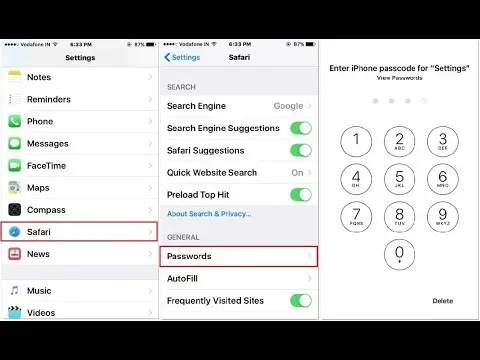
- Allow permissions: If prompted, allow the microphone to access your iPhone 15. Go to Settings, then Privacy, then Microphone, and make sure the app you are using is enabled.
- Test the audio: Open the Voice Memos app or your camera app and record a short clip to confirm the mic is working.
Using a USB-C Microphone Directly
The iPhone 15 models feature a USB-C port, which makes connecting USB microphones simple. Plug the mic directly into your phone, and it should be recognized immediately. Most USB mics will work without installing any additional apps or drivers. The iPhone 15 automatically routes audio input through the connected USB microphone.
Using a Lightning Microphone with an Adapter
If you have a Lightning microphone from an older setup, you can still use it with the iPhone 15. Purchase a Lightning-to-USB-C adapter and connect your Lightning mic through it. Note that some adapters may not provide enough power, so check compatibility before buying.
Using a TRRS Microphone
TRRS microphones use a standard 3.5mm headphone jack connector. Since the iPhone 15 does not have a headphone jack, you need a TRRS-to-USB-C adapter. These adapters are widely available and affordable. Make sure the adapter supports microphone input, not just audio output.
Using a Bluetooth Microphone
Bluetooth microphones pair with your iPhone 15 just like any Bluetooth device. Go to Settings, tap Bluetooth, and put your mic in pairing mode. Once connected, the iPhone 15 will use the Bluetooth mic as the audio input source. Keep in mind that Bluetooth may introduce a slight delay, which can be noticeable during video recording.
Quick Tips for a Smooth Connection
- Always use certified adapters to avoid compatibility issues.
- Keep your iPhone 15 updated to the latest iOS version for the best microphone support.
- If the mic does not work, try disconnecting and reconnecting it.
- Check that the app you are using has microphone permissions enabled in Settings.
Best External Microphones for iPhone 15
Choosing the right microphone can feel overwhelming with so many options available. Here are some of the best external microphones that work wonderfully with the iPhone 15, organized by category.
Best Lavalier Mics
- Rode Wireless GO II: A top-tier wireless lavalier system with excellent sound quality and long battery life.
- Boya BY-M1: An affordable wired lavalier that delivers surprisingly good audio for the price.
- Deity W.Lav Pro: A premium lavalier with a compact design and clear, natural sound.
Best Shotgun Mics
- Rode VideoMic Pro+: A compact shotgun mic with built-in wireless capability and excellent noise rejection.
- Sennheiser MKE 400: A versatile shotgun mic with a built-in shock mount for reducing handling noise.
- Rode VideoMic Me-C: A compact USB-C shotgun mic designed specifically for smartphones, including the iPhone 15.
Best USB Microphones
- Samson Q2U: A budget-friendly USB mic that works great for podcasting and voice recording.
- Audio-Technica ATR2100x: A versatile USB and XLR mic with rich, warm sound quality.
- Blue Yeti Nano: A portable USB mic with multiple pickup patterns and premium build quality.
Best Wireless Mics
- DJI Mic 2: A compact wireless system with excellent sound quality and easy iPhone 15 connectivity.
- Rode Wireless GO II: A dual-channel wireless system perfect for interviews and solo content creation.
- Hollyland Lark M2: An affordable wireless option with solid audio performance and reliable connectivity.
Comparison Table: Top External Microphones for iPhone 15
| Microphone | Type | Connection | Price Range | Best For |
|---|---|---|---|---|
| Rode Wireless GO II | Lavalier / Wireless | USB-C Receiver | $$$ | Vlogging, Interviews |
| Boya BY-M1 | Lavalier | 3.5mm Cable | $ | Budget Video Recording |
| Rode VideoMic Me-C | Shotgun | USB-C | $$ | Smartphone Filmmaking |
| Samson Q2U | USB | USB-C | $$ | |
| DJI Mic 2 | Wireless | USB-C Receiver | $$$ | Content Creation |
Tips for Better Audio Recording with iPhone 15
Connecting an external microphone is only half the battle. How you use it matters just as much. These practical tips will help you get the best possible audio quality when recording with your iPhone 15.
Use a Windscreen or Deadcat
Wind noise is the enemy of outdoor audio recording. A simple foam windscreen or a fuzzy deadcat cover can dramatically reduce wind interference. These accessories fit over the microphone capsule and break up wind before it reaches the sensitive pickup element. For anyone recording outside with an external microphone iPhone 15 setup, a windscreen is an absolute must-have.
Position the Mic Correctly
The placement of your microphone has a huge impact on audio quality. For lavalier mics, clip them about 6 to 8 inches below your chin. For shotgun mics, point them directly at your mouth from a distance of about 1 to 2 feet. For USB mics, keep them about 6 inches from your mouth for the clearest sound. Avoid placing the mic too close, as this can cause plosive sounds like “p” and “b” to distort.
Monitor Your Audio Levels
Keep an eye on your audio levels while recording. If the levels are too high, your audio will clip and sound distorted. If they are too low, the recording will be noisy when you boost it later. Most recording apps for iPhone 15 show real-time audio levels. Aim for levels that peak around -6 dB to -12 dB for a clean recording.
Record in a Quiet Environment
Even the best external microphone picks up ambient noise. Choose a quiet room with soft surfaces like carpets, curtains, or foam panels to reduce echo. Turn off fans, air conditioners, and other noise sources before you start recording. A quiet environment makes a noticeable difference in the final audio quality.
Use the Right App
The default Voice Memos app on iPhone 15 works fine for basic recordings, but dedicated apps give you more control over audio settings. Apps like Ferrite Recording Studio, GarageBand, and Voice Recorder Pro offer adjustable gain, compression, and EQ settings. These tools help you fine-tune your audio for professional results.
Expert Insight
Professional audio engineers recommend recording a short test clip before any important session. Listen back with headphones to check for issues like hum, noise, or distortion. Fixing problems during recording is always easier than fixing them in post-production.
Common Mistakes to Avoid
Even experienced users make mistakes when setting up an external microphone with iPhone 15. Here are the most common ones to watch out for:
- Using the wrong adapter: Not all USB-C adapters support microphone input. Make sure your adapter is rated for audio input, not just charging.
- Ignoring app permissions: If an app cannot access the microphone, go to Settings, then Privacy, then Microphone, and enable access for that app.
- Recording in noisy environments: No microphone can completely eliminate background noise. Choose a quiet setting whenever possible.
- Placing the mic too far away: Distance degrades audio quality. Keep the mic as close to your mouth as practical.
- Forgetting to charge the mic: Wireless microphones run on batteries. Always check the charge level before a recording session.
Troubleshooting External Microphone Issues on iPhone 15
Even with the right setup, you may encounter occasional issues when using an external microphone with your iPhone 15. Most problems have simple solutions that take just a few minutes to fix.
No Sound from the External Microphone
If you are not getting any audio, start by checking the physical connection. Unplug the mic and reconnect it firmly. Try a different cable or adapter if you have one available. Also, check that the app you are using has microphone permissions enabled. Go to Settings, then Privacy, then Microphone, and toggle the permission on for your recording app.
Distorted or Clipping Audio
Distorted audio usually means the input level is too high. Move the mic slightly farther from your mouth or reduce the gain in your recording app. If you are using a USB mic with its own gain control, turn it down until the distortion clears.
Bluetooth Mic Not Connecting
If your Bluetooth microphone will not pair, make sure it is in pairing mode and within range of your iPhone 15. Turn Bluetooth off and back on from Settings. If the issue persists, forget the device from the Bluetooth settings and try pairing again from scratch.
Mic Works in One App but Not Another
This is a common issue and usually relates to app permissions. Each app on your iPhone 15 has its own microphone access setting. Check the permissions for each app individually and make sure the ones you need have microphone access enabled.
Audio Cuts Out Intermittently
Intermittent audio dropouts often happen with wireless microphones. Check the battery level of both the transmitter and receiver. Move closer to the iPhone 15 if you are using a Bluetooth connection. For USB-C wired mics, try a different cable, as damaged cables are a common cause of dropouts.
Quick Troubleshooting Checklist
- Check the physical connection and cable integrity.
- Verify microphone permissions in Settings for the app you are using.
- Restart your iPhone 15 if the mic still does not work.
- Try the microphone with a different device to rule out a hardware issue.
- Update your iPhone 15 to the latest iOS version.
- Reset all settings on your iPhone if the issue persists.
Conclusion
Using an external microphone with your iPhone 15 opens up a world of audio possibilities. From crystal-clear podcasts to professional-quality videos, the right microphone transforms how your content sounds. The iPhone 15’s USB-C port makes connecting external microphones simpler than ever, supporting a wide range of mic types from lavaliers to USB mics to wireless systems.
By following the steps in this guide, you can connect your microphone, optimize your settings, and avoid common pitfalls. Remember that audio quality matters just as much as video quality in today’s content landscape. A great video with poor audio will always lose to a simple video with excellent sound. Invest in a good external microphone, practice proper placement, and you will notice an immediate improvement in every recording you make.
Start with one of the recommended microphones, follow the connection steps carefully, and experiment with different positions and settings. Your iPhone 15 is a powerful audio recording tool when paired with the right external microphone. The quality of your recordings will speak for itself.
Frequently Asked Questions
Can I use any USB microphone with my iPhone 15?
Most USB microphones work with the iPhone 15 since it features a USB-C port. However, some USB mics may require a USB-C hub or adapter. Check the microphone specifications to confirm compatibility with iOS devices before purchasing.
Do I need an adapter to connect a microphone to iPhone 15?
It depends on the microphone type. USB-C microphones connect directly without an adapter. Lightning microphones need a Lightning-to-USB-C adapter. TRRS microphones with a 3.5mm jack need a TRRS-to-USB-C adapter. Wireless mics typically connect through a USB-C receiver dongle.
Is Bluetooth audio quality good enough for recording video?
Bluetooth microphones work well for casual recordings and phone calls. However, Bluetooth introduces slight latency and may not deliver the same audio quality as a wired connection. For professional video recording or podcasting, a wired USB-C or Lightning microphone is recommended.
How do I grant microphone permission to an app on iPhone 15?
Go to Settings, then Privacy & Security, then Microphone. Toggle the switch next to the app you want to grant access to. You can also check this setting if your external microphone is not working in a specific app.
What is the best external microphone for iPhone 15 podcasting?
The Samson Q2U and Audio-Technica ATR2100x are among the best USB microphones for podcasting with iPhone 15. They offer excellent sound quality, adjustable gain, and plug-and-play convenience. For wireless setups, the Rode Wireless GO II is a top choice.
Can I use an external microphone for FaceTime calls on iPhone 15?
Yes, you can use an external microphone for FaceTime calls. Once connected, the iPhone 15 automatically routes audio through the external mic. Wired USB-C and Bluetooth microphones both work for FaceTime, making your voice clearer for the person on the other end.