Can You Plug A Hdmi Dvd Player Into Computer At Home
Yes, you can plug a HDMI DVD player into a computer, but it requires the right ports, cables, and a bit of setup knowledge. This guide walks you through every step, from checking your hardware to getting crystal-clear video and audio on your PC. You will learn the benefits, potential challenges, and practical workarounds for a smooth HDMI DVD player to computer connection.
Key Takeaways
- HDMI Connection Is Possible: Most modern computers with HDMI input or capture card support can receive signals from a DVD player.
- You Need the Right Hardware: An HDMI cable, a capture card, or an HDMI-to-USB adapter may be required depending on your setup.
- Audio and Video Quality Improves: HDMI delivers both high-definition video and digital audio through a single cable.
- Operating System Matters: Your computer’s OS affects compatibility and playback software options.
- Common Issues Have Simple Fixes: Signal problems, no sound, or display errors can usually be resolved with basic troubleshooting.
📑 Table of Contents
- Can You Plug A Hdmi Dvd Player Into Computer At Home?
- Understanding HDMI and How It Works
- Checking Your Computer’s HDMI Capabilities
- What You Need to Connect a HDMI DVD Player to Your Computer
- Step-by-Step Setup Guide
- Common Problems and How to Fix Them
- Benefits of Using a HDMI DVD Player with Your Computer
- Tips for the Best Experience
- Final Thoughts
Can You Plug A Hdmi Dvd Player Into Computer At Home?
Have you ever wanted to use your DVD player with your computer screen? Maybe your laptop monitor is bigger than your TV. Or perhaps you just want a second display for movie nights. Whatever the reason, the idea of connecting a HDMI DVD player directly to your computer sounds simple enough. But is it actually possible?
The short answer is yes. You can plug a HDMI DVD player into a computer at home. But the “how” depends on your computer’s ports, your operating system, and a few other factors. This guide covers everything you need to know. We will walk through the setup process, discuss common challenges, and share practical tips to make it work smoothly.
Many people assume that because computers have HDMI output ports, they also have HDMI input ports. That is not always true. Most desktop and laptop computers send video out to a monitor. They do not receive video in from an external device like a DVD player. So you need to understand your specific setup before buying any cables or adapters.
Let us break this down step by step. By the end of this article, you will know exactly what you need, what to avoid, and how to get your DVD player running on your computer monitor with confidence.
Understanding HDMI and How It Works
HDMI stands for High-Definition Multimedia Interface. It is a standard cable connection that carries both video and audio signals through a single cable. This makes it incredibly convenient compared to older connections that needed separate cables for sound and picture.
What Makes HDMI Different From Other Connections?
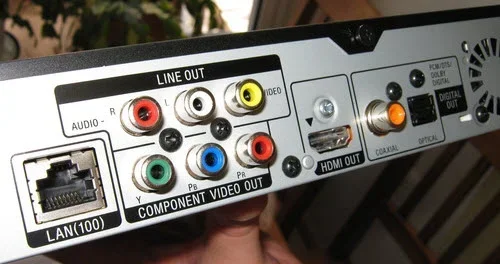
Older DVD players often used composite cables (the red, white, and yellow ones). These carry lower-quality signals. HDMI sends a digital signal that supports high definition. This means sharper pictures and better sound. Here is a quick comparison of common connection types:
- Composite (RCA): Analog signal, lower resolution, separate audio and video cables.
- Component: Better than composite, but still analog and uses three video cables plus audio.
- S-Video: Slightly better picture than composite but no audio support.
- HDMI: Digital signal, supports HD and 4K, carries both video and audio in one cable.
When you connect a DVD player to a computer using HDMI, you are using the best available connection type. The digital signal means less interference and a cleaner picture. This is one of the biggest advantages of using HDMI for this purpose.
How HDMI Carries Both Audio and Video
One cable does the job of two or three older cables. The HDMI standard transmits uncompressed digital video and compressed or uncompressed digital audio. This means your DVD player sends both the movie picture and the soundtrack to your computer through one single connection. It simplifies setup and reduces cable clutter on your desk.
For home entertainment setups, this is a huge benefit. You do not need to fiddle with separate audio cables or worry about syncing sound with video. The signal stays clean from the DVD player all the way to your display device.
Checking Your Computer’s HDMI Capabilities
Before you buy any cables, you need to check what your computer can actually do. Not all computers can accept an HDMI input from an external device. Let us look at the different scenarios.
Desktops With Dedicated HDMI Input Ports
Some desktop computers, especially those designed for media or gaming, come with HDMI input ports. These are different from the standard HDMI output ports you see on most PCs. An input port allows your computer to receive a signal from an external device like a DVD player. Check the back of your desktop tower and look for a port labeled “HDMI In” or something similar.
If your desktop has this port, you are in luck. You can connect your DVD player directly using a standard HDMI cable. No extra hardware is needed. Just plug one end into the DVD player and the other into the HDMI input on your computer.
Laptops and Standard Desktops Without HDMI Input
Most laptops and standard desktop computers only have HDMI output ports. This means they can send video to a monitor or TV but cannot receive video from an external source. If your computer falls into this category, do not worry. You still have options.
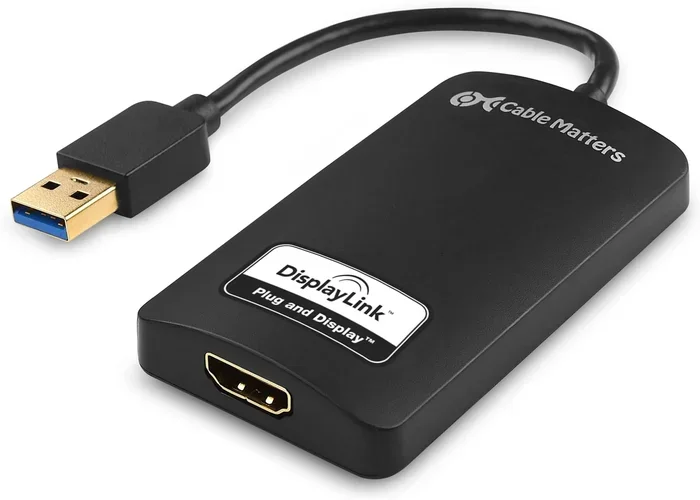
You can use an HDMI capture card or an HDMI-to-USB adapter. These devices act as a bridge. They take the HDMI signal from your DVD player and convert it into a format your computer can understand. We will cover this in more detail below.
What About USB-C and Thunderbolt Ports?
Many modern computers use USB-C or Thunderbolt ports instead of traditional HDMI ports. These can sometimes support video input with the right adapter. Look for a USB-C HDMI capture card or a Thunderbolt dock with HDMI input support. These give you the flexibility to connect a DVD player even if your computer lacks a traditional HDMI port.
What You Need to Connect a HDMI DVD Player to Your Computer
Now that you understand your computer’s capabilities, let us talk about the hardware you need. The right equipment makes all the difference between a frustrating experience and a smooth setup.
Essential Equipment List
- HDMI Cable: A standard HDMI cable is the backbone of this setup. Make sure it is a high-speed cable to support full HD or 4K resolution if your DVD player supports it.
- HDMI Input Port or Capture Card: Depending on your computer, you need either a direct HDMI input port or a capture card to receive the signal.
- Audio Setup: Even though HDMI carries audio, you may need to configure your computer’s sound settings to play audio through the right output.
- Playback Software: Your computer needs software that can read and play the content from the DVD player. Most computers come with basic media players, but dedicated DVD playback software may offer better results.
Choosing the Right HDMI Cable
Not all HDMI cables are the same. There are standard speed cables, high-speed cables, and premium high-speed cables. For connecting a DVD player to a computer, a standard high-speed HDMI cable is usually sufficient. Avoid cheap, unbranded cables as they may not support the full bandwidth needed for quality video.
Cable length matters too. If your DVD player is far from your computer, you may need a longer cable. Keep in mind that very long cables (over 50 feet) can sometimes cause signal loss. If you need a long run, consider an HDMI signal booster or an active cable.
Understanding HDMI Capture Cards
An HDMI capture card is a small device that sits between your DVD player and your computer. It receives the HDMI signal and converts it into a USB or PCIe signal that your computer can process. Capture cards are popular among streamers and content creators, but they work perfectly for this use case too.
Popular options include USB-powered capture cards that plug directly into your computer’s USB port. These are affordable and easy to set up. Simply connect the DVD player to the capture card with an HDMI cable, then plug the capture card into your computer. Your computer should recognize the device as a video input source.
Step-by-Step Setup Guide
Setting up your HDMI DVD player with your computer is straightforward once you have the right equipment. Follow these steps for a successful connection.
Step 1: Power Off All Devices
Before making any connections, turn off your DVD player and your computer. This protects both devices from potential electrical issues and ensures a clean connection when you power everything back on.
Step 2: Connect the HDMI Cable
Plug one end of the HDMI cable into the HDMI output port on your DVD player. Plug the other end into the HDMI input port on your computer or into your HDMI capture card. Make sure the connection is firm and secure.
Step 3: Connect the Capture Card (If Needed)
If your computer does not have a direct HDMI input, connect the capture card between the DVD player and your computer. Use an HDMI cable from the DVD player to the capture card, then use a USB cable from the capture card to your computer.
Step 4: Power On and Configure
Turn on your DVD player first, then your computer. On your computer, go to the display or sound settings and select the HDMI input as your video source. You may need to install drivers for your capture card if it is a USB device.
Step 5: Test the Connection
Insert a DVD into your DVD player and press play. You should see the movie on your computer screen and hear the audio through your computer speakers or connected headphones. If the picture or sound is not working, check your cable connections and sound settings.
Common Problems and How to Fix Them
Even with the right setup, you might run into issues. Here are the most common problems people face when connecting a DVD player to a computer and how to solve them.
No Picture on the Screen
If you see a blank screen, first check that the HDMI cable is firmly connected at both ends. Try a different HDMI port if your computer has more than one. Also, make sure your computer display settings are set to recognize the external input. Sometimes simply switching the input source in your display settings fixes the problem.
No Sound or Audio Issues
HDMI carries audio, but your computer might not automatically route the sound correctly. Go to your sound settings and make sure the HDMI output is selected as the default audio device. If you are using a capture card, check its audio settings as well.
Poor Video Quality or Flickering
Flickering or low-quality video can result from a damaged cable, an incompatible resolution, or a weak signal. Try replacing the HDMI cable with a new one. Also, check the resolution settings on your DVD player and match them to your computer’s supported resolution.
Computer Does Not Recognize the Device
If your computer does not detect the DVD player or capture card, make sure you have installed the latest drivers. Visit the manufacturer’s website for the most recent driver downloads. Restarting your computer after installing drivers often resolves recognition issues.
Some operating systems handle external video inputs better than others. If you run into persistent compatibility issues, you may want to look into your operating system settings or check the specific requirements for your hardware. Understanding the advantages and disadvantages of a proprietary operating system can also help you troubleshoot compatibility challenges, as some systems are more open to third-party hardware integrations than others.
Benefits of Using a HDMI DVD Player with Your Computer
Connecting a DVD player to your computer via HDMI offers several real advantages. Let us explore why this setup makes sense for many people.
Larger and Better Screen
Your computer monitor might be larger than your TV, or it might offer better picture quality. Using your computer screen as a display for your DVD player gives you a great viewing experience, especially if you have a high-resolution monitor.
Convenience and Flexibility
You do not need a separate TV just to watch DVDs. This setup is perfect for small apartments, dorm rooms, or offices where a TV is not practical. You get the flexibility to watch your favorite movies or shows right on your computer whenever you want.
Better Audio Quality
HDMI delivers digital audio, which is cleaner and sharper than analog connections. If your computer is connected to a good speaker system or headphones, you will enjoy noticeably better sound compared to the speakers on a standard TV.
Cost Savings
Why buy a second screen when your computer monitor already serves the purpose? This setup saves money and desk space. It is an efficient way to repurpose equipment you already own.
Streaming Alternative
If you still have a collection of DVDs, connecting a DVD player to your computer lets you enjoy your physical media without needing a standalone player and a TV. It also opens the door to converting your DVD collection into digital files for easier access.
Tips for the Best Experience
A few small adjustments can make a big difference in your viewing experience. Here are some quick tips to get the most out of your HDMI DVD player and computer setup.
- Update Your Drivers: Keep your graphics card and capture card drivers up to date for the best performance.
- Use a Quality Cable: A good HDMI cable ensures a stable connection and the best picture quality.
- Adjust Display Settings: Match your computer’s resolution to your DVD player’s output for the sharpest image.
- Close Unnecessary Programs: Free up system resources by closing background apps while watching movies.
- Consider an External Speaker Setup: For the best audio experience, connect external speakers or headphones to your computer.
For those who also use their setup for online business or digital content distribution, understanding how different network setups affect your media experience can be valuable. The advantages and disadvantages of using a value added network for electronic commerce communication can provide insight into how your connectivity choices impact overall performance, especially if you are streaming or sharing media content online.
Final Thoughts
So, can you plug a HDMI DVD player into a computer at home? Absolutely. With the right equipment and a little patience, you can enjoy your DVD collection on your computer screen anytime you want. The HDMI connection provides excellent video and audio quality through a single cable, making the setup cleaner and simpler than older connection methods.
Remember to check your computer’s ports first. If you do not have a direct HDMI input, a capture card or adapter will do the trick. Follow the setup steps outlined in this guide, and troubleshoot any issues using the tips provided. You will be watching your favorite DVDs on your computer in no time.
This setup is practical, cost-effective, and surprisingly easy. Whether you are in a small space, saving money, or just want the convenience of watching DVDs on your computer, connecting a HDMI DVD player is a smart move. Give it a try and enjoy your media the way you want.
Frequently Asked Questions
Do all computers have HDMI input ports?
No, most computers only have HDMI output ports. They send video to a monitor but cannot receive video from an external device. You need either a computer with a dedicated HDMI input or an HDMI capture card to connect a DVD player to your PC.
Can I use a USB HDMI adapter to connect a DVD player to my computer?
Yes, USB HDMI adapters and capture cards can bridge the connection between your DVD player and computer. These devices convert the HDMI signal into a format your computer can process through a USB port. Make sure to choose a capture card that supports video input.
Will the video quality be as good as on a TV?
HDMI delivers high-quality digital signals, so the video quality depends on your computer monitor’s resolution and capabilities. If you have a high-resolution monitor, the picture can be just as good or even better than on a standard TV.
Do I need special software to play DVDs on my computer?
Most computers come with basic media players, but they may not support DVD playback out of the box. You might need to install dedicated DVD playback software. Some operating systems require additional codecs or plugins for smooth DVD playback.
Can I use this setup with a laptop?
Yes, you can connect a HDMI DVD player to a laptop, but laptops typically lack HDMI input ports. You will need an HDMI capture card or USB HDMI adapter to make the connection work with a laptop.
Is it better to use a DVD player with a computer or just stream content online?
It depends on your needs. Using a DVD player with a computer gives you access to your physical media collection without relying on internet connectivity. Streaming offers convenience but requires a stable connection and subscription services. Both options have their place in a modern home entertainment setup.
=== END ===