Can You Replace A Laptop Screen With A Better Screen Now
Yes, you can absolutely replace your laptop screen with a better one — and it’s one of the most impactful upgrades you can make to boost display quality, color accuracy, and overall viewing experience. Whether you’re dealing with a cracked panel, a dull TN display, or simply want to upgrade to a vibrant IPS or even OLED screen, this guide walks you through everything you need to know about laptop screen replacement, compatibility checks, cost considerations, and step-by-step instructions to get the job done successfully.
Key Takeaways
- Upgrading your laptop screen is possible: It can significantly boost productivity and visual comfort.
- Check your laptop model first: Always verify screen specifications before purchasing a replacement.
- Compatibility matters greatly: Match screen size, resolution, connector type, and panel technology carefully.
- DIY saves money but carries risks: Professional installation protects your warranty and prevents damage.
- Higher resolution and IPS panels shine: They deliver sharper images and better color accuracy.
- Research before you buy: Read reviews and benchmarks to find the best screen value.
📑 Table of Contents
Why You Might Want to Upgrade Your Display
Is your laptop screen looking dull and faded? Do colors seem washed out when you watch movies? You are not alone. Many people deal with dim displays every day. A bad screen can ruin your whole computing experience. The good news is you can fix this problem. You can replace a laptop screen with a better screen to see true colors. This guide will show you how. We will cover the steps, costs, and risks. By the end, you will know if an upgrade is right for you. A fresh display can bring your old laptop back to life.
Upgrading your display is a great idea. You will enjoy sharper images and vivid colors. But is it always easy? Let us find out. We will walk you through every step of replacing a laptop screen with a better screen. You will learn about different panel types. You will also learn about costs. This guide makes the process simple. A better screen makes work and play more fun. You will wonder why you did not do it sooner.
Understanding Laptop Screen Types
IPS vs TN Panels
Not all screens are the same. The two main types are IPS and TN. IPS panels offer great colors and wide viewing angles. They are the best choice for most users. The colors look true from any position. TN panels are faster but have poor colors. If you want a beautiful picture, choose IPS. You can replace a laptop screen with a better screen using an IPS panel. It is the best panel type for most people.
Resolution and Refresh Rate
Screen resolution means how sharp the image is. Higher resolution gives you more screen space. You can fit more windows side by side. Refresh rate affects how smooth motion looks. Gamers need high refresh rates. Office workers do not need them. You must match the new screen to your needs. Pick the right panel type for your tasks. A laptop display upgrade to a higher resolution is always nice.
When you look at screen resolution, you will see terms like HD and Full HD. HD is good for basic tasks. Full HD gives you a sharp picture. 4K is the sharpest option available. It is great for video editors. But 4K screens cost more money. Choose the resolution that fits your budget and needs.
Here is a quick look at the differences:
| Panel Type | Color Quality | Viewing Angles | Best For |
|---|---|---|---|
| IPS | Excellent | Wide | Photo work, movies |
| TN | Fair | Narrow | Fast gaming |
| VA | Good | Medium | Movies, dark rooms |
Can Your Laptop Handle a Better Screen?
You cannot just buy any screen. You must check laptop screen compatibility first. The new screen must fit your machine physically. It also needs the right connector on the back. You will need your laptop model number to find the right part. Look at the back of your laptop or the manual. This step is very important. Buying the wrong part wastes time and money.
The Role of the Display Cable
The display cable connects the screen to the motherboard. Older laptops may not support high-resolution panels. If you try to force a new screen, it may not work. Always check the backlight type too. Some screens use LED, while others use older CCFL. You can replace a laptop screen with a better screen only if the parts match. Never guess the part number. Check your laptop manual for the exact specs.
Check the Laptop Hinge
Do not forget the laptop hinge. The hinge holds the screen in place. If your hinge is broken, the new screen may not sit right. It might wobble or gap open. Fix the hinge first. Then you can focus on the new display. A stable hinge ensures a smooth install. It also keeps the screen safe from damage.
Step-by-Step Guide to Replacing Your Screen
Replacing a screen sounds scary, but it is quite simple. Many people do it at home. You just need patience and the right tools. This is a great DIY screen replacement project. You do not need to be a tech expert. Follow these steps carefully for the best results. Patience is your best friend during this process.
Gathering Your Tools
You need a few small tools first. Gather these items before you start:
- A Phillips head screwdriver
- A plastic spudger
- The replacement screen
- An anti-static wrist strap
- A soft cloth to place parts on
Make sure the new screen matches your OEM screen specs. Having the right tools makes the job much easier. You might also want a flashlight to see inside the laptop.
The Replacement Process
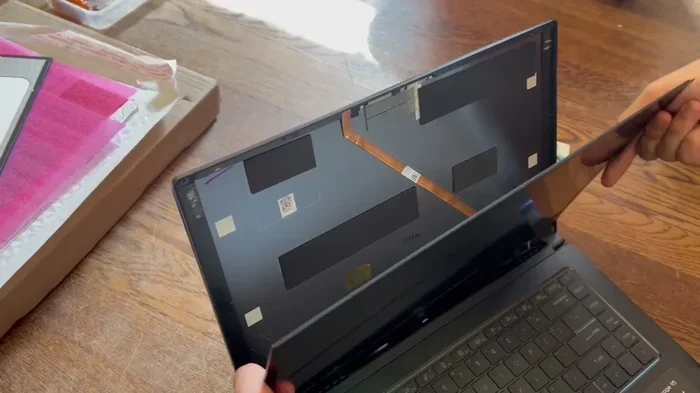
First, remove the battery. This keeps you safe from electric shock. Next, take off the bezel. It is the plastic frame around the screen. Use the spudger gently. There are usually small clips holding it in place. Then, unscrew the old screen. Disconnect the display cable carefully. Note how the cable sits. Connect the new cable the same way. Screw the new screen in place. Put the bezel back on. Press it gently until it clicks. Finally, turn on your laptop. You have successfully replace a laptop screen with a better screen!
The Costs and Risks Involved
Upgrading your screen costs money. You must decide if it is worth it. Laptop screen replacement cost can vary a lot. New screens range from fifty to three hundred dollars. The price depends on the features. A basic matte vs glossy screen costs less. A high-resolution panel costs more. You can replace a laptop screen with a better screen for a fair price. It is much cheaper than buying a new laptop.
OEM vs Aftermarket Screens
You have two choices: OEM and aftermarket. OEM screens are made by the laptop maker. They match the original exactly. The quality is guaranteed. Aftermarket screens are made by other companies. They are often cheaper. However, the quality can vary. You might see more dead pixels on an aftermarket screen. Always read reviews before you buy. A good screen saves you from headaches later. Think about your laptop screen replacement cost before you decide.
When It Is Not Worth It
Sometimes, replacing the screen is not smart. If your laptop is very old, a new screen may not help. The rest of the machine might be too slow. Also, if the repair costs more than the laptop is worth, skip it. You should only replace a laptop screen with a better screen if the rest of the laptop is still useful. Keep your old screen as a backup. You can use it for parts if needed.
Tips for a Successful Upgrade
Doing the job right matters. A small mistake can break the new screen. Here are some tips to help you succeed. Follow these steps carefully for the best results. Patience is your best friend during this process.
Handling the Bezel
The bezel is fragile. Use gentle pressure when prying it off. If it snaps, it is hard to fix. Work slowly. Take pictures before you start. This helps you remember where each screw goes. Proper bezel removal prevents damage. Do not rush this part of the job. A little patience goes a long way. You can use a hair dryer to warm the glue.
Adjusting Your Settings
After you install the new screen, check your settings. Windows uses operating system scaling to make text bigger. If you upgrade to a high-resolution screen, text may look tiny. Adjust the scaling settings in your control panel. This makes everything easy to read. You can replace a laptop screen with a better screen and enjoy a perfect setup. Also, check the refresh rate in your display settings. A higher rate makes motion smoother for games and videos. Test the screen for dead pixels right away.
Testing Your New Screen After Installation
Once you finish the install, do not close the laptop yet. You need to test everything first. Turn on the power and look at the display. Check for any bright spots or dark patches. Look for any dead pixels in the corners. Make sure the colors look bright and true. Test the viewing angles by moving your head side to side. The picture should stay clear at every angle.
Next, check the refresh rate settings. Go into your display settings to confirm the new screen works. If the screen flickers, check the display cable connection. A loose cable can cause flickering issues. Tighten the connection if needed. This testing phase ensures you did a good job. It gives you peace of mind before you close the laptop. Enjoy your new display and the improved color accuracy it brings to your daily tasks.
Replacing a laptop screen with a better screen is a great idea. It saves money and reduces waste. You get a brighter, sharper display for your work and play. Just make sure your laptop supports the new part. Check the laptop model number and the display cable before you buy. Take your time during the install. With the right tools and a little care, you can upgrade your display today. Enjoy your new screen and say goodbye to eye strain!
Frequently Asked Questions
Can You Replace A Laptop Screen With A Better Screen?
Yes, you can replace a laptop screen with a better one in most cases. The key is finding a compatible replacement that matches your laptop’s model, size, and connector type. Many users upgrade to higher resolution or IPS panels for a noticeably sharper and more vibrant display.
How Much Does It Cost to Replace a Laptop Screen With a Better One?
The cost typically ranges from $50 to $300 depending on the screen quality and laptop brand. Premium panels with higher refresh rates or 4K resolution will cost more than standard replacements. Factor in any tools or professional labor fees if you choose not to do it yourself.
What Type of Screen Should You Choose When Upgrading Your Laptop Display?
Look for an IPS panel if you want better color accuracy and wider viewing angles. Higher resolution screens, such as Full HD or 4K, deliver sharper text and images. Matte anti-glare coatings are also a great choice if you work in bright environments.
Can Any Laptop Screen Be Replaced With a Higher Resolution Display?
Not all laptops support higher resolution screens, as compatibility depends on the motherboard and graphics capabilities. Check your laptop’s specifications and the replacement screen’s requirements before purchasing. Some older models may not handle the bandwidth needed for 4K panels.
Is It Worth Replacing a Laptop Screen Yourself With a Better One?
If you are comfortable with basic electronics, replacing the screen yourself can save you significant money. Most replacements only require a screwdriver and about 20 to 30 minutes of your time. However, if you feel unsure, hiring a professional prevents accidental damage to your device.
Will a Better Laptop Screen Affect Battery Life?
Higher resolution and brighter screens can drain your battery faster than the original panel. If battery life is important to you, consider an energy-efficient LED or OLED upgrade. Balancing display quality with power consumption is key to getting the best of both worlds.