Captions Off Vizio TV How to Disable Subtitles Fast
Turning off captions on a Vizio TV is quick and simple once you know where to look. Whether you use the remote, the on-screen menu, or the Vizio SmartCast app, you can disable subtitles in just a few taps. This guide walks you through every method so you can enjoy your favorite shows without on-screen text getting in the way.
Captions on your Vizio TV can be helpful for accessibility, but sometimes they just get in the way. Maybe you are watching a movie and the subtitles are covering important parts of the screen. Or perhaps someone in your house turned them on by accident. Whatever the reason, learning how to turn captions off on a Vizio TV is a skill everyone should have.
This guide covers every method you can use. From the remote control to the TV menu to the SmartCast app, we have you covered. You will also learn about common problems and how to fix them. By the end, you will be able to disable subtitles on your Vizio TV in seconds.
Captions Off Vizio TV is easier than most people think. You do not need to be tech-savvy. A few simple steps will do the job. Let us dive in.
## Why Captions Show Up on Your Vizio TV
Before we get into the how-to, it helps to understand why captions appear in the first place. This knowledge makes troubleshooting much easier later on.
### Built-In Accessibility Features
Vizio TVs come with accessibility features built right in. These features help viewers who are deaf or hard of hearing. The TV stores caption preferences for each input source. So if you watch cable TV and streaming apps, they each remember their own settings.
Sometimes these settings carry over from a previous user. If someone in your household changed the caption settings, they may still be active. This is a common reason captions keep showing up even when you do not want them.
### Default Settings on New TVs
Some Vizio TVs ship with captions turned on by default. This is more common than you might think. When you first set up your TV, the accessibility menu may have captions enabled. If you skipped through the setup quickly, you might have missed this setting.
This is also why captions off Vizio TV is such a common search. Many people buy a new TV and find subtitles already on. It is not a malfunction. It is just a default setting.
### Streaming App vs. TV-Level Captions
Here is something many people do not realize. Streaming apps like Netflix, Hulu, and YouTube have their own caption settings. These settings are separate from your Vizio TV settings. So even if you turn off captions on the TV level, they may still show up inside the app.
This dual-layer setup can be confusing. But once you understand it, fixing the problem becomes much simpler.
## How to Turn Off Captions Using the Vizio Remote
The fastest way to disable subtitles is through your Vizio remote. Most Vizio remotes have a dedicated button for this. Let us walk through it step by step.
### Step 1: Locate the CC Button
Look at your Vizio remote. You should see a button labeled “CC” or one with a small speech bubble icon. This is the closed caption toggle button. Press it once to turn captions off.
If you do not see a CC button, check the “Info” or “Subtitle” button instead. Some Vizio remote models combine these functions. The button layout varies by model, but the option is always there.
### Step 2: Check the On-Screen Display
After pressing the CC button, look at your screen. The captions should disappear immediately. If they do not, try pressing the button again. Sometimes it takes two presses to toggle the setting off.
You can also use the “OK” or “Enter” button if a menu pops up after pressing CC. This will give you more caption options to choose from.
### Step 3: Try the Menu Button
If the CC button does not work, press the “Menu” button on your remote. Navigate to the “Audio” or “Accessibility” section. Look for a “Closed Captions” option. Use the arrow keys to toggle it off.
This method works on almost every Vizio TV model. It may take a few extra seconds, but it always gets the job done.
## Navigating the Vizio TV Menu to Disable Subtitles
The on-screen menu gives you more control over your caption settings. This method is perfect if the remote button is not working or if you want to check other accessibility options.
### Accessing the Main Menu
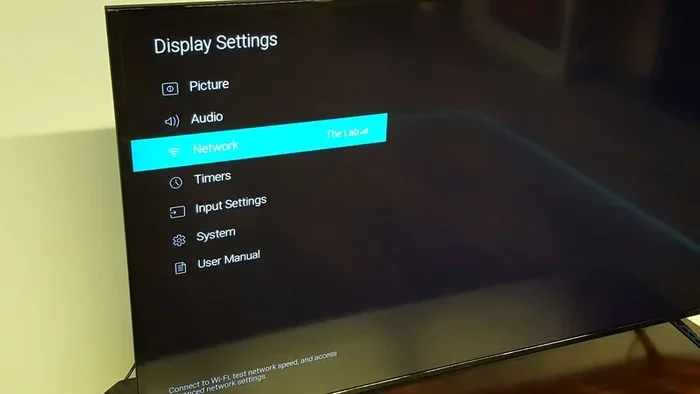
Press the “Menu” button on your Vizio remote. The on-screen menu will appear. Use the arrow keys to navigate to the “Audio” or “System” tab. The exact label depends on your TV model and firmware version.
Once you find the right tab, press “OK” to open it. You should see a list of options including audio settings, subtitle settings, and accessibility features.
### Finding the Caption Settings
Inside the menu, look for a section called “Closed Captions,” “Subtitles,” or “Accessibility.” The exact name varies by model. On newer Vizio TVs running SmartCast, you may find it under “System” > “Accessibility.”
Select the caption option. You will see a toggle or dropdown menu. Change the setting to “Off” or “Disabled.” Press “OK” to save your choice. The captions on your screen should disappear right away.
### Saving Your Preferences
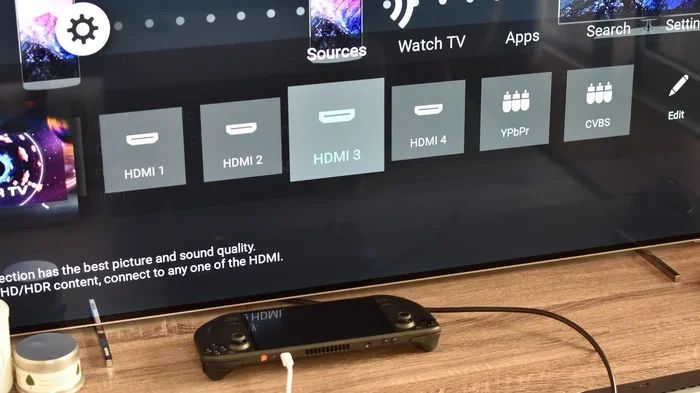
Vizio TVs remember your caption preferences for each input source. So if you turn off captions on HDMI 1, they may still be on for HDMI 2 or the built-in tuner. Make sure to check each input if you use multiple sources.
To do this, switch to each input and repeat the menu steps. This ensures captions stay off no matter what you are watching.
## Using the Vizio SmartCast App
If you have a newer Vizio TV with SmartCast, you can also control captions from your phone. The SmartCast app is free and works with most Vizio models.
### Downloading and Connecting
First, download the Vizio SmartCast app on your phone. It is available for both iOS and Android. Make sure your phone is connected to the same Wi-Fi network as your Vizio TV.
Open the app and select your TV from the device list. You may need to enter a pairing code that appears on your screen. Once connected, you can control many TV settings from your phone.
### Adjusting Caption Settings Through the App
In the SmartCast app, go to the “Settings” or “Accessibility” section. Look for the “Closed Captions” option. Toggle it off to remove subtitles from your screen.
This method is especially useful if your remote is not working or if you prefer using your phone as a second screen. It is also handy when you want to adjust captions while lying on the couch.
## Captions Off Vizio TV for Streaming Apps
As mentioned earlier, streaming apps have their own caption controls. If turning off captions at the TV level does not work, the problem might be inside the app itself.
### Netflix Caption Settings
Open Netflix on your Vizio TV. Start playing any show or movie. Press the “Up” arrow on your remote to bring up the playback controls. Look for the “Audio & Subtitles” option.
Select it and choose “Off” or “None” for subtitles. This will remove captions for that specific title. Netflix remembers your preference, so it should stay off for future content too.
### Hulu and Other Streaming Services
The process is similar for Hulu, Disney+, and Amazon Prime Video. During playback, press the “Up” arrow to access the menu. Find the subtitle or caption option and turn it off.
Each app stores its own caption preferences. So you may need to adjust settings in multiple apps. This is normal and expected.
### When App Settings Override TV Settings
Sometimes app-level captions override TV-level settings. This happens because the app takes priority over the TV’s built-in caption controls. If you have turned off captions on your Vizio TV but they still show up in Netflix, check the app settings first.
This is a common source of confusion. Many people think their TV is broken when it is really just the app settings causing the issue.
## Common Problems and How to Fix Them
Even after following all the steps, captions can sometimes be stubborn. Here are the most common problems and their solutions.
### Captions Keep Coming Back After Turning Them Off
This usually happens when the caption setting is tied to a specific input source. Switch to the input where captions keep appearing and repeat the steps to turn them off. Also check if any streaming app has its own caption setting enabled.
Another cause could be a firmware update that reset your preferences. Vizio TVs sometimes reset accessibility settings after a system update. Simply redo the steps above to turn captions off again.
### CC Button on Remote Not Working
If the CC button does nothing, try replacing the remote batteries. Weak batteries can cause buttons to malfunction. If that does not work, use the on-screen menu method instead.
You can also use the Vizio SmartCast app as a backup remote. It includes all the same controls, including the caption toggle.
### Captions Appear as Gibberish or Boxes
If your captions show up as strange characters or boxes, the issue is different from captions being on. This usually means the TV is receiving a caption signal that it cannot decode properly.
Try turning captions off using the methods above. If that does not work, try changing the input source or restarting the TV. A simple power cycle often fixes this issue.
## Expert Tips for Managing Vizio TV Captions
Here are some extra tips from experienced users and tech pros. These will help you manage captions more effectively.
Quick Tips:
- Bookmark the caption settings menu so you can find it quickly next time.
- Teach everyone in your household how to toggle captions using the CC button.
- Use the SmartCast app as a backup when your remote batteries die.
- Check app-level caption settings if TV-level settings do not seem to work.
- Restart your Vizio TV after firmware updates to ensure settings stick.
Common Mistakes to Avoid:
- Assuming captions are broken when they are actually just enabled in a streaming app.
- Only checking one input source when captions are on for a different input.
- Ignoring the accessibility menu, which houses all caption and subtitle controls.
- Not updating your TV firmware, which can cause unexpected caption behavior.
## Final Thoughts
Turning captions off on your Vizio TV does not have to be complicated. Whether you use the remote, the on-screen menu, or the SmartCast app, you have multiple options at your fingertips. The key is knowing where to look and understanding that captions can exist at both the TV level and the app level.
Captions off Vizio TV is something you can do in under a minute once you know the steps. Keep this guide handy for the next time subtitles show up when you do not want them. With the right approach, you will always be in control of your viewing experience.
Take a moment to explore your Vizio TV settings today. You might discover other accessibility features that can enhance your viewing. And if you ever need to turn captions back on, you now know exactly how to do that too.
Enjoy your Vizio TV without distractions. Happy watching!
Key Takeaways
- Multiple Methods: You can turn off captions using the remote, the TV menu, or the SmartCast app.
- Quick Access: The “CC” button on your Vizio remote is the fastest way to toggle captions.
- Per-Source Settings: Captions may be enabled on a specific input, not the whole TV.
- SmartCast Matters: Streaming apps have their own caption settings separate from the TV.
- Troubleshooting Helps: A simple power cycle often fixes stubborn caption issues.
Frequently Asked Questions
Why won’t captions turn off on my Vizio TV?
Captions may keep appearing if they are enabled at the app level rather than the TV level. Check the subtitle settings inside your streaming app first. Also make sure you are on the correct input source, as each input can have its own caption preferences.
What is the fastest way to turn off captions on a Vizio TV?
The fastest method is to press the CC button on your Vizio remote. This button toggles closed captions on and off instantly. If your remote does not have a CC button, try the Info or Subtitle button instead.
Can I turn off captions for only one input on my Vizio TV?
Yes, you can. Vizio TVs store caption settings separately for each input source. Navigate to the caption settings while watching the specific input you want to adjust, and turn captions off for that source only.
Do Vizio SmartCast TVs have different caption controls?
SmartCast TVs offer caption controls both on the TV itself and through the SmartCast app on your phone. The app provides a convenient way to manage captions from your mobile device, which is helpful if your remote is not working.
Will a factory reset turn off captions on my Vizio TV?
A factory reset will restore all settings to their defaults, which may include turning captions off. However, this is not recommended as a first step because it erases all your TV preferences. Try the standard caption-turning-off methods before resorting to a reset.
How do I stop subtitles from appearing during live TV on my Vizio?
For live TV, press the Menu button and navigate to the Audio or Accessibility section. Find the Closed Captions option and set it to Off. You can also use the CC button on your remote for a quick toggle during live broadcasts.