Do Bluetooth Devices Need To Be Paired With Each Other
Do Bluetooth devices need to be paired? Yes, most Bluetooth devices must go through a pairing process to establish a secure wireless connection. Understanding how Bluetooth pairing works helps you connect headphones, speakers, and other gadgets quickly. This guide walks you through the entire process step by step.
Have you ever stood in front of your stereo or car radio wondering how to get your phone to play music without wires? Or maybe you just bought a new Bluetooth speaker and have no idea where to start. The answer to getting these devices talking to each other comes down to one simple process: pairing.
Do Bluetooth devices need to be paired with each other? The short answer is yes. Bluetooth pairing is the handshake that lets two devices recognize each other and share information wirelessly. Without it, your headphones won’t stream audio from your phone, and your car stereo won’t play music from your playlist.
But pairing isn’t just about pressing a button. There’s a whole world of Bluetooth technology working behind the scenes. In this guide, we’ll break down exactly how pairing works, why it matters, and how you can troubleshoot common issues. Whether you’re connecting wireless headphones, a Bluetooth speaker, or even your car stereo, this article has you covered.
Let’s dive in and make sense of Bluetooth pairing once and for all.
Key Takeaways
- Bluetooth pairing creates a secure link: Two devices exchange information to trust each other before sharing data or audio.
- The pairing process is simple: Most devices just need to be in discovery mode and selected from a list.
- Not all connections require pairing: Some Bluetooth devices use quick connect or auto-connect features after the first pairing.
- Troubleshooting is often straightforward: Resetting Bluetooth, checking distance, and updating software fix most issues.
- Bluetooth security matters: Pairing protects your data by encrypting the connection between devices.
- Multiple devices can pair with one another: You can connect several devices to a single Bluetooth hub like a speaker or car system.
📑 Table of Contents
- What Is Bluetooth Pairing and Why Does It Matter?
- Do All Bluetooth Devices Require Pairing?
- How to Pair Bluetooth Devices: Step-by-Step Guide
- Common Bluetooth Pairing Problems and How to Fix Them
- Bluetooth Security: What Happens When You Pair Devices
- Can One Device Connect to Multiple Bluetooth Devices?
- What to Do When Bluetooth Pairing Just Won’t Work
- Expert Insights on Bluetooth Pairing
- Final Thoughts
What Is Bluetooth Pairing and Why Does It Matter?
Bluetooth pairing is the process that allows two devices to establish a trusted wireless connection. When you pair devices, they exchange unique codes and create a secure link. This link lets them share data, audio, or other information without needing cables.
Think of it like exchanging phone numbers. Two people need to share their numbers before they can call each other. Bluetooth pairing works the same way. Devices share identification information so they remember each other in the future.
How Bluetooth Pairing Works
When you start the device pairing process, several things happen behind the scenes:
- Device discovery: One device broadcasts a signal saying “I’m here and ready to connect.”
- Device selection: The other device sees the signal and shows it on a list.
- Code exchange: Both devices share a pairing code or passkey to verify identity.
- Connection established: The devices create an encrypted link for secure data transfer.
This whole process usually takes just a few seconds. But understanding it helps you troubleshoot when things go wrong. The Bluetooth technology behind this has been refined over decades to make connections fast and secure.
Why Pairing Is Necessary
You might wonder why devices can’t just connect automatically. The answer is security. Bluetooth security is a real concern. Without pairing, any device nearby could potentially connect to yours and access your data.
Pairing creates a trusted relationship. It ensures that only the devices you approve can communicate. This is especially important for devices like wireless headphones that may carry personal audio or health data.
Do All Bluetooth Devices Require Pairing?
Not every Bluetooth connection requires a full pairing process. Some devices use quick connect or auto-connect features after the initial pairing is done. But the first time two devices communicate, pairing is almost always required.
Devices That Need Full Pairing
Most Bluetooth devices need a proper pairing session the first time you use them together. Here are common examples:
- Wireless headphones connecting to a phone or computer
- Bluetooth speakers linking to a smartphone or tablet
- Car audio systems connecting to a mobile device
- Keyboards and mice pairing with a laptop or desktop
- Smartwatches connecting to a phone for the first time
For instance, if you want to connect Bluetooth headphones to your TV, you’ll typically need to put both devices in pairing mode and select one from the other’s device list. The same goes for using Bluetooth headphones with PS4 or connecting a speaker to your car stereo.
Devices That Use Auto-Connect
Many modern devices remember previous pairings. Once you pair them the first time, they often reconnect automatically. Here are some examples:
- Your phone connecting to your car’s Bluetooth system
- Your smartwatch syncing with your phone daily
- A Bluetooth speaker reconnecting to your tablet when you turn it on
These devices don’t need you to repeat the pairing process every time. They store the connection information and use it to reconnect instantly. But that initial pairing is still essential.
How to Pair Bluetooth Devices: Step-by-Step Guide
The Bluetooth pairing process is fairly similar across most devices. Let me walk you through the general steps. The exact details may vary slightly depending on your gadgets, but the basics stay the same.
Step 1: Turn On Bluetooth
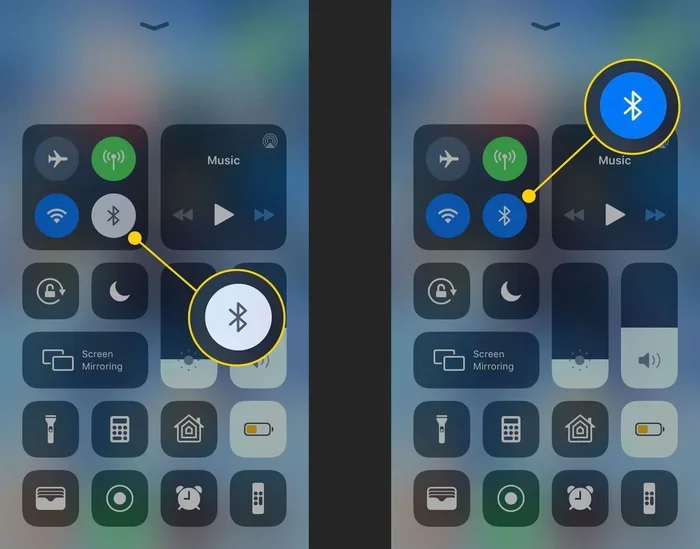
First, make sure Bluetooth is enabled on both devices. On most phones, you’ll find this in the quick settings panel. Swipe down from the top of your screen and tap the Bluetooth icon. On computers, check your system settings or control panel.
For devices like a Bluetooth stereo or car radio, you may need to navigate through the settings menu to find the Bluetooth option.
Step 2: Put Devices in Pairing Mode
Next, set the device you want to connect into pairing mode. This is sometimes called “discoverable mode.” Here’s how:
- Wireless headphones: Hold down the power button or a dedicated Bluetooth button until the LED light flashes
- Bluetooth speakers: Press and hold the Bluetooth button until you hear a beep or see a flashing light
- Car systems: Go to the audio or phone settings and select “Search for Devices”
Some devices stay in pairing mode for only a few minutes. If you don’t complete the connection in time, you may need to repeat this step.
Step 3: Select the Device
Now go to the other device and look for available Bluetooth devices. On your phone, you should see the second device appear in the list of available devices. Tap on it to select it.
Some devices will ask you to confirm a pairing code. Make sure the code shown on both screens matches. Then tap “Pair” or “Connect.”
Step 4: Confirm and Test
Once paired, you should see a confirmation message on both devices. Try playing music or transferring a small file to test the connection. If everything works, you’re all set!
Quick Tips for Smooth Pairing
Here are some practical tips that make the device pairing process easier:
- Keep both devices within 3 feet of each other during pairing
- Make sure both devices have enough battery power
- Restart Bluetooth on both devices if the first attempt fails
- Check that the device you want to connect to isn’t already paired with another device
- Update your device software before attempting a new pairing
Common Bluetooth Pairing Problems and How to Fix Them
Even when you follow all the steps correctly, Bluetooth pairing can sometimes be frustrating. Let’s look at the most common issues and how to solve them.
Devices Don’t Show Up in the List
This is the most common pairing problem. If one device doesn’t appear on the other’s list, try these fixes:
- Make sure the device is in pairing mode and not just powered on
- Move the devices closer together
- Turn Bluetooth off and on again on both devices
- Restart both devices completely
- Check if the device is already connected to another gadget nearby
Sometimes other Bluetooth devices in the area can interfere with the device discovery process. Turn off Bluetooth on nearby gadgets temporarily to help.
Paired But No Sound or Connection
You might see the devices as paired but still hear no audio. This happens more often than you’d think. Here’s what to do:
- Check the volume on both devices
- Make sure the audio output is set to the Bluetooth device
- Disconnect and reconnect the Bluetooth device
- Check if the Bluetooth device is in the correct mode (some speakers have different modes for music and calls)
If you’re trying to listen to your Samsung TV with Bluetooth headphones and the sound isn’t working, check your TV’s audio output settings. The TV might still be sending audio through its built-in speakers.
Pairing Keeps Failing
When pairing fails repeatedly, the issue is usually one of these:
- The devices are too far apart during the pairing attempt
- One device has reached its maximum number of paired connections
- Software on one or both devices needs updating
- The Bluetooth hardware has a temporary glitch
A quick fix for many issues is to “forget” the device on both sides and start the pairing fresh. This clears any cached connection data that might be causing problems.
Bluetooth Range and Signal Issues
Bluetooth has a limited range. Most devices work well within 30 feet of each other. Walls, furniture, and other electronics can weaken the Bluetooth signal. If you’re having trouble maintaining a connection, try moving closer to the other device.
Bluetooth Security: What Happens When You Pair Devices
Many people don’t think about Bluetooth security when pairing devices. But the pairing process is designed with safety in mind. When two devices pair, they create an encrypted connection. This means others nearby can’t easily intercept the data being shared.
How Pairing Protects Your Data
During the pairing process, devices exchange encryption keys. These keys scramble the data that travels between them. Without the correct keys, no one else can decode the information.
This is especially important for devices that carry sensitive information. Think about a Bluetooth headset that might pick up phone calls or a fitness tracker that shares health data.
Tips for Safe Bluetooth Pairing
Keep your Bluetooth connections secure with these simple practices:
- Only pair devices in trusted environments
- Don’t accept pairing requests from unknown devices
- Turn off Bluetooth when you’re not using it
- Remove old pairings you no longer need
- Keep your device software updated
Following these tips keeps your wireless connections safe and your personal data protected.
Can One Device Connect to Multiple Bluetooth Devices?
Yes! One device can often pair with multiple Bluetooth devices at the same time. For example, your phone might be connected to your wireless headphones and your smartwatch simultaneously.
However, there are limits. Most phones can maintain active connections with about 7 to 10 Bluetooth devices. But only a few can stream audio at the same time. So you can’t listen to music on two different pairs of headphones from the same phone without extra hardware.
Some Bluetooth speakers support multi-point connections. This means they can stay connected to two source devices at once. You might have your speaker paired with both your phone and your laptop. When your phone receives a call, the speaker switches over automatically.
Car Audio Systems and Multiple Devices
Many modern car audio systems can remember multiple paired phones. When you get in the car, the system might automatically connect to your phone. If a passenger wants to play music from their phone, they can switch the input manually.
This is especially useful for families sharing one car. Each person’s phone can be paired, and the system remembers them all.
What to Do When Bluetooth Pairing Just Won’t Work
Sometimes, despite your best efforts, Bluetooth pairing refuses to cooperate. Here are some advanced troubleshooting steps that can help.
Reset Bluetooth on Both Devices
The simplest and often most effective fix is to reset Bluetooth. On most phones, this means turning Bluetooth off, waiting 10 seconds, and turning it back on. On some devices, you may need to go into settings and clear the Bluetooth cache.
Forget the Device and Try Again
If resetting doesn’t work, try “forgetting” the device on both sides. This removes the stored pairing information. Then start the pairing process from scratch. Often this clears up stubborn connection issues.
Check for Software Updates
Outdated software can cause Bluetooth problems. Make sure both devices have the latest firmware or operating system updates. Manufacturers often release patches that fix Bluetooth bugs.
Factory Reset as a Last Resort
If nothing else works, a factory reset on the Bluetooth device might be necessary. This erases all settings and pairings. You’ll need to set up the device again from scratch. Use this as a last resort since it wipes all your custom settings.
Expert Insights on Bluetooth Pairing
Bluetooth technology has come a long way since its early days. Modern versions like Bluetooth 5.0 and later offer faster connections, better range, and improved power efficiency. The device pairing process has also become more streamlined.
One thing that hasn’t changed is the importance of patience. Pairing issues are usually temporary and solvable. Don’t give up after the first failed attempt. A simple restart or reset often does the trick.
When you’re setting up a new gadget, always check the user manual for specific pairing instructions. Some devices have unique steps that differ from the general process. A quick read can save you a lot of frustration.
Remember that Bluetooth connectivity depends on both hardware and software working together. Keeping your devices updated and maintaining them properly ensures smooth connections for years to come.
Final Thoughts
Do Bluetooth devices need to be paired with each other? Yes, they do. Bluetooth pairing is the essential process that creates secure, reliable wireless connections between your gadgets. Whether you’re connecting wireless headphones to your phone, a speaker to your TV, or a keyboard to your laptop, pairing is the first step.
The good news is that pairing is usually quick and easy. Most devices make the process straightforward with clear on-screen instructions. And once paired, many devices reconnect automatically without any effort from you.
If you run into issues, don’t worry. Most Bluetooth problems have simple solutions. A reset, a restart, or a fresh pairing attempt usually gets things working again. Keep the tips from this guide handy, and you’ll handle any Bluetooth connection challenge with confidence.
Now that you understand how Bluetooth devices connect and communicate, you’re ready to pair anything that comes your way. Happy connecting!
Frequently Asked Questions
Do Bluetooth devices need to be paired every time you use them?
No, most devices only need to be paired once. After the initial pairing, they usually reconnect automatically when both devices have Bluetooth turned on and are within range. The devices remember each other and restore the connection without repeating the full pairing process.
How long does the Bluetooth pairing process take?
The pairing process typically takes less than a minute. It usually involves putting one device in pairing mode, selecting it from the other device’s list, and confirming a code. Most Bluetooth devices complete this process in 10 to 30 seconds once both are ready.
Can you pair Bluetooth devices from different brands with each other?
Yes, Bluetooth is a universal standard. A Sony headphone can pair with a Samsung phone, and an Apple watch can connect to an Android device. As long as both devices support Bluetooth, they should be able to pair regardless of brand. Some niche features may not work across platforms, but basic pairing always works.
Is it safe to pair Bluetooth devices in public places?
It’s generally safe, but you should be cautious. Always make sure you’re pairing with the correct device and not accepting unexpected pairing requests. Turn off Bluetooth when you’re not using it in crowded public spaces. Following basic Bluetooth security practices keeps your connections safe anywhere.
What is the difference between pairing and connecting Bluetooth devices?
Pairing is the initial setup process where two devices exchange security codes and create a trusted relationship. Connecting is the ongoing state where paired devices are actively sharing data or audio. Once devices are paired, they connect automatically when Bluetooth is enabled and they’re in range.
Can you unpair a Bluetooth device and pair it with a different one later?
Yes, you can unpair a device and pair it with a different one anytime. Simply go to your Bluetooth settings, select the device, and choose “Forget” or “Unpair.” The device is then free to be paired with a new gadget. This is useful when sharing speakers or headphones between different users.