Do Bluetooth Headsets Work On Xbox One Complete Guide
Bluetooth headsets do not connect directly to Xbox One because Microsoft uses a proprietary wireless protocol instead of standard Bluetooth. However, you can still use wireless headphones with your Xbox One by using a Bluetooth transmitter, a 3.5mm audio jack, or Xbox-compatible wireless headsets. This guide walks you through every option so you can find the best solution for your setup and start gaming with crystal-clear audio.
Many gamers want to ditch the wires and use a Bluetooth headset with their Xbox One. The idea of moving freely around the room while chatting with teammates and hearing every footstep in-game sounds amazing. But here is the catch. Xbox One does not support standard Bluetooth audio connections the way your phone or laptop does.
This creates real frustration for players who already own Bluetooth headphones. You might wonder if you need to buy a brand-new headset just to game wirelessly. The good news is that there are several workarounds and alternatives that let you enjoy wireless audio on Xbox One. This guide breaks down every option so you can make an informed decision.
We will cover why Xbox One avoids Bluetooth, what works instead, and how to set things up step by step. By the end, you will know exactly how to get wireless audio flowing to your Xbox One without wasting money on incompatible gear.
Key Takeaways
- Xbox One does not support standard Bluetooth: Microsoft uses its own proprietary wireless protocol for headset connections.
- You can still go wireless: A Bluetooth transmitter or 3.5mm jack lets you use Bluetooth headphones with your Xbox One.
- Native Xbox Wireless Headsets work best: Headsets designed for Xbox offer the lowest latency and best audio quality.
- Workarounds exist for every budget: From affordable adapters to premium transmitters, there is a solution for everyone.
- Setup is simple: Most methods take just a few minutes and do not require advanced technical skills.
- Check compatibility first: Not all Bluetooth headphones work well with Xbox One workarounds, so verify before buying.
📑 Table of Contents
Why Xbox One Does Not Use Standard Bluetooth
You might be wondering why Microsoft chose not to include Bluetooth support on Xbox One. The answer comes down to performance and control. Standard Bluetooth has limitations that do not meet the demands of competitive gaming.
First, Bluetooth audio introduces latency, which is a small delay between the audio source and what you hear. In a fast-paced shooter game, even a slight delay can put you at a serious disadvantage. Microsoft wanted to avoid this problem for Xbox players.
Second, Bluetooth uses shared bandwidth. When multiple Bluetooth devices connect to the same console, they compete for the same wireless channel. This can cause audio dropouts, interference, and poor connection quality. Xbox needed a more reliable solution.
Instead, Xbox uses its own proprietary wireless protocol. This protocol is designed specifically for gaming. It delivers lower latency, better audio quality, and a more stable connection than standard Bluetooth ever could. Think of it as a dedicated highway for Xbox audio instead of sharing a busy public road.
The Difference Between Proprietary Wireless and Bluetooth
Understanding the difference matters when choosing your gaming setup. Proprietary wireless, like the one Xbox uses, operates on a dedicated frequency. This means it does not interfere with your Wi-Fi or other household devices. Bluetooth operates on a crowded 2.4 GHz frequency band shared with countless other devices.
Here is a quick comparison of the two technologies:
- Latency: Proprietary wireless has much lower latency than Bluetooth.
- Stability: Proprietary wireless connections are less prone to interference.
- Audio Quality: Xbox proprietary wireless supports high-quality audio codecs built for gaming.
- Range: Both technologies offer similar range, around 30 feet.
- Compatibility: Bluetooth works with many devices, while proprietary wireless is Xbox-specific.
Because of these differences, you cannot simply pair your Bluetooth headphones with an Xbox One controller and expect them to work. You need a bridge or an alternative method to make it happen.
How Bluetooth Headsets Can Work With Xbox One
Even though Xbox One does not have native Bluetooth support, you are not completely stuck. There are several practical workarounds that let you use Bluetooth headphones with your console. Let us explore each method in detail.
Method 1: Use a Bluetooth Transmitter
A Bluetooth transmitter is the most popular workaround for Xbox One players. This small device connects to your Xbox One through the controller’s 3.5mm jack or the optical audio output. It then broadcasts the audio as a Bluetooth signal to your wireless headphones.
You plug the transmitter into the Xbox One controller or into your TV’s audio output. Then you pair your Bluetooth headphones with the transmitter just like you would pair any Bluetooth device. The audio flows from Xbox One to the transmitter and then to your headphones wirelessly.
When choosing a transmitter, look for one with low latency. Some transmitters are specifically designed for gaming and offer near-zero delay. Others are more general purpose and may have a slight lag. For serious gaming, invest in a transmitter that advertises low-latency performance.
One thing to keep in mind: some Bluetooth transmitters work better than others with Xbox One. Make sure the transmitter you buy is compatible with console gaming. A transmitter designed for TV or music may not handle game audio and chat audio separately, which can be a problem.
Method 2: Use the 3.5mm Audio Jack on Your Controller
The Xbox One controller has a 3.5mm audio jack built into the bottom. You can plug wired headphones directly into this jack and hear game audio and chat through them. This is the simplest and most reliable method for wired audio.
But what if you want wireless audio? You can use a Bluetooth adapter that plugs into the 3.5mm jack on your controller. This adapter receives the audio signal and sends it to your Bluetooth headphones. It acts as a bridge between your Xbox One and your wireless headset.
This method works well, but there is a small downside. The adapter adds a slight bulk to your controller, and you need to keep it charged. Some adapters also introduce a tiny bit of latency, though most modern ones are fast enough for gaming.
If you want to explore how Bluetooth works with other gaming consoles, you can check out our guide on using Bluetooth headphones with PS4 for a broader perspective on console Bluetooth support.
Method 3: Use Your TV as a Bridge
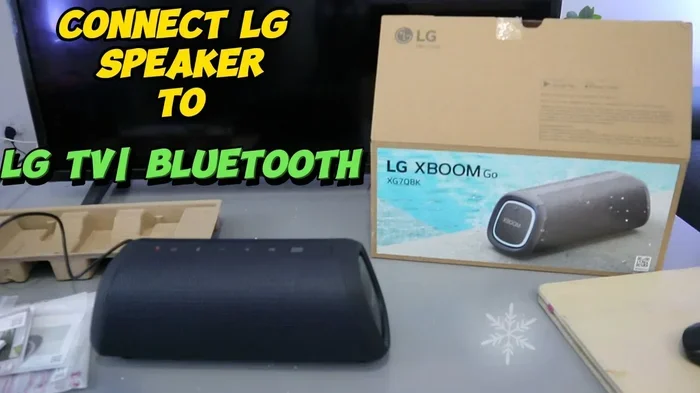
If you play Xbox One on a smart TV, you might be able to use your TV as a Bluetooth bridge. Many modern smart TVs support Bluetooth audio output. You can pair your Bluetooth headphones directly with your TV, and the Xbox One audio will route through the TV to your headphones.
This method is convenient because you do not need any extra devices. However, it has some limitations. The audio quality depends on your TV’s Bluetooth capabilities. Some TVs compress audio when sending it via Bluetooth, which can reduce sound quality. Also, there may be a slight delay depending on your TV model.
To set this up, go to your TV’s Bluetooth settings, put your headphones in pairing mode, and connect them to the TV. Then set the TV’s audio output to route the Xbox One sound. You may need to adjust your TV’s audio settings to ensure game audio and chat audio both come through clearly.
For more information on using Bluetooth with TVs, check out our article on using any Bluetooth headphones with your TV to understand compatibility across different TV brands.
Best Wireless Headsets for Xbox One
If you want the best possible wireless audio experience on Xbox One, consider buying a headset that is designed specifically for Xbox. These headsets use Xbox’s proprietary wireless protocol and deliver the lowest latency and best audio quality.
Top Xbox Wireless Headsets
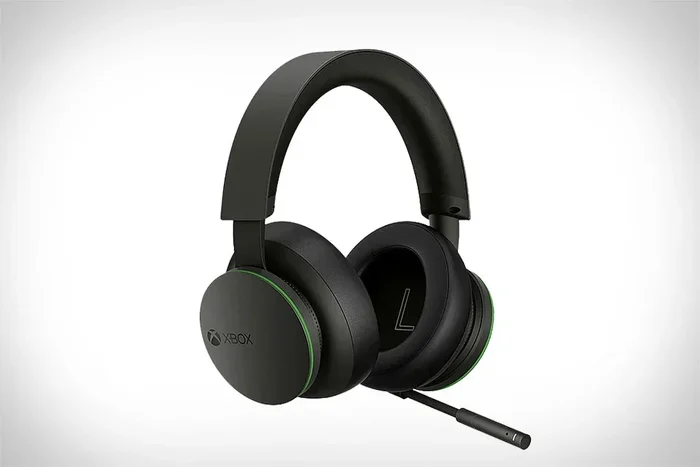
- Xbox Wireless Headset: Microsoft’s own headset offers seamless pairing, great sound quality, and built-in chat audio. It connects directly to Xbox One without any extra adapters.
- SteelSeries Arctis 7X: This headset features a multi-platform wireless connection and excellent comfort for long gaming sessions.
- Razer Kaira Pro: Designed specifically for Xbox, this headset offers low-latency wireless audio and comfortable ear cushions.
- HyperX Cloud Stinger Core Wireless: An affordable option that delivers solid sound quality and long battery life.
These headsets connect directly to your Xbox One using the proprietary wireless protocol. You do not need any extra equipment, and you get the best audio quality and the lowest latency possible on Xbox One.
When choosing a headset, consider factors like comfort, battery life, microphone quality, and sound profile. If you game for hours at a time, comfort becomes very important. If you stream or record, microphone quality matters a lot. Think about what matters most to you before making a purchase.
Comparing Bluetooth vs Xbox Wireless Headsets
Here is a side-by-side comparison of Bluetooth headsets with workarounds versus native Xbox Wireless headsets:
- Latency: Xbox Wireless headsets win hands down with near-zero latency. Bluetooth workarounds always introduce some delay.
- Setup Complexity: Bluetooth transmitters add steps to your setup. Xbox Wireless headsets connect with the push of a button.
- Audio Quality: Xbox Wireless headsets use optimized codecs for gaming audio. Bluetooth audio can be compressed and lower quality.
- Cost: Bluetooth workarounds can be cheaper upfront but may require buying extra equipment. Xbox Wireless headsets are a one-time investment.
- Versatility: Bluetooth headphones work with many devices beyond Xbox. Xbox Wireless headsets are limited to Xbox and sometimes PC.
If you already own Bluetooth headphones and do not want to buy a new headset, a transmitter is your best bet. If you are starting fresh and want the best gaming experience, an Xbox Wireless headset is the way to go.
Common Problems and How to Fix Them
Even with the right setup, you may run into some issues when using wireless audio with Xbox One. Here are the most common problems and how to solve them.
Audio Delay or Latency
If you notice a delay between the action on screen and the audio in your headphones, the Bluetooth connection is likely the culprit. This is the most common issue with Bluetooth workarounds on Xbox One.
To fix this, try the following steps:
- Use a Bluetooth transmitter that advertises low latency or gaming mode.
- Move closer to the transmitter to strengthen the signal.
- Reduce interference by keeping other Bluetooth devices away from your setup.
- If possible, use a wired connection for the most reliable audio with zero latency.
No Chat Audio
Sometimes game audio comes through your headphones but your friends’ voices do not. This happens when the audio routing is not set up correctly on Xbox One.
To fix this, go to Settings > Preferences > Audio output on your Xbox One. Make sure the chat audio output is set to your headphones or headset. You may also need to adjust the individual volume sliders for game audio and chat audio separately.
Connection Drops
If your wireless audio keeps cutting out, the connection between your device and Xbox One may be unstable. This often happens with Bluetooth transmitters that are far from the headphones or that share the same frequency as other wireless devices.
To fix this, stay within range of the transmitter, reduce the number of active Bluetooth devices in your area, and make sure your transmitter firmware is up to date.
Quick Tips for the Best Wireless Gaming Audio
Here are some practical tips to help you get the most out of your wireless audio setup on Xbox One:
- Keep your firmware updated: Both your Xbox One controller and any Bluetooth adapter or transmitter should run the latest firmware for the best performance.
- Charge your devices fully: Nothing kills a gaming session faster than dying headphones. Charge them before you start playing.
- Test in a quiet room first: Before jumping into a competitive match, test your audio setup in a quiet environment to check for latency or connection issues.
- Use a dedicated chat headset: If your Bluetooth headphones lack a good microphone, consider using a separate wired headset for chat while your Bluetooth headphones handle game audio.
- Experiment with positioning: The placement of your Bluetooth transmitter matters. Try different positions near your TV or console to find the strongest signal.
These small adjustments can make a big difference in your wireless audio experience. Take a few minutes to test different setups and find what works best for your gaming environment.
Final Thoughts
So do Bluetooth headsets work on Xbox One? The short answer is no, not directly. Xbox One uses a proprietary wireless protocol that does not support standard Bluetooth connections. But that does not mean you are out of options. With a Bluetooth transmitter, a 3.5mm adapter, or your TV as a bridge, you can absolutely enjoy wireless audio while gaming on Xbox One.
If you want the simplest and best experience, an Xbox Wireless headset is the top choice. It connects natively, offers the lowest latency, and delivers excellent sound quality. But if you already own Bluetooth headphones, the workarounds in this guide will help you put them to good use.
The right setup depends on your budget, your existing gear, and how seriously you take audio quality in games. Take your time, explore the options, and find the solution that fits your gaming style best.
For more tips on Bluetooth connectivity across different devices and platforms, explore our other guides on Bluetooth technology and wireless audio solutions.
Frequently Asked Questions
Can I connect any Bluetooth headset directly to Xbox One?
No, Xbox One does not support direct Bluetooth connections for headsets. Microsoft uses a proprietary wireless protocol that is different from standard Bluetooth. You will need a workaround like a Bluetooth transmitter or a 3.5mm adapter to use Bluetooth headphones with Xbox One.
What is the best Bluetooth transmitter for Xbox One?
The best Bluetooth transmitters for Xbox One are ones designed specifically for gaming with low latency features. Look for transmitters that support aptX Low Latency or have a dedicated gaming mode. Popular options include the 1Mii B06TX and the Avantree Oasis, both of which work well with Xbox One setups.
Can I use Bluetooth headphones for Xbox One party chat?
Yes, but it depends on your setup. If you use a Bluetooth transmitter connected to your Xbox One controller, you can route both game audio and chat audio to your Bluetooth headphones. You may need to adjust the audio settings on your Xbox One to ensure chat audio comes through your headphones clearly.
Why does my Bluetooth headset have lag on Xbox One?
Bluetooth inherently has higher latency than Xbox’s proprietary wireless protocol. This lag happens because Bluetooth transmits data in small packets, which takes slightly longer than a dedicated wireless connection. Using a low-latency Bluetooth transmitter can reduce this delay significantly.
Are Xbox Wireless headsets worth the extra cost?
Yes, for serious gamers, Xbox Wireless headsets are worth the investment. They offer near-zero latency, superior audio quality, and seamless pairing without any extra adapters. If you game competitively or want the best possible wireless experience on Xbox One, an Xbox Wireless headset is the clear choice.
Can I use a Bluetooth transmitter with Xbox Series X as well?
Yes, the same Bluetooth transmitter workarounds that work with Xbox One also work with Xbox Series X. Xbox Series X also does not support standard Bluetooth for headsets, so a transmitter or 3.5mm adapter remains the best way to connect Bluetooth headphones to the newer console.