Does Mhl Work With Any Tv And What You Need To Know
Does Mhl Work With Any Tv? The short answer is no — MHL requires specific hardware support on both your device and your TV. MHL (Mobile High-Definition Link) is a technology that lets you mirror your phone screen to a larger display. Not every TV has an MHL-compatible HDMI port. You will need an MHL cable, an MHL adapter, or a TV that natively supports MHL. This guide covers everything you need to know about MHL compatibility, setup, alternatives, and common mistakes to avoid.
Have you ever wanted to watch a video from your phone on a bigger screen? Maybe you are at home and your TV is across the room. Or perhaps you are hosting a movie night and want to share something from your device. The idea of simply plugging your phone into your TV sounds easy. But does it really work with any TV? That is where MHL comes in, and the answer might surprise you.
Does Mhl Work With Any Tv? The truth is, MHL does not work with every TV. It needs specific hardware support. MHL stands for Mobile High-Definition Link. It is a technology that lets you connect your mobile device to a TV or display using a single cable. The cable carries both video and audio from your phone to your TV. But here is the catch — both your phone and your TV need to support MHL for it to work.
In this article, we will break down everything you need to know. We will cover what MHL is, how it works, which TVs support it, and what you need to get started. We will also look at common problems, alternatives, and tips to make your setup smooth. Whether you are a tech beginner or someone who just wants a quick answer, this guide has you covered.
Key Takeaways
- MHL does not work with every TV. Your TV must have an MHL-enabled HDMI port or use an MHL adapter.
- You need compatible devices on both ends. Your phone or tablet must support MHL, and your TV must accept MHL input.
- MHL cables and adapters are widely available. You can buy standard MHL cables or use a micro USB to HDMI adapter.
- Alternative methods exist. If MHL does not work, you can try screen mirroring, a USB-C to HDMI adapter, or direct HDMI connection.
- Setup is simple once you have the right gear. Plug in the cable, switch your TV input, and your phone screen mirrors to your TV.
- Common mistakes cause connection failures. Using the wrong cable, ignoring firmware updates, or forcing incompatible devices are top issues.
📑 Table of Contents
What Is MHL And How Does It Work?
MHL stands for Mobile High-Definition Link. It is a standard technology that was created to connect mobile devices to TVs and displays. The goal was simple — let you watch phone content on a bigger screen without any fuss. MHL sends both high-definition video and audio through a single cable. This means fewer cables hanging around and a cleaner setup.
The Basics Of MHL Technology
MHL works by using the micro USB or USB-C port on your phone. It sends a signal through a special cable to your TV’s HDMI port. The TV then displays your phone screen. You can watch videos, play games, show photos, or even use apps on the big screen. The experience feels almost like using the TV directly.
MHL was developed by a group of companies. Sony, Samsung, Nokia, and Toshiba were among the founders. They wanted a universal way to connect phones to TVs. Over the years, MHL went through several versions. Each version brought better resolution and faster data transfer. MHL 1.0 supported 1080p video. Later versions added support for 4K and even higher resolutions.
How MHL Connects Your Devices
The connection process is straightforward. You plug one end of the MHL cable into your phone. The other end plugs into your TV’s HDMI port. Once connected, your TV recognizes the phone as a source. You may need to switch your TV to the correct HDMI input. After that, your phone screen appears on the TV.
Some MHL cables also charge your phone while you use them. This is a great feature. You do not have to worry about your phone battery dying during a movie. Just make sure your MHL cable supports charging if that matters to you.
Does Mhl Work With Any Tv?
This is the big question. And the honest answer is no. Does Mhl Work With Any Tv is not a simple yes. MHL requires your TV to have an MHL-enabled HDMI port. Not all HDMI ports support MHL. Here is why it matters and how to check.
Understanding MHL Compatibility
MHL compatibility depends on the TV’s HDMI port. Some TVs have ports that support MHL. Others do not. The port might look the same as a regular HDMI port. But inside, it has extra pins that handle MHL signals. If your TV does not have these pins, MHL will not work through that port.
To check if your TV supports MHL, look for the MHL logo on the TV or its manual. The logo looks like an MHL symbol on the HDMI port or on the box. You can also check the TV manufacturer’s website. Search for your TV model and look for MHL support in the specifications.
If your TV does not support MHL natively, you are not out of luck. You can use an MHL adapter. These adapters plug into a regular HDMI port and add MHL support. They act as a bridge between your phone and the TV. We will talk more about adapters in a later section.
What Makes A TV MHL Compatible?
Several things determine if a TV is MHL compatible:
- HDMI port type: The port must support MHL signals. Look for the MHL logo on the port.
- TV brand and model: Many Samsung, Sony, and LG TVs from the last decade support MHL. Check your specific model.
- Firmware version: Some TVs need a firmware update to enable MHL. Always keep your TV updated.
- HDMI version: MHL works best with HDMI 1.4 or newer ports. Older HDMI versions may not support it.
Keep in mind that MHL support has become less common in recent years. Many newer TVs focus on smart features, screen mirroring, and wireless connections. If you have a TV from the last few years, check carefully before buying an MHL cable.
Types Of MHL Cables And Adapters
If you want to use MHL, you need the right cable or adapter. Not all cables are the same. Different devices need different types of MHL connections. Let us look at what is available.
Standard MHL Cables
A standard MHL cable has two ends. One end is a micro USB connector. The other end is an HDMI connector. You plug the micro USB end into your phone and the HDMI end into your TV. That is it. The cable does the rest.
MHL cables come in different versions. MHL 2.0 cables support 1080p video and stereo audio. MHL 3.0 cables add support for 4K resolution. If you have a newer phone, look for an MHL 3.0 cable. It gives you the best picture quality.
Some MHL cables also include a USB port for charging. This is very handy. You can watch a long movie without your phone battery dropping. Just plug a USB charger into the cable’s USB port while you use it.
MHL Adapters For Different Devices
Not all phones use micro USB. Some use USB-C. Others use Lightning. Here are the common MHL adapter types:
- Micro USB to HDMI MHL adapter: This is the most common type. It works with older Android phones that have a micro USB port.
- USB-C to HDMI MHL adapter: Use this with newer Android phones that have a USB-C port.
- Lightning to HDMI adapter with MHL: These are rare. Apple does not officially support MHL. But some third-party adapters claim MHL compatibility.
Make sure you buy the right adapter for your device. Using the wrong one will not work. Check your phone’s charging port type before purchasing.
If you are exploring other ways to connect devices to your TV, you might also want to check if Can I Connect My Phone To Hdmi Tv for alternative methods that work with modern TVs.
How To Set Up MHL With Your TV
Setting up MHL is easier than you might think. Once you have the right cable or adapter, the process takes just a few minutes. Here is a step-by-step guide to get you going.
Step-By-Step Setup Guide
- Check your TV for MHL support. Look for the MHL logo on the HDMI port or check the TV manual.
- Get the right MHL cable or adapter. Match the cable to your phone’s charging port.
- Plug the MHL cable into your phone. Make sure it fits snugly and is fully seated.
- Plug the other end into your TV’s HDMI port. Use any available HDMI port that supports MHL.
- Switch your TV to the correct HDMI input. Use your TV remote to change the input source.
- Your phone screen should now appear on the TV. If it does not, try disconnecting and reconnecting the cable.
That is all there is to it. You should now see your phone screen on your TV. You can browse photos, watch videos, or even use apps on the big screen. The experience is smooth and responsive with a good MHL connection.
Troubleshooting Common Issues
Sometimes MHL does not work right away. Do not worry. Here are some common issues and how to fix them:
- No signal on the TV: Try a different HDMI port. Make sure the cable is fully plugged in on both ends.
- Phone does not recognize the connection: Restart your phone and try again. Some phones need you to enable MHL in the settings.
- Poor picture quality: Use a higher-quality MHL cable. Cheap cables can cause signal loss.
- No audio: Check your TV audio settings. Make sure the HDMI input is set as the audio source.
- Phone overheats: MHL can cause your phone to heat up. Take breaks during long viewing sessions.
If you are having trouble connecting your device to a display, you might also find it helpful to learn about Can I Hook My Ipad To My Tv Using Usb since some tablets use similar connection methods.
MHL Vs Other Connection Methods
MHL is not the only way to connect your phone to a TV. There are several other methods. Each has its pros and cons. Let us compare them so you can choose the best option for your setup.
MHL vs Direct HDMI
Direct HDMI is the simplest method. You just plug an HDMI cable into your phone (using an adapter) and into your TV. No special MHL support needed on the TV side. But direct HDMI adapters can be expensive. They also may not charge your phone while you use them.
MHL has the advantage of being a standard. Many devices support it. And MHL cables are generally cheaper than direct HDMI adapters. But MHL requires TV support, which not all TVs have.
MHL vs Screen Mirroring
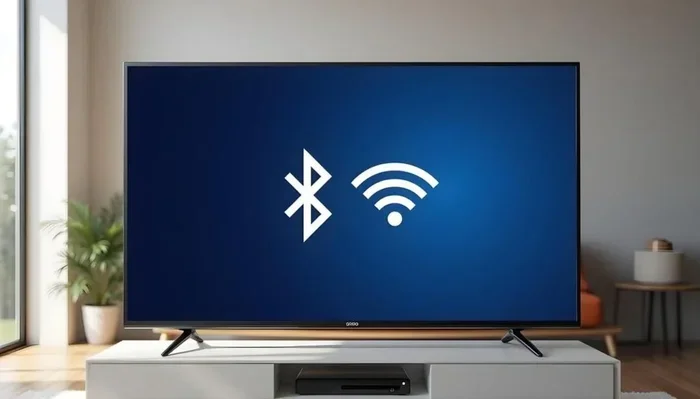
Screen mirroring uses Wi-Fi to send your phone screen to your TV. It does not need any cables. Popular screen mirroring technologies include AirPlay, Chromecast, and Miracast. The setup is wireless and very convenient.
But screen mirroring has downsides. It can lag or stutter. The picture quality depends on your Wi-Fi signal. For fast-moving videos or games, MHL often gives a smoother experience because it uses a direct wired connection.
If you are looking for other ways to connect your phone to a display, you might also want to explore whether Can I Connect My Phone To Projector With Usb Cable works as an alternative for certain setups.
MHL vs USB-C to HDMI
USB-C to HDMI adapters are becoming very popular. They work with newer phones and tablets that have USB-C ports. These adapters do not need MHL support on the TV. They handle the conversion from USB-C to HDMI directly.
The main advantage is wider compatibility. You do not need an MHL-enabled TV. Any TV with an HDMI port will work. The downside is that these adapters can cost more than basic MHL cables. But they offer more flexibility.
Devices That Support MHL
Not all phones and TVs support MHL. Knowing which devices do can save you a lot of frustration. Let us look at what to expect.
Smartphones With MHL Support
Many Android phones from the 2010s and early 2020s supported MHL. Samsung Galaxy phones were big supporters of MHL. The Galaxy S series, Note series, and some A series models had built-in MHL support. Sony Xperia phones also supported MHL widely.
Here are some popular phone brands that supported MHL:
- Samsung Galaxy: Many models from the S3 to the S10 series supported MHL.
- Sony Xperia: Several Xperia models included MHL support.
- Nokia: Some Nokia phones had MHL built in.
- HTC: Select HTC models supported MHL.
Apple does not support MHL. iPhones use AirPlay and Lightning to HDMI adapters instead. If you have an iPhone, MHL is not an option for you. You will need a different connection method.
TVs And Displays That Support MHL
Many TVs from major brands supported MHL in the past. Samsung, Sony, and LG were the biggest supporters. Most mid-range and high-end TVs from these brands had at least one MHL-enabled HDMI port.
However, MHL support has declined in recent years. Newer smart TVs focus on wireless streaming and built-in apps. Many modern TVs do not include MHL support. If you have a TV from 2018 or later, check the specifications carefully.
External displays and monitors can also support MHL. Some computer monitors with HDMI ports accept MHL input. Portable monitors and projectors sometimes support MHL too. Always check the device specifications before buying an MHL cable.
Common Mistakes And Pro Tips
Even with the right gear, MHL setups can run into problems. Avoid these common mistakes and follow our pro tips for the best experience.
Mistakes To Avoid
- Buying the wrong cable: Not all micro USB cables support MHL. You need a cable that is specifically labeled as MHL compatible.
- Ignoring TV firmware updates: A simple firmware update can enable MHL support on your TV. Check for updates regularly.
- Assuming all HDMI ports support MHL: On some TVs, only specific HDMI ports support MHL. Check your TV manual to find the right port.
- Using a damaged cable: A worn-out or damaged MHL cable can cause connection issues. Inspect your cable before each use.
- Forcing the connection: If MHL does not work, do not force it. Try a different cable, adapter, or HDMI port. Sometimes a simple swap solves the problem.
Pro Tips For MHL Users
- Keep your phone cool: MHL can make your phone warm. Use it in a well-ventilated area.
- Use a high-quality cable: Cheap cables can cause picture and audio problems. Invest in a good MHL cable from a reputable brand.
- Update your phone too: Sometimes phone software updates improve MHL compatibility. Keep your phone updated as well.
- Test with a short cable first: Longer cables can cause signal loss. Start with a short cable and upgrade if needed.
- Check your TV settings: Some TVs have a specific MHL setting in the menu. Make sure it is turned on.
For those exploring wired connections to external displays, you may also want to learn about connecting your TV to a receiver. Check out Can I Connect My Tv To My Receiver Using Both The Hdmi And Component Cables At The Same Time for tips on managing multiple video inputs.
Is MHL Still Worth Using In 2024?
MHL was a great technology when it launched. It solved a real problem — how to connect your phone to a TV with a single cable. But the tech world has moved on. Wireless screen mirroring is now the go-to solution for most people. Chromecast, AirPlay, and Miracast offer cable-free convenience that MHL simply cannot match.
That said, MHL still has its place. If you want a reliable, lag-free connection, a wired MHL setup is hard to beat. Gamers who want zero latency on their TV will appreciate MHL. People who watch long videos or present slideshows also benefit from the stable wired connection.
If you have older devices that support MHL, it is still worth using. Do not throw away your MHL cables just yet. They work well and can save you money compared to buying new wireless streaming devices. Just make sure both your phone and TV still support MHL before you rely on it.
The bottom line is this: Does Mhl Work With Any Tv — no, it does not. But with the right devices and the right cable, MHL can be a great way to share your phone screen on a bigger display. Just do your homework before buying any cables or adapters.
Conclusion
Does Mhl Work With Any Tv is a question many people ask. And the answer is clear: MHL needs specific hardware on both your phone and your TV. Not every TV supports MHL. Not every phone does either. But when both devices are compatible, MHL offers a simple, reliable way to mirror your phone screen to your TV.
We covered a lot in this guide. You learned what MHL is, how it works, and what makes a TV MHL compatible. We explored different cables and adapters. We looked at setup steps, troubleshooting tips, and alternatives. We also discussed common mistakes and pro tips to get the best results.
If you want to try MHL, start by checking your TV and phone specifications. Buy the right MHL cable or adapter for your device. Follow the setup steps carefully. And if MHL does not work for your setup, remember there are plenty of alternatives. Screen mirroring, USB-C to HDMI adapters, and direct HDMI connections all offer great options.
MHL may not be the newest technology, but it still works well for the right setup. With the right gear and a little patience, you can enjoy your phone content on a big screen anytime you want. Just make sure your devices are compatible, and you will be good to go.
Frequently Asked Questions
Can I Use MHL With Any Smartphone?
No, MHL only works with smartphones that support it. Most Android phones from Samsung, Sony, and Nokia supported MHL in the past. iPhones do not support MHL at all. Check your phone’s specifications to see if MHL is listed as a feature. If your phone does not support MHL, you will need a different connection method.
Do All HDMI Ports On A TV Support MHL?
No, not all HDMI ports support MHL. Some TVs have only one or two MHL-enabled HDMI ports. The others are regular HDMI ports. Look for the MHL logo on the TV or check the manual to find the correct port. Using a non-MHL HDMI port will not work with MHL cables.
What Is The Difference Between MHL And HDMI?
MHL is a specific technology that uses a micro USB or USB-C connection to send video and audio to an HDMI port. Standard HDMI uses a larger connector and does not work directly with phones. MHL was designed to make phone-to-TV connections simpler with a single cable. HDMI is a broader standard used for many devices like laptops, game consoles, and streaming boxes.
Can I Charge My Phone While Using MHL?
Yes, many MHL cables support charging while you use them. These cables have a built-in USB port that you can connect to a charger. This lets you keep your phone powered during long viewing sessions. Check the specifications of your MHL cable to confirm it supports charging.
Why Does My MHL Connection Keep Disconnecting?
MHL connections can disconnect for several reasons. A loose cable, a faulty adapter, or an incompatible device can all cause this. Try using a different MHL cable or adapter. Make sure both ends are fully plugged in. Also check if your phone or TV needs a firmware update. Sometimes a simple restart of both devices fixes the problem.
Is MHL Better Than Wireless Screen Mirroring?
It depends on what you need. MHL gives you a stable, lag-free wired connection. This is great for gaming and fast-moving video. Wireless screen mirroring is more convenient since you do not need cables. But it can lag or stutter depending on your Wi-Fi signal. For the best picture quality and reliability, MHL is often the better choice.