Does Xbox Support Bluetooth Controllers Heres Everything
Does Xbox support Bluetooth controllers? The short answer is no — Xbox consoles do not use standard Bluetooth for wireless controllers. Instead, they rely on a proprietary wireless protocol. However, you can still connect Bluetooth devices using adapters or by pairing through a PC. This guide covers everything you need to know about Xbox Bluetooth controller support, compatibility, setup, and fixes.
Gamers love the freedom of going wireless. Whether you are couch-surfing with a controller or setting up a wireless gaming station across the room, the last thing you want is a cable holding you back. But here is the big question — does Xbox support Bluetooth controllers?
The answer might surprise you. Xbox consoles do not use standard Bluetooth technology for their controllers. Instead, they rely on a proprietary wireless protocol that is designed specifically for low latency and stable connections. This means you cannot simply pair a Bluetooth controller to an Xbox the way you would with a Bluetooth headset or a phone. But do not worry. There are still plenty of ways to go wireless with your Xbox setup.
In this guide, we will break down everything you need to know. From understanding why Xbox does not use Bluetooth natively, to the workarounds that make wireless gaming possible, we have you covered. Whether you own an Xbox One, Xbox Series X, or Xbox Series S, this article will help you get connected the right way.
Key Takeaways
- Xbox does not natively support Bluetooth: Xbox consoles use a proprietary wireless signal, not standard Bluetooth.
- Bluetooth adapters work: You can use a Bluetooth adapter to connect Bluetooth devices to your Xbox.
- PC pairing is an option: You can connect Xbox controllers to PCs via Bluetooth for wireless gaming.
- Xbox Wireless Controller is the standard: The official Xbox controller connects through its own wireless protocol.
- Troubleshooting is simple: Most Bluetooth-related issues on Xbox can be fixed with a firmware update or adapter reset.
📑 Table of Contents
- Does Xbox Support Bluetooth Controllers?
- Which Xbox Models Support Wireless Controllers?
- How to Connect a Bluetooth Controller to Xbox
- Using Bluetooth with Xbox for Other Devices
- Common Bluetooth Controller Issues and How to Fix Them
- Quick Tips for the Best Wireless Gaming Experience
- Expert Insights on Xbox Wireless Technology
- Common Mistakes to Avoid
- Comparing Xbox Wireless vs Bluetooth for Gaming
- The Future of Xbox Connectivity
- Final Thoughts
Does Xbox Support Bluetooth Controllers?
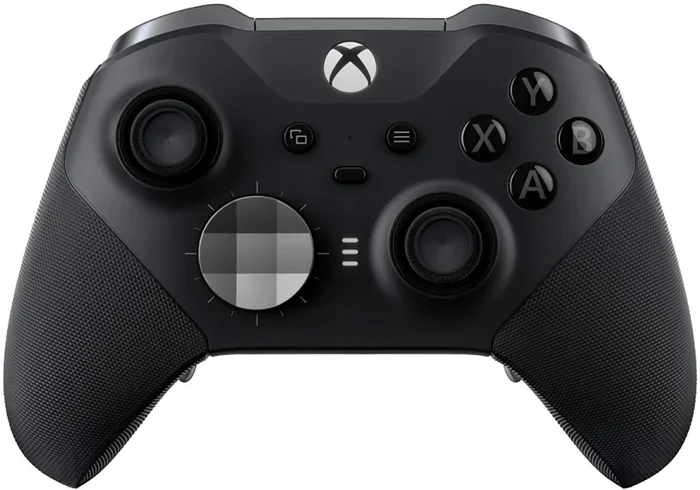
The direct answer is no. Xbox does not natively support Bluetooth controllers. When you pick up an Xbox Wireless Controller, it connects to the console using a proprietary Microsoft wireless protocol. This is not the same as Bluetooth connectivity. The signal operates on a different frequency and uses a custom pairing method.
So why did Microsoft choose this route? The main reason is performance. Standard Bluetooth can introduce slight delays. For competitive gaming, even a small lag can make a difference. Microsoft’s proprietary wireless protocol delivers a faster, more responsive connection. It is optimized specifically for gaming peripherals and wireless controllers.
That said, the lack of native Bluetooth support does not mean you are stuck with wires. There are several workarounds and solutions that let you use Bluetooth devices with your Xbox. We will cover those in detail below.
Why Xbox Uses Its Own Wireless Protocol
Microsoft developed its own wireless technology for a few key reasons. First, it gives them full control over the controller range and signal quality. Second, it reduces interference from other Bluetooth devices in your home. Third, it allows for features like the Xbox Accessories app to communicate directly with the controller for firmware updates and button remapping.
The proprietary signal also supports the Xbox Chat Headset and other Xbox accessories that would not work over standard Bluetooth. This closed ecosystem gives Microsoft the flexibility to deliver a better wireless gaming experience overall.
Which Xbox Models Support Wireless Controllers?
All modern Xbox consoles support the Xbox Wireless Controller. But the way they connect can vary slightly. Let us look at each model and how it handles wireless controller connectivity.
Xbox One
The Xbox One uses the Xbox Wireless protocol out of the box. You can pair an Xbox Wireless Controller directly using the pairing button on the console. The Xbox One does not have a built-in Bluetooth chip for controller connections. If you want to use a Bluetooth controller, you will need a workaround, which we will explain shortly.
One thing to note is that Xbox One does support Wi-Fi for online gaming and updates. If you are wondering about connectivity options, check out our guide on Can The Xbox One Connect To Wi Fi for more details.
Xbox Series X
The Xbox Series X uses the same proprietary wireless protocol as the Xbox One but with improved range and faster response times. The Xbox Series X controller supports Bluetooth Low Energy for PC connections, but not for direct console pairing. This is an important distinction to keep in mind.
Xbox Series S
The Xbox Series S is a digital-only console, but it supports the same Xbox Wireless Controller as the Series X. The wireless experience is identical. Both consoles use the same proprietary protocol and do not support native Bluetooth for controllers.
How to Connect a Bluetooth Controller to Xbox
Since Xbox does not support Bluetooth natively, you need a workaround. Here are the most reliable methods to connect a Bluetooth controller to your Xbox console.
Method 1: Use a Bluetooth Adapter
The easiest way to connect a Bluetooth device to your Xbox is with a Bluetooth adapter. These small USB dongles plug into your Xbox and allow it to communicate with Bluetooth peripherals. You can find Xbox-compatible Bluetooth adapters from brands like 8BitDo and other third-party manufacturers.
Here is how it works:
- Purchase an Xbox-compatible Bluetooth adapter.
- Plug the adapter into an available USB port on your Xbox.
- Put your Bluetooth controller in pairing mode.
- The adapter will detect the controller and establish a connection.
This method works well for wireless gaming on the couch. Just make sure the adapter you buy is designed for Xbox, as generic Bluetooth adapters may not work properly.
Method 2: Connect Through a PC
Another option is to connect your Xbox controller to a PC via Bluetooth and then stream your gameplay to the Xbox. This is a more advanced setup but can be useful in certain situations. If you want to learn more about Xbox and PC connectivity, check out our article on Can I Play My Xbox On My Laptop for tips on streaming and remote play.
Method 3: Use a Controller That Supports Both Protocols
Some third-party controllers support both Xbox Wireless and Bluetooth. These controllers can connect directly to the Xbox using the proprietary protocol and also pair with phones, tablets, and PCs via Bluetooth. This gives you the best of both worlds.
Popular options include controllers from brands like PowerA and 8BitDo. These controllers are great for wireless gaming across multiple devices without needing extra adapters.
Using Bluetooth with Xbox for Other Devices
While Xbox does not support Bluetooth for controllers, it does support Bluetooth for other devices in certain scenarios. Let us look at what Bluetooth options are available on Xbox.
Bluetooth on Xbox for Headsets
Xbox does not support Bluetooth audio for headsets directly. Instead, you need to use the Xbox Wireless protocol or a Bluetooth adapter. Some players use a Bluetooth transmitter connected to their TV or audio system to get wireless audio from their Xbox. If you are looking for a way to use wireless audio, our guide on Can I Use A Bluetooth Adapter On My Tv has helpful tips for setting this up.
Bluetooth Keyboards and Mice
You can use a Bluetooth adapter to connect wireless keyboards and mice to your Xbox. This is useful for navigating the Xbox dashboard or typing in chat. Just keep in mind that not all Bluetooth peripherals are compatible, so check the adapter specifications before purchasing.
Common Bluetooth Controller Issues and How to Fix Them
Even with the right setup, you may run into issues when using Bluetooth or wireless connections with your Xbox. Here are the most common problems and how to solve them.
Controller Not Pairing
If your controller will not pair, try these steps:
- Make sure the controller has fresh batteries or a full charge.
- Restart your Xbox console completely.
- Hold the pairing button on both the controller and the console for three seconds.
- If using a Bluetooth adapter, unplug it and plug it back in.
Lag or Input Delay
Lag can be frustrating during wireless gaming. If you experience input delay, try moving closer to the console. Walls and other electronics can interfere with the signal. Also, make sure your Xbox firmware is up to date, as updates often improve wireless performance.
Controller Keeps Disconnecting
A controller that keeps dropping the connection may have low battery. It could also be a sign of interference from other wireless devices in your home. Try turning off nearby Bluetooth speakers or Wi-Fi devices and see if the connection stabilizes.
Quick Tips for the Best Wireless Gaming Experience
Want to get the most out of your wireless controller? Follow these simple tips:
- Keep your controller charged: A low battery causes lag and disconnections. Charge your controller fully before long gaming sessions.
- Stay within range: The controller range on Xbox is about 30 feet. Stay within that distance for the best signal.
- Update your firmware: Use the Xbox Accessories app to keep your controller updated. Updates fix bugs and improve performance.
- Use official Xbox accessories: Third-party accessories may work, but official Xbox accessories are guaranteed to be compatible.
- Reduce wireless interference: Keep your console away from routers, microwaves, and other devices that emit wireless signals.
These small steps can make a big difference in your wireless gaming experience. A stable connection means fewer interruptions and more time enjoying your favorite games.
Expert Insights on Xbox Wireless Technology
Microsoft has invested heavily in its wireless technology for Xbox. The proprietary protocol is designed specifically for gaming, which gives it a clear advantage over standard Bluetooth connectivity. According to Microsoft, the Xbox Wireless protocol offers lower latency, better range, and more reliable connections than traditional Bluetooth.
That said, the gaming community has long requested native Bluetooth support. Many players want the ability to connect their controllers to Xbox directly without extra hardware. While Microsoft has not added native Bluetooth for controllers, the introduction of Bluetooth Low Energy support for PC connections shows the company is moving in that direction.
If you are someone who values flexibility, consider investing in a controller that supports both Xbox Wireless and Bluetooth. This gives you the freedom to switch between your Xbox, PC, and mobile devices without needing multiple controllers or adapters.
Common Mistakes to Avoid
Before you go out and buy a Bluetooth adapter or a new controller, watch out for these common mistakes:
- Buying a generic Bluetooth adapter: Not all adapters work with Xbox. Make sure the adapter is specifically designed for Xbox consoles.
- Ignoring firmware updates: Outdated firmware can cause pairing issues and poor performance. Always keep your controller updated.
- Assuming all Bluetooth controllers work: Some Bluetooth controllers use protocols that are incompatible with Xbox. Check compatibility before buying.
- Overlooking the Xbox Wireless Controller: The official Xbox Wireless Controller is the best option for Xbox. It offers the lowest latency and the most reliable connection.
Avoiding these mistakes will save you time, money, and frustration. A little research goes a long way when setting up wireless gaming gear.
Comparing Xbox Wireless vs Bluetooth for Gaming
Let us compare the two wireless technologies side by side so you can understand the differences clearly.
- Latency: Xbox Wireless has lower latency than standard Bluetooth. This makes it better for fast-paced games where every millisecond counts.
- Range: Xbox Wireless offers a range of about 30 feet. Bluetooth typically has a similar range but can be affected by walls and obstacles.
- Compatibility: Bluetooth works with a wider range of devices, including phones, tablets, and PCs. Xbox Wireless is limited to Xbox consoles and PCs.
- Setup: Xbox Wireless is simple — just press the pairing button. Bluetooth may require an adapter or additional software on Xbox.
- Stability: Xbox Wireless is generally more stable and less prone to interference than Bluetooth.
For pure Xbox gaming, the proprietary wireless protocol is the better choice. But if you need flexibility across multiple devices, Bluetooth has its advantages.
The Future of Xbox Connectivity
Microsoft continues to evolve its wireless technology. While the current Xbox consoles do not support native Bluetooth for controllers, future models might change that. The trend in the gaming industry is toward more open connectivity standards, and Bluetooth is a natural fit for that direction.
Until then, the workarounds we have covered in this guide will help you stay connected. Whether you use a Bluetooth adapter, a dual-protocol controller, or PC streaming, there are plenty of ways to enjoy wireless gaming with your Xbox.
If you are exploring other connectivity options, you might also want to check out our article on Can I Download Bluetooth On My Pc for tips on setting up Bluetooth on your computer for a seamless wireless gaming setup.
Final Thoughts
So, does Xbox support Bluetooth controllers? Not natively. But that does not mean you are out of options. With the right adapter, a compatible controller, or a PC connection, you can still enjoy the freedom of wireless gaming on your Xbox.
The key is understanding how Xbox wireless technology works and choosing the right solution for your setup. Whether you are a casual gamer or a competitive player, there is a way to go wireless without sacrificing performance.
We hope this guide has answered all your questions about Xbox Bluetooth controller support. Now you know the why, the how, and the workarounds. Grab your controller, get connected, and enjoy your favorite games without the hassle of cables.
Frequently Asked Questions
Can I Use Any Bluetooth Controller with Xbox?
Not all Bluetooth controllers work with Xbox. Xbox uses a proprietary wireless protocol, so standard Bluetooth controllers need a compatible adapter or a controller that supports both Xbox Wireless and Bluetooth. Always check compatibility before purchasing.
Why Does Not Xbox Use Standard Bluetooth for Controllers?
Xbox uses a proprietary wireless protocol because it offers lower latency and more stable connections than standard Bluetooth. This is especially important for competitive gaming where every millisecond matters.
Can I Connect My Xbox Controller to My Phone via Bluetooth?
Yes, many Xbox Wireless Controllers support Bluetooth Low Energy for PC and mobile connections. You can pair them with phones and tablets for gaming on the go. Just note that this Bluetooth connection is for the controller, not for the Xbox console itself.
Do I Need a Bluetooth Adapter for Xbox?
Yes, if you want to connect Bluetooth devices to your Xbox, you will need a compatible Bluetooth adapter. The adapter plugs into a USB port and allows your Xbox to communicate with Bluetooth peripherals like controllers, headsets, and keyboards.
Is There a Bluetooth Version for Xbox Consoles?
Xbox consoles do not have built-in Bluetooth support for controllers. However, the Xbox Wireless Controller uses Bluetooth Low Energy for connections to PCs and mobile devices. The console itself relies on its proprietary wireless protocol.
Can I Use a Wireless Headset with Xbox Without Bluetooth?
Yes, you can use wireless headsets with Xbox through the Xbox Wireless protocol or by using a Bluetooth adapter connected to your TV or audio system. Xbox also supports wireless headsets that connect directly to the console using its proprietary signal.