Fix Tv Picture Lags Sound With These Simple Solutions
Dealing with a TV where the picture lags behind the sound? You are not alone, and the good news is that fixing this issue is often simple. This guide walks you through the most common causes of audio video sync problems and gives you clear, actionable steps to fix them. Whether you watch cable TV, stream shows, or use external speakers, you will find a solution that works.
There is nothing more frustrating than watching your favorite show and noticing the lips do not match the words. A fix TV picture lags sound problem can ruin your entire viewing experience. You sit down to relax, and instead, you are distracted by the mismatch between what you see and what you hear.
The good news is that this is a very common issue, and it is almost always fixable. Whether you have a brand new smart TV or an older model, the reasons behind TV audio sync problems are usually straightforward. In this guide, we will walk you through every possible cause and every practical solution. By the end, you will know exactly how to get your picture and sound perfectly in sync again.
We will cover everything from simple cable checks to advanced settings tweaks. You do not need to be a tech expert to follow along. Just a few minutes and a willingness to try a few steps, and your TV will feel brand new again.
Key Takeaways
- Audio video sync issues are common: They can happen on any TV brand or model and usually have a simple fix.
- Check your connections first: Loose or faulty HDMI cables are the most frequent cause of TV sound sync problems.
- Smart TV settings can help: Many TVs have built-in audio delay and sync features you can adjust easily.
- External devices add lag: Soundbars, receivers, and Bluetooth adapters can cause audio delay that needs separate fixes.
- Streaming settings matter: Your streaming app and device settings can also create TV picture and sound mismatch issues.
- Firmware updates fix bugs: Keeping your TV and connected devices updated often resolves sync problems automatically.
📑 Table of Contents
Why Does Your TV Picture Lag Behind the Sound?
Understanding the root cause is the first step toward fixing any problem. When your TV audio sync is off, something is causing a delay between the video signal and the audio signal. Sometimes the delay is tiny and barely noticeable. Other times, it is so bad that watching anything becomes a chore.
There are several reasons why this happens. Each one has a different fix, which is why it helps to understand what might be going on in your specific situation. Let us break down the main causes so you can start troubleshooting with confidence.
Signal Processing Delays
Modern TVs do a lot of work behind the scenes. They upscale the picture, apply image enhancements, and process motion smoothing. All of this takes time. Sometimes the video processing takes longer than the audio processing, which creates a TV sound delay. This is especially common on smart TVs with lots of image processing features turned on.
The delay might be just a few milliseconds, but your brain can easily notice it. When the audio and video are even slightly off, it pulls you out of the story. You start noticing the gap, and suddenly you cannot enjoy the show anymore.
Connection and Cable Issues
Loose or damaged cables are one of the top reasons for fix audio delay on TV situations. HDMI cables carry both audio and video signals. If the cable is worn out, not seated properly, or of poor quality, the signals can arrive at different times. This creates a TV picture and sound mismatch that drives you crazy.
Old HDMI cables might not support the latest standards. Even if they look fine on the outside, the internal wiring can be degraded. This is why checking your cables should always be your first step when troubleshooting sync issues.
Bluetooth and Wireless Interference
If you use Bluetooth headphones or speakers with your TV, wireless transmission adds extra latency. Bluetooth has inherent delay because it compresses and transmits audio wirelessly. This Bluetooth TV lag can make the audio arrive well after the video, especially during fast-moving scenes.
Some people make their TV Bluetooth with an adapter, but these adapters can sometimes introduce additional delay. The further the signal travels, the more latency you will experience. Wired connections almost always provide better sync than wireless ones.
External Device Problems
Soundbars, AV receivers, and streaming devices sit between your TV and your ears. Each device adds a tiny bit of processing time. When you chain multiple devices together, the delays stack up. This is why audio lag on TV often gets worse after you add new equipment to your setup.
For example, if you connect a streaming stick, then a soundbar, then an AV receiver, each device processes the signal slightly differently. The result can be a noticeable TV audio not matching video problem that seems impossible to fix. But it is fixable, and we will show you how.
Common Causes of TV Audio Sync Issues
Now that you understand the basic reasons, let us look at the specific scenarios where sync problems occur most often. Knowing these patterns helps you identify what is happening in your home.
HDMI Handshake Problems
When you turn on your TV and connected devices, they need to “handshake” or communicate with each other. Sometimes this handshake goes wrong, and the audio and video signals get out of sync. This is a very common HDMI audio sync issue that affects many setups.
People who connect their TV to a receiver using both HDMI and component cables sometimes run into handshake conflicts. The TV gets confused about which signal to prioritize, and the result is an audio video mismatch that comes and goes.
Streaming App Latency
Streaming apps like Netflix, Hulu, and Disney Plus process audio and video differently. Some apps add buffering to the video but not the audio, creating a streaming TV sound delay. This is especially noticeable on smart TVs where the app runs directly on the TV’s processor.
Your internet speed also plays a role. If your connection is slow, the app buffers more video data, which can increase the gap between picture and sound. This type of TV latency issue is different from hardware problems and needs a different kind of fix.
TV Software and Firmware Bugs
TV manufacturers release firmware updates to fix bugs and improve performance. If your TV has not been updated in a while, it might have a known audio sync bug that has already been patched. Outdated software can cause all sorts of weird issues, including picture and sound going out of sync.
Some TV models are more prone to this than others. Certain brands have had widespread reports of TV sound sync problems that were only fixed through firmware updates. Always check for updates before trying more complex fixes.
Incorrect Audio Output Settings
Your TV might be sending audio to the wrong output. For example, if your TV is set to output audio through HDMI but you are listening through the TV speakers, there can be a delay. Similarly, if you have multiple audio outputs active at the same time, the sound can arrive at different times through different paths.
This is a very overlooked cause of TV audio not matching video. Many people do not realize their TV audio settings are the culprit until they dig into the menu and check. It is a simple fix that takes just a few minutes.
Quick Fixes to Sync Your TV Picture and Sound
Before you try anything complicated, start with these simple fixes. Many people solve their fix TV sync issues with just one or two of these steps. Give each one a try in order, and check if the sync improves after each step.
1. Restart Your TV and All Connected Devices
This might sound too simple, but restarting fixes more problems than people realize. Power off your TV, unplug it, and also unplug any connected devices like streaming sticks, soundbars, and receivers. Wait about 30 seconds, then plug everything back in and turn it on.
This clears the temporary memory and forces all devices to re-handshake. It often fixes HDMI audio sync issues that are caused by a glitch in the communication between devices. Make this your first step every time you notice a sync problem.
2. Check and Replace Your HDMI Cables
Inspect your HDMI cables for visible damage. Try unplugging and replugging them firmly into each port. If you have an older HDMI cable, replace it with a newer High Speed or Premium High Speed HDMI cable. A good cable ensures both audio and video signals travel cleanly and at the same speed.
You should also try a different HDMI port on your TV. Some ports may have issues that cause signal delays. Switching ports is a quick way to test if the cable or the port is the problem.
3. Adjust the Audio Delay Setting on Your TV
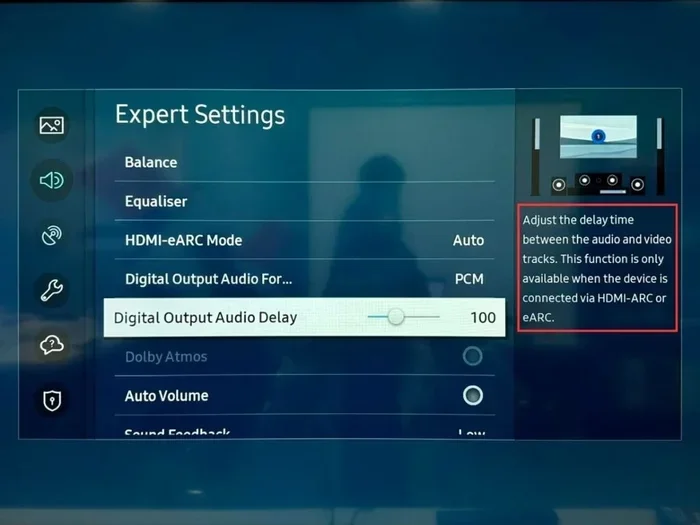
Most modern TVs have an audio delay or lip sync setting built into the menu. Go to your TV settings, look for audio or sound options, and find the audio delay or lip sync adjustment. You can usually increase or decrease the delay in milliseconds until the picture and sound match up.
This is one of the most effective fix audio delay on TV methods. If you are not sure how to access this setting, check your TV manual or search online for your specific model. The setting is there on almost every smart TV made in the last decade.
4. Disable Extra Audio Processing
Features like virtual surround, equalizer presets, and audio enhancement can add processing time and create lag. Try turning off all extra audio features and using the plain stereo or PCM output. This reduces the processing load and often fixes TV sound out of sync issues instantly.
Some TVs also have a “game mode” that reduces processing for faster response. Turning on game mode can sometimes fix audio sync problems because it bypasses many of the image processing steps that cause delays.
How to Fix Audio Delay on Smart TVs
Smart TVs are more prone to smart TV audio delay issues because they run complex software and apps. Here are some targeted fixes for smart TV users.
Update Your TV Software
Go to your TV settings and check for software updates. Install any available updates and restart the TV. Manufacturers often release fixes for known audio sync bugs in these updates. Keeping your TV up to date is one of the best ways to prevent sync problems from happening in the first place.
Set your TV to auto-update if that option is available. This way, you will always have the latest patches and fixes without having to remember to check manually.
Clear App Cache and Data
If the sync issue only happens in a specific streaming app, try clearing that app’s cache and data. Go to your TV app settings, find the problematic app, and clear its stored data. This removes any corrupted temporary files that might be causing the streaming TV sound delay.
After clearing the data, reopen the app and let it reload. You may need to sign back in, but the sync should improve. This fix works for apps on all major smart TV platforms.
Change the Audio Output Format
Go to your TV audio settings and change the digital output format. Try switching between PCM, Bitstream, and Auto. Each format handles audio differently, and one of them might sync better with your setup.
PCM is usually the most reliable for sync because it processes audio internally on the TV before sending it out. Bitstream passes the raw audio to an external device, which can sometimes cause delays if the device processes it at a different speed.
Adjust the Refresh Rate
Your TV’s refresh rate can affect how audio and video are processed together. Try changing the refresh rate setting in your TV menu. Sometimes setting it to a standard rate like 60Hz instead of a variable rate fixes audio lag on TV issues.
This is especially helpful for people who watch content at different frame rates. When the refresh rate matches the content frame rate, the sync TV audio video process becomes much smoother.
Fixing TV Sound Sync With External Devices
Many people use external speakers, soundbars, or receivers with their TVs. These devices add another layer where sync problems can occur. Here is how to handle the most common scenarios.
Soundbar and Speaker Sync Fixes
If you use a soundbar, check if it has its own audio delay setting. Many soundbars let you adjust the delay independently of the TV. This is very helpful when the soundbar processes audio slightly slower than the TV processes video.
Try connecting your soundbar with an optical cable instead of Bluetooth. Optical connections have much less latency than Bluetooth, which helps reduce TV audio not matching video issues. If you must use Bluetooth, look for soundbars that support low-latency codecs like aptX LL.
AV Receiver Audio Sync Adjustments
AV receivers have their own processing delay. If you use a receiver, look for a “delay” or “lip sync” setting in the receiver menu. You can add a delay to the audio to match the video processing time of the TV.
Some receivers also have a “passthrough” mode that passes the audio signal without processing it. This can dramatically reduce the fix TV picture lags sound problem when using an external receiver. Experiment with different audio modes to find the one that syncs best.
Using a Bluetooth Adapter for TV Audio
If you use a Bluetooth adapter to connect wireless headphones or speakers, the adapter itself might be causing the delay. Some adapters are better than others at minimizing latency. Look for adapters that advertise low-latency or aptX-LL support.
You can also try using a Bluetooth adapter on your TV with different settings. Some adapters let you adjust the output delay, which can help compensate for the wireless transmission lag. This is a practical solution for people who want the freedom of wireless audio without the sync issues.
Another option is to use wired headphones or speakers instead of wireless ones when sync is critical. The wired connection eliminates the Bluetooth delay entirely and gives you perfect TV audio sync every time.
Streaming Device Settings
Devices like Roku, Apple TV, Fire Stick, and Chromecast all have audio sync settings of their own. Check the audio settings in each device’s menu. You can often adjust the audio delay or output format directly on the streaming device, which can fix sync issues without touching the TV settings.
For example, on a Roku device, you can go to Settings > Audio and adjust the audio sync slider. On Apple TV, you can find similar settings under Audio and Video. These device-specific settings give you another tool to fix TV sound sync problem issues.
When to Seek Professional Help
Most sync issues can be fixed at home with the steps above. But sometimes the problem is deeper and needs professional attention. Here are signs that you should call in an expert.
If you have tried every fix and the TV audio delay persists, the issue might be a hardware problem with your TV’s internal processing board. This is rare but does happen, especially on older TVs that have been used for many years.
Also, if the sync issue only happens with certain channels or certain content types, the problem might be with the broadcast or streaming source rather than your TV. In that case, contact your cable provider or streaming service for support.
Finally, if you have a very expensive or high-end TV, check your warranty before attempting any hardware fixes. Some TV repair shops specialize in audio video sync issues and can diagnose the problem quickly. Do not be afraid to reach out to a professional if the problem is affecting your daily enjoyment of your TV.
Preventing Future TV Sync Issues
Once you fix the sync problem, you want to keep it from coming back. Here are some simple habits that help maintain perfect TV picture and sound sync over time.
- Keep your TV software updated: Enable automatic updates so you always have the latest bug fixes.
- Use quality cables: Invest in good HDMI cables and replace them every few years.
- Avoid overheating: Keep your TV well-ventilated. Overheating can cause processing delays.
- Limit the number of connected devices: Fewer devices in the chain means fewer potential sync points of failure.
- Restart regularly: A quick restart once a week clears temporary glitches that can cause sync drift.
These habits take very little effort but can save you a lot of frustration in the long run. Prevention is always easier than troubleshooting, and a little maintenance goes a long way toward keeping your fix TV picture lags sound issues from returning.
Remember that every TV setup is different, and what works for one person might not work for another. The key is to be patient and work through the solutions methodically. Start with the simplest fixes and work your way up to more advanced ones. In most cases, you will find the solution somewhere in this guide.
Do not let audio sync problems ruin your favorite shows and movies. With the right knowledge and a few minutes of troubleshooting, you can enjoy perfectly synchronized picture and sound again. Happy watching.
Frequently Asked Questions
Why does my TV picture lag behind the sound?
This usually happens because of signal processing delays, loose HDMI cables, or external device interference. Your TV processes video and audio at slightly different speeds, which creates a gap. The good news is that this is a very common and fixable problem.
How do I fix audio delay on my TV?
Start by checking your HDMI cables and restarting all devices. Then go to your TV settings and adjust the audio delay or lip sync setting. You can also try changing the audio output format and disabling extra audio processing features.
Can Bluetooth cause TV sound to lag?
Yes, Bluetooth adds wireless latency that can cause audio to arrive after the video. If you use Bluetooth headphones or speakers, try switching to a wired connection or a low-latency Bluetooth codec to reduce the delay.
Does a soundbar cause audio sync issues?
Soundbars can cause sync issues because they add extra processing time to the audio signal. Check if your soundbar has its own delay setting, and try using an optical cable instead of Bluetooth for a more reliable connection.
How do I sync audio and video on a smart TV?
Update your TV software, clear app cache, adjust the audio output format, and use the built-in lip sync or audio delay setting. These steps address most smart TV sync issues without needing any extra equipment.
When should I see a professional for TV sync problems?
If you have tried all the basic fixes and the problem persists, it could be a hardware issue with your TV’s internal board. Also seek help if the issue only happens with certain channels or content, as the source might be the problem rather than your TV.
=== CONCLUSION ===
Dealing with a TV picture lags sound problem does not have to be a permanent headache. You now have a full set of tools and techniques to diagnose and fix the issue yourself. From simple cable checks to advanced audio delay settings, you can restore perfect sync and get back to enjoying your favorite content without distraction.
Start with the quick fixes and work your way through the more advanced solutions. Most people find that just one or two steps solve the problem completely. Remember to keep your TV and devices updated, use quality cables, and maintain your setup regularly to prevent sync issues from returning.
Your TV is meant to be an escape, not a source of frustration. With these solutions in hand, you are ready to fix any audio video sync problem that comes your way. Enjoy your perfectly synced viewing experience!