Here Is How I Connect My Phone To Tv Without Cable
You can easily connect your phone to your TV without any cables by using wireless methods like screen mirroring, casting, Bluetooth, and streaming devices. Whether you have an Android or iPhone, there is a simple solution that works for your setup. This guide walks you through every method step by step so you can start streaming on the big screen today.
Key Takeaways
- Screen mirroring is the easiest way to display your phone screen on your TV wirelessly without any extra hardware.
- Streaming devices like Chromecast and Roku offer reliable casting options for both Android and iPhone users.
- Bluetooth and Wi-Fi Direct provide cable-free alternatives when your TV supports these connections natively.
- HDMI adapters work as a backup option when wireless methods are not available or stable.
- Smart TVs often have built-in casting features that let you connect your phone directly without any additional devices.
📑 Table of Contents
- Here Is How I Connect My Phone To TV Without Cable
- Why Go Cable-Free When Connecting Your Phone to TV?
- Method 1: Screen Mirroring Over Wi-Fi
- Method 2: Using a Streaming Device for Wireless Casting
- Method 3: Bluetooth Connection for Audio and Media
- Method 4: Smart TV Built-In Wireless Features
- Method 5: HDMI Adapter as a Wired Backup
- Common Mistakes to Avoid When Connecting Your Phone to TV Wirelessly
- Expert Insights on Wireless Phone-to-TV Connections
- Final Thoughts on Going Cable-Free
Here Is How I Connect My Phone To TV Without Cable
Tired of tangled cords and limited reach? connecting your phone to your TV without cable is easier than you think. You do not need expensive equipment or technical skills. In this guide, I will walk you through every method that works in 2024.
Whether you want to share photos with family, binge-watch your favorite shows, or play games on a bigger screen, going wireless is the way to go. Phone to TV wireless connection has come a long way. Most modern TVs and phones support it right out of the box. Let us dive into the simplest and most effective methods.
Wireless screen mirroring has become the go-to solution for millions of people. It lets you duplicate everything on your phone screen onto your TV in real time. No cables. No adapters. Just a clean, seamless connection. Keep reading to find the method that fits your setup best.
Why Go Cable-Free When Connecting Your Phone to TV?
Cable connections have their place. But for everyday use, wireless connection offers freedom and convenience. You can move around your living room without being tied to a single spot. Your TV becomes a shared screen for everyone in the room.
Here are some key reasons to ditch the cables:
- Freedom of movement — Walk around while your content plays on the big screen.
- No clutter — Say goodbye to tangled cords and extra adapters on your entertainment center.
- Multi-device sharing — Anyone in the room can take turns streaming from their own phone.
- Quick setup — Most wireless methods take under a minute to connect.
- Future-proof — Wireless standards keep improving, so your setup stays relevant longer.
When I first switched to a cable-free phone-to-TV setup, I never looked back. The convenience is real. You just need to know which method works best for your devices. That is exactly what this guide covers.
Method 1: Screen Mirroring Over Wi-Fi
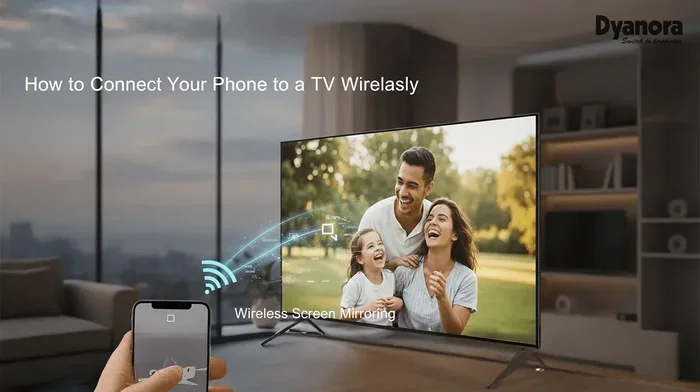
Screen mirroring is the most popular way to go wireless. It sends a live copy of your phone screen to your TV over your home Wi-Fi network. Both devices need to be on the same network for this to work.
How to Screen Mirror from an Android Phone
Most Android phones come with built-in screen casting. Here is how to use it:
- Make sure your phone and TV are connected to the same Wi-Fi network.
- Open the Quick Settings panel by swiping down from the top of your screen.
- Look for the Cast or Smart View icon.
- Tap it and select your TV from the list of available devices.
- Your phone screen will now appear on your TV.
Some Android brands call this feature something different. Samsung calls it Smart View. Pixel phones use the standard Cast button. Either way, the process is nearly identical.
How to Screen Mirror from an iPhone
If you use an iPhone, you have AirPlay built right in. This is Apple’s wireless mirroring technology. Here is how it works:
- Connect both your iPhone and your Apple TV or AirPlay-compatible TV to the same Wi-Fi network.
- Open the Control Center by swiping down from the top-right corner.
- Tap the Screen Mirroring icon.
- Select your TV from the list.
- Your iPhone screen is now mirrored on your TV.
AirPlay is incredibly smooth and reliable. Apple designed it specifically for this purpose. If you have an iPhone and a compatible TV, this is the easiest method to use.
Quick Tips for Better Screen Mirroring
- Use a 5 GHz Wi-Fi band for faster and more stable mirroring.
- Restart both devices if you experience lag or disconnections.
- Close unnecessary apps on your phone to free up processing power.
- Keep your phone charged or plugged in during long streaming sessions.
Screen mirroring works great for most everyday tasks. But if you want a more dedicated streaming experience, keep reading.
Method 2: Using a Streaming Device for Wireless Casting
Streaming devices are small boxes or sticks that plug into your TV’s HDMI port. They connect to your Wi-Fi and let you cast content from your phone. These devices are affordable and work with almost any TV.
Google Chromecast
Chromecast is one of the most popular casting devices on the market. It costs around $30 and works with both Android and iPhone. You use your phone as a remote while the Chromecast streams content directly from the internet.
Here is how to use Chromecast:
- Plug the Chromecast into your TV’s HDMI port.
- Download the Google Home app on your phone.
- Follow the on-screen setup instructions.
- Open any supported app on your phone (YouTube, Netflix, Spotify).
- Tap the Cast icon and your content will stream to your TV.
One big advantage of Chromecast is that it does not drain your phone battery. Your phone acts as a controller while the Chromecast handles the streaming. This means you can leave the room and your content keeps playing.
Amazon Fire TV Stick
The Fire TV Stick is another excellent option. It runs on Amazon’s Fire OS and supports both Android and iPhone casting. It also comes with Alexa voice control built in.
The Fire TV Stick does more than just cast. You can install apps directly on it, browse the internet, and even use it as a smart home hub. It is a versatile little device that punches well above its price point.
Roku Streaming Stick
Roku is a household name in streaming. The Roku Streaming Stick supports screen mirroring from both Android and iPhone. It has a simple interface and works with thousands of channels and apps.
Roku devices are known for their ease of use. If you are new to wireless casting, a Roku device is a great starting point. The setup is straightforward and the remote control makes navigation simple.
Comparison Table: Top Streaming Devices
- Chromecast: Budget-friendly, works with Android and iPhone, uses phone as remote.
- Fire TV Stick: Alexa built-in, huge app selection, affordable.
- Roku Streaming Stick: Easy setup, simple remote, thousands of channels.
Each device has its strengths. Your choice depends on your ecosystem and budget. All three support wireless casting without any cables.
Method 3: Bluetooth Connection for Audio and Media
Bluetooth is another cable-free option for connecting your phone to your TV. While Bluetooth does not mirror your entire screen, it is great for streaming audio and some media content directly.
How Bluetooth TV Connection Works
Many modern smart TVs have Bluetooth built in. This lets you pair your phone directly to the TV for audio output. You can also use a Bluetooth adapter if your TV does not support Bluetooth natively.
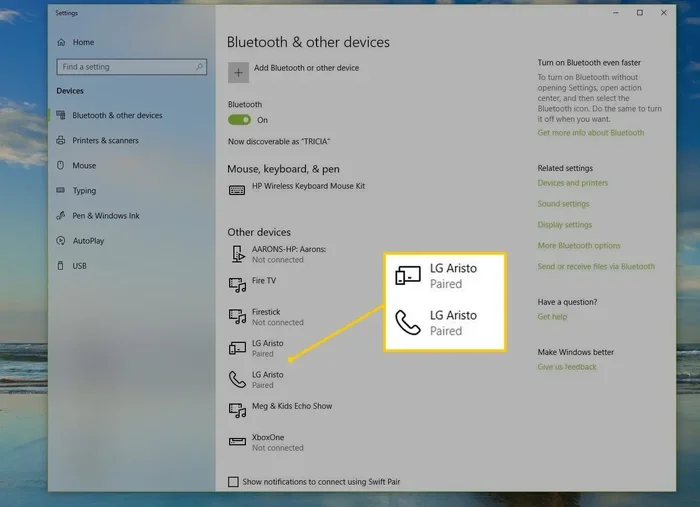
Here is how to connect via Bluetooth:
- Turn on Bluetooth on both your phone and your TV.
- Put your TV in pairing mode.
- On your phone, go to Settings > Bluetooth and look for your TV.
- Tap on your TV to pair the devices.
- Play media on your phone and the audio will come through your TV speakers.
Bluetooth audio streaming works well for music and podcasts. For video, you may notice a slight audio delay. This is normal with Bluetooth and usually not noticeable during regular viewing.
If you want to make your TV Bluetooth-capable without buying a new one, a Bluetooth adapter is a simple solution. Just plug it into your TV’s USB port or audio output, and you are good to go. This is a great option for older TVs that do not have built-in Bluetooth.
Limitations of Bluetooth for Phone-to-TV Connection
- No screen mirroring — Bluetooth only transmits audio in most cases.
- Slight audio delay — This can be noticeable during video playback.
- Shorter range — Bluetooth works best within about 30 feet.
Despite these limitations, Bluetooth remains a useful tool for specific use cases. It is especially handy when you just want to improve your TV’s audio quality without running cables.
Method 4: Smart TV Built-In Wireless Features
If you have a smart TV, you may already have everything you need to connect your phone wirelessly. Most modern smart TVs come with built-in casting and mirroring features. You do not need any extra devices.
Samsung Smart TV
Samsung TVs support Smart View, which lets you mirror your Android or iPhone screen. To use it:
- Make sure your phone and Samsung TV are on the same Wi-Fi network.
- On your phone, swipe down and tap Smart View or Cast.
- Select your Samsung TV from the list.
- Your phone screen is now on your TV.
Samsung TVs also support Miracast, a universal wireless display standard. This means even older phones can connect to Samsung TVs without extra apps.
LG Smart TV
LG TVs use Screen Share technology. It works with both Android and iPhone. The process is similar to Samsung:
- Connect both devices to the same Wi-Fi network.
- Open your phone’s casting or mirroring feature.
- Select your LG TV from the available devices.
- Start streaming or mirroring your content.
LG WebOS and Android TV Built-In Casting
Many LG and Google TVs run on WebOS or Android TV. Both platforms have built-in Chromecast support. This means you can cast content from apps like YouTube, Netflix, and Spotify directly to your TV without any extra hardware.
Just look for the Cast icon inside any supported app on your phone. Tap it and select your TV. The content streams directly from the internet to your TV. Your phone becomes a simple remote control.
Vizio and Other Smart TV Brands
Most other smart TV brands also support wireless casting. Vizio uses SmartCast, which works similarly to Chromecast. TCL and Hisense TVs often run on Android TV or Roku OS, both of which support native casting.
The key takeaway is that most smart TVs made in the last few years have wireless connection built in. Check your TV’s settings menu for options like “Screen Mirroring,” “Cast,” or “Screen Share.”
Method 5: HDMI Adapter as a Wired Backup
While this guide focuses on going cable-free, it is worth knowing about HDMI adapters as a backup option. Sometimes wireless connections are not stable enough for your needs. An adapter gives you a reliable, lag-free connection.
Lightning to HDMI Adapter for iPhone
Apple makes a Lightning to HDMI adapter that lets you connect your iPhone directly to your TV. This is a wired solution, but it is simple and works every time. Just plug the adapter into your iPhone, connect an HDMI cable, and your phone screen appears on your TV.
USB-C to HDMI Adapter for Android
Many Android phones now support USB-C to HDMI output. This is called MHL (Mobile High-Definition Link) or SlimPort. You need a compatible USB-C to HDMI adapter and an HDMI cable. Plug everything in and your phone screen mirrors to your TV instantly.
If you are looking for more details on USB-C connections, you can check out our guide on connecting USB Type C to USB for helpful tips on compatibility and setup.
When to Use an HDMI Adapter
- Gaming — Wired connections have zero lag, which matters for fast-paced games.
- Presentations — A reliable, stable connection is essential for business or school.
- Older phones — Some older phones do not support wireless mirroring.
- Unstable Wi-Fi — If your wireless connection keeps dropping, a wired adapter solves the problem.
HDMI adapters are not wireless, but they are a dependable backup. Keep one handy if you ever run into connectivity issues with your wireless setup.
Common Mistakes to Avoid When Connecting Your Phone to TV Wirelessly
Even with the best setup, wireless connections can sometimes be frustrating. Here are common mistakes and how to avoid them:
Not Using the Same Wi-Fi Network
This is the number one reason wireless casting fails. Both your phone and TV must be on the same Wi-Fi network. Check your network name and password on both devices before troubleshooting anything else.
Ignoring Software Updates
Outdated software can cause compatibility issues. Make sure your phone and TV both have the latest firmware or software updates installed. Updates often fix bugs and improve wireless performance.
Overloading Your Wi-Fi Network
If too many devices are connected to your Wi-Fi, streaming can suffer. Try disconnecting devices you are not using. You can also switch to the 5 GHz band for better performance.
Using Incompatible Apps
Not all apps support screen mirroring or casting. Stick to popular apps like YouTube, Netflix, and Spotify for the best results. Some apps block casting due to copyright restrictions.
Placing Your Router Too Far Away
Wi-Fi signal strength matters. If your router is far from your TV, the connection may be weak. Try moving your router closer to your TV or use a Wi-Fi extender.
Avoiding these mistakes will save you a lot of frustration. A little preparation goes a long way toward a smooth wireless experience.
Expert Insights on Wireless Phone-to-TV Connections
Over the years, wireless display technology has improved dramatically. Here are some expert-backed tips to get the best results:
Invest in a good router. A quality router with dual-band support makes a huge difference. It ensures your wireless connection stays stable even when multiple devices are streaming at once.
Use dedicated streaming devices for the best experience. While built-in smart TV features work well, a dedicated device like Chromecast or Fire TV Stick often delivers smoother performance. These devices have dedicated processors designed specifically for streaming.
Restart your devices regularly. Just like any technology, phones and TVs benefit from occasional restarts. This clears temporary files and refreshes network connections.
Consider your use case. If you just want to share a photo with family, screen mirroring is perfect. If you want to binge-watch movies all weekend, a streaming device gives you a better experience with less battery drain on your phone.
Keep your phone close to your router during setup. Once the connection is established, you can move around freely. But during the initial pairing, a strong signal helps ensure a smooth setup.
Final Thoughts on Going Cable-Free
Connecting your phone to your TV without cable is no longer a luxury. It is a simple, everyday convenience that everyone can enjoy. Whether you use screen mirroring, a streaming device, Bluetooth, or your smart TV’s built-in features, there is a wireless method that fits your needs.
Start with the method that matches your devices best. If you have an Android phone and a smart TV, try screen mirroring first. If you want a dedicated streaming experience, pick up a Chromecast or Fire TV Stick. If you just need better audio, Bluetooth is your friend.
The beauty of wireless connections is flexibility. You are not locked into one setup. Try different methods and see what works best for your lifestyle. Once you go cable-free, you will wonder how you ever lived with cords.
Now that you know all the methods, grab your phone and your TV, and give it a try. You will be streaming on the big screen in minutes.
Frequently Asked Questions
Can I connect my phone to any TV wirelessly?
Most smart TVs made after 2018 support wireless casting or screen mirroring. If your TV does not have smart features, you can use a streaming device like Chromecast or Fire TV Stick to add wireless capability. Even older TVs can work with a simple adapter.
Why is my screen mirroring lagging or delayed?
Lag usually happens when your Wi-Fi signal is weak or your network is crowded. Try moving closer to your router, switching to the 5 GHz band, or restarting both devices. Using a dedicated streaming device like Chromecast can also reduce lag significantly.
Does screen mirroring drain my phone battery?
Yes, screen mirroring uses more battery because your phone is constantly processing and sending its screen output. Keep your phone plugged in during long mirroring sessions or use a streaming device like Chromecast, which reduces battery drain since your phone acts as a remote only.
Can I connect my iPhone to a non-Apple TV wirelessly?
Yes, you can. Many smart TVs support AirPlay or work with third-party apps that enable iPhone screen mirroring. Samsung, LG, and Vizio TVs all have built-in AirPlay support. You can also use a Chromecast device to cast from your iPhone.
Is it safe to cast content from my phone to my TV?
Yes, wireless casting is safe. It uses your home Wi-Fi network, which is private and encrypted. As long as you are on a trusted network, your data stays secure. Avoid casting on public Wi-Fi networks to keep your information safe.
What is the difference between screen mirroring and casting?
Screen mirroring duplicates your entire phone screen on your TV, including notifications. Casting sends specific content from an app directly to your TV while you can still use your phone for other things. Casting is generally smoother and uses less battery than full screen mirroring.
=== CONCLUSION ===
Connecting your phone to your TV without cable opens up a world of convenience and flexibility. You have multiple wireless methods at your fingertips, from simple screen mirroring to dedicated streaming devices and Bluetooth connections. Each method has its strengths, and the best one depends on your devices and what you want to do.
Start with the easiest method that works for your setup. Experiment with different options. Once you experience the freedom of a cable-free connection, you will not want to go back to tangled cords ever again. Share this guide with friends and family who are still stuck with cable clutter. Everyone deserves a simpler, cleaner entertainment setup.