How Can I Cast To My Tv For Free Without Any Extra Cost
You can cast to your TV for free using built-in features like AirPlay, Chromecast, and screen mirroring. No extra gadgets or subscriptions are needed. This guide shows you every free method to stream your phone, laptop, or tablet right to your television. Whether you own a smart TV or a basic set, these tips work with devices you already have at home.
Key Takeaways
- Built-in casting works on most modern TVs: You do not need to buy a Chromecast or Fire Stick to cast content for free.
- AirPlay and screen mirroring are free on Apple devices: Use your iPhone or iPad to cast directly to a compatible TV.
- Miracast and Wi-Fi Direct work on Windows and Android: These wireless display protocols let you share your screen without cables.
- Free apps like AllCast and LocalCast help bridge gaps: They work on TVs that do not have native casting support.
- Avoid common mistakes like weak Wi-Fi or outdated firmware: These are the top reasons casting fails at home.
📑 Table of Contents
- How Can I Cast To My TV For Free Without Spending a Dime
- What Does It Mean to Cast to Your TV
- Free Casting Methods You Can Use Right Now
- Which Devices Support Free Casting
- Quick Tips for a Smooth Casting Experience
- Common Mistakes People Make When Free Casting
- Expert Insights on Free TV Casting
- How to Cast From Different Devices to Your TV
- Can You Use a Projector Instead of a TV for Free Casting
- Conclusion
How Can I Cast To My TV For Free Without Spending a Dime
Have you ever wanted to watch something big on your TV but did not want to buy an expensive casting device? The good news is that casting to your TV for free is easier than you think. Most modern TVs and phones already have the tools built right in. You just need to know where to look.
In this guide, I will walk you through every free method you can use today. Whether you have an iPhone, Android phone, laptop, or tablet, there is a way to get your screen on your TV without paying a single penny. You will learn how to cast to my TV for free using built-in features, free apps, and simple wireless tricks. No extra hardware required.
Let us start with the basics so you can begin casting right away.
What Does It Mean to Cast to Your TV
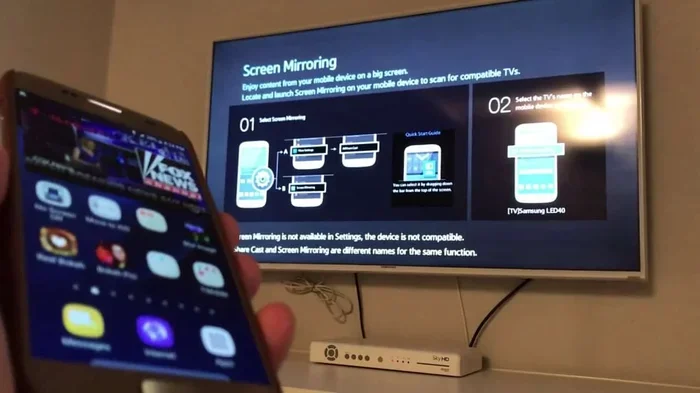
Casting means sending video, photos, or apps from one device to another wirelessly. When you cast, your phone or laptop becomes the remote control. The TV does the heavy lifting by showing the content on its big screen. Screen mirroring is a type of casting where your TV shows an exact copy of your device screen.
There are two main types of casting you should know about:
- App casting: You send a single video or photo from an app like YouTube or Netflix directly to your TV. The app handles the connection.
- Screen mirroring: You copy your entire phone or laptop screen to the TV. Everything you do shows up on the big display.
Both methods work for free if your devices support the right casting protocol. The most common ones are AirPlay, Chromecast, Miracast, and DLNA. I will cover each of these below.
Free Casting Methods You Can Use Right Now
Method 1: Use AirPlay If You Have an Apple Device
If you own an iPhone, iPad, or Mac, AirPlay is your best friend. AirPlay lets you cast to my TV for free as long as your TV supports it. Most smart TVs made after 2018 have AirPlay built in. You do not need any extra hardware.
Here is how to use AirPlay:
- Make sure your iPhone and TV are on the same Wi-Fi network.
- Open the Control Center on your iPhone by swiping down from the top right.
- Tap the Screen Mirroring icon.
- Select your TV from the list that appears.
- Your phone screen now shows on your TV.
This works great for sharing photos, watching videos, or even playing games on the big screen. Wireless display through AirPlay is smooth and has very little lag. If your TV does not support AirPlay natively, you can use a free Apple TV app on certain smart TVs. Check how to connect your phone to an HDTV for more wired alternatives.
Method 2: Use Built-In Chromecast on Android and Google TVs
Many Android phones and Google smart TVs come with Chromecast built in. This is Google’s free casting technology. It works just like AirPlay but is designed for the Android ecosystem. You can cast videos from apps like YouTube, Spotify, and Netflix directly to your TV.
Here is how to cast with Chromecast:
- Open a supported app on your phone.
- Look for the Cast icon (it looks like a small rectangle with Wi-Fi waves in the corner).
- Tap the icon and choose your TV.
- The video starts playing on your TV while your phone acts as the remote.
The beauty of this method is that it uses very little battery on your phone. Media streaming happens directly between your phone and TV over Wi-Fi. If you want to mirror your full Android screen, look for the “Cast Screen” option in your phone’s settings or quick settings panel.
Method 3: Use Miracast for Windows and Android Devices
Miracast is a wireless display standard that works on most Windows laptops and Android phones. It does not need any app or extra hardware. Your TV just needs to support Miracast, which many smart TVs do.
To use Miracast on Windows:
- Press the Windows key plus K on your keyboard.
- A list of available devices will appear.
- Select your TV from the list.
- Your laptop screen will now appear on the TV.
On Android, go to Settings, then Connected Devices, then Cast. Select your TV and your screen will mirror instantly. This is one of the best free casting methods because it works almost everywhere without any setup.
Method 4: Use Free Casting Apps
If your TV does not have built-in casting, you can still cast to my TV for free using free apps. Apps like AllCast, LocalCast, and BubbleUPnP are great options. They use your home Wi-Fi network to send content from your phone to your TV.
Here are some popular free casting apps:
- AllCast: Works with Android, iOS, and Windows. It supports many TV brands and streaming devices.
- LocalCast: Great for Android users who want to cast local video files without buying extra hardware.
- BubbleUPnP: A solid choice for DLNA-based casting on Android devices.
These apps work by finding your TV on the same Wi-Fi network and sending the video signal directly. They are completely free to download and use. If you are looking for more ways to connect devices, check how to connect a MacBook Air to HDMI for wired solutions.
Which Devices Support Free Casting
Not every TV or phone supports casting out of the box. Here is a quick look at what works with each free method.
| Device Type | Free Casting Method | Needs Extra Hardware? |
|---|---|---|
| iPhone or iPad | AirPlay | No (TV must support AirPlay) |
| Android Phone | Chromecast Built-In or Miracast | No (if TV supports it) |
| Windows Laptop | Miracast or free apps | No (if TV supports Miracast) |
| MacBook | AirPlay | No (TV must support AirPlay) |
| Older Smart TV | Free casting apps | No (just needs Wi-Fi) |
| Basic Non-Smart TV | Streaming stick or HDMI adapter | Yes (but still cheap) |
As you can see, most modern devices can cast to your TV for free without any extra spending. The key is knowing what your TV and phone can do.
Quick Tips for a Smooth Casting Experience
Casting should be simple, but sometimes things go wrong. Here are some quick tips to keep everything running smoothly:
- Use a strong Wi-Fi connection: Weak Wi-Fi is the number one reason casting fails. Stay close to your router for the best results.
- Restart your devices: A quick restart of your phone and TV can fix most casting problems. It sounds simple, but it works.
- Keep your TV firmware updated: Check for TV software updates in the settings menu. Old firmware can cause compatibility issues.
- Turn off VPNs: VPNs can block casting connections. Turn them off before you try to cast.
- Use the same Wi-Fi network: Both your phone and TV must be on the same network for casting to work.
These small steps save a lot of frustration. Wireless display technology has come a long way, but it still needs a stable connection to perform well.
Common Mistakes People Make When Free Casting
Even with the best setup, people run into problems. Here are the most common mistakes and how to avoid them:
- Assuming all TVs support all casting methods: Not every smart TV has AirPlay, Chromecast, or Miracast. Check your TV manual before you try.
- Using a VPN during casting: A VPN can block the local network connection your TV and phone need to talk to each other.
- Not checking Wi-Fi band compatibility: Some older TVs only connect to 2.4 GHz Wi-Fi. If your phone is on 5 GHz, they may not see each other.
- Overheating your phone: Screen mirroring uses a lot of processing power. If your phone gets too hot, casting may stop working.
- Ignoring app-specific casting limits: Some apps like Netflix block casting to certain devices due to copyright rules. Use your phone’s built-in screen mirror instead.
Avoiding these mistakes will make your free casting experience much better. Most problems have simple fixes once you know what to look for.
Expert Insights on Free TV Casting
Screen sharing technology has changed how we watch content at home. Experts say that the biggest shift has been moving away from paid casting devices like Chromecast or Fire Stick toward using built-in features. Most TVs sold today come with native casting support, which means you can cast to my TV for free right out of the box.
One thing to keep in mind is that casting works best when you use Wi-Fi Direct or a strong home network. Public Wi-Fi or guest networks often block casting because they separate devices on different network bands. Always make sure both devices are on the same local network for the best results.
Another expert tip is to close background apps before casting. This frees up memory and processing power, which leads to smoother media streaming with less buffering. If you are still having trouble, try using a wired connection like an USB-C to USB-A adapter as a backup method for reliable video output.
How to Cast From Different Devices to Your TV
Casting From Your iPhone or iPad
Apple devices make casting very easy with AirPlay. You do not need to download anything extra. Just make sure your TV is on the same Wi-Fi network, open Control Center, and tap Screen Mirroring. Your iPhone or iPad screen will appear on the TV instantly. This works for videos, photos, games, and even presentations.
Casting From an Android Phone
Android phones offer two built-in options: Google Cast (Chromecast) and Miracast. Open your quick settings panel and look for the Cast or Smart View button. Choose your TV and your content will appear on the big screen. You can also use free apps like AllCast for more control over what you share.
Casting From a Windows Laptop
Windows laptops support Miracast natively through the Connect feature. Press Windows Key plus K to find available devices. Select your TV and your laptop screen will mirror. This is perfect for sharing presentations, watching movies, or showing photos on a larger display. You can also use free browser-based casting from Chrome by clicking the three-dot menu and selecting Cast.
Casting From a Mac or MacBook
MacBooks use AirPlay to cast to compatible smart TVs. Click the AirPlay icon in your menu bar, select your TV, and your screen appears wirelessly. If your TV does not support AirPlay, you can connect your Mac using an HDMI cable for a reliable wired option. Both methods work great for streaming and screen sharing.
Can You Use a Projector Instead of a TV for Free Casting
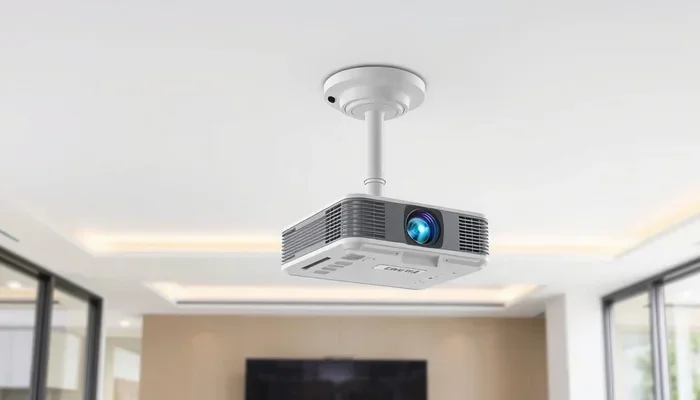
Yes, you can! Many projectors now support wireless casting just like smart TVs. If you have a projector with Wi-Fi built in, you can use AirPlay, Chromecast, or Miracast to cast from your phone or laptop. This is a great option for movie nights or game days. Check whether you can use a projector instead of a TV for more ideas on making the switch.
Conclusion
Casting to your TV for free is something anyone can do with the devices they already own. Whether you use AirPlay, Chromecast, Miracast, or a free casting app, there is a method that works for your setup. The key is understanding what your TV and phone support and using the right tools that come built in.
You do not need to spend money on extra hardware or subscriptions to enjoy big-screen content. With a strong Wi-Fi connection and the right settings, you can cast to my TV for free in just a few minutes. Try the methods in this guide and see which one works best for your devices. Once you start casting, you will wonder how you ever watched anything on a small screen again.
Start today. Pick a method, follow the steps, and enjoy your favorite content on the biggest screen in your home. Free casting is waiting for you right now.
Frequently Asked Questions
Do I need any special equipment to cast to my TV for free?
No special equipment is needed if your TV and phone both support the same casting method. Most modern smart TVs have built-in casting features like AirPlay or Chromecast. You just need both devices to be on the same Wi-Fi network and that is it.
Can I cast to a non-smart TV for free?
Yes, but you may need a streaming stick or an HDMI adapter. If your TV has an HDMI port, you can use a free app and a compatible adapter to get wireless casting. Some people use a simple HDMI cable connected to their laptop as a free alternative.
Why does my casting keep stopping or buffering?
The most common reason is a weak Wi-Fi signal. Move closer to your router and make sure both devices are on the same network. Also, turning off other devices that use a lot of bandwidth can help improve your casting experience.
Is screen mirroring the same as casting?
They are very similar but not exactly the same. Screen mirroring copies your entire phone screen to the TV. Casting usually sends a single piece of content like a video from one app. Both methods are free and work wirelessly over your home Wi-Fi.
Can I cast from my phone to my TV without Wi-Fi?
Most free casting methods need Wi-Fi to work. However, some Android phones support Wi-Fi Direct or hotspot-based casting. You can also use a wired connection with an HDMI adapter if you do not have Wi-Fi available at all.
Are free casting apps safe to use?
Yes, most free casting apps from trusted developers are safe. Stick to well-known apps like AllCast, LocalCast, or your phone’s built-in casting features. Always download apps from official stores like Google Play or the Apple App Store to stay safe.