How Can I Watch A Dvd On My Tv Without A Dvd Player
You can absolutely watch a DVD on your TV without a traditional DVD player. There are several easy and affordable methods, including using a USB drive, connecting your laptop via HDMI, or even using a gaming console. This guide covers every practical option so you can enjoy your DVD collection on any TV, no special equipment needed.
Key Takeaways
- USB Drive Method: Rip your DVD to a USB drive and plug it directly into most modern TVs for instant playback.
- Laptop Connection: Use an HDMI cable to turn your laptop into a DVD player for your TV in minutes.
- Gaming Consoles: Xbox and PlayStation can play DVDs, saving you from buying a standalone player.
- Streaming Devices: Roku, Fire Stick, and Chromecast offer alternative ways to access DVD content digitally.
- External DVD Drive: A portable USB DVD drive works great for laptops and some TVs with USB ports.
📑 Table of Contents
- Why You Can Watch a DVD on Your TV Without a DVD Player
- Method 1: Use a USB Drive to Play DVDs on Your TV
- Method 2: Connect Your Laptop to Your TV
- Method 3: Use a Gaming Console
- Method 4: Try a Streaming Device
- Method 5: Use an External USB DVD Drive
- Method 6: Convert Your DVD to a Digital File
- Quick Tips for the Best DVD Viewing Experience
- Common Mistakes to Avoid
- Expert Insights
- Final Thoughts
Why You Can Watch a DVD on Your TV Without a DVD Player
DVD players are becoming a thing of the past. Many newer TVs don’t even have a disc slot anymore. But that doesn’t mean your DVD collection is gathering dust. There are plenty of ways to watch a DVD on your TV without a DVD player, and most of them are free or very cheap.
Maybe your old DVD player broke down. Perhaps you just moved into a place with a smart TV and no disc drive. Or maybe you simply want a cleaner setup with fewer cables and devices. Whatever the reason, you have options. This guide walks you through every practical method so you can pick the one that fits your setup best.
The good news is that you probably already own most of the equipment you need. A laptop, a USB drive, or even a gaming console can fill in for a DVD player. Let’s explore each method in detail.
Method 1: Use a USB Drive to Play DVDs on Your TV
How It Works
Many modern TVs have USB ports that can play video files. The idea is simple: you rip the DVD content to a USB flash drive, plug it into your TV, and watch. This is one of the most popular ways to watch a DVD on your TV without a DVD player.
Here is what you need:
- A USB flash drive with enough storage (usually 4GB to 8GB for a full movie)
- A computer with a DVD drive
- DVD ripping software (free options are available)
- A TV with a USB port that supports video playback
Step-by-Step Guide
- Insert your DVD into your computer’s DVD drive. Make sure your computer can read the disc.
- Download a free DVD ripping tool. Programs like HandBrake or VLC Media Player can convert DVD content to a video file. These tools are trusted and widely used.
- Choose the output format. MP4 or MKV are the best formats for TV compatibility. MP4 works on almost every smart TV.
- Start the ripping process. This may take 20 to 60 minutes depending on your computer speed and the movie length.
- Transfer the file to your USB drive. Once the rip is complete, copy the video file onto your USB flash drive.
- Plug the USB drive into your TV. Navigate to the USB or Media section on your TV and select the video file.
- Enjoy your movie! Use your TV remote to control playback.
Things to Keep in Mind
Not all TVs support every video format. If your TV won’t play the file, try converting it to a different format. MP4 with H.264 encoding is the safest bet. Also, make sure your USB drive is formatted as FAT32 or NTFS, as some TVs cannot read exFAT drives.
If you want to hook your iPad to your TV using USB and play the file from there instead, that works too. Many smart TVs support media playback from connected devices through their USB ports.
Method 2: Connect Your Laptop to Your TV
The Simplest DVD Player Alternative
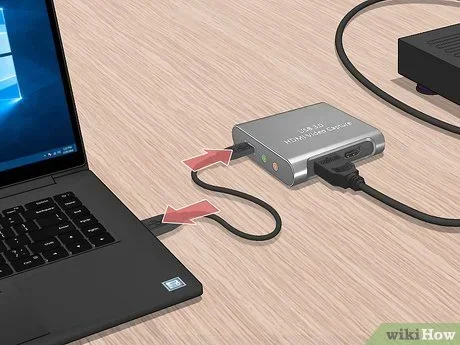
This method is as straightforward as it sounds. You use your laptop as a DVD player and send the video signal to your TV. You just need an HDMI cable, and you are good to go.
Most laptops made in the last 10 years have an HDMI output. If your laptop has a different port, you can use an adapter. For example, if your laptop only has USB-C or a VGA port, you can convert a VGA cable to HDMI with a simple adapter cable. This is a common and inexpensive solution.
How to Set It Up
- Connect your laptop to your TV using an HDMI cable. Plug one end into your laptop and the other into your TV’s HDMI port.
- Switch your TV to the correct input. Use your TV remote to select the HDMI input that matches the port you used.
- Insert your DVD into your laptop’s DVD drive. Open your DVD player software on the laptop.
- Play the DVD. The video will display on your TV screen.
This method gives you the full DVD experience with menus, special features, and all. You can also use your laptop keyboard to control playback, pause, or skip chapters.
Connecting Without HDMI
If your TV does not have an HDMI port, you still have options. Older TVs may have composite or component inputs. You can use an adapter to connect your laptop to these older ports. Some people also connect their phone to HDMI TV setups using a compatible adapter, and the same principle applies to laptops.
For a wireless option, you can mirror your laptop screen to a smart TV using Wi-Fi. This eliminates the need for any cables at all. Just make sure both devices are on the same network for the best experience.
Method 3: Use a Gaming Console
Did You Know Your Console Can Play DVDs?
If you own an Xbox or PlayStation, you already have a DVD player hiding in your living room. Both Xbox and PlayStation consoles can play standard DVDs without any extra equipment. This is a great way to watch a DVD on your TV without a DVD player if you already game.
You can even play your Xbox on your laptop and then connect the laptop to your TV, which gives you flexibility if you want to switch between gaming and movie watching.
How to Play a DVD on Your Console
- Insert the DVD into your console’s disc drive.
- Navigate to the DVD app or media player. Most consoles have a built-in DVD player that launches automatically.
- Follow the on-screen prompts. You may need to agree to a regional settings prompt the first time.
- Enjoy your movie on the big screen.
Pros and Cons of Using a Console
- Pros: No extra device needed, easy setup, good quality playback, and you can also game.
- Cons: Consoles use more power than a dedicated DVD player, and you need to keep the disc in the console drive.
Keep in mind that some newer consoles, like the Xbox Series S, do not have a disc drive. You would need the Xbox Series X or a PlayStation 4 or 5 for DVD playback.
Method 4: Try a Streaming Device
Digital Options for Your DVD Collection
Streaming devices like Roku, Amazon Fire Stick, and Google Chromecast are not just for Netflix and YouTube. Some of these devices can play video files from USB drives or stream content from your phone or computer. This opens up another path to watch a DVD on your TV without a DVD player.
For example, you can rip your DVD to a USB drive (using the Method 1 steps) and then plug that USB drive into a streaming device that supports USB playback. Many Roku models and Fire TV sticks have USB ports for this purpose.
Using a Roku With External Storage
Roku devices are known for their simplicity and wide format support. If you have a Roku with a USB port, you can connect your USB drive with the ripped DVD files and play them directly on your TV. The Roku interface makes it easy to browse and select your movies.
Similarly, you can use a Roku with a projector for a larger-than-life movie experience. The same principles apply whether you are using a TV or a projector.
Wireless Streaming Options
If you prefer a cable-free setup, you can stream content from your computer or phone to your TV using built-in casting features. You can AirPlay without being on the same network using certain apps and setups, though being on the same network is always the easiest route.
Google Chromecast works similarly. You can cast a video from your Chrome browser or a compatible app directly to your TV. This is a clean and simple way to watch DVD-ripped content without any physical connections between your source device and the TV.
Method 5: Use an External USB DVD Drive
A Portable DVD Player for Your Laptop and TV
If you have a laptop without a built-in DVD drive, you can buy an external USB DVD drive. These are small, portable, and affordable. They usually cost between $20 and $40. You plug them into your laptop’s USB port, insert your DVD, and use the laptop to play the disc.
Then you simply connect your laptop to your TV using an HDMI cable and enjoy the movie on the big screen. This method gives you the most authentic DVD experience because you are watching the disc directly.
Can You Connect an External DVD Drive Directly to a TV?
Some smart TVs and media players support USB DVD drives, but this is not common. Most TVs expect video files on USB drives, not raw DVD discs. So the best approach is to use the external drive with your laptop and then connect the laptop to your TV.
If you are working with a Mac, you can make a Mac bootable USB on Windows for other tasks, but for DVD playback, a simple external USB DVD drive with Mac-compatible software works perfectly.
Method 6: Convert Your DVD to a Digital File
Go Fully Digital With Your DVD Collection
Converting your DVDs to digital files is a great long-term solution. Once you have the digital file, you can store it on your computer, upload it to a cloud service, or stream it to your TV from any device. This eliminates the need for any physical disc altogether.
There are several ways to convert a DVD to a digital file:
- DVD ripping software: Tools like HandBrake, MakeMKV, and VLC can convert DVDs to digital video files.
- Cloud upload: After ripping, upload the file to Google Drive, Dropbox, or a similar service. Then stream it to your TV using the cloud app.
- Local media server: Set up a media server like Plex on your computer and stream your DVD collection to any device on your home network.
This method is especially useful if you want to build a digital library of your favorite movies. Once converted, you never need to dig out the disc again.
Quality Considerations
When converting DVDs, choose a high-quality output setting. DVDs have a standard resolution of 720×480 (NTSC) or 720×576 (PAL). If you want better quality, some ripping tools allow you to upscale the resolution. However, the source material quality from a DVD is the limiting factor.
For the best results, use the MP4 format with H.264 encoding. This format is widely supported across all devices and smart TVs. It provides a good balance between file size and video quality.
Quick Tips for the Best DVD Viewing Experience
No matter which method you choose, these tips will help you get the best results:
- Check your TV’s supported formats: Before ripping a DVD, confirm which video formats your TV can play. MP4 is the safest choice.
- Use a high-quality HDMI cable: A good HDMI cable ensures sharp picture and clear sound. Cheap cables can cause signal issues.
- Update your TV’s software: Smart TVs sometimes need firmware updates to support new file formats or USB devices.
- Keep your USB drive formatted correctly: FAT32 and NTFS are the most widely supported formats for TVs.
- Use a powered USB hub if needed: Some TVs cannot supply enough power through the USB port. A powered hub solves this problem.
- Clean your DVDs regularly: Dust and scratches can cause playback issues, even with digital rips.
Common Mistakes to Avoid
Here are some common errors people make when trying to watch DVDs without a player:
- Using the wrong file format: Not all TVs play every video format. Always convert to MP4 if you are unsure.
- Forgetting to change the TV input: Make sure you switch your TV to the correct HDMI or USB input source.
- Using a USB drive that is too large: Some older TVs cannot read drives larger than 32GB. Format a smaller drive if needed.
- Skipping the ripping quality settings: Low-quality rips look terrible on a big TV screen. Always choose the highest quality setting.
- Ignoring audio setup: Check that your TV audio settings match your speaker setup. Some connections require manual audio configuration.
Expert Insights
According to home theater experts, the best method depends on how often you watch DVDs and what equipment you already own. If you watch DVDs occasionally, the USB method or laptop connection is the most practical. If you watch them regularly, investing in an external USB DVD drive or using your gaming console provides the most consistent experience.
Technology experts also recommend converting your DVD collection to digital files for long-term convenience. Physical discs degrade over time, and DVD drives are becoming harder to find. Having a digital backup ensures your movies are always accessible.
If you are setting up a home theater system, consider how all your devices connect. For instance, you might want to connect your TV to your receiver using both the HDMI and component cables at the same time for the best audio and video quality. This kind of setup enhances any DVD viewing experience.
One often-overlooked tip: many people listen to their Samsung TV with Bluetooth headphones while watching DVDs late at night. Most modern smart TVs support Bluetooth audio output, so you can connect wireless headphones directly to your TV for a private viewing experience.
Final Thoughts
Watching a DVD on your TV without a DVD player is easier than you think. You have multiple methods to choose from, and most of them use equipment you already own. Whether you go the USB route, connect your laptop, use a gaming console, or convert your DVDs to digital files, the result is the same: you get to enjoy your favorite movies on the big screen.
The key is to pick the method that fits your setup and comfort level. Start with the simplest option and work your way up if needed. With the right approach, your DVD collection stays alive and relevant, even without a dedicated DVD player.
So grab your DVDs, pick a method, and get ready to watch. Your movie night is about to get a whole lot more flexible.
Frequently Asked Questions
Can I play a DVD directly from a USB drive on any TV?
Most modern smart TVs can play video files from USB drives, but not all of them support every format. MP4 files with H.264 encoding work on the widest range of TVs. If your TV does not play the file, you may need to convert it to a different format or check your TV’s supported file types in the manual.
Do I need special software to rip a DVD to a USB drive?
No, you do not need expensive software. Free tools like HandBrake and VLC Media Player can rip DVDs to USB drives easily. These programs are well-known, safe, and widely used. They handle the conversion process automatically and let you choose the output format.
Can I use my phone instead of a laptop to play DVDs on my TV?
Yes, you can. You can rip the DVD on your computer, transfer the file to your phone, and then connect your phone to your TV. Many smart TVs support media playback from connected phones through USB or screen mirroring. You can also connect your phone to HDMI TV using a compatible adapter for a wired connection.
Is it legal to rip DVDs to a USB drive?
The legality of ripping DVDs depends on your country and how you use the copied content. In many places, making a personal backup copy of a DVD you own is considered fair use. However, distributing or sharing ripped DVDs is illegal in most jurisdictions. Always check your local copyright laws before ripping any discs.
What is the best format for playing DVDs on a TV from a USB drive?
MP4 with H.264 video encoding and AAC audio is the most universally compatible format. It plays on nearly all smart TVs, streaming devices, and media players. MKV is another good option, but some older TVs may not support it. Stick with MP4 if you want the easiest playback experience.
Can I use a gaming console to play DVDs every day?
Yes, you can use a gaming console like an Xbox or PlayStation as your primary DVD player. They play standard DVDs without any additional hardware. However, keep in mind that consoles use more power than a standalone DVD player, and leaving a disc in the drive constantly can lead to scratches over time. For daily use, an external USB DVD drive or a dedicated media player may be more practical.
=== CONCLUSION ===
Watching a DVD on your TV without a DVD player is completely doable with the right approach. You can use a USB drive, connect your laptop, leverage a gaming console, try a streaming device, use an external DVD drive, or convert your DVDs to digital files. Each method has its own advantages, and the best choice depends on your equipment and preferences.
Start with the simplest method that matches your setup. If you just need to watch a movie once, the laptop connection or USB method works great. If you plan to watch DVDs regularly, consider investing in an external DVD drive or building a digital library. No matter which path you choose, your DVD collection can live on without a traditional DVD player.
Try one of these methods today and bring your DVDs back to life. You will be surprised how easy it is to enjoy your favorite movies on the big screen again.