How Do I Connect My Android To A Projector Wirelessly
Connecting your Android to a projector wirelessly is simpler than you think. You can use built-in features like Miracast and Chromecast, or grab a wireless display adapter for instant screen sharing. This guide covers every method so you can connect Android to projector wirelessly in minutes without messy cables.
Have you ever wanted to show your phone screen on a big projector without fumbling with cables? Connecting your Android to a projector wirelessly opens up a world of possibilities. Whether you are giving a presentation at work, watching movies with friends, or sharing photos at a party, going wireless makes everything easier and more convenient.
Many people assume they need expensive equipment or technical skills to make this work. The truth is, most modern Androids and projectors support wireless connections out of the box. You just need to know the right steps. This guide walks you through every method in simple, clear language so you can get started right away.
By the end of this article, you will know exactly how to connect Android to projector wirelessly using multiple methods. We will cover built-in features, external adapters, smart projectors, and common troubleshooting tips. Let us dive in and get your screen streaming to that big display.
Key Takeaways
- Wireless Screen Mirroring: Use Miracast or Chromecast to cast your Android screen to any compatible projector instantly.
- Wireless Display Adapters: Devices like Wi-Fi Direct dongles make any projector wireless-ready without extra hardware.
- Built-In Smart Projectors: Many modern projectors have native Android support, so you can connect directly over Wi-Fi.
- No App Required: Most wireless methods work without downloading extra software, keeping things simple and fast.
- Troubleshooting Tips: Simple fixes like updating firmware and matching Wi-Fi networks solve most connection issues.
📑 Table of Contents
- Why Connect Your Android to a Projector Wirelessly?
- Method 1: Use Miracast for Wireless Screen Mirroring
- Method 2: Use Chromecast or Google Cast
- Method 3: Use a Wireless Display Adapter
- Method 4: Use a Smart or Android Projector
- Common Mistakes to Avoid When Going Wireless
- What If Your Projector Does Not Support Wireless?
- Final Thoughts
Why Connect Your Android to a Projector Wirelessly?
Wired connections have their place, but wireless projector connectivity offers real advantages. First, you eliminate cable clutter. No more stretching HDMI cords across the room or worrying about length limits. Second, wireless connections give you freedom to move around. You can walk around the room while presenting or control your content from across the space.
Another big benefit is speed. Most wireless methods let you mirror your screen in seconds. You do not need to unplug anything or rearrange furniture. Just open a connection and start sharing. This makes wireless projection ideal for spontaneous gatherings and last-minute presentations.
Compatibility is also a major plus. Many modern projectors support wireless screen mirroring standards like Miracast and Wi-Fi Direct. Your Android likely supports these too. This means you can wirelessly cast Android screen to projector without buying any extra gear at all.
When Wireless Makes the Most Sense
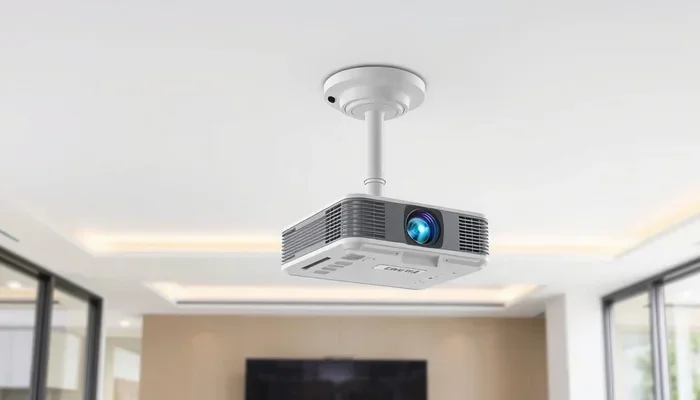
Think about wireless projection when you need flexibility. Classroom settings, office meetings, and backyard movie nights all benefit from going cable-free. You can also use wireless connections when your projector is mounted high on a ceiling or wall, making cable access difficult.
For quick social gatherings, wireless is unbeatable. Want to show vacation photos on a big screen? Just cast from your phone. No setup hassle, no extra devices. It is the fastest way to share what is on your Android display with a group.
Method 1: Use Miracast for Wireless Screen Mirroring
Miracast is one of the most popular ways to connect Android to projector wirelessly. It is a built-in standard that lets you mirror your phone screen to a compatible display. Most modern projectors and Android phones support Miracast without any extra apps.
Here is how Miracast works. Your phone sends a wireless signal directly to the projector. The projector receives the signal and displays your screen in real time. There is no lag, no cables, and no complicated setup. It works over Wi-Fi Direct, which means you do not need a router.
How to Set Up Miracast on Your Android
Setting up Miracast is straightforward. Follow these steps to get started:
- Open your Android Settings app.
- Look for “Connected Devices,” “Display,” or “Cast” depending on your phone brand.
- Toggle on “Wireless Display” or “Screen Mirroring.”
- Select your projector from the list of available devices.
- Wait for the connection to establish. Your screen should now appear on the projector.
Different Android brands label this feature differently. Samsung calls it “Smart View.” Motorola uses “Screen Cast.” Google Pixel phones call it “Cast.” No matter the name, the process is the same. Look for the screen mirroring option in your display settings.
Troubleshooting Miracast Connections
If Miracast does not work right away, do not worry. Here are quick fixes that solve most problems. First, make sure your projector supports Miracast. Check the manual or look for the Miracast logo on the box. Second, ensure both devices are on the same network if required. Third, restart both devices and try again. Sometimes a simple reboot fixes everything.
Another common issue is distance. Keep your phone within 10 to 15 feet of the projector for the best signal. Walls and obstacles can weaken the connection. If you experience lag or stuttering, move closer and remove any physical barriers between the devices.
Method 2: Use Chromecast or Google Cast
Chromecast is Google’s popular streaming device that also works as a wireless display adapter. If your projector has an HDMI port, you can plug in a Chromecast dongle and turn any projector into a smart display. Your Android phone then sends content to the Chromecast over Wi-Fi.
This method is slightly different from Miracast. Instead of mirroring your entire screen, Chromecast often streams specific content directly from apps like YouTube, Netflix, and Spotify. This means better quality and less battery drain on your phone. You control playback from your phone, but the Chromecast handles the heavy lifting.
Setting Up Chromecast with a Projector
To use Chromecast with your projector, follow these simple steps:
- Plug the Chromecast into your projector’s HDMI port.
- Connect the Chromecast to power using the USB cable or adapter.
- Switch your projector to the correct HDMI input.
- Download the Google Home app on your Android phone.
- Open the app and follow the on-screen setup instructions.
- Once set up, tap the Cast icon in any compatible app.
The setup takes about five minutes. After that, casting is as easy as tapping a button. You can also use Google Cast to mirror your entire Android screen through the Google Home app. This gives you the same flexibility as Miracast but with the added benefit of app-specific streaming.
Chromecast vs. Miracast: Which Is Better?
Both methods have strengths. Miracast mirrors your entire screen instantly, which is great for presentations and showing apps that do not support casting. Chromecast offers better streaming quality for supported apps and uses less battery. If you mainly watch videos and listen to music, Chromecast is the better choice. If you need to show app interfaces or presentations, Miracast wins.
| Feature | Miracast | Chromecast |
|---|---|---|
| Full Screen Mirroring | Yes | Yes (via Google Home) |
| App-Specific Streaming | No | Yes |
| Setup Complexity | Very Simple | Simple |
| Battery Usage | Higher | Lower |
| Works Without Wi-Fi | Yes (Wi-Fi Direct) | No (Needs Wi-Fi) |
| Extra Hardware Needed | No | Yes (Chromecast dongle) |
Method 3: Use a Wireless Display Adapter
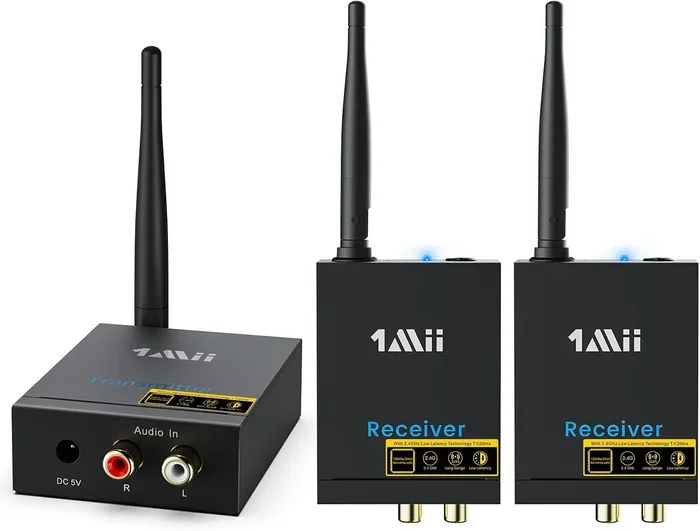
If your projector does not have built-in wireless features, a wireless display adapter is your best friend. These small dongles plug into your projector’s HDMI port and add wireless connectivity instantly. Popular brands include Screen Beam, Microsoft Wireless Display Adapter, and Amazon Fire TV Stick.
Wireless adapters work with almost any projector that has an HDMI input. They create a bridge between your Android and the projector using Wi-Fi or Bluetooth. The adapter receives the wireless signal and converts it into an HDMI output that the projector can display. This is one of the most reliable ways to connect Android to projector wirelessly.
Best Wireless Adapters for Android
Here are some top options to consider. The Microsoft Wireless Display Adapter supports Miracast natively and works seamlessly with most Android phones. The Amazon Fire TV Stick 4K offers both wireless casting and smart streaming features. Screen Beam adapters are specifically designed for screen mirroring and work well with Android devices.
When choosing an adapter, look for Miracast support and HDMI 2.0 compatibility. These ensure you get the best image quality and the smoothest connection. Most adapters cost between 30 and 80 dollars, making them an affordable solution for wireless projector setup.
Setting Up a Wireless Display Adapter
The setup process is simple and fast. Plug the adapter into your projector’s HDMI port. Connect the adapter to power. Switch your projector to the correct HDMI input. On your Android phone, go to Settings and enable screen mirroring or wireless display. Select the adapter from the list of available devices. Your screen should appear on the projector within seconds.
Some adapters may require you to download a companion app. Check the manufacturer’s instructions for details. Most modern adapters work right out of the box with no extra steps needed.
Method 4: Use a Smart or Android Projector
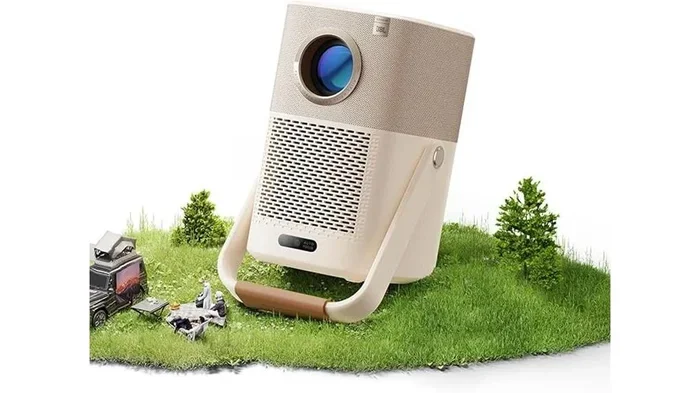
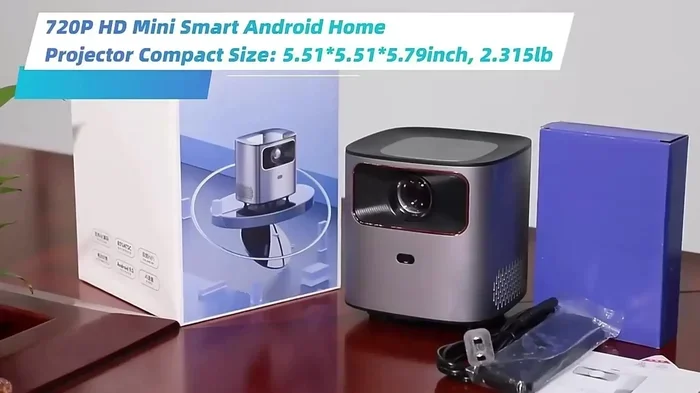
Modern smart projectors often come with built-in Android support. These projectors run on Android TV or have native Android operating systems. They can connect to your phone over Wi-Fi without any extra hardware. This is the easiest path to wireless projector connectivity.
Brands like Epson, BenQ, and Anker now offer projectors with smart features. Some even have built-in Chromecast support. This means you can cast directly from your Android phone without buying any additional devices. Just connect both devices to the same Wi-Fi network and start casting.
How to Connect to a Smart Projector
Connecting to a smart projector is similar to connecting to any wireless display. Make sure your phone and the projector are on the same Wi-Fi network. Open your phone’s screen mirroring or casting feature. Select the smart projector from the list. The connection should establish within a few seconds.
If the projector has Chromecast built in, you can also use the Google Home app. Open the app, tap the Cast icon, and select the projector. This gives you more control over what you cast and how you cast it.
Common Mistakes to Avoid When Going Wireless
Even with the simplest setup, people run into avoidable problems. One common mistake is trying to connect devices on different Wi-Fi networks. Some wireless methods require both devices to be on the same network. Check this first if your connection fails.
Another mistake is ignoring firmware updates. Projector manufacturers release updates that fix bugs and improve compatibility. Before troubleshooting, check if your projector has a firmware update available. A simple update can resolve many wireless display issues.
People also underestimate the importance of placement. Wireless signals weaken through walls and over distance. Keep your phone and projector in the same room for the best experience. If you must go through walls, try to minimize the number of obstacles between the devices.
Quick Tips for a Smooth Connection
- Always restart both devices before troubleshooting.
- Turn off other Wi-Fi devices that might cause interference.
- Keep your Android phone charged or plugged in during long sessions.
- Use a high-quality HDMI cable for the adapter connection.
- Check that your projector’s input source matches the adapter’s port.
These simple habits save a lot of frustration. They keep your wireless connection stable and your presentations running smoothly.
What If Your Projector Does Not Support Wireless?
Older projectors may not have any wireless features. This does not mean you are stuck. You have several options to make older projectors work wirelessly with your Android. A wireless display adapter is the most popular solution. It adds wireless capability to any projector with an HDMI port.
Another option is to use a streaming stick like Roku or Amazon Fire TV. These devices plug into the HDMI port and connect to your Wi-Fi network. They can receive content from your Android phone and display it on the projector. This turns even the oldest projector into a wireless display.
If you want to explore more options for projector connectivity, check out this guide on Can I Use A Projector Instead Of A Tv for helpful tips on maximizing your projector’s capabilities.
Final Thoughts
Connecting your Android to a projector wirelessly is easier than most people think. Whether you use Miracast, Chromecast, a wireless adapter, or a smart projector, the process is straightforward and fast. You do not need technical expertise or expensive equipment. Most methods work right out of the box with just a few taps on your phone.
The key is choosing the right method for your setup. If your projector has built-in wireless, use it. If not, grab a wireless adapter. If you want streaming quality, go with Chromecast. Each method has its strengths, and all of them deliver a great wireless screen mirroring experience.
Now that you know all the options, pick the method that fits your needs and give it a try. You will be amazed at how simple and rewarding wireless projection can be. No cables, no hassle, just instant screen sharing from your Android to your projector.
If you want to learn more about connecting phones to projectors, here is a helpful resource on Can I Connect My Phone To Projector With USB Cable for additional connection methods.
Frequently Asked Questions
Can I connect my Android to any projector wirelessly?
Most modern projectors support wireless connections either natively or through an adapter. If your projector has Wi-Fi, Miracast, or an HDMI port, you can go wireless. Older projectors may need a wireless display adapter to connect with your Android device.
Do I need any special apps to mirror my Android screen to a projector?
No, most wireless methods work without extra apps. Miracast and Chromecast are built into most Android phones. You only need to download an app if your projector requires a specific brand companion application, which is rare with modern devices.
Is wireless screen mirroring to a projector lag-free?
Wireless mirroring can have slight delays depending on your setup. Wi-Fi Direct connections like Miracast usually have minimal lag. For smoother performance, keep your phone close to the projector and reduce network traffic from other devices.
Can I connect my Android to a projector without Wi-Fi?
Yes, Miracast uses Wi-Fi Direct, which creates a direct connection between your phone and the projector without needing a router. This is perfect for situations where Wi-Fi is not available or reliable.
What is the best wireless method for presenting from an Android phone?
For presentations, Miracast is the best choice because it mirrors your entire screen instantly. It works without extra hardware and supports most Android phones and modern projectors. For video-heavy presentations, Chromecast offers better streaming quality.
Can I use a wireless adapter with a projector that only has VGA input?
Most wireless adapters require HDMI input. If your projector only has VGA, you can use an HDMI-to-VGA converter alongside the wireless adapter. This combination adds wireless capability to older projectors with VGA-only ports.
=== CONCLUSION ===
Connecting your Android to a projector wirelessly is a game-changer for presentations, movie nights, and sharing content with any group. You now know four reliable methods: Miracast, Chromecast, wireless adapters, and smart projectors. Each method is simple, effective, and works with most Android devices and projectors on the market today.
Start with the method that matches your equipment. If your projector has built-in wireless, use it. If not, a wireless adapter or Chromecast dongle is an affordable upgrade. With these tools and tips, you can enjoy cable-free projection anytime you want.
Try these methods today and experience how easy wireless projection really is. Your Android and your projector are ready to work together without a single cable in sight.