How Do I Connect My Bluetooth Headset To My Xbox One
Connecting a Bluetooth headset to your Xbox One is simpler than you think. This guide walks you through every method, from using the Xbox controller to adding a Bluetooth adapter. You will learn troubleshooting tips, compatible headsets, and expert tricks to get the best wireless gaming audio on your console.
Gaming audio can make or break your experience. Whether you are playing a fast-paced shooter or exploring an open world, the right sound puts you inside the game. A Bluetooth headset gives you the freedom to move around without tangled wires. But here is the catch: Xbox One does not have built-in Bluetooth support for audio devices.
That does not mean you are stuck. There are several proven ways to get your wireless headset working with your console. In this guide, we will walk you through every method step by step. You will learn what works, what does not, and how to fix common problems. By the end, you will be ready to game with wireless audio on your Xbox One.
Before we dive in, let us clear up one important thing. Many people assume they can just pair any gaming headphones to their Xbox One over Bluetooth. That is not how the console works. Xbox uses its own wireless protocol for most accessories. But do not worry. We have got you covered with workarounds that actually work.
Key Takeaways
- Xbox One does not support Bluetooth natively: You need either the Xbox controller with a 3.5mm jack or a Bluetooth adapter to connect wireless headsets.
- Multiple connection methods exist: You can use the controller audio jack, a Bluetooth transmitter, or the Xbox Wireless Adapter for Windows.
- Not all Bluetooth headsets work with Xbox One: Some headsets use proprietary protocols that are incompatible with the console.
- A Bluetooth adapter is the most reliable option: It gives you true wireless freedom and better range than a wired connection.
- Troubleshooting is straightforward: Most connection issues can be solved by resetting both the headset and the console.
- You can use your headset for both chat and game audio: Adjust the audio settings in the Xbox dashboard to balance your sound.
📑 Table of Contents
- Why Xbox One Does Not Support Bluetooth Directly
- Method 1: Connect Using the Xbox Controller 3.5mm Jack
- Method 2: Use a Bluetooth Transmitter
- Method 3: Use the Xbox Wireless Adapter for Windows
- Method 4: Connect Through a Bluetooth Adapter on Your TV
- Troubleshooting Common Connection Issues
- Compatible Bluetooth Headsets for Xbox One
- Tips for the Best Wireless Gaming Experience
- Final Thoughts
Why Xbox One Does Not Support Bluetooth Directly
Microsoft designed the Xbox One to use its own wireless technology for controllers and headsets. This is called the Xbox Wireless protocol. It is different from standard Bluetooth. The reason is simple: Microsoft wants to reduce latency and ensure a stable connection during gameplay.
Standard Bluetooth can introduce a small delay between the audio source and the headset. For casual listening, that delay does not matter. But for competitive gaming, even a tiny lag can put you at a disadvantage. So Microsoft chose a proprietary wireless system that prioritizes speed and reliability over universal compatibility.
This also means that you cannot simply go to your Xbox One settings and pair a Bluetooth headset the way you would with your phone or TV. You need an intermediary device or a specific connection method. The good news is that these methods are easy to set up and work great once configured.
Method 1: Connect Using the Xbox Controller 3.5mm Jack
The simplest way to use a headset with Xbox One is through the controller. Every modern Xbox One controller has a 3.5mm audio jack built into the bottom. You can plug in any wired headset directly. But what if you have a wireless Bluetooth headset? You will need a small adapter.
What You Need for This Method
- An Xbox One controller with a 3.5mm jack
- A Bluetooth to 3.5mm adapter
- Your Bluetooth headset charged and ready
Here is how it works. You pair your wireless headset with the Bluetooth adapter. Then you plug the adapter into the controller. The audio flows from the console through the controller and out to your headset. It is not true wireless, but it gets the job done.
This method works well for casual gamers. If you sit close to your console and do not mind a short wire between the controller and your headset, this is a fine option. It is also the cheapest way to get audio on Xbox One. However, the wire limits your movement. You cannot walk more than a few feet from the controller.
If you want to check whether your specific headset model works with Xbox controllers, look at the manufacturer’s website. Some headsets come with their own Xbox-compatible dock or base station that eliminates the need for a separate adapter.
Method 2: Use a Bluetooth Transmitter
A Bluetooth transmitter is the most popular way to get wireless audio on Xbox One. This small device plugs into the Xbox controller or the optical audio output on your console. It then broadcasts the audio signal to your Bluetooth headset over a wireless connection.
How to Set Up a Bluetooth Transmitter
- Plug the transmitter into the Xbox controller 3.5mm jack or the console’s optical out.
- Put your gaming headset into pairing mode.
- Press the pairing button on the transmitter.
- Wait for the LED indicator to show a connected status.
- Go to Xbox settings and adjust the audio output to the controller.
Once paired, your headset will receive game audio and chat audio wirelessly. The range is typically around 30 feet, so you can move around your room comfortably. Some transmitters also have a built-in microphone input, which lets you use your headset’s mic without any extra wires.
One thing to keep in mind: not all Bluetooth transmitters are the same. Look for one that supports low-latency codecs like aptX or aptX Low Latency. These codecs reduce the audio delay significantly. A standard Bluetooth transmitter might add a noticeable lag, which can be frustrating during fast-paced games.
If you are new to Bluetooth audio, you might want to check how Bluetooth headphones connect to other devices first. Understanding the basics of Bluetooth pairing will make the setup much smoother. For a broader look at Bluetooth audio with different devices, you can also explore how Bluetooth headphones work with TVs and other gaming systems.
Best Bluetooth Transmitters for Xbox One
- TX-NEO2: Supports aptX Low Latency and has a long battery life.
- 1Mii B06: Budget-friendly with solid range and low delay.
- Avantree Oasis: Premium option with optical input and multipoint pairing.
Method 3: Use the Xbox Wireless Adapter for Windows
If you also game on PC, the Xbox Wireless Adapter is a great investment. This official Microsoft adapter lets you connect Xbox accessories to your Windows PC. It also supports certain wireless headsets that use the Xbox Wireless protocol.
Here is the thing. The Xbox Wireless Adapter does not use standard Bluetooth. It uses the same Xbox Wireless protocol that the console uses. This means you need a headset that is specifically designed for Xbox Wireless. Popular options include the Xbox Wireless Headset and the HyperX CloudX.
To use this method, plug the adapter into your PC or connect it via USB to your Xbox One. Then put your compatible headset into pairing mode and connect through the Xbox settings. The connection is stable, low-latency, and supports surround sound on compatible headsets.
This method is the best if you want the cleanest wireless experience. There are no adapters, no cables, and no Bluetooth lag. You just pick up the headset and it connects. However, it does require a headset that supports the Xbox Wireless protocol, which can be more expensive than standard Bluetooth options.
Method 4: Connect Through a Bluetooth Adapter on Your TV
Another creative workaround is to add Bluetooth capability to your TV. Many modern smart TVs do not have built-in Bluetooth for audio output. But you can add a USB Bluetooth adapter to your TV and stream audio to your headset that way.
This method works differently from connecting directly to the Xbox. The audio path goes from the Xbox to the TV, and then from the TV to your headset. Your TV acts as a bridge between the console and the wireless headset.
To set this up, plug the Bluetooth adapter into your TV’s USB port. Put your headset in pairing mode and connect it to the adapter. Then set your TV’s audio output to the Bluetooth device. Finally, make sure your Xbox audio settings are set to output through HDMI or optical to the TV.
This method has some limitations. The audio quality depends on your TV’s Bluetooth capabilities. Some TVs compress the audio signal, which can reduce sound quality. Also, you might experience a slight delay compared to a direct connection. But it is a solid option if you already have a Bluetooth adapter and do not want to buy additional equipment.
For more details on using Bluetooth adapters with different devices, check out how you can use a Bluetooth adapter on your TV to expand your audio options.
Troubleshooting Common Connection Issues
Even with the right setup, you might run into problems. Bluetooth connections can be finicky sometimes. Here are the most common issues and how to fix them.
Headset Won Pair With Xbox
This is the most common problem. First, make sure your headset is in pairing mode. Most headsets have a dedicated button or a specific LED pattern that indicates pairing mode. If you are not sure, check the user manual.
Next, make sure the headset is not already connected to another device. Bluetooth can only connect to one device at a time in most cases. Turn off Bluetooth on your phone or laptop to avoid interference.
Audio Keeps Cutting Out
Interference is the usual culprit. Wi-Fi routers, microwaves, and other wireless devices can disrupt the Bluetooth signal. Try moving closer to the Xbox or the adapter. Also, make sure nothing is blocking the signal path between the transmitter and the headset.
If you are using a Bluetooth transmitter, try switching to a different channel. Some transmitters have multiple channels to avoid congestion in the 2.4GHz band.
No Sound or Low Volume
Check the audio settings on your Xbox One. Go to Settings, then Display & Sound, then Audio Output. Make sure the correct output device is selected. You can also adjust the volume balance between game audio and chat audio in the same menu.
Sometimes the issue is with the headset itself. Try resetting the headset to factory settings and pairing it again. This clears any old connections that might be causing conflicts.
Chat Audio Is Not Working
Some Bluetooth headsets only support stereo audio and do not support the microphone profile. Make sure your headset supports both A2DP (for music) and HFP (for calls). If it only supports A2DP, you will hear game audio but not be able to use the mic.
Compatible Bluetooth Headsets for Xbox One
Not every wireless headset works well with Xbox One. Here are some of the best options that offer great compatibility and sound quality.
| Headset | Connection Type | Xbox Compatible |
|---|---|---|
| Xbox Wireless Headset | Xbox Wireless | Yes, native |
| HyperX CloudX | Xbox Wireless | Yes, native |
| SteelSeries Arctis 7 | Xbox Wireless | Yes, with Xbox Wireless Adapter |
| Turtle Beach Recon 200 | Wired (3.5mm) | Yes |
| JBL Quantum 100 | Wired (3.5mm) | Yes |
| Any standard Bluetooth headset | Bluetooth (via adapter) | Yes, with adapter |
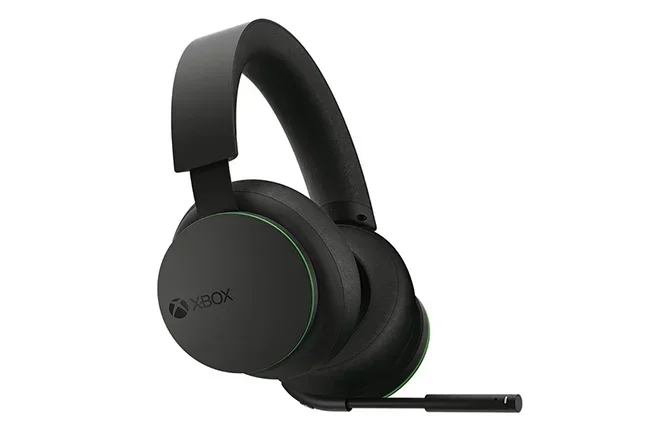
The official Xbox Wireless Headset is the best choice if you want a seamless experience. It connects directly to your Xbox One without any extra equipment. It supports spatial audio, has a great microphone, and the battery lasts for long gaming sessions.
If you already own a Bluetooth headset that you love, do not worry. You can still use it with Xbox One through one of the methods described above. A Bluetooth adapter or transmitter bridges the gap between standard Bluetooth and the Xbox console.
Tips for the Best Wireless Gaming Experience
Once you have your Bluetooth headset connected, here are some tips to get the most out of it.
- Keep your headset charged: Nothing ruins a gaming session faster than a dead battery. Charge your headset after every few uses.
- Update your firmware: Headset manufacturers release firmware updates that improve connectivity and fix bugs. Check the app or website regularly.
- Use a dedicated USB port: If you are using a Bluetooth adapter, plug it directly into the console or PC. Avoid USB hubs, which can weaken the signal.
- Minimize wireless interference: Keep your router and other wireless devices away from your gaming setup.
- Adjust audio profiles: Many headsets come with companion apps that let you customize EQ settings. Use them to fine-tune your gaming audio.
For more tips on connecting wireless audio devices to different platforms, check out how to connect Powerbeats to a laptop or how to use Bluetooth headphones with your TV. These guides cover similar Bluetooth pairing concepts that apply across devices.
Final Thoughts
Connecting a Bluetooth headset to your Xbox One is absolutely doable. You just need the right method for your setup. Whether you use the controller 3.5mm jack, a Bluetooth transmitter, the Xbox Wireless Adapter, or a TV Bluetooth adapter, each method has its own advantages.
The best choice depends on your budget, your headset, and how much freedom of movement you want. A wired connection through the controller is the simplest and cheapest. A Bluetooth transmitter gives you true wireless freedom. And the Xbox Wireless Adapter offers the cleanest, lowest-latency experience for compatible headsets.
Do not let the lack of native Bluetooth stop you from enjoying wireless gaming audio. With the right setup, you can game freely without wires and still stay connected to your teammates. Follow the steps in this guide, and you will be up and running in no time.
Remember, if you run into any issues, the troubleshooting tips above will help you get back on track. Happy gaming, and enjoy your wireless Bluetooth headset on Xbox One!
Frequently Asked Questions
Can I connect any Bluetooth headset to Xbox One?
Not all Bluetooth headsets work directly with Xbox One because the console does not support standard Bluetooth audio. You will need a Bluetooth adapter or transmitter to bridge the connection. Once you have the right adapter, most Bluetooth headsets should work fine.
Why does my Xbox One not have Bluetooth for headsets?
Microsoft uses its own Xbox Wireless protocol for accessories. This protocol offers lower latency and more stable connections than standard Bluetooth. It is designed specifically for gaming, where even a small audio delay can affect performance.
What is the best way to connect a wireless headset to Xbox One?
The best method depends on your headset. For native Xbox Wireless headsets, use the Xbox Wireless Adapter. For standard Bluetooth headsets, a Bluetooth transmitter plugged into the controller is the most reliable option. It provides good range and low latency.
Can I use my Bluetooth headset for both game audio and chat?
Yes, most Bluetooth headsets support both game and chat audio. You can adjust the balance between game audio and chat audio in the Xbox One settings under Display & Sound, then Audio Output. Make sure your headset supports the microphone profile (HFP) for chat to work.
Do I need any extra equipment to use a Bluetooth headset with Xbox One?
Yes, you will need either a Bluetooth transmitter or a Bluetooth adapter. These devices act as a bridge between the Xbox and your headset. The Xbox controller has a 3.5mm jack that works with most transmitters, making setup simple.
Will using a Bluetooth headset add lag to my gameplay?
Standard Bluetooth can add a small amount of lag, usually around 100-200 milliseconds. For most casual gamers, this is not noticeable. However, if you play competitive games, consider using a headset that supports low-latency codecs like aptX Low Latency or use the Xbox Wireless protocol for the best experience.