Can I Download Bluetooth On My PC And Get Connected Fast
Can I download Bluetooth on my PC? Yes, you absolutely can! Whether your computer lacks built-in Bluetooth or you need an update, adding wireless connectivity is simple and affordable. This guide walks you through every step, from choosing the right Bluetooth adapter to troubleshooting common issues. You will learn how to pair devices, transfer files, and enjoy seamless wireless audio on your PC.
Can I download Bluetooth on my PC and start connecting devices right away? The short answer is yes. Bluetooth is one of the most useful wireless technologies you can add to a computer. It lets you connect wireless headphones, speakers, keyboards, mice, and even your phone without any tangled cables. Whether you have a brand-new laptop or an older desktop, getting Bluetooth working is easier than you think.
Many people assume their PC already has Bluetooth built in. But that is not always true. Some computers come with Bluetooth enabled from the factory, while others need a small external adapter or a driver update. If you are wondering how to add Bluetooth to your desktop or fix a connection problem, you are in the right place. This guide covers everything you need to know, step by step.
We will look at how to check if your PC already supports Bluetooth. We will also walk through downloading the right Bluetooth software, pairing your favorite devices, and fixing the most common problems. By the end, you will feel confident setting up wireless connections on any computer. Let us dive in and get you connected.
Key Takeaways
- Bluetooth is not always built into PCs: Many desktops and older laptops need a USB Bluetooth adapter to connect wirelessly.
- Downloading Bluetooth drivers is straightforward: You can get them from your PC manufacturer, Windows Update, or the adapter maker’s website.
- Pairing devices takes seconds: Once Bluetooth is enabled, connecting wireless headphones, speakers, and peripherals is a quick process.
- Troubleshooting is easy: Most Bluetooth issues on a PC can be fixed with simple steps like restarting services or updating drivers.
- Bluetooth version matters: Newer versions offer faster speeds, better range, and lower power consumption for your wireless devices.
- Bluetooth dongles are affordable: You can get a reliable adapter for under $15, making wireless connectivity accessible to everyone.
- File transfer works great: Bluetooth lets you send and receive files between your PC and other devices without cables.
📑 Table of Contents
- What Is Bluetooth and Why Do You Need It on Your PC?
- How to Check If Your PC Already Has Bluetooth
- Can I Download Bluetooth On My PC? Yes, Here Is How
- How to Pair Bluetooth Devices With Your PC
- Bluetooth Version Differences and Why They Matter
- Common Bluetooth Problems and How to Fix Them
- Expert Tips for the Best Bluetooth Experience on Your PC
- Key Takeaways
- Conclusion
What Is Bluetooth and Why Do You Need It on Your PC?
Bluetooth is a short-range wireless technology that lets devices talk to each other without cables. It uses radio waves to send data over short distances, usually within 30 feet. You probably already use Bluetooth every day with your wireless earphones or car audio system.
Adding Bluetooth to your PC opens up a world of convenience. You can connect wireless peripherals like keyboards and mice. You can stream music to a Bluetooth speaker without any wires. You can even transfer files between your phone and computer instantly. It is a small piece of technology that makes a huge difference in daily use.
Here are some of the best reasons to add Bluetooth to your PC:
- Wireless audio streaming: Connect your favorite wireless headphones or speakers for music, calls, and gaming.
- Easy file transfer: Send photos, documents, and videos between devices without USB cables.
- Wireless peripherals: Use a Bluetooth keyboard or mouse for a cleaner, clutter-free workspace.
- Phone integration: Sync your phone with your PC for notifications, messaging, and internet sharing.
- Gaming accessories: Connect wireless game controllers and headsets for a more flexible setup.
- Smart home control: Pair your PC with smart home devices like speakers and hubs.
Understanding what Bluetooth can do for you makes it clear why so many people want to add it to their computers. It is not just a nice-to-have feature. It is a practical tool that improves how you work, play, and connect every single day.
How to Check If Your PC Already Has Bluetooth
Before you rush to download anything, it is smart to check if your PC already supports Bluetooth. Many modern laptops come with it built in. Some desktops do too, especially those bought in the last few years. You might be surprised to find out you already have it.
Checking Bluetooth in Windows Settings
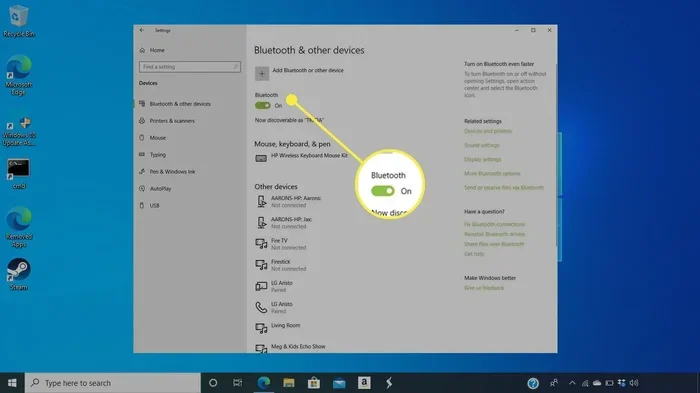
Open the Start menu and click on the Settings gear icon. Then go to Devices and look for Bluetooth & other devices. If you see a toggle switch for Bluetooth, your PC already supports it. You just need to turn it on.
If Bluetooth is already enabled but not showing up, try restarting your computer. Sometimes the Bluetooth service needs a fresh start to appear in your settings. This simple fix solves the problem more often than you might think.
Checking Device Manager for Bluetooth Hardware
Another way to check is through Device Manager. Right-click the Start button and select Device Manager. Look for a section called Bluetooth. If you see it listed with a device name, your PC has Bluetooth hardware installed.
If you see a yellow warning icon next to the Bluetooth entry, the driver might need updating. You can right-click the device and select Update driver. Windows will search for the latest driver automatically. This often fixes the issue without any extra downloads.
Also check the System Tray in the bottom right corner of your screen. Look for the Bluetooth icon. If it is there, your PC supports wireless connectivity. If it is not, you likely need to add a Bluetooth adapter or update your drivers.
Can I Download Bluetooth On My PC? Yes, Here Is How
If your PC does not have built-in Bluetooth, do not worry. You have several great options to add it. The most common method is using a USB Bluetooth adapter, also known as a Bluetooth dongle. These small devices plug right into your USB port and give your PC instant wireless capability.
Another option is to install Bluetooth drivers through Windows Update. Sometimes your PC has the hardware but is missing the software. Updating your system can activate Bluetooth without buying any extra equipment. Let us look at each method in detail.
Option 1: Using a USB Bluetooth Adapter
A USB Bluetooth adapter is the easiest and most affordable way to add wireless connectivity to your PC. These tiny devices cost between $10 and $25 on most online stores. You simply plug them into a USB port, and your PC recognizes them right away.
Here is how to set up a Bluetooth adapter step by step:
- Plug the Bluetooth dongle into an available USB port on your PC.
- Wait for Windows to detect the new hardware. This usually takes just a few seconds.
- If Windows does not install the driver automatically, visit the adapter manufacturer’s website.
- Download the latest Bluetooth driver for your specific model.
- Run the installer and follow the on-screen instructions.
- Restart your PC once the installation is complete.
- Go to Settings > Devices > Bluetooth & other devices and turn Bluetooth on.
Most modern Bluetooth adapters support Bluetooth 5.0 or higher. This means faster speeds, a longer range, and better connection stability. Look for adapters that support the latest Bluetooth wireless standard for the best experience. Popular brands like TP-Link, ASUS, and Amazon Basics offer reliable options that work with almost any PC.
Option 2: Updating Bluetooth Drivers Through Windows Update
If your PC already has Bluetooth hardware but it is not working, a driver update might be all you need. Windows Update often includes the latest drivers for Bluetooth and other wireless devices.
Go to Settings > Update & Security > Windows Update. Click Check for updates and let Windows search for available updates. If there is a Bluetooth driver update, it will appear under Optional updates. Install it and restart your computer.
You can also visit your PC manufacturer’s website directly. Look for the support or drivers section. Enter your PC model number and download the latest Bluetooth driver. This method ensures you get the exact driver designed for your specific computer model.
Some manufacturers also provide their own Bluetooth software. For example, Dell PCs often come with Dell Wireless Console. Lenovo PCs may include Lenovo Vantage. These tools make it easy to manage your Bluetooth connections and update drivers in one place.
Option 3: Installing Bluetooth From the Manufacturer’s Website
If neither Windows Update nor your PC manufacturer provides the right driver, you can always go directly to the source. Visit the website of your Bluetooth adapter or PC motherboard manufacturer. Look for the Support or Downloads section.
Find your exact model number and download the latest Bluetooth driver package. Run the installer file and follow the prompts. This method gives you the most control and ensures you get the latest version of the software.
For desktop PCs with Bluetooth built into the motherboard, check the motherboard manufacturer’s website. Enter your motherboard model and search for Bluetooth drivers. Installing the correct driver this way often solves connection issues and improves performance.
How to Pair Bluetooth Devices With Your PC
Once Bluetooth is working on your PC, the next step is pairing your devices. Whether it is wireless headphones, a Bluetooth speaker, or a game controller, the process is simple and similar across most devices.
Here is the general pairing process you can follow:
- Turn on Bluetooth on your PC by going to Settings > Devices > Bluetooth & other devices.
- Make sure the device you want to connect is in pairing mode. This usually means holding down a button until a light flashes.
- Click Add Bluetooth or other device on your PC.
- Select Bluetooth from the list of connection types.
- Choose your device from the list of available devices.
- Wait for the connection to establish. You will see a confirmation message.
- Test the connection by playing audio or transferring a small file.
Pairing your wireless headphones is one of the most common uses for PC Bluetooth. Simply put your earphones in pairing mode and follow the steps above. Within seconds, you should hear sound coming through your wireless headphones. The same process works for Bluetooth speakers, keyboards, and mice.
Keep in mind that Bluetooth has a limited range. Most devices work well within about 30 feet of your PC. Walls and other obstacles can reduce the range. For the best wireless connection, keep your Bluetooth device close to your computer during the pairing process.
Bluetooth Version Differences and Why They Matter
Not all Bluetooth is the same. Different Bluetooth versions offer different speeds, ranges, and features. Understanding these differences helps you choose the right adapter and get the best performance from your wireless devices.
Bluetooth 4.0 vs 5.0 vs 5.3
Bluetooth 4.0 was a major milestone. It introduced Low Energy Bluetooth, which lets small devices like fitness trackers run for months on a single battery. However, its data transfer speed and range are limited compared to newer versions.
Bluetooth 5.0 doubled the speed and quadrupled the range of Bluetooth 4.0. It also supports connecting to two devices at the same time. This is great if you want to share your wireless headphones between your PC and phone without reconnecting every time.
Bluetooth 5.3 is the latest version available today. It offers even better energy efficiency, improved connection stability, and stronger security. If you are buying a new Bluetooth adapter, look for one that supports at least Bluetooth 5.0. It will give you the best wireless experience on your PC.
Here is a quick comparison of the most common Bluetooth versions:
| Version | Max Speed | Max Range | Key Feature |
|---|---|---|---|
| Bluetooth 4.0 | 25 Mbps | About 200 feet | Low Energy support |
| Bluetooth 5.0 | 50 Mbps | About 800 feet | Dual device connection |
| Bluetooth 5.3 | 50+ Mbps | About 800 feet | Best stability and security |
For most everyday uses like audio streaming and file transfer, any Bluetooth version from 4.0 and above will work great. The differences matter most if you need long range or very fast data transfer speeds.
Common Bluetooth Problems and How to Fix Them
Even with the best setup, you might run into Bluetooth issues from time to time. The good news is that most problems have simple solutions. Let us look at the most common issues and how to fix them fast.
Bluetooth Not Showing Up on Your PC
If Bluetooth is not appearing in your Settings or Device Manager, the driver might not be installed correctly. Try uninstalling the Bluetooth driver and reinstalling it from the manufacturer’s website. You can also run the Windows Bluetooth troubleshooter. Go to Settings > Update & Security > Troubleshoot > Bluetooth and let Windows detect and fix the problem.
Devices Not Pairing or Connecting
Sometimes your PC finds a device but refuses to connect. This often happens when the device is already paired with another device. Try turning Bluetooth off on other devices nearby. Then try pairing again. Restarting both your PC and the Bluetooth device can also solve this issue.
Poor Audio Quality or Lag
If your wireless headphones sound choppy or there is a delay, the Bluetooth signal might be weak. Move closer to your PC and remove any physical obstacles between the devices. Also, make sure your Bluetooth adapter and device are using the same Bluetooth profile. For audio, the A2DP profile is what you need for the best sound quality.
Bluetooth Keeps Disconnecting
Frequent disconnections can be frustrating. This issue is often caused by outdated drivers or power management settings. Go to Device Manager, find your Bluetooth adapter, right-click it, and select Properties. Under the Power Management tab, uncheck Allow the computer to turn off this device to save power. This keeps your Bluetooth connection stable.
For more persistent issues, try removing the Bluetooth device from your PC and pairing it again from scratch. Sometimes a fresh connection fixes all sorts of weird problems. This simple reset often works like magic.
Expert Tips for the Best Bluetooth Experience on Your PC
Getting Bluetooth working is just the beginning. Here are some expert tips to make sure your wireless connection is fast, stable, and reliable every time.
First, keep your Bluetooth drivers up to date. Manufacturers release driver updates that improve performance and fix bugs. Check for updates once a month to stay on top of the latest improvements. You can set Windows Update to automatically download recommended updates.
Second, position your Bluetooth adapter wisely. If you use a USB Bluetooth dongle, plug it into a front USB port on your desktop. This puts it closer to your wireless devices and improves the signal strength. Avoid plugging it into USB hubs or extension cables, as they can weaken the wireless signal.
Third, limit the number of devices connected at once. While Bluetooth can handle multiple connections, too many devices can slow things down. Disconnect devices you are not actively using to keep your connection fast and responsive.
Fourth, restart your Bluetooth service regularly. Open the Run dialog by pressing Windows Key + R, type services.msc, and press Enter. Find the Bluetooth Support Service, right-click it, and select Restart. This clears out any temporary glitches and keeps things running smoothly.
Fifth, invest in a quality Bluetooth adapter if your PC does not have built-in Bluetooth. Cheap adapters can cause connection drops and poor audio quality. Spending a little extra on a reputable brand pays off in a much better wireless experience. Look for adapters with good reviews and support for the latest Bluetooth standard.
Key Takeaways
- Bluetooth is not always built into PCs: Many desktops and older laptops need a USB Bluetooth adapter to connect wirelessly.
- Downloading Bluetooth drivers is straightforward: You can get them from your PC manufacturer, Windows Update, or the adapter maker’s website.
- Pairing devices takes seconds: Once Bluetooth is enabled, connecting wireless headphones, speakers, and peripherals is a quick process.
- Troubleshooting is easy: Most Bluetooth issues on a PC can be fixed with simple steps like restarting services or updating drivers.
- Bluetooth version matters: Newer versions offer faster speeds, better range, and lower power consumption for your wireless devices.
- Bluetooth dongles are affordable: You can get a reliable adapter for under $15, making wireless connectivity accessible to everyone.
- File transfer works great: Bluetooth lets you send and receive files between your PC and other devices without cables.
Conclusion
Can I download Bluetooth on my PC and get connected fast? Absolutely yes. You have all the tools and information you need right here. Whether your PC is missing Bluetooth hardware entirely or just needs a driver update, the solution is within reach. A simple USB Bluetooth adapter can transform your computer into a fully wireless powerhouse in minutes.
Adding Bluetooth to your PC brings so many benefits. You get wireless audio, easy file transfers, and a cleaner workspace with no cables cluttering your desk. The process is simple, the cost is low, and the results are immediate. You can be streaming music, taking calls, and connecting all your favorite devices before you know it.
Do not let a lack of wireless connectivity hold you back. Follow the steps in this guide, and you will have Bluetooth working on your PC in no time. Start with checking if your PC already supports it. Then move to downloading the right driver or adapter if needed. Pair your devices and enjoy the freedom of wireless connections every single day.
The world of wireless connectivity is waiting for you. Take the first step today and experience how convenient and enjoyable a Bluetooth-enabled PC can be. You will wonder how you ever managed without it.
Frequently Asked Questions
Can I download Bluetooth on my PC if it does not have built-in support?
Yes, absolutely. You can add Bluetooth to any PC by using a USB Bluetooth adapter. These small devices plug into any available USB port and provide instant wireless connectivity. You just need to install the driver that comes with the adapter or download it from the manufacturer’s website.
Is it free to download Bluetooth drivers for my PC?
Yes, Bluetooth drivers are completely free to download. Windows Update provides them at no cost, and most adapter manufacturers offer free downloads on their official websites. You never need to pay for a Bluetooth driver unless you buy a premium adapter that comes with bundled software.
How long does it take to set up Bluetooth on a PC?
Setting up Bluetooth on a PC usually takes less than 10 minutes. Plugging in a USB Bluetooth adapter, installing the driver, and pairing your first device is a very quick process. Even if you need to download a driver from the internet, the entire setup should be done in under 15 minutes.
Can I connect multiple Bluetooth devices to my PC at the same time?
Yes, you can connect multiple Bluetooth devices to your PC simultaneously. Most modern Bluetooth adapters support connecting to several devices at once. However, keep in mind that connecting too many devices at the same time may slightly reduce performance and audio quality for each device.
Why is my Bluetooth not working after I downloaded it on my PC?
If Bluetooth is not working after installation, try restarting your PC first. Make sure the Bluetooth service is running in the background. You can also try updating the driver again or removing and re-pairing your devices. Most issues resolve with a simple restart or driver reinstall.
What is the best Bluetooth adapter for a PC?
The best Bluetooth adapter depends on your needs and budget. For most users, a Bluetooth 5.0 or 5.3 USB dongle from brands like TP-Link, ASUS, or Amazon Basics works great. Look for an adapter that supports the latest Bluetooth standard for the fastest speeds and best range.