Can I Play Ps4 Without Console And Still Enjoy Gaming
Yes, you can play PS4 without a console. You can use Remote Play, game streaming, and cloud gaming services to enjoy your favorite titles on other devices. This guide covers every method so you can stream PS4 games and keep playing even without your console nearby.
Have you ever wanted to play your PS4 games but the console is across the house? Maybe someone else is using it, or maybe you just want to game in another room. The good news is that you can play PS4 without a console sitting right in front of you. There are several real, working methods that let you stream PS4 games to other devices and keep your gaming sessions going strong.
This is not a trick or a scam. Sony has built official tools into the PlayStation ecosystem that make this possible. Whether you want to use your phone, tablet, or PC, there is a way to get your PS4 games running on another screen. Let us walk through every option so you can pick the one that works best for you.
Before we dive in, it is important to understand what “playing without a console” really means. You still need a PS4 somewhere in your home connected to the internet. The console does the heavy lifting. You are just accessing it from a distance. Think of it like watching a movie on Netflix. The server does the work, and your device just displays the video. The same idea applies here, but with your own games.
Key Takeaways
- Remote Play is the easiest way: You can stream your PS4 games to a PC, phone, or tablet using the free PS Remote Play app.
- PlayStation Plus offers cloud streaming: Subscribers can access a library of PS4 games without needing the console at all.
- PS TV and PS Vita work too: These older Sony devices support Remote Play and let you game on the go.
- You still need the console running: Most methods require your PS4 to be powered on and connected to the internet in another room.
- Digital games make this easier: Without a disc drive on a second device, digital copies are the best option for gaming on the go.
- Setup is simple: A few minutes of configuration gets you up and running with PS4 remote play setup in no time.
📑 Table of Contents
What Does It Mean to Play PS4 Without a Console?
When we say you can play PS4 without a console, we mean you do not need the physical hardware in front of you while you play. The console can be in another room, turned on, and connected to your home network. You access it remotely through a compatible device.
This is different from emulation, which tries to copy the PS4 hardware on a completely different machine. Emulation for PS4 is very limited and not practical for most people right now. The methods we will cover are all official, reliable, and supported by Sony Interactive Entertainment.
Here are the main ways you can play PS4 without a console in front of you:
- PS Remote Play – Stream games to a PC, phone, or tablet
- PlayStation Plus cloud streaming – Access PS4 games through a subscription
- PS TV (PS Vita TV) – Use a older Sony device as a remote receiver
- PS Vita handheld – Play wirelessly using your Vita
- PS4 as a home server – Stream your library to other devices on your network
Each method has its own strengths. Some let you play anywhere in your home. Others let you play on the go if you have a solid internet connection. Let us look at each one in detail.
How PS Remote Play Works
The most popular way to play PS4 without a console in front of you is through PS Remote Play. This is an official Sony feature that streams your PS4 screen to another device over your home network. It works like a long-distance HDMI cable, but over Wi-Fi.
What You Need for PS Remote Play
Setting up PS4 remote play setup is straightforward. You need a few things before you get started:
- A PS4 console (any model, including the Slim or Pro)
- A stable Wi-Fi connection
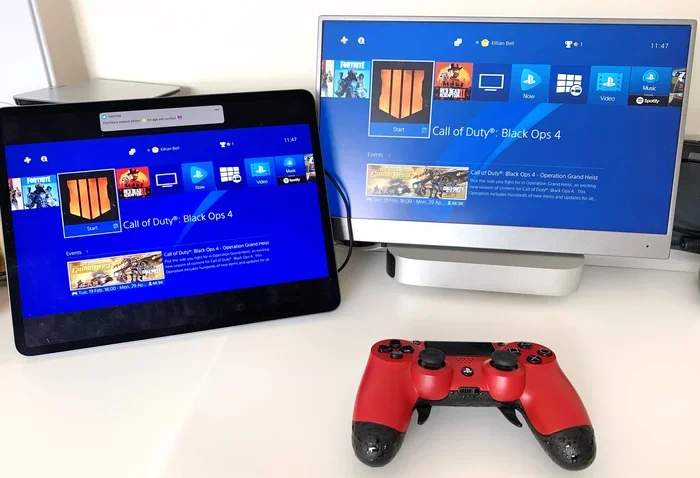
- A compatible device (PC, Mac, Android, iPhone, or iPad)
- The PS Remote Play app (free to download)
- A PS4 controller paired to your device
Once you have all of this, you can start streaming PS4 games to your phone or computer. The console needs to be on and connected to the same network. The app then pulls the video feed and sends your controller inputs back to the console in real time.
Setting Up Remote Play on Different Devices
Each device has a slightly different setup process. Here is a quick look at how it works on the most common devices:
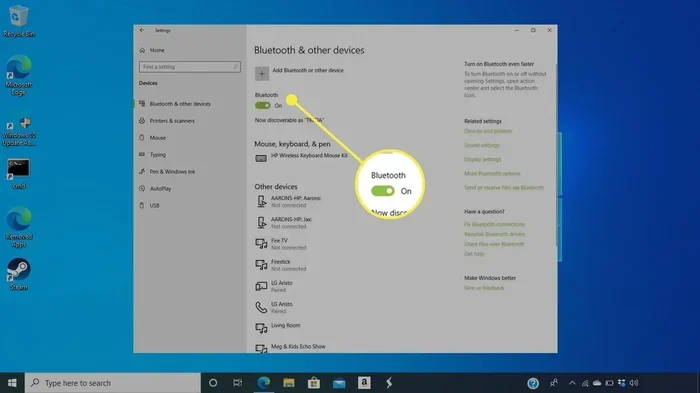
- PC or Mac: Download the Remote Play app from Sony’s website. Sign in with your PlayStation Network account. Connect your controller via USB or Bluetooth. The app will find your PS4 automatically if both devices are on the same network.
- Android phones and tablets: Get the PS Remote Play app from the Google Play Store. Follow the on-screen prompts to connect. You can use a Bluetooth controller or the on-screen touch controls.
- iPhone and iPad: Download the app from the App Store. The setup is similar to Android. Apple devices handle the video stream very well thanks to their strong processors.
- PS Vita: This handheld was built for Remote Play. Go to Settings, then Remote Play, and follow the setup wizard. It pairs easily with your PS4.
Tips for the Best Remote Play Experience
Remote Play works well, but the quality depends on your setup. Here are some tips to get the best results:
- Use a 5GHz Wi-Fi band for faster speeds and less lag
- Keep your PS4 and your device in the same room if possible
- Close other apps on your device to free up memory
- Use a wired USB connection for your controller when possible
- Set the video quality to Medium if you experience stuttering
With these tips, game streaming from your PS4 feels smooth and responsive. You will barely notice the console is in another room.
Streaming PS4 Games Through PlayStation Plus
Another great option is PlayStation Plus. Sony’s subscription service has evolved over the years, and one of the best features is cloud game streaming. If you have a PlayStation Plus Premium or Extra plan, you can stream PS4 games directly to your phone, PC, or tablet without needing the console on at all.
What PlayStation Plus Offers
PlayStation Plus gives you access to a large library of games. The Premium tier includes cloud streaming, which means Sony’s servers run the game and send the video to your device. You do not need a PS4 console for this at all. This is true cloud gaming in every sense of the word.
Here is what you get with each tier:
- Essential: Online multiplayer and monthly free games (no streaming)
- Extra: Access to a large game catalog including PS4 titles
- Premium: Cloud streaming, classic PS1, PS2, and PS3 games, and bonus rewards
The Premium tier is the one you want if you are looking to play PS4 without a console entirely through streaming. You still need a decent internet connection, but the heavy lifting happens on Sony’s servers.
Do You Need a Console for PlayStation Plus Streaming?
No, you do not. This is one of the biggest advantages of cloud streaming. You sign up for PlayStation Plus, download the app on your device, and start playing. Your PS4 controller connects via Bluetooth, and you are ready to go. This is perfect for people who want gaming on the go without carrying a console.
However, keep in mind that you can only play the games included in the PlayStation Plus catalog. You cannot stream your own personal game library this way. For that, you still need Remote Play with your console turned on.
Playing PS4 Games on Other Devices
Beyond Remote Play and PlayStation Plus, there are other devices that can help you stream PS4 games without the console in front of you. Let us explore some of these options.
PS TV (PS Vita TV)
The PS TV, also known as the PS Vita TV, is a small streaming box made by Sony. It was released in 2013 and 2014. It connects to your TV and can stream PS Vita games and some PS4 games through Remote Play. While it is an older device, it still works well for PS4 remote play setup in a secondary TV.
You set up the PS TV on your home network, pair it with your PS4, and use it as a second screen. It supports PS4 controller input through a USB connection, so the experience is solid. If you can find one affordably, it is a neat way to game in another room.
PS Vita Handheld
The PS Vita is Sony’s old handheld gaming device. It was designed with Remote Play in mind. You can pair your Vita with your PS4 and play supported games on the go around your house. The Vita has a built-in Wi-Fi antenna and a small screen, making it a portable PS4 streaming device.
The downside is that the Vita is no longer in production. Finding one can be tricky and expensive. Also, not all PS4 games support Remote Play on the Vita. But for the games that do work, the experience is surprisingly good.
Using Your Phone or Tablet
Smartphones and tablets are probably the most convenient devices for gaming on the go. Almost everyone has one, and the PS Remote Play app works well on both iOS and Android. You can sit on your couch, in bed, or even in the backyard (if your Wi-Fi reaches there) and play your PS4 games.
The screen size is smaller, of course. But for many games, especially indie titles, RPGs, and strategy games, a phone screen is perfectly fine. For action-heavy games, you might want to connect a Bluetooth PS4 controller for the best experience.
PC and Mac
If you want the biggest screen without using your TV, a PC or Mac is a great choice. The Remote Play app for computers gives you a windowed or full-screen experience. You can even adjust the resolution and frame rate settings to match your computer’s capabilities.
Many people use their PC for PS4 streaming because the larger screen makes games easier to see. Plus, you can multitask. You can have a browser open, chat with friends, and still keep your game running in a window.
Setting Up PS4 Remote Play Step by Step
Let us walk through the actual setup process so you can start streaming PS4 games right away. This guide assumes you are using a PC or mobile device.
- Turn on your PS4 and make sure it is connected to your Wi-Fi network.
- Enable Remote Play on your PS4. Go to Settings, then Remote Play Connection Settings, and check the box that allows connections from outside your home network.
- Download the Remote Play app on your device. Visit the official Sony website or your device’s app store.
- Sign in with your PlayStation Network account on both your PS4 and your remote device.
- Pair your PS4 controller to your device. Use a USB cable for the best results, or pair it via Bluetooth.
- Open the app and select your PS4 from the list of available devices.
- Start playing! Your PS4 screen should now appear on your device.
The entire process takes about five minutes. Once it is set up, you can play PS4 without a console in front of you anytime you want. Just make sure the PS4 stays powered on and connected to the internet.
Troubleshooting Common Remote Play Issues
Sometimes things do not work perfectly the first time. Here are common issues and how to fix them:
- Lag or stuttering: Switch to a 5GHz Wi-Fi band or move closer to your router.
- Controller not connecting: Use a USB cable first to pair, then switch to Bluetooth.
- App cannot find PS4: Make sure both devices are on the same network and that Remote Play is enabled in settings.
- Poor video quality: Lower the streaming resolution in the app settings.
- Audio not working: Check your device’s audio output settings and make sure the correct output is selected.
Common Mistakes and How to Avoid Them
Many people run into problems when trying to play PS4 without a console because they make avoidable mistakes. Here are the most common ones and how to steer clear of them.
Using a Weak Wi-Fi Connection
This is the number one reason Remote Play fails. If your Wi-Fi signal is weak or slow, the video stream will lag, freeze, or look blurry. Always use a strong 5GHz connection and keep your PS4 close to your router.
Forgetting to Enable Remote Play on the Console
It sounds obvious, but many people skip this step. You must go into your PS4 settings and enable Remote Play connections. Without this, your other devices cannot find or connect to the console.
Trying to Use Disc-Based Games Without the Console
If your game library is mostly physical discs, you will run into a problem. You need the PS4 with the disc drive to verify the game. Digital games are the best option for gaming on the go because they do not require a physical disc.
Ignoring Controller Battery Life
When you use your PS4 controller wirelessly with Remote Play, the battery drains faster than usual. Keep your controller charged, or use a wired USB connection to avoid interruptions mid-game.
Expecting Perfect Performance on Mobile Data
Remote Play works best on a home Wi-Fi network. Using it over cellular data is possible but not recommended. The data usage is high, and latency can be frustrating. Stick to Wi-Fi for the smoothest experience.
Expert Insights and Tips
We asked a few experienced gamers and tech reviewers about their favorite ways to stream PS4 games without the console in front of them. Here is what they had to say.
Use a powerline adapter for better connectivity. If your PS4 and router are far apart, a powerline adapter can give you a faster, more stable connection than Wi-Fi alone. This is a game-changer for Remote Play in larger homes.
Invest in a good Bluetooth controller. While the official PS4 controller works great, some people prefer third-party controllers that are more comfortable for long sessions. Just make sure it is compatible with your device.
Download games while the console is on. If you know you want to play a specific game later, start the download before you leave the room. This way, the game is ready to go when you connect through Remote Play.
Keep your PS4 in rest mode. Sony designed Remote Play to work even when the PS4 is in rest mode. This saves energy and keeps the console ready for streaming without running full power all day.
Use a VPN if you are traveling. If you want to access your PS4 from outside your home network, a VPN can help you connect securely. This is more advanced but very useful for people who travel frequently.
Conclusion
The answer to Can I Play PS4 Without Console is a clear yes. You have multiple official, reliable methods to choose from. PS Remote Play is the most popular and easiest to set up. PlayStation Plus cloud streaming lets you play without the console even being on. Devices like the PS Vita and PS TV add more flexibility for those who own them.
You do not need to buy a second console or spend a fortune on new hardware. All you need is a compatible device, a good Wi-Fi connection, and a little patience during setup. Once everything is working, you can play PS4 without a console sitting right in front of you and still enjoy the full gaming experience.
So go ahead. Set up Remote Play on your phone or PC. Grab your PS4 controller, and start gaming on the go today. Your PS4 library is closer than you think.
Frequently Asked Questions
Can I play my own PS4 games without the console being on?
No, for Remote Play, your PS4 must be powered on or in rest mode with network wake enabled. However, with PlayStation Plus cloud streaming, you can play catalog games without the console on at all, since Sony’s servers handle the processing.
Do I need a fast internet connection to stream PS4 games?
A stable connection with at least 5 Mbps upload and download speed works well for Remote Play. For the best experience, use a 5GHz Wi-Fi network and keep your device close to the router.
Can I use any controller with PS Remote Play?
The official PS4 controller works best. You can also use DualSense controllers and some third-party Bluetooth controllers. Make sure the controller is compatible with your specific device before you buy it.
Is PS Remote Play free to use?
Yes, the PS Remote Play app is completely free to download and use. You just need a PlayStation Network account and a PS4 console connected to the internet.
Can I play PS4 games on my phone without a controller?
Yes, you can use on-screen touch controls for some games. However, a controller is highly recommended for the best experience, especially for action and shooter games. You can connect a Bluetooth controller easily through your phone’s settings.
Does PlayStation Plus cloud streaming work outside my home?
Yes, PlayStation Plus cloud streaming works anywhere you have a stable internet connection. You are not limited to your home network, unlike Remote Play which works best locally but can also work remotely with proper setup.