Can You Connect A Jbl To An Xbox And Start Playing Music
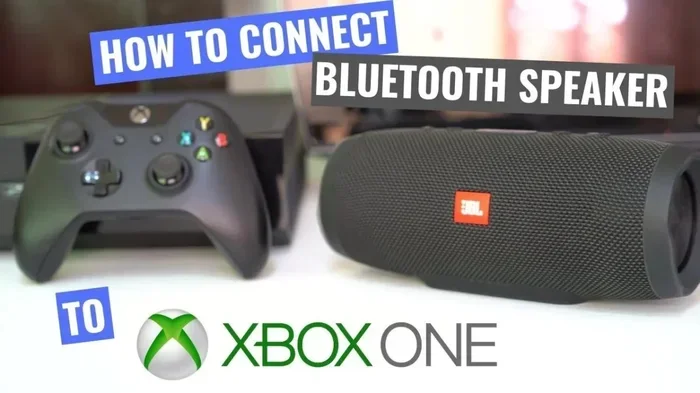
Yes, you can connect a JBL speaker to your Xbox and enjoy music while gaming. Whether you own a JBL Flip, JBL Charge, or JBL Boombox, there are multiple ways to pair your wireless speaker with your Xbox console. This guide covers Bluetooth, wired connections, and audio settings for Xbox One, Xbox Series X, and Xbox Series S.
Imagine this. You are deep into an intense gaming session on your Xbox. The action on screen is firing on all cylinders. But something is missing. The background music feels flat. It feels like it is coming from a tiny built-in speaker that just cannot fill the room. What if you could change that in minutes? What if you could connect a JBL speaker to your Xbox and start playing music that makes every gaming moment feel cinematic?
This is a question many Xbox owners ask. Can you connect a JBL to an Xbox and start playing music? The short answer is yes. The longer answer is that it depends on your JBL model, your Xbox console, and the connection method you choose. In this guide, we will walk you through every possible way to get your JBL speaker working with your Xbox. We will cover Bluetooth pairing, wired connections, and audio settings. By the end, you will know exactly how to set up your JBL speaker and enjoy rich, immersive music while you game.
Whether you own a JBL Flip, a JBL Charge, a JBL Boombox, or any other JBL Bluetooth speaker, this article has you covered. We will also talk about Xbox One, Xbox Series X, and Xbox Series S compatibility. So let us dive in and get your JBL speaker connected to your Xbox console right now.
Key Takeaways
- Multiple Connection Methods: You can connect a JBL speaker to an Xbox using Bluetooth, a 3.5mm aux cable, or an optical audio adapter.
- Works Across All Xbox Models: The process works with Xbox One, Xbox Series X, and Xbox Series S consoles.
- JBL Bluetooth Speakers Need a Workaround: Xbox consoles do not support Bluetooth audio natively, so you need a Bluetooth adapter for wireless connection.
- Wired Connections Are Reliable: Using an aux cable or optical adapter provides stable, lag-free audio output.
- Audio Settings Matter: Adjusting your Xbox audio output settings ensures the best sound quality from your JBL speaker.
- Music and Game Audio Can Coexist: You can balance game sounds and background music using Xbox audio mixer settings.
- JBL PartyBoost and Connect+ Add Fun: Some JBL speakers support multi-speaker pairing for an enhanced gaming atmosphere.
📑 Table of Contents
Can You Connect A Jbl To An Xbox And Start Playing Music
The idea of pairing a JBL speaker with Xbox is simple in theory. In practice, there is a small catch. Xbox consoles do not support Bluetooth audio output natively. This means you cannot just flip on Bluetooth on your Xbox and search for your JBL speaker the way you would with a phone. But that does not mean it is impossible. Far from it. There are several reliable methods to get your JBL speaker playing music alongside your Xbox games.
You can use a Bluetooth adapter, a wired aux cable, or an optical audio connection. Each method has its own advantages. Some give you wireless freedom. Others give you a more stable connection. Let us explore each option in detail so you can choose the best one for your setup.
Why Would You Want to Connect a JBL Speaker to Xbox?
Before we get into the technical steps, let us talk about why this is such a popular topic. Gaming audio has come a long way. But the built-in speakers on Xbox consoles are still pretty basic. They work fine for casual gaming. But if you love music, movies, or want a richer sound experience, a JBL speaker makes a huge difference.
Here are some reasons gamers connect their JBL speaker to Xbox:
- Better Sound Quality: JBL speakers deliver clear, powerful sound that beats the Xbox default speakers every time.
- Immersive Gaming Atmosphere: Music adds mood to your gaming sessions. A good JBL speaker makes every game feel more alive.
- Party and Social Gaming: If you game with friends, a JBL speaker fills the room with sound everyone can enjoy.
- Music Streaming While Gaming: You can play Spotify, YouTube Music, or any other app while your game runs in the background.
- Portable and Wireless: JBL Bluetooth speakers are compact and easy to move around your room or setup.
No matter your reason, connecting a JBL speaker to your Xbox is a game changer. It transforms your gaming setup from basic to impressive in minutes.
Methods to Connect a JBL Speaker to Xbox
There are three main ways to connect a JBL speaker to Xbox. Each method works with different JBL models and Xbox consoles. Let us break them down so you can pick the one that fits your situation best.
Method 1: Using a Bluetooth Adapter
This is the most popular method for wireless connection. Since Xbox consoles do not have built-in Bluetooth audio support, you need a USB Bluetooth adapter. This small device plugs into your Xbox USB port and creates a Bluetooth connection between your console and your JBL speaker.
Here is how to set it up step by step:
- Buy a compatible Bluetooth adapter. Look for one that supports Xbox and has good audio latency.
- Plug the Bluetooth adapter into a USB port on your Xbox console.
- Wait for the Xbox to recognize the adapter.
- Put your JBL speaker into pairing mode. Usually, you press and hold the Bluetooth button until the light flashes.
- On your Xbox, go to Settings and look for the Bluetooth or audio device options.
- Select your JBL speaker from the list of available devices.
- Once connected, test the audio by playing a song or a game.
This method works great with JBL Flip, JBL Charge, and JBL Boombox models. The connection is wireless and gives you the freedom to place your speaker anywhere in the room. The only downside is that some Bluetooth adapters may introduce a slight audio delay. This is usually not a problem for music but can matter during fast-paced games.
Method 2: Using a 3.5mm Aux Cable
If you want a simple, no-fuss connection, a 3.5mm aux cable is your best friend. This wired method works with almost every JBL speaker that has a 3.5mm audio input. You just need one end of the cable to plug into your Xbox controller and the other end into your JBL speaker.
Here is how to do it:
- Plug the 3.5mm jack into the headset jack on your Xbox controller.
- Connect the other end of the cable into the AUX input on your JBL speaker.
- On your Xbox, go to Settings and navigate to the audio output section.
- Select the option to route audio through the controller headset jack.
- Play some music or a game and enjoy the sound from your JBL speaker.
This method is reliable and has zero latency. The audio stays perfectly in sync with what you see on screen. The tradeoff is that you are limited by the cable length. Your JBL speaker needs to be within reach of your controller. For many gamers, this is not a problem at all.
Method 3: Using an Optical Audio Adapter
The optical audio method is the most stable wired option. It uses an HDMI to optical adapter or a direct optical cable to connect your Xbox to your JBL speaker. This method is best if you want the highest audio quality without any wireless interference.
Here is how it works:
- Connect an HDMI audio extractor to your Xbox HDMI port.
- Run an HDMI cable from the extractor to your TV or monitor.
- Connect an optical cable from the extractor to your JBL speaker or an external speaker system.
- Go to Xbox Settings and configure the audio output to use optical audio.
- Test the connection and adjust the volume as needed.
This setup is more involved than the other methods. But it delivers excellent audio quality and is very stable. If you are serious about sound and want a permanent setup, this is the way to go.
Which JBL Speakers Work Best with Xbox
Not all JBL speakers are the same when it comes to Xbox compatibility. Some models pair more easily than others. Let us look at the most popular JBL speakers and how well they work with Xbox consoles.
| JBL Speaker Model | Connection Type | Xbox Compatible | Best For |
|---|---|---|---|
| JBL Flip 5 | Bluetooth | Yes (with adapter) | Portable gaming and casual use |
| JBL Charge 4 | Bluetooth | Yes (with adapter) | Long battery life and powerful bass |
| JBL Boombox 3 | Bluetooth | Yes (with adapter) | Large rooms and outdoor parties |
| JBL Xtreme 3 | Bluetooth | Yes (with adapter) | Heavy bass and rugged design |
| JBL Clip 4 | Bluetooth | Yes (with adapter) | Compact and clip-on portability |
| JBL Pulse 4 | Bluetooth | Yes (with adapter) | Built-in light show and style |
Every JBL Bluetooth speaker on this list can connect to Xbox. The key is using a Bluetooth adapter or an aux cable. If you want a truly wireless setup, invest in a good quality Bluetooth adapter. It makes all the difference in sound quality and connection stability.
Xbox Audio Settings for JBL Speakers
Once your JBL speaker is connected to your Xbox, you need to adjust the audio settings. This ensures the best sound quality and lets you balance game audio with music. Getting these settings right makes a huge difference in your overall experience.
How to Change Xbox Audio Output
Follow these steps to set your JBL speaker as the default audio output on Xbox:
- Press the Xbox button on your controller to open the guide.
- Go to Settings and then select General.
- Navigate to Volume and Audio Output.
- Under the Speaker Audio option, select the output device connected to your JBL speaker.
- If you are using a Bluetooth adapter, your JBL speaker should appear in the list of available devices.
- Adjust the volume slider to your preferred level.
- Test the audio by playing a game or a music track.
Make sure your Xbox is updated to the latest system software. Updates often improve audio performance and fix connection issues with external speakers. A simple restart of both your Xbox and your JBL speaker can also help if you run into any trouble.
Balancing Game Audio and Music
One of the best things about connecting a JBL speaker to Xbox is the ability to play music while gaming. Xbox has a built-in audio mixer that lets you control the volume of different audio sources. Here is how to use it:
- Go to Settings and select Volume and Audio Output.
- Look for the Mixer option or the Audio Mixer setting.
- You will see separate sliders for game audio and music apps.
- Adjust the game audio slider to a comfortable level.
- Set the music slider higher if you want the background music to stand out.
- Save your settings and enjoy a balanced audio experience.
This feature is incredibly useful. You can listen to your favorite playlist on Spotify while playing a game. The game sounds stay clear and the music adds a great backdrop. It is a simple setup that elevates your entire gaming experience.
Common Problems and How to Fix Them
Connecting a JBL speaker to Xbox is usually straightforward. But sometimes you may run into issues. Here are the most common problems and their solutions.
JBL Speaker Not Showing Up in Bluetooth List
This is the most common issue. If your Xbox cannot find your JBL speaker, try these fixes:
- Make sure your JBL speaker is in pairing mode. The LED light should be flashing.
- Move the JBL speaker closer to your Xbox and Bluetooth adapter.
- Restart both the Xbox console and the JBL speaker.
- Check if the Bluetooth adapter is properly seated in the USB port.
- Remove any other Bluetooth devices that might be causing interference.
Audio Delay or Lag
If you notice a delay between the game audio and what comes out of your JBL speaker, try this:
- Use a wired connection instead of Bluetooth. An aux cable eliminates lag completely.
- If you must use Bluetooth, get a low-latency Bluetooth adapter.
- Move the JBL speaker closer to the Xbox to improve signal strength.
- Check for firmware updates on your Bluetooth adapter.
Low Volume from JBL Speaker
If the volume is too low, check the following:
- Increase the volume on both the Xbox and the JBL speaker.
- Check the Xbox audio mixer settings and make sure the music and game sliders are not turned down.
- Make sure your JBL speaker is not in a low-power or volume-limited mode.
- Try disconnecting and reconnecting the speaker to reset the audio output.
Expert Tips for the Best JBL Xbox Setup
Here are some pro tips to get the most out of your JBL speaker and Xbox setup. These small tweaks make a big impact on sound quality and convenience.
Use JBL Connect+ or PartyBoost
If you have a JBL speaker that supports Connect+ or PartyBoost, you can pair multiple JBL speakers together. This creates a surround sound effect that makes gaming even more immersive. It is a great trick for game nights or parties where you want music and game audio to fill the entire room.
Keep Your JBL Speaker Charged
Nothing kills the vibe faster than a dead battery. Before a long gaming session, make sure your JBL speaker is fully charged. Most JBL models offer 10 to 20 hours of battery life, which is plenty for extended gaming marathons.
Place Your Speaker Strategically
The placement of your JBL speaker affects the sound quality. Place it on a flat surface near your gaming area. Avoid placing it in a corner or behind objects that can block the sound. For the best bass response, keep the speaker at ear level or slightly above.
Use Spotify or Xbox Music App
The Xbox console has built-in support for Spotify and other music apps. You can open Spotify, start a playlist, and then switch to your game. The music will keep playing in the background. This is one of the simplest ways to enjoy music while gaming on Xbox with your JBL speaker connected.
Final Thoughts
So can you connect a JBL to an Xbox and start playing music? Absolutely. You have multiple options to choose from. Whether you go wireless with a Bluetooth adapter, simple with an aux cable, or premium with an optical connection, your JBL speaker will transform your Xbox audio experience. The setup process is quick and easy. Once connected, you will wonder how you ever gamed without it.
Take some time to explore the audio settings on your Xbox. Balance your game audio and music to find the perfect mix. Experiment with different JBL models and connection methods to see what works best for your setup. The goal is to create a gaming environment that sounds as good as the games look. With a JBL speaker connected to your Xbox, you are one step closer to that immersive, high-quality audio experience every gamer deserves.
Now that you know how to connect your JBL speaker to Xbox, there is nothing stopping you. Grab your speaker, follow the steps in this guide, and start playing music while you game today. Your ears will thank you.
Frequently Asked Questions
Can I connect any JBL speaker to Xbox?
Yes, you can connect most JBL speakers to Xbox. Bluetooth JBL models like the JBL Flip, JBL Charge, and JBL Boombox work with Xbox when you use a Bluetooth adapter. For models without Bluetooth, you can use a 3.5mm aux cable or an optical audio connection. The method you choose depends on your JBL speaker model and your Xbox console.
Why does my Xbox not have Bluetooth audio support?
Xbox consoles do not include native Bluetooth audio support to avoid interference with the Xbox Wireless protocol used for controllers and headsets. This is a design choice by Microsoft. However, you can still connect Bluetooth devices like JBL speakers using a USB Bluetooth audio adapter. This small device bridges the gap between your Xbox and your wireless speaker.
Is there any audio delay when using a JBL Bluetooth speaker with Xbox?
Some audio delay or latency can occur when using a Bluetooth connection with Xbox. This is normal for all Bluetooth audio devices and not specific to JBL speakers. The delay is usually very small and does not affect music listening. For gaming, a wired aux connection is the best way to eliminate any lag completely.
Can I play Spotify or other music apps while gaming on Xbox with a JBL speaker?
Yes, you can. Xbox supports music apps like Spotify, YouTube Music, and Pandora. When you have your JBL speaker connected as the audio output, any music app you open will play through the speaker. You can then switch to a game and the music will continue playing in the background. Use the Xbox audio mixer to balance game and music volume.
What is the best JBL speaker for Xbox gaming?
The best JBL speaker for Xbox depends on your needs and budget. The JBL Flip 5 is a popular choice for its compact size and great sound. The JBL Charge 4 offers longer battery life and deeper bass. For the ultimate experience, the JBL Boombox 3 delivers room-filling sound with powerful audio output. All of these models work well with Xbox when connected properly.
Do I need any extra accessories to connect a JBL to Xbox?
You may need a USB Bluetooth adapter if you want a wireless connection. For a wired setup, you need a 3.5mm aux cable. An optical audio adapter is needed for the optical connection method. Most of these accessories are affordable and easy to find online. They make the connection process simple and reliable.
=== CONCLUSION ===
Connecting a JBL speaker to Xbox is one of the easiest upgrades you can make to your gaming setup. It brings rich, powerful sound that makes every game and music session more enjoyable. You now know all the methods, from Bluetooth adapters to aux cables to optical connections. You also know how to adjust Xbox audio settings for the best experience and how to troubleshoot common issues. The key takeaway is that there is no single best way. The right method depends on your JBL model, your Xbox console, and your personal preferences. Try each method, see what works best for you, and enjoy your upgraded audio setup. Now go connect your JBL speaker, pick your favorite playlist, and start playing music while you game.