Can A USB 31 Be Used In A USB 30 Port Right Here
Yes, you can use a USB 31 device in a USB 30 port, but you will not get the full speed boost. The connection will work because USB standards are backward compatible, meaning older ports accept newer devices. However, your data transfer speed will drop to USB 30 levels, not USB 31 speeds. This guide explains exactly what happens, why it matters, and how to get the best results.
Key Takeaways
- USB 31 devices work in USB 30 ports thanks to backward compatibility built into the USB standard.
- You will lose speed because the port limits the transfer rate to USB 30 maximums.
- The physical connector type matters more than the version number when plugging devices in.
- USB 31 offers faster data transfer than USB 30, reaching up to 10 Gbps compared to 5 Gbps.
- You do not need special cables for basic compatibility, but the right cable helps unlock full potential.
- USB technology is used across many fields, including healthcare, where computers play a vital role in patient care and medical imaging.
📑 Table of Contents
- Can A USB 31 Be Used In A USB 30 Port?
- How Backward Compatibility Works In USB Technology
- What Happens To Your Data Transfer Speed?
- Can You Use A USB 31 Cable With A USB 30 Port?
- Where Does USB Technology Fit In Broader Computing?
- Common Mistakes People Make With USB Compatibility
- Quick Tips For Getting The Best Performance
- Expert Insights On USB Evolution And Compatibility
- Final Thoughts
Can A USB 31 Be Used In A USB 30 Port?
The short answer is yes. You can plug a USB 31 device into a USB 30 port and it will work. But there is a catch. You will not get the full speed that USB 31 promises. Instead, the port will limit your device to USB 30 speeds. This is how backward compatibility works in the USB world. Let us break it all down so you understand exactly what happens when you plug in a newer device to an older port.
USB standards have come a long way over the years. Each new version brings faster speeds, better power delivery, and improved efficiency. But here is the good news. The USB Implementers Forum designed these standards to work together. A USB 31 device recognizes the port it is plugged into and adjusts its speed accordingly. This means no damage, no errors, and no need for special adapters in most cases.
Now, you might be wondering why this matters. If the device works anyway, does the speed difference really count? The answer depends on what you are doing. If you are transferring large files, backing up data, or using an external drive for work, the speed difference can be huge. We will cover all of that in this article.
What Makes USB 31 Different From USB 30?
To understand compatibility, you first need to know the differences. USB 30, also called SuperSpeed USB, launched in 2008. It offers a maximum data transfer rate of 5 Gbps. That is fast enough for most everyday tasks. USB 31 came along in 2013 and doubled that speed to 10 Gbps. It is also known as SuperSpeed USB 10 Gbps.
Here is a simple comparison to help you visualize the difference.
- USB 30: 5 Gbps max transfer speed, released in 2008
- USB 31: 10 Gbps max transfer speed, released in 2013
- USB 32: 20 Gbps max transfer speed, released in 2017
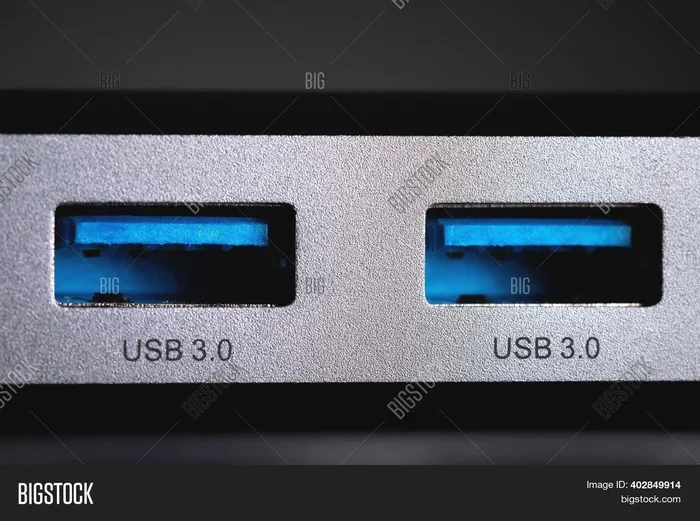
As you can see, each version builds on the last. The physical connectors have stayed mostly the same across USB 30 and USB 31. This is a big reason why they are compatible with each other. The connector shape has not changed, so a USB 31 flash drive fits right into a USB 30 port without any issues.
When you plug a USB 31 device into a USB 30 port, the device and the port negotiate the connection. They agree on the fastest speed both can support. Since the USB 30 port tops out at 5 Gbps, that is the speed you will get. The USB 31 device simply scales down to match the port. This negotiation happens automatically and silently in the background.
How Backward Compatibility Works In USB Technology
Backward compatibility is one of the best features of USB technology. It means newer devices work with older ports and vice versa. The USB standard was built with this principle at its core. So when you ask, “can a USB 31 be used in a USB 30 port,” the answer is built right into the design.
Here is how it works behind the scenes. When you plug in a device, the port and the device communicate through a process called enumeration. During enumeration, the port identifies the device and its capabilities. If the port is USB 30 and the device is USB 31, the port tells the device, “I can only go up to 5 Gbps.” The device then adjusts and operates at that speed.
This process is seamless. You do not need to install special drivers or change any settings. Most modern operating systems handle this automatically. Windows, macOS, and Linux all support USB backward compatibility out of the box. You just plug in the device and start using it.
There is one thing to keep in mind. Not all USB 30 ports are created equal. Some motherboards and computers have better USB 30 implementations than others. A high-quality USB 30 port on a desktop motherboard might perform differently than a USB 30 port on a budget laptop. But the basic compatibility remains the same across the board.
What Happens To Your Data Transfer Speed?
This is the question most people care about. If you have a USB 31 external hard drive and you plug it into a USB 30 port, how fast will it actually go? The answer is it will work at USB 30 speeds, which max out at 5 Gbps. In real-world terms, that translates to about 500 to 600 megabytes per second for a good quality drive.
Now, compare that to USB 31 speeds. A USB 31 device connected to a USB 31 port can hit around 1,000 to 1,200 megabytes per second. That is roughly double the real-world throughput. For large file transfers, this difference adds up fast.
Let us look at a practical example. Say you have a 50 gigabyte video file you need to transfer to an external drive.
- On a USB 31 port: The transfer takes about 40 to 50 seconds
- On a USB 30 port: The transfer takes about 80 to 100 seconds
That is a noticeable difference if you are doing this every day for work or creative projects. But for casual use, like plugging in a USB 31 flash drive to copy a few documents, you probably will not notice the slowdown at all.
Does The Connector Type Affect Compatibility?
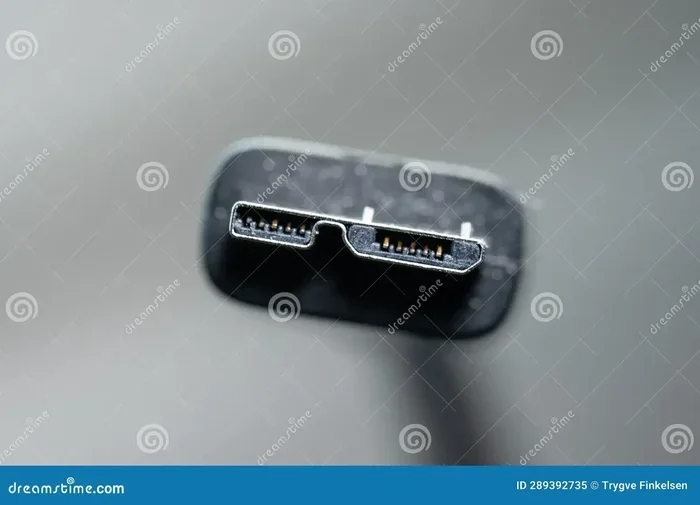
Yes, it does. The connector type plays a big role in whether things work smoothly. USB 30 and USB 31 devices commonly use Type-A and Type-B connectors. These are the standard rectangular and square-shaped plugs you see on most computers and printers.
USB 31 also introduced the USB-C connector, which is smaller and reversible. A USB-C device can work in a USB-C port that supports USB 30 or USB 31. But here is the important detail. A USB-C port on an older computer might only support USB 30 or even USB 20. In that case, your USB 31 device will work but run at the slower port speed.
The key takeaway is this. The connector shape determines if the device physically fits. The port version determines how fast it will go. Always check both before expecting top performance.
Can You Use A USB 31 Cable With A USB 30 Port?
Yes, you can. USB cables are also designed with backward compatibility in mind. A USB 31 cable will work in a USB 30 port without any problems. The cable itself does not limit the speed. The port does. So even if you have a premium USB 31 cable, plugging it into a USB 30 port will still cap your speed at 5 Gbps.
That said, using a high-quality cable matters. A cheap or damaged cable can cause connection drops, slow transfer speeds, or even fail to work at all. If you are investing in USB 31 devices, it is worth getting a good quality USB 31 cable. You will get the best performance when you eventually connect to a USB 31 port.
Here are some quick tips for choosing the right cable.
- Look for the SuperSpeed logo: USB 30 and USB 31 cables usually have the SuperSpeed symbol on the connector
- Check the cable length: Longer cables can sometimes reduce signal quality, especially at higher speeds
- Buy from reputable brands: Brands like Anker, Cable Matters, and Belkin offer reliable USB cables
- Avoid ultra-cheap cables: They may not support the full bandwidth even if they claim to
Where Does USB Technology Fit In Broader Computing?
USB ports are everywhere. They are on desktop computers, laptops, tablets, monitors, and even some smartphones. The versatility of USB connections makes them essential in modern computing. From charging your phone to transferring files from a USB 31 external drive, USB technology handles it all.
USB technology also plays a significant role in specialized fields. For example, in medical settings, computers rely on USB connections to power imaging equipment, transfer patient data, and connect diagnostic tools. The reliability and speed of USB standards directly impact how efficiently these systems work. If you are curious about how deeply computers are integrated into healthcare, you can explore how computers are used in medicine across different applications.
Beyond healthcare, USB connections are critical in professional audio and video production, scientific research labs, and educational environments. A USB 31 external drive can speed up workflows for video editors who work with large raw footage files. A USB 30 port might slow them down, but it still gets the job done. This flexibility is what makes USB such a universal standard.
Looking ahead, newer USB standards like USB4 continue to build on this foundation. They offer even faster speeds and better compatibility with existing devices. But no matter how fast technology gets, backward compatibility ensures your older gear still works. That is the beauty of the USB ecosystem.
Common Mistakes People Make With USB Compatibility
Even though USB is designed to be simple, people still run into issues. Here are some common mistakes to avoid.
- Assuming all USB-C ports are the same: A USB-C port might support USB 20, USB 30, USB 31, or USB4. Always check the specifications of your device.
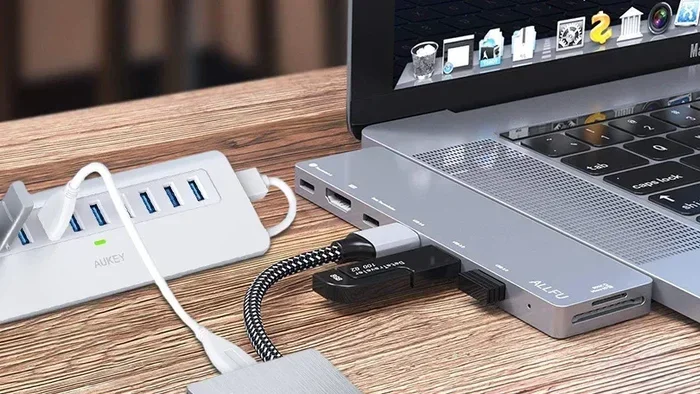
- Using a USB hub without checking its version: If you plug a USB 31 device into a USB 20 hub, the speed drops dramatically. Make sure your hub supports USB 30 or higher.
- Ignoring cable quality: A bad cable can make a perfectly good USB 31 device perform like a USB 20 device. Invest in quality cables.
- Not updating drivers: While most systems handle USB devices automatically, outdated drivers can sometimes cause speed issues or connection problems.
- Confusing USB version with connector type: USB 31 and USB 30 can share the same connector shapes. The version is about speed, not physical design.
Avoiding these mistakes will save you frustration and help you get the most out of your USB devices. Take a few minutes to check your port specifications and cable quality before assuming something is broken.
Quick Tips For Getting The Best Performance
Want to make sure your USB 31 devices perform as well as possible? Here are some practical tips you can use right away.
- Check your port version: Look at your computer or device manual to confirm whether your USB port supports USB 30 or USB 31.
- Use the right cable: Always use a cable rated for the speed you want. A USB 31 cable is backward compatible but only reaches USB 31 speeds in a USB 31 port.
- Avoid USB extensions when possible: Every extra connection point can reduce signal quality. Plug directly into the computer when you can.
- Keep your system updated: Operating system updates often include USB driver improvements that boost performance and fix bugs.
- Use USB 31 devices on USB 31 ports: If you have a USB 31 port available, use it for your fastest devices like external SSDs and video capture cards.
Following these tips will ensure your USB devices run at their best. Even if you are stuck with a USB 30 port, proper cable choice and direct connections will help you maximize the speed you do get.
Expert Insights On USB Evolution And Compatibility
The USB standard has evolved dramatically since its introduction in the mid-1990s. What started as a simple way to connect peripherals has become the backbone of data transfer and power delivery across the tech world. Engineers at the USB Implementers Forum have always prioritized one thing. Making sure new devices work with old equipment. This philosophy is why you can take a USB 31 flash drive from 2023 and plug it into a USB 30 laptop from 2012 and it just works.
The speed improvements from USB 30 to USB 31 were significant. Doubling from 5 Gbps to 10 Gbps was a game changer for professionals who move large files daily. Video editors, photographers, and data analysts all benefited from this leap. But the USB standard did not stop there. USB 32 pushed speeds to 20 Gbps, and USB4 now reaches up to 40 Gbps. Each generation builds on the last while maintaining backward compatibility.
For everyday users, this means you never have to worry about buying a new device because your port is “too old.” The ecosystem is designed to be inclusive. Your USB 31 external hard drive will work in a USB 30 port, a USB 32 port, or a USB4 port. It will just run at whatever speed the slowest link in the chain supports. This is the beauty of a well-designed standard.
Final Thoughts
So, can a USB 31 be used in a USB 30 port? Absolutely yes. The connection will work seamlessly thanks to backward compatibility. You will not get the full 10 Gbps speed of USB 31, but you will still enjoy fast transfer rates at USB 30 speeds of up to 5 Gbps. For most users, this is more than enough.
The key is understanding the difference between compatibility and performance. Your device will work, but the port will set the speed limit. If you want the full USB 31 experience, you will eventually need a USB 31 port. Until then, rest easy knowing your USB 31 devices are not sitting idle. They work perfectly fine in your existing USB 30 ports.
Take a moment to check your current setup. Know what ports you have, use good quality cables, and keep your system updated. These small steps make a big difference in your daily tech experience. USB technology is designed to make your life easier, and now you know exactly how to get the most out of it.
Frequently Asked Questions
Will a USB 31 device damage a USB 30 port?
No, it will not. USB standards are designed to be safe and backward compatible. Plugging a USB 31 device into a USB 30 port will not cause any damage to the port or the device. The connection negotiates automatically and safely.
Can I get USB 31 speeds from a USB 30 port?
No, you cannot. The USB 30 port limits the speed to its maximum of 5 Gbps. Even if your device supports 10 Gbps, the port will cap the transfer rate. The speed you get is always determined by the slower of the two.
Do I need a special adapter to use USB 31 in a USB 30 port?
Usually, no. If the connector types match, such as both being USB Type-A, you can plug the device in directly. Adapters are only needed if the connector shapes are different, like USB-C to Type-A.
Is USB 31 the same as USB 3.1 Gen 1 or Gen 2?
USB 31 is also known as USB 3.1 Gen 2. It offers 10 Gbps speeds. USB 3.1 Gen 1 is actually the same as USB 30, with 5 Gbps speeds. The naming can be confusing, but the version numbers help clarify the speed tier.
What is the best use for a USB 31 device on a USB 30 port?
USB 31 devices work great on USB 30 ports for everyday tasks like file transfers, backups, and connecting peripherals. You will not notice the speed difference for small files. The slowdown becomes more apparent with very large files or continuous heavy data transfers.
How can I tell if my port is USB 30 or USB 31?
Check your computer or motherboard manual for the USB port specifications. You can also look for the SuperSpeed logo on the port itself. USB 30 and USB 31 ports usually have the SS logo next to the connector. If you are unsure, your device will still work regardless of the port version.