Can A Usb C Port Be Used For Video Output On A Monitor
Yes, a USB-C port can absolutely be used for video output on a monitor. Many modern laptops, tablets, and phones use USB-C to send high-quality video signals to external displays. Understanding USB-C video output helps you choose the right cable, adapter, and monitor for your needs.
Key Takeaways
- USB-C supports video output: Most USB-C ports can send video signals to monitors and TVs using Alt Mode or Thunderbolt.
- You may need an adapter: Depending on your monitor, you might need a USB-C to HDMI or DisplayPort adapter.
- Not all USB-C ports are equal: Some only carry data and power, while others support video output too.
- Resolution and refresh rate matter: USB-C video output can support 4K and even higher resolutions on compatible devices.
- Cable quality affects performance: Using a certified USB-C cable ensures stable video signal and faster data transfer.
- USB-C is versatile: It handles video, data, and power through a single cable, making it a favorite for modern setups.
- Check your device specs: Always confirm your device supports video output over USB-C before buying accessories.
📑 Table of Contents
- Can A USB-C Port Be Used For Video Output On A Monitor?
- How USB-C Video Output Works
- What You Need for USB-C Video Output
- Supported Resolutions and Refresh Rates
- Common Problems with USB-C Video Output
- USB-C vs Other Video Connections
- Quick Tips for the Best USB-C Video Output
- Is USB-C Video Output the Future?
- Final Thoughts
Can A USB-C Port Be Used For Video Output On A Monitor?
Let us clear this up right away. Yes, a USB-C port can be used for video output on a monitor. This is one of the most useful features of the USB-C standard today. If you have a modern laptop or tablet, chances are it can send video to an external screen through a single USB-C cable.
But here is the catch. Not every USB-C port does the same thing. Some ports carry data and charge your device but cannot send video. Others can handle video, data, and power all at once. This is why knowing how USB-C video output works matters so much.
The USB-C port has become the go-to connection for many devices. From smartphones to laptop displays, this small reversible connector carries a lot of capability. In fact, USB-C technology is now used in so many fields, including healthcare. For example, computers are used in medicine for imaging and diagnostics, and many of those systems rely on versatile ports like USB-C for display output.
In this guide, we will walk you through everything you need to know. We will cover how USB-C video output works, what equipment you need, common problems, and how to get the best results. Let us dive in.
How USB-C Video Output Works
Understanding USB-C Alternate Mode
Here is the key concept you need to know. USB-C has something called Alternate Mode. This allows the port to carry non-USB signals, like video. When your device supports Alternate Mode, it can send a video signal through the USB-C cable to an external monitor.
There are a few types of Alternate Mode you should be aware of:
- DisplayPort Alt Mode: This is the most common. It lets USB-C carry a DisplayPort signal.
- Thunderbolt Alt Mode: Found on newer devices, Thunderbolt 3 and 4 use the USB-C connector and support video output.
- HDMI Alt Mode: Some devices can output HDMI signals directly through USB-C.
Each of these modes determines what kind of video quality you can expect. DisplayPort Alt Mode is widely supported and works great for most users. Thunderbolt offers even higher bandwidth, which means better resolution and smoother performance.
What Is Thunderbolt and Why Does It Matter?
Thunderbolt is a technology developed by Intel and Apple. It uses the USB-C connector but offers much faster speeds and more capabilities. Thunderbolt 3 supports video output up to 4K at 60Hz. Thunderbolt 4 raises the bar even higher.
If your device has a Thunderbolt port, you get the best of both worlds. You can charge your laptop, connect to a monitor, and transfer files all through one cable. This is why many professionals prefer Thunderbolt-enabled devices for their external monitor setups.
Thunderbolt is also used in professional environments. In fields like medical imaging, fast and reliable data transfer is critical. The same technology that powers 10 ways computers are used in medicine also benefits everyday users who need reliable video signal transmission.
What You Need for USB-C Video Output
Choosing the Right Cable
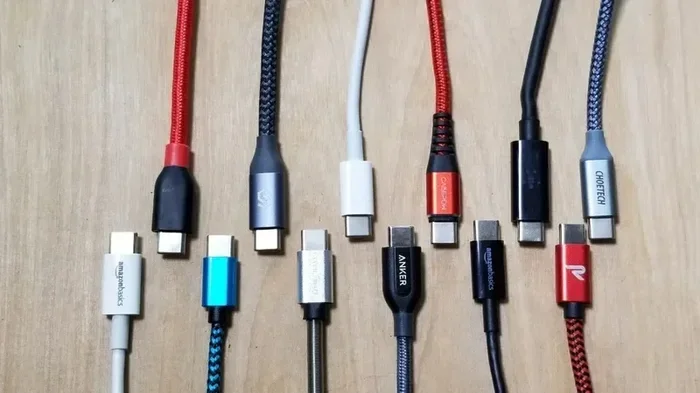
Not all USB-C cables are created equal. Some cables only carry power and data. Others can carry video signals too. To get video output from your USB-C port, you need a cable that supports DisplayPort Alt Mode or Thunderbolt.
Here are some tips for picking the right cable:
- Look for cables rated for video or data transfer speeds of 10 Gbps or higher.
- Choose certified cables from trusted brands.
- Check if your cable supports the resolution you need, such as 4K or 1080p.
- Avoid cheap, uncertified cables that may not handle video signals properly.
A good USB-C cable is the foundation of any monitor connection. Investing in a quality cable saves you from frustrating flickering or no-signal issues later on.
Using Adapters and Docking Stations
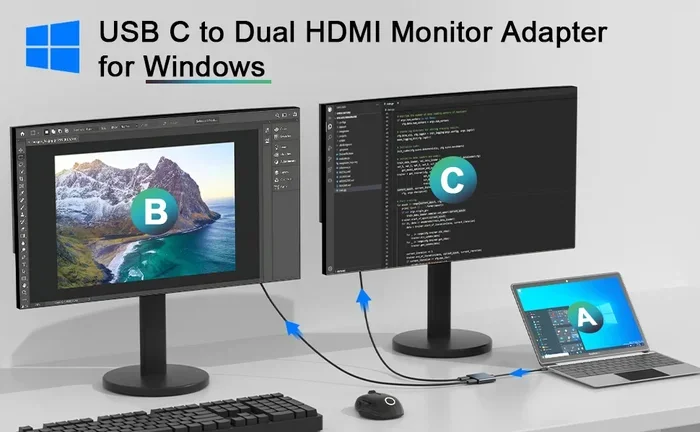
Sometimes your monitor does not have a USB-C input. That is totally fine. You can use an adapter or a USB-C docking station to bridge the gap.
Here are the most common adapter types:
- USB-C to HDMI adapter: Connects your USB-C device to any HDMI monitor or TV.
- USB-C to DisplayPort adapter: Works well with monitors that have DisplayPort inputs.
- USB-C to VGA adapter: Older option, but still useful for legacy projectors and monitors.
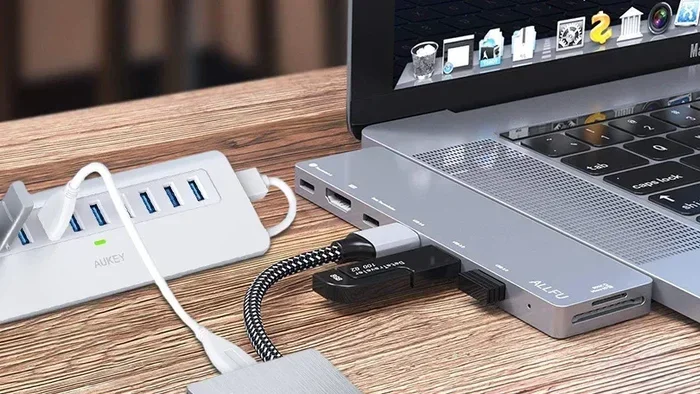
- USB-C hub with multiple ports: Gives you video, USB ports, SD card slots, and charging in one device.
A USB-C hub is especially handy if you work with multiple devices. You can connect your monitor, keyboard, mouse, and external hard drive all at once. Just make sure the hub supports video output before you buy it.
Supported Resolutions and Refresh Rates
One of the biggest questions people ask about USB-C video output is about resolution and refresh rate. The answer depends on your device and the technology it uses.
Here is a general breakdown:
- USB-C with DisplayPort Alt Mode: Supports 4K at 60Hz on most devices. Some can handle even higher resolutions.
- Thunderbolt 3: Supports 4K at 60Hz and can drive two 4K displays on some devices.
- Thunderbolt 4: Supports 4K at 120Hz or dual 4K at 60Hz.
- Basic USB-C (no Alt Mode): May only support 1080p or lower, or no video at all.
If you want the best picture quality, look for devices and cables that support higher video bandwidth. The more bandwidth a connection has, the sharper and smoother your video will be.
For everyday tasks like browsing, writing, and video calls, 1080p or 4K at 60Hz works perfectly. For gaming or video editing, you will want to push for higher refresh rates and better color accuracy.
Common Problems with USB-C Video Output
No Signal on the Monitor
This is the most common issue. If your monitor shows no signal, here is what to check:
- Make sure your cable is fully plugged in on both ends.
- Confirm your device supports video output over USB-C.
- Try a different cable or adapter.
- Check if your monitor is set to the correct input source.
- Restart your device and the monitor.
Sometimes the simplest fix is just unplugging and replugging the cable. Other times, you may need to update your device drivers or check your display settings.
Flickering or Poor Image Quality
If your screen flickers or the image looks blurry, the problem is often the cable. Cheap or damaged cables cannot carry a stable video signal. Replace the cable with a certified, high-quality one and see if the problem goes away.
Another cause can be mismatched adapter capabilities. For example, using an adapter that only supports 1080p on a 4K monitor will result in a poor image. Always match your adapter to your monitor’s resolution.
Charging While Using Video Output
One great thing about USB-C is that it can charge your device and send video at the same time. However, some docking stations or adapters may not support this. If your device stops charging while connected to a monitor, try a different dock or a direct cable connection.
USB-C vs Other Video Connections
How does USB-C compare to other common video outputs? Let us take a quick look.
| Connection Type | Max Resolution | Carries Power? | Common Uses |
|---|---|---|---|
| USB-C (with Alt Mode) | 4K at 60Hz | Yes | Laptops, tablets, phones |
| HDMI | 4K at 60Hz | No | Monitors, TVs, projectors |
| DisplayPort | 8K at 60Hz | No | Desktop monitors, workstations |
| VGA | 1080p (max) | No | Older projectors and monitors |
| Thunderbolt 3/4 (USB-C) | 4K at 120Hz | Yes | Professional setups, docks |
As you can see, USB-C is incredibly versatile. It carries video, data, and power through one cable. This makes it a top choice for people who want a clean, clutter-free desk setup.
In many ways, USB-C is replacing older connections like HDMI and VGA for everyday use. Its ability to handle multiple tasks through a single Type-C connector is a game changer for both casual users and professionals.
Quick Tips for the Best USB-C Video Output
Want to get the most out of your USB-C video setup? Follow these simple tips:
- Always check your device specs. Look for mentions of DisplayPort Alt Mode or Thunderbolt support.
- Buy certified cables and adapters. Look for USB-IF certification or Thunderbolt certification.
- Keep your drivers updated. Outdated display drivers can cause connection issues.
- Use a docking station for multiple devices. It keeps your workspace tidy and connected.
- Test with a different monitor. If you have issues, try another monitor to rule out display problems.
- Avoid long, low-quality cables. Longer cables can lose signal strength, especially at high resolutions.
These small steps can make a big difference. A good setup gives you a reliable, high-quality external monitor experience every time.
Is USB-C Video Output the Future?
The short answer is yes. USB-C is rapidly becoming the standard connection for almost everything. New laptops, tablets, and even some desktops are dropping older ports in favor of USB-C alone.
This shift makes sense. A single cable that handles video, data, and charging is incredibly convenient. It reduces cable clutter and simplifies connectivity. As more devices adopt USB-C, the ecosystem of compatible accessories will only grow.
Technology continues to evolve quickly. We are already seeing USB4, which builds on the Thunderbolt protocol and offers even more bandwidth. This means even better video output capabilities in the near future. Staying informed about these changes helps you make smart buying decisions today.
Even in specialized fields, the trend is clear. Devices used in settings like hospitals and research labs benefit from the flexibility of USB-C. The way computers are used in medicine shows how adaptable this technology has become across industries.
Final Thoughts
Can a USB-C port be used for video output on a monitor? Absolutely. With the right cable, adapter, or docking station, you can turn any USB-C device into a powerful display hub. The key is understanding your device’s capabilities and choosing compatible accessories.
USB-C video output offers convenience, flexibility, and excellent performance. Whether you are working from home, giving a presentation, or setting up a dual-monitor workstation, USB-C makes it easy. Just remember to check your device specs, invest in quality cables, and keep your drivers up to date.
The world of connectivity is moving toward USB-C, and it is easy to see why. One cable, countless possibilities. Embrace the change and enjoy a simpler, cleaner tech setup.
Frequently Asked Questions
Can any USB-C port output video?
No, not all USB-C ports support video output. Some USB-C ports only handle data transfer and charging. Look for labels like DisplayPort Alt Mode or Thunderbolt to confirm video support.
Do I need a special cable for USB-C video output?
Yes, you need a cable that supports video signals. Standard charging cables may not carry video. Look for cables rated for data transfer and video output.
Can I connect a USB-C laptop to an HDMI monitor?
Yes, you can. Use a USB-C to HDMI adapter or a USB-C hub with an HDMI port. This lets you connect your laptop to most modern monitors and TVs easily.
What is the difference between USB-C and Thunderbolt for video?
Thunderbolt uses the USB-C connector but offers much higher bandwidth. Thunderbolt 3 supports 4K at 60Hz and can drive two displays. Regular USB-C with Alt Mode typically supports 4K at 60Hz on a single display.
Why does my USB-C video keep flickering?
Flickering is usually caused by a low-quality or damaged cable. Try using a certified USB-C cable rated for video output. Also check your adapter and monitor input settings.
Can I use USB-C to connect to a 4K monitor?
Yes, most modern USB-C devices can output 4K video. Make sure your cable, adapter, and device all support 4K resolution for the best results.
=== CONCLUSION ===
USB-C video output is a powerful and convenient feature that has transformed how we connect devices to monitors. Whether you are a student, a professional, or a casual user, understanding how USB-C video output works helps you get the most from your setup. The right cable, adapter, or docking station makes all the difference.
Remember to check your device specifications, invest in quality accessories, and keep your setup updated. With USB-C, you get a single cable solution that handles video, data, and power effortlessly. It is fast, versatile, and here to stay.