Can A Usb Charging Port Be Fixed And How To Repair It
A USB charging port can often be fixed with the right tools and a little patience. Whether the issue is dust buildup, loose connections, or physical damage, several repair methods work for both laptops and phones. This guide walks you through diagnosing the problem, attempting home repairs, and knowing when to seek professional help.
Have you ever plugged in your device and noticed it just would not charge? That frustrating moment when your USB charging port stops working can throw a wrench in your day. Whether it is your laptop, phone, or tablet, a dead charging port feels like a death sentence for your favorite gadget.
The good news is that most USB charging ports can be repaired. You do not always need to buy a new device or spend hundreds of dollars at a repair shop. With the right knowledge and a few basic tools, you can often fix the problem yourself.
This guide covers everything you need to know about charging port repair. We will look at why ports fail, how to diagnose the issue, what you can do at home, and when it is time to call in a professional. By the end, you will feel confident tackling this common tech problem head-on.
Key Takeaways
- Most USB charging ports are repairable: Common issues like dust, loose pins, and worn cables can be fixed without replacing the entire device.
- Home repairs work for minor damage: Cleaning, reseating connectors, and basic soldering can restore function in many cases.
- Professional repair costs vary: Expect to pay between $20 and $150 depending on the device and extent of damage.
- Prevention saves money: Simple habits like regular cleaning and gentle cable handling extend port lifespan significantly.
- Know when to replace: Severe motherboard damage or outdated devices may make replacement more cost-effective than repair.
- Use the right tools: A soldering iron, compressed air, and a multimeter are essential for most port repairs.
- Warranty matters: Check your device warranty before attempting DIY repairs to avoid voiding coverage.
📑 Table of Contents
Why Do USB Charging Ports Stop Working?
Understanding the root cause is the first step toward fixing any USB charging port problem. Ports fail for many reasons, and knowing which one applies to your situation helps you choose the right fix.
Physical Damage and Wear
The most obvious cause of a broken USB port is physical damage. Dropping your device can bend or break the internal pins inside the port. Over time, regular plugging and unplugging wears down the connection points. This is especially true for Micro USB ports on older phones and USB-C ports on newer laptops.
Kids and pets can also cause accidental damage. A yanked cable or a forced plug can bend the tiny metal contacts inside the port. Even something as simple as using the wrong charger can stress the port over time.
Dust and Debris Buildup
Dust and lint love to collect inside USB charging ports. Over weeks and months, this buildup pushes against the internal pins and prevents a solid connection. If your device charges intermittently or only when you wiggle the cable, debris is likely the culprit.
This is one of the most common reasons for a USB port not working on phones and laptops. The good news is that this type of charging issue is usually the easiest to fix at home.
Loose or Damaged Charging Cables
Sometimes the problem is not the port at all. A frayed or damaged charging cable can mimic port failure. If the cable connector is worn out, it will not make proper contact inside the port.
Before you assume the port is broken, try a different charging cable and power adapter. This simple test can save you a lot of unnecessary effort.
Internal Board Damage
In more serious cases, the charging port issue stems from damage to the motherboard or internal circuitry. Water damage, electrical surges, or manufacturing defects can all cause this type of problem. When the damage reaches the board level, home repairs become much harder and professional help is usually needed.
How to Diagnose a Broken USB Charging Port
Before jumping into repairs, you need to know exactly what is wrong with your USB charging port. A proper diagnosis saves time and prevents unnecessary work.
Signs Your Port Needs Repair
Watch for these common signs that your port has a problem:
- Intermittent charging: The device charges only when you hold the cable at a certain angle.
- No charging at all: Your device shows zero charging signs no matter what cable or adapter you use.
- Slow charging: The device charges much slower than it used to, even with the original cable.
- Physical wobble: The cable connector feels loose or moves around inside the port.
- Visible damage: You can see bent pins, debris, or scorch marks around the port.
- Charging only with wireless pad: If you have a wireless option and the wired port does not work, the port is likely the issue.
Simple Tests You Can Do
Try these quick diagnostic steps before attempting any repair:
- Try a different cable and adapter. This rules out a faulty charging cable or power adapter as the problem.
- Inspect the port with a flashlight. Look for dust, lint, bent pins, or burn marks inside the USB-C port or Micro USB port.
- Gently clean the port. Use a toothpick or compressed air to remove loose debris.
- Test with a different device. Plug the cable into another device to confirm the cable works.
- Check for software issues. Sometimes a software glitch mimics a hardware charging issue. Restart your device and check for updates.
If none of these steps restore charging, the port itself likely needs repair or replacement.
Can You Fix a USB Charging Port at Home?
The answer is yes, in many cases. Home repair works well for dust buildup, loose connections, and minor pin damage. However, it requires patience, the right tools, and a steady hand.
Tools You Will Need
Gather these tools before you start any charging port repair:
- Compressed air canister or soft brush for cleaning
- Toothpick or plastic spudger for removing debris
- Soldering iron and solder wire (for pin repairs)
- Multimeter for testing continuity
- Replacement port (if the port needs swapping)
- Small screwdriver set for opening the device
- Magnifying glass or phone light for close-up inspection
- Isopropyl alcohol and a cotton swab
Step-by-Step Home Repair
Follow these steps to fix a USB charging port at home:
- Power off the device completely. Never work on a powered device. This protects both you and the internal components.
- Open the device carefully. Use the appropriate screwdriver and follow online teardown guides for your specific model.
- Inspect the port closely. Look for bent pins, corrosion, or loose solder joints. Use the magnifying glass for a better view.
- Clean the port thoroughly. Blow compressed air into the port. Gently scrape away debris with a toothpick. Dip a cotton swab in isopropyl alcohol and clean the contacts.
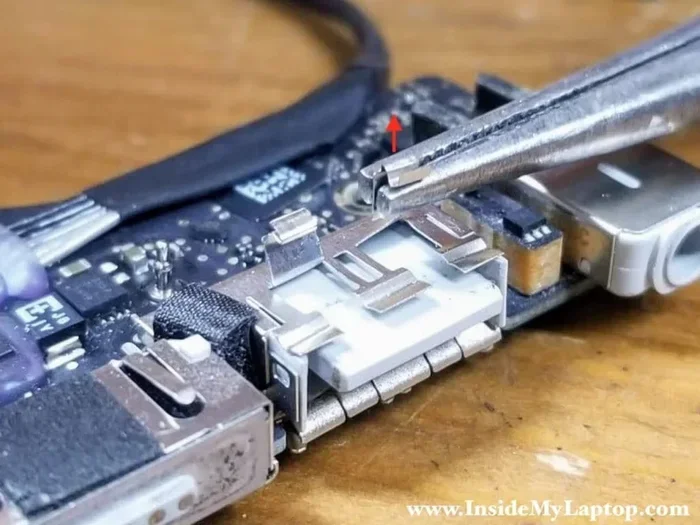
- Check for loose connections. If the port feels wobbly, the solder joints may have weakened. Reflow the solder by heating the joints gently with your iron.
- Replace the port if needed. If the port is severely damaged, desolder the old one and solder the replacement in place. Match the new port to your device model exactly.
- Test before reassembling. Connect the charging cable and check if the device charges. Use a multimeter to verify the connection is solid.
- Reassemble the device. Once confirmed working, put everything back together carefully.
Quick Tip: If soldering feels intimidating, start with just the cleaning steps. Many USB port not working issues resolve simply by removing dust and debris. You do not always need to solder anything.
Common Mistakes to Avoid
Watch out for these errors when attempting home repairs:
- Using metal tools inside the port. This can cause short circuits or further pin damage. Stick to plastic or wooden tools.
- Applying too much heat. Overheating while soldering can damage the motherboard. Keep iron contact brief and precise.
- Forcing a cable into a loose port. This worsens the damage and can bend pins further.
- Skipping the multimeter test. Always verify the repair works before closing the device back up.
- Ignoring warranty status. Opening the device may void your warranty. Check before you start.
Professional Repair Options and Costs
Not every charging port repair is a DIY job. Some situations call for professional expertise. Knowing when to seek help saves you from making things worse.
When to See a Technician
Consider professional repair if any of these apply:
- The motherboard shows signs of water damage or burn marks.
- You are uncomfortable soldering or opening your device.
- The port damage is severe and requires a full charging port replacement.
- Your device is still under warranty and DIY repair would void coverage.
- Multiple ports or components show signs of failure.
Cost Comparison Table
| Device Type | Typical Repair Cost | Replacement Cost | DIY Difficulty |
|---|---|---|---|
| Smartphone (USB-C or Micro USB) | $20 – $60 | $200 – $800 | Moderate |
| Laptop (USB-C or Barrel Jack) | $40 – $150 | $400 – $1500 | Difficult |
| Tablet | $30 – $80 | $200 – $1000 | Moderate |
| Gaming Console | $50 – $100 | $300 – $500 | Difficult |
| E-Reader | $15 – $40 | $100 – $300 | Easy to Moderate |
Expert Insight: Professional repair costs depend heavily on your device model and local labor rates. Always get a quote before committing. Some repair shops offer free diagnostics, which helps you make an informed decision.
Finding a Reliable Repair Service
Look for repair shops that specialize in your device brand. Check online reviews and ask for warranties on their repair work. A reputable shop will diagnose the issue clearly and explain all options before starting any work.
How to Prevent USB Port Damage
Prevention is always better than repair. A few simple habits can keep your USB charging port working flawlessly for years.
Best Practices for Port Care
- Clean your ports regularly. Use compressed air or a soft brush once a month to remove dust and lint.
- Plug cables in gently. Do not force the connector. Align it properly before pushing it in.
- Use quality cables and adapters. Cheap charging cables often have weak connectors that wear out fast and damage ports.
- Avoid yanking cables out. Pull from the plug, not the cord. Yanking stresses the port connection.
- Store devices properly. Keep devices in protective cases and avoid tossing them into bags loosely.
- Keep liquids away. Water and other liquids cause devastating damage to USB ports and internal electronics.
Quick Tips for Longevity
These small habits make a big difference over time:
- Use cable management clips to reduce strain on connections.
- Keep a backup charging cable so you never use a damaged one out of desperation.
- Consider wireless charging for devices that support it. This eliminates port wear entirely.
- Inspect your ports visually every few months to catch problems early.
Expert Insight: The #1 cause of premature port failure is repeated stress from low-quality cables. Investing in a few good cables pays for itself many times over in avoided repairs.
When to Replace Your Device Instead of Repairing
Sometimes repair is not the best option. Here is how to decide whether to fix or replace your device.
Factors to Consider
- Device age: If your device is several years old and already has other issues, replacement may make more sense.
- Repair cost vs. new device cost: If repair costs more than half the price of a new device, replacement is usually the smarter choice.
- Availability of parts: Older devices may no longer have replacement ports available, making repair impossible.
- Overall device condition: If the screen is cracked, the battery is dying, and the port is broken, all those repairs together may exceed the value of the device.
- Technology upgrades: Replacing an old device gives you access to faster charging speeds and newer port standards like USB-C with higher power delivery.
Make a list of all your device issues and their repair costs. Add those up and compare to the price of a replacement. This simple calculation often makes the decision clear.
In many cases, a single USB charging port repair is well worth the investment. But when a device has multiple problems, it is time to move on and invest in something new.
Conclusion
A USB charging port can absolutely be fixed in most situations. Whether the problem is simple dust buildup or a more complex solder issue, the right approach gets your device charging again. Start with the easy fixes like cleaning and cable swaps. Move to home repairs if you are comfortable with basic tools and soldering. And do not hesitate to seek professional help when the damage goes beyond DIY scope.
Remember that prevention plays a huge role in keeping your charging port healthy for the long haul. Regular cleaning, quality cables, and gentle handling go a long way. With the knowledge from this guide, you are well equipped to handle most USB charging port problems confidently and save money in the process.
Take action today. Diagnose your charging issue, try the appropriate fix, and get your device back up and running. Your wallet and your favorite gadgets will thank you.
Frequently Asked Questions
Can a USB charging port be fixed without soldering?
Yes, many USB charging port issues can be resolved without any soldering at all. Simple cleaning with compressed air or a toothpick often removes the dust and debris that cause intermittent charging. Replacing a damaged charging cable or power adapter is another solder-free fix. If the port has a loose connection but no broken pins, sometimes reseating the internal cable or using a port adapter works without any soldering skills.
How much does it cost to repair a USB charging port?
Repair costs depend on the device type and the extent of the damage. Smartphone port repairs typically cost between $20 and $60 at a shop. Laptop repairs range from $40 to $150 depending on the model. If you do the repair yourself, your main cost is the replacement port and basic tools. Always get a diagnostic quote before committing to professional repair, and check if your device warranty covers the cost.
How long does a USB charging port repair take?
Simple cleaning jobs take just a few minutes at home. Professional repairs usually take one to three business days. Complex repairs involving motherboard work or hard-to-find replacement parts can take up to a week. If you are doing a DIY charging port replacement for the first time, set aside a couple of hours to research your specific device model and work carefully through the process.
Is it safe to use a device with a damaged USB port?
It depends on the type of damage. A loose port that still charges occasionally is generally safe to use. However, a port with visible burn marks, exposed wires, or corrosion should not be used until repaired. Using a damaged port can lead to short circuits, battery damage, or even safety hazards. If you notice any burning smell or sparking, stop using the device immediately and seek professional help.
Can I use a wireless charger instead of fixing my USB port?
Yes, wireless charging is a great temporary or permanent workaround for a broken USB charging port. Many modern smartphones and some laptops support wireless charging. While it does not fix the underlying port problem, it keeps your device powered without needing a wired connection. Keep in mind that wireless charging is typically slower than wired charging and may not be available for all device types.
What causes a USB-C port to stop working on a laptop?
The most common causes of a USB-C port failure on a laptop are physical stress from frequent cable insertion, liquid spills, and dust accumulation. Over time, the thin internal pins can bend or break from rough handling. Electrical surges from faulty power adapters can also damage the port’s internal circuitry. In some cases, outdated firmware or driver issues can cause the port to appear non-functional even though the hardware is intact.