Can I Connect Ssd To Usb For Portable External Storage
Yes, you can absolutely connect an SSD to USB for portable external storage. Whether you own a solid state drive or an NVMe SSD, a simple USB adapter or SSD enclosure makes it work instantly. This guide covers everything from USB 3.0 and USB-C options to data transfer speeds, disk cloning, and bootable drive setups. You will learn which storage device options suit your needs and how to avoid common pitfalls.
Have you ever wondered if you can turn your internal solid state drive into a portable powerhouse? The answer is a resounding yes. Can I connect SSD to USB for portable external storage? Absolutely. And the process is simpler than most people think.
Whether you are a student moving large files between classes, a photographer hauling high-resolution images, or a professional needing a reliable backup drive, connecting an SSD to USB opens up a world of convenience. You get blazing fast speeds, compact size, and a storage solution that fits in your pocket.
In this guide, we will walk through every step. We will cover the types of adapters you need, the speed differences you can expect, and the best practices for keeping your drive healthy. By the end, you will know exactly how to set up your own portable external storage with confidence.
Key Takeaways
- Easy Setup: Connecting an SSD to USB is simple with the right adapter or enclosure.
- Fast Speeds: USB 3.0 and USB-C deliver excellent data transfer speeds for portable external SSD use.
- Versatile Use: You can use a USB-connected SSD for file transfer, backup drive, or even a bootable drive.
- No Installation Needed: Most setups are plug and play and work across operating systems.
- Choose Wisely: Not all adapters support NVMe drives, so match your SSD type to the right enclosure.
- Performance Matters: A quality USB hub or direct connection ensures you get the full speed of your drive.
- TRIM Support: Some setups allow TRIM support for better long-term SSD health.
📑 Table of Contents
- Why Connect an SSD to USB?
- Understanding SSD Types and USB Connections
- How to Connect an SSD to USB: Step by Step
- Speed and Performance Expectations
- Best Use Cases for USB-Connected SSDs
- Common Mistakes to Avoid
- Expert Tips for Getting the Most From Your Setup
- Frequently Asked Questions
- Final Thoughts
Why Connect an SSD to USB?
Internal solid state drives are incredibly fast. But they stay locked inside your computer. What if you need that speed on the go? That is where a USB connection comes in. By placing your SSD inside a portable enclosure or using a direct adapter, you transform it into a mobile storage device that you can carry anywhere.
The benefits go beyond just portability. Here is why this setup makes sense for so many people:
- Speed: USB 3.0 and USB-C connections offer transfer rates that rival internal drives. You can move gigabytes of data in minutes.
- Durability: Unlike traditional hard drives, solid state drives have no moving parts. They handle drops and bumps far better.
- Compact Size: A 2.5-inch or M.2 drive in a good enclosure is smaller than a credit card.
- Cost Efficiency: Repurposing an old internal SSD saves money compared to buying a new external drive.
- Flexibility: You can use the same drive for file transfer, disk cloning, or as a bootable backup drive.
These advantages make connecting SSD to USB one of the most practical upgrades you can make. It costs little, takes minutes, and delivers real value every single day.
Understanding SSD Types and USB Connections
Not all SSD types are the same. And not every USB connection delivers the same performance. Understanding the basics helps you pick the right setup for your needs.
SATA SSD vs. NVMe SSD
Most people own one of two types of solid state drives. The first is a SATA SSD. These are the 2.5-inch drives commonly found in older laptops and desktops. They connect via a SATA interface and offer speeds up to about 550 MB/s.
The second type is an NVMe SSD. These are smaller M.2 drives that connect directly to the motherboard via PCIe lanes. They are dramatically faster, with speeds reaching 3,500 MB/s or more. When you connect either type to USB, the data transfer speed will depend on both the drive and the adapter you choose.
USB 3.0 vs. USB-C vs. Thunderbolt
The USB connection you use matters a lot for performance. Here is a quick comparison:
- USB 3.0 (Type-A): Offers up to 5 Gbps. Great for SATA SSDs and sufficient for most NVMe drives.
- USB 3.1 Gen 2 (Type-C): Delivers up to 10 Gbps. A solid choice for NVMe enclosures.
- USB 3.2 Gen 2×2: Reaches 20 Gbps. Best for high-end NVMe drives.
- Thunderbolt 3/4: Provides up to 40 Gbps. Ideal for professionals who need maximum throughput.
For most users, a USB 3.0 or USB-C adapter works perfectly. Thunderbolt is excellent but usually more expensive and not always necessary for everyday tasks.
How to Connect an SSD to USB: Step by Step
Setting up your external SSD is straightforward. You do not need advanced technical skills. Here is the process broken down into simple steps.
Step 1: Choose Your Adapter or Enclosure
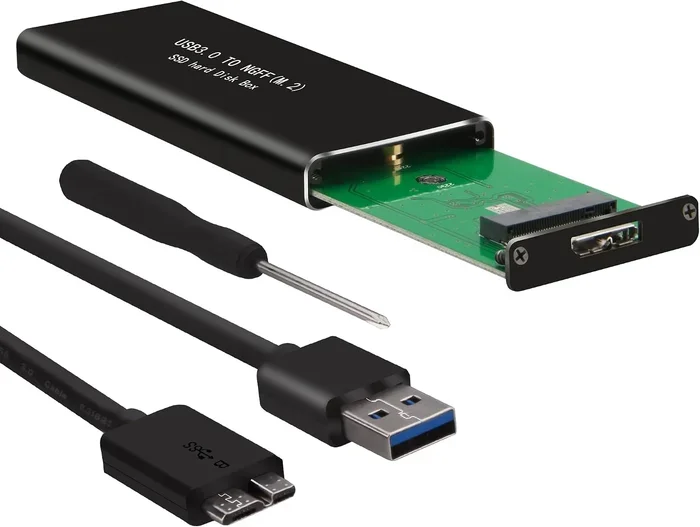
You have two main options. The first is an SSD enclosure. This is a protective shell that houses your drive and connects to your computer via USB. The second option is a USB adapter, which plugs directly into your drive without a case.
For a 2.5-inch SATA SSD, a standard USB-to-SATA adapter works perfectly. For an M.2 NVMe drive, you need an enclosure or adapter specifically designed for NVMe. Always check compatibility before purchasing.
Step 2: Install the SSD
Open your enclosure or connect the adapter to the drive. For SATA drives, align the connector and gently push it in. For NVMe drives, insert the M.2 drive at an angle and press it flat. Secure it with the screw if your enclosure includes one.
Step 3: Connect to Your Computer
Plug the USB end into your laptop or desktop. Most modern computers recognize the drive instantly. You may see a notification that a new storage device has been detected.
Step 4: Format and Use
If the drive is new or was previously used with a different operating system, you may need to format it. On Windows, use Disk Management. On macOS, use Disk Utility. Always back up any existing data before formatting.
Once formatted, your drive is ready to go. Drag and drop files, clone disks, or use it as a portable backup drive. The entire process takes less than ten minutes.
Speed and Performance Expectations
One of the biggest reasons people connect an SSD to USB is speed. But how fast can you really expect to go? The answer depends on several factors working together.
Real-World Speed Ranges
With a USB 3.0 connection and a SATA SSD, you can expect read speeds around 400 to 450 MB/s. Write speeds are usually similar. These numbers are more than fast enough for everyday use, including large file transfers and video editing workflows.
When you pair an NVMe SSD with a USB-C enclosure that supports 10 Gbps, speeds jump significantly. You can see read speeds of 1,000 MB/s or higher. That is up to ten times faster than a traditional external hard drive.
Keep in mind that the USB hub or port quality also affects performance. A cheap hub can bottleneck your speeds. Always plug directly into your computer when possible for the best results.
What Affects Transfer Speed?
Several things influence how fast your file transfer actually goes:
- The type of SSD you use (SATA or NVMe)
- The USB version and port type
- The quality of the adapter or enclosure
- The file size and type being transferred
- Whether the drive is nearly full
Understanding these factors helps you troubleshoot slow speeds and get the most out of your setup.
Best Use Cases for USB-Connected SSDs
A portable external storage solution opens doors to many practical applications. Here are the most popular and useful ways to use your USB-connected SSD.
Portable Backup Drive
One of the best uses is as a backup drive. You can schedule automatic backups or manually copy important files after each work session. Because SSDs are shock-resistant, they survive the bumps of daily travel much better than old spinning hard drives.
Disk Cloning and System Migration
Need to move your entire operating system to a new drive? Connect your SSD via USB and use cloning software to create an exact copy. This is a common step when upgrading to a larger drive or replacing a failing one.
Bootable Drive for Troubleshooting
You can create a bootable drive with a recovery environment or a portable operating system. If your main computer fails, booting from your USB-connected SSD gives you access to tools for diagnosis and repair.
Media and Project Files on the Go
Video editors, musicians, and designers often work with large project files. Carrying a fast external SSD via USB means you can access your work from any computer without relying on cloud storage or slow uploads.
Common Mistakes to Avoid
Setting up a USB-connected SSD is easy, but small mistakes can cause big problems. Here are the most common ones to watch out for.
Using the Wrong Adapter
Not every adapter supports every drive type. A SATA adapter will not work with an NVMe M.2 drive. Always double-check that your SSD type matches the adapter specifications. Buying the wrong one wastes time and money.
Ignoring TRIM Support
TRIM is a command that helps your SSD manage deleted data efficiently. Some USB enclosures and adapters do not pass TRIM commands through to the drive. Over time, this can slow down performance. Look for enclosures that explicitly support TRIM support if long-term speed matters to you.
Plugging Into a Low-Quality Hub
A cheap USB hub may not supply enough power or bandwidth. This leads to slow transfers, disconnections, or even data corruption. Whenever possible, plug your drive directly into a port on your computer.
Forgetting to Eject Properly
Always use the safe eject function before unplugging your drive. Pulling it out while data is still writing can corrupt files and damage the drive over time.
Skipping Encryption for Sensitive Data
A portable drive can be lost or stolen. If it contains sensitive files, enable encryption. Both Windows and macOS offer built-in tools for this. Protecting your data is simple and essential.
Expert Tips for Getting the Most From Your Setup
Want to squeeze every bit of performance and lifespan from your USB-connected SSD? Here are some pro tips that make a real difference.
- Keep Your Drive Cool: SSDs run cooler than hard drives, but enclosed drives can still get warm during long transfers. Give it airflow when possible.
- Update Firmware: Some enclosures and drives receive firmware updates that improve performance and fix bugs. Check the manufacturer’s website periodically.
- Use Quality Cables: A cheap USB cable can limit your speeds or cause intermittent disconnections. Invest in a well-reviewed cable.
- Leave 10 to 20 Percent Free: SSDs perform best when they are not completely full. Keeping free space helps with wear leveling and speed.
- Label Your Drive: If you own multiple drives, label them clearly. This saves time and prevents accidental formatting of the wrong drive.
- Consider a Rugged Enclosure: If you travel often, a ruggedized enclosure with shock resistance adds valuable protection for your storage device.
These small habits add up to a longer-lasting, faster, and more reliable setup. You will thank yourself later when your drive keeps working perfectly year after year.
Frequently Asked Questions
Can I connect any SSD to USB?
Most SSDs can be connected to USB with the right adapter or enclosure. SATA 2.5-inch drives need a USB-to-SATA adapter. M.2 NVMe drives require a compatible NVMe enclosure. Always check the adapter specifications before buying to ensure it supports your specific SSD type.
Will connecting an SSD to USB slow it down?
There is a small speed reduction compared to internal connections, but it is usually minimal. A USB 3.0 or USB-C connection still delivers excellent data transfer speeds. The bottleneck depends on the USB version and the quality of your adapter or enclosure.
Do I need to install drivers?
Most setups are plug and play and do not require any driver installation. Modern operating systems like Windows 10, Windows 11, macOS, and Linux recognize USB-connected storage devices automatically. In rare cases, you may need to install a driver for a specific enclosure model.
Can I use a USB-connected SSD as a boot drive?
Yes, you can create a bootable drive from a USB-connected SSD. This is useful for running a portable operating system or troubleshooting a broken computer. Make sure your BIOS settings allow booting from USB and use a compatible enclosure for the best results.
Is TRIM support important for USB-connected SSDs?
TRIM support helps maintain long-term performance by allowing the drive to manage unused data blocks. Not all USB enclosures pass TRIM commands through. If you plan to use your external SSD for heavy workloads over a long period, choose an enclosure that explicitly supports TRIM.
What is the best USB connection for an SSD?
USB-C with USB 3.1 Gen 2 or higher offers the best balance of speed and compatibility. For maximum performance, Thunderbolt 3 or 4 is ideal. For everyday use, USB 3.0 is more than sufficient and works with almost every computer available today.
Final Thoughts
So, can I connect SSD to USB for portable external storage? Without a doubt, yes. It is one of the simplest and most rewarding upgrades you can make to your workflow. Whether you need a fast backup drive, a reliable tool for file transfer, or a portable workspace for creative projects, the right setup delivers exactly what you need.
The key is choosing the correct adapter or enclosure for your SSD type, using a quality USB connection, and following a few basic best practices. With these steps, your solid state drive becomes a powerful, pocket-sized storage device that keeps up with your busiest days.
Start with one of the setups we covered today. Test the data transfer speeds, explore the possibilities, and enjoy the freedom of fast, portable storage. Once you experience the difference a USB-connected SSD makes, you will wonder how you ever managed without it.