Can I Connect Usb To Hdmi And See It Work Perfectly
Yes, you can connect USB to HDMI and see it work perfectly with the right adapter or cable. This guide walks you through every step, from choosing the best USB to HDMI adapter to fixing common issues. You will learn how USB display adapters turn any USB port into a full HDMI output for monitors, TVs, and projectors.
Have you ever sat in front of a big TV or monitor and thought, “I wish I could just plug my laptop into that screen”? The answer is yes. You can connect USB to HDMI and see it work perfectly. It is simpler than most people think. A small adapter or cable does the job in seconds.
Whether you want to mirror your laptop screen, set up a dual monitor workspace, or hook your computer up to a projector for a presentation, a USB to HDMI adapter makes it happen. This guide covers everything you need to know. We will look at how these adapters work, which ones to buy, and how to set them up without any headaches.
The world of ports and cables can feel confusing. USB-A, USB-C, Mini USB, Micro USB — the list goes on. And then there is HDMI. But here is the good news. Connecting a USB display adapter to an HDMI input is straightforward once you understand the basics. Let us walk through it together.
Key Takeaways
- USB to HDMI adapters are real and work well: They let you plug a USB port into an HDMI display easily.
- USB-C to HDMI is the most popular option: It works on modern laptops, tablets, and phones.
- USB 3.0 to HDMI adapters offer solid performance: They handle full HD and even 4K video in many cases.
- Plug and play adapters save time: No extra software or drivers needed for most setups.
- Common problems have simple fixes: Driver updates, cable swaps, and port checks solve most issues.
- Not all USB ports support video output: USB 2.0 ports often lack the bandwidth for smooth video.
- Choosing the right adapter matters: Match your USB type, HDMI version, and resolution needs.
📑 Table of Contents
- What Does It Mean to Connect USB to HDMI?
- Types of USB to HDMI Adapters You Can Buy
- How to Set Up Your USB to HDMI Adapter (Step by Step)
- Common Problems When Connecting USB to HDMI (And How to Fix Them)
- Quick Tips for the Best USB to HDMI Experience
- How to Choose the Best USB to HDMI Adapter
- Expert Insights on USB to HDMI Connectivity
- Comparison: USB-A vs. USB-C to HDMI Adapters
- Can I Connect USB to HDMI on Different Operating Systems?
- Frequently Asked Questions
- Final Thoughts
What Does It Mean to Connect USB to HDMI?
When you connect USB to HDMI, you are using a device called a display adapter. This adapter takes the signal from your USB port and converts it into a video signal that an HDMI cable can carry to a screen. Think of it as a translator between two different languages.
Your computer or laptop has a USB port. That port is great for keyboards, flash drives, and charging. But it can also carry video — if you have the right adapter. The USB to HDMI adapter acts as a small graphics card. It takes the visual data from your computer and sends it out through an HDMI cable to a TV, monitor, or projector.
How Video Output Works Through USB
Here is how it works in simple terms. Your computer’s operating system — whether it is Windows, macOS, or Chrome OS — sends video data to the USB port. The USB display adapter receives that data and processes it. Then it sends the signal out through an HDMI cable to your display.
Most modern adapters use USB 3.0 or USB-C because these ports have enough speed to handle video. USB 2.0 ports can sometimes work for basic tasks, but they often struggle with smooth video playback. If you want the best results, always use a USB 3.0 to HDMI adapter or a USB-C to HDMI adapter.
Why Would You Need a USB to HDMI Connection?
There are many reasons people need this setup. Maybe your laptop only has USB ports and no HDMI output. Perhaps you are traveling and need to connect to a hotel TV. Or maybe you want a second screen for work without opening your computer.
Here are some common use cases:
- Dual monitor setups: Add a second screen to your desk for more workspace.
- Presentations: Connect your laptop to a projector or conference room TV.
- Home entertainment: Use your laptop as a media center connected to a big TV.
- Screen mirroring: Duplicate your laptop screen on a larger display for easy viewing.
- Chromebook or tablet expansion: Add an external monitor to a device with limited ports.
Types of USB to HDMI Adapters You Can Buy
Not all USB to HDMI adapters are the same. There are several types, and picking the right one depends on your device and your needs. Let us break down the most common options.
USB-A to HDMI Adapters
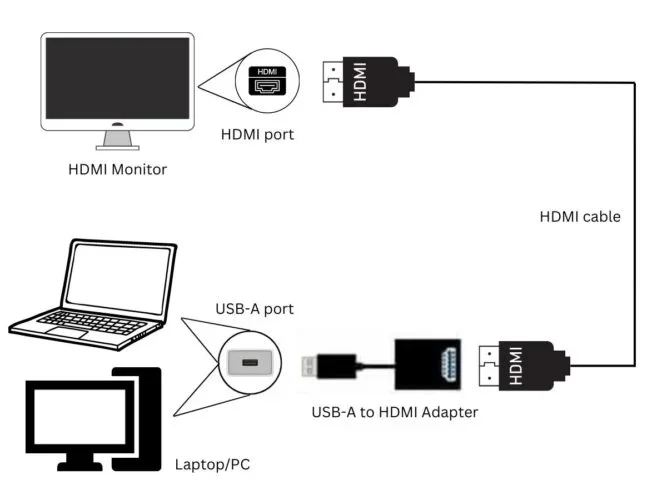
This is the classic type. It has a flat USB-A plug on one end and an HDMI output on the other. You plug the USB-A side into any standard USB port. Then you run an HDMI cable from the adapter to your TV or monitor.
These adapters work well with desktop computers and older laptops. They usually need a USB 3.0 port for good video quality. Some brands call them plug and play display adapters because you do not need to install extra software.
USB-C to HDMI Adapters
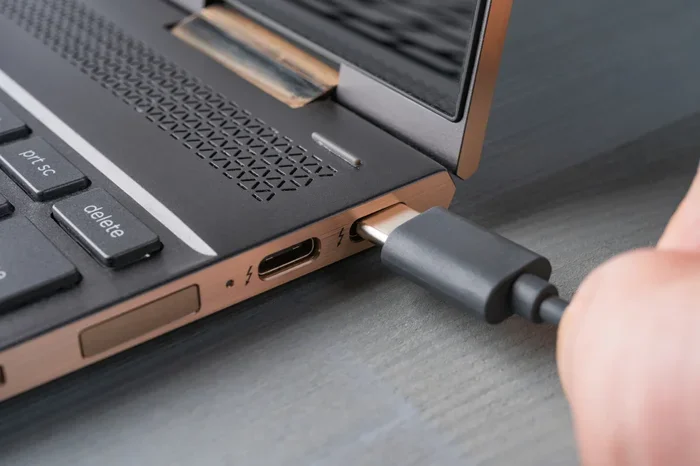
If you have a newer laptop, tablet, or phone, it probably has a USB-C port. A USB-C to HDMI adapter is slim and compact. It fits right into the small USB-C port and sends video to an HDMI display.
Many of these adapters support 4K resolution at 60Hz. That means you get sharp, smooth video on big screens. Popular devices like MacBooks, Dell XPS laptops, Samsung tablets, and Google Pixel phones work great with these adapters.
USB-C to HDMI Cables (All-in-One)
Instead of a separate adapter and cable, you can buy a single USB-C to HDMI cable. It has a USB-C plug on one end and an HDMI plug on the other. No extra dongle needed. This is a clean and simple solution for most users.
These cables are perfect for quick setups. You plug them in and your screen appears immediately. They work well for presentations, gaming, and everyday screen mirroring.
USB 3.0 to HDMI Active Adapters
Some adapters are “active,” which means they have their own small chip inside. This chip handles the video conversion. USB 3.0 to HDMI active adapters tend to offer better performance and more stable connections than passive options.
They are ideal if you plan to use a high-resolution external display or if you need a reliable connection for long work sessions. Look for adapters that support at least 1080p Full HD or 4K for the best experience.
How to Set Up Your USB to HDMI Adapter (Step by Step)
Setting up a USB to HDMI adapter is easy. Most adapters follow the same basic process. Here is a simple guide you can follow step by step.
Step 1: Check Your USB Port Type
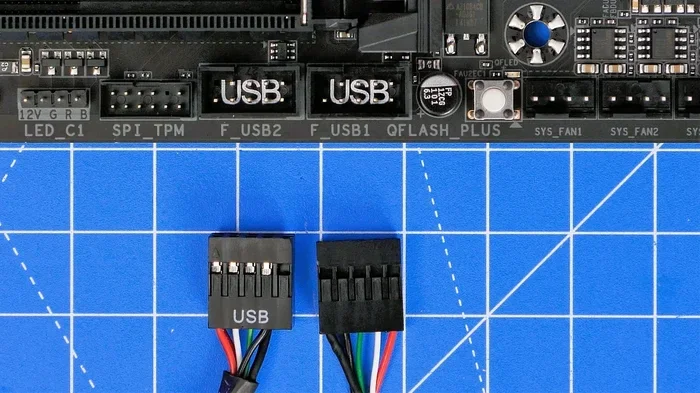
Before you buy anything, look at the USB ports on your computer. Do you have USB-A ports (the big rectangular ones)? Or USB-C ports (the small, oval ones)? Maybe you have both. Knowing your port type is the first step.
If you are not sure, check your device manual or look up your model online. The port type determines which adapter you need. A USB-C to HDMI adapter will not fit into a USB-A port, and vice versa.
Step 2: Choose the Right Adapter
Pick an adapter that matches your port type and your resolution needs. Here are a few quick tips:
- For basic office work and web browsing, a standard 1080p adapter is plenty.
- For video editing or gaming, look for a 4K-capable USB-C to HDMI adapter.
- Make sure the adapter supports your operating system — Windows, macOS, or Chrome OS.
- Check if the adapter is “plug and play” to avoid driver headaches.
Step 3: Plug In the Adapter
Insert the USB end of the adapter into an available port on your computer. If you are using a USB 3.0 to HDMI adapter, try a blue USB-A port or a USB-C port. Avoid USB 2.0 ports if possible because they may not have enough speed for smooth video.
Step 4: Connect the HDMI Cable
Take an HDMI cable and plug one end into the adapter. Plug the other end into your TV, monitor, or projector. Make sure the connection is firm and secure.
Step 5: Switch Your Display Input
On your TV or monitor, use the remote or buttons to switch to the correct HDMI input. Most TVs label their inputs as HDMI 1, HDMI 2, and so on. Select the one where your adapter is connected.
Step 6: Configure Your Display Settings
Your computer should recognize the external display automatically. If it does not, go to your display settings. On Windows, right-click the desktop and choose Display Settings. On macOS, go to System Settings and click Displays. You can choose to mirror your screen or extend it to the second display.
Common Problems When Connecting USB to HDMI (And How to Fix Them)
Even with the best USB to HDMI adapter, you might run into issues. Do not worry. Most problems have simple solutions. Here are the most common ones and how to fix them.
No Signal on the HDMI Display
If your screen stays black, the first thing to check is the cable connections. Make sure the HDMI cable is fully plugged in on both ends. Try a different HDMI cable if you have one available. Sometimes a loose cable is the only problem.
Next, check that you have selected the right HDMI input on your TV or monitor. If you are still stuck, try unplugging the adapter and plugging it back in. A quick restart of your computer can also help.
Flickering or Glitchy Video
Flickering usually means the USB port does not have enough bandwidth. Make sure you are using a USB 3.0 port, not a USB 2.0 port. If you are using a USB hub, try plugging the adapter directly into the computer instead.
Another fix is to lower the resolution on your external display. Set it to 1080p instead of 4K and see if the flickering stops. This is a quick way to test if your adapter can handle the resolution you are pushing it to.
Adapter Not Recognized by the Computer
If your computer does not detect the adapter, you might need to update or reinstall the driver. On Windows, go to Device Manager and look for the adapter under “Display adapters.” Right-click it and choose Update Driver.
For Mac users, make sure your macOS is up to date. Some USB display adapters need the latest system software to work properly. If updating does not help, try the adapter on another computer to rule out a hardware problem.
Audio Not Working Through HDMI
Sometimes the video works but there is no sound. This happens because the computer is still sending audio through the laptop speakers or headphones. To fix this, right-click the speaker icon on your taskbar and select your HDMI display as the audio output device.
On macOS, go to System Settings, click Sound, and choose the HDMI output under the Output tab. This small change routes the audio to your TV or monitor speakers.
Quick Tips for the Best USB to HDMI Experience
Want to get the most out of your USB to HDMI setup? Here are some quick tips that make a big difference.
- Use a high-quality HDMI cable: Cheap cables can cause signal loss and poor image quality.
- Always use USB 3.0 or USB-C ports: They provide the bandwidth needed for smooth video.
- Keep your adapter drivers updated: This prevents compatibility issues and improves performance.
- Avoid long USB extension cables: They can weaken the signal. Keep the adapter as close to the computer as possible.
- Check adapter compatibility: Make sure your adapter supports your operating system and display resolution.
- Let the adapter cool down: Some adapters get warm during long use. Keep them in a ventilated area.
How to Choose the Best USB to HDMI Adapter
With so many options on the market, picking the right one can feel overwhelming. Here are the key factors to consider before you buy.
Match Your USB Port Type
This is the most important step. Look at your computer and identify whether you need a USB-A adapter or a USB-C adapter. Buying the wrong type means the adapter will not fit your port.
Check the Resolution Support
Do you need 1080p, 4K, or even 8K support? Most everyday users are fine with 1080p. But if you edit videos or play games on a big screen, go for a 4K-capable adapter. Always check the product specs before buying.
Plug and Play vs. Driver Required
Some adapters work the moment you plug them in. Others need you to download and install a driver first. If you want the easiest setup, look for plug and play display adapters. They save time and avoid software headaches.
Build Quality and Brand Reputation
Cheap adapters from unknown brands can be unreliable. They might overheat, disconnect randomly, or fail after a few weeks. Stick with well-known brands that have good reviews. A slightly higher price often means better build quality and longer lifespan.
Number of Ports and Extra Features
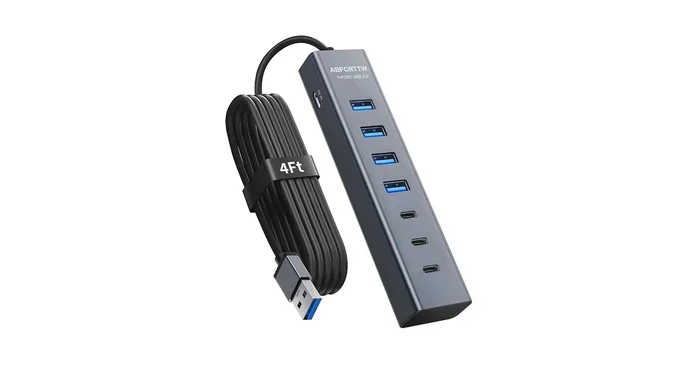
Some adapters come with extra USB ports built in. This is handy if you need to connect a flash drive or mouse while using the external display. Others include Ethernet ports or SD card readers. Think about what extra features would be useful for your setup.
Expert Insights on USB to HDMI Connectivity
Many people assume that any USB port can output video. That is not true. USB 2.0 ports were never designed for video output. They lack the data transfer speed needed for smooth video. Always use USB 3.0 or USB-C ports for the best results.
Another common misconception is that all adapters support audio. While most modern USB to HDMI adapters do carry audio, some older or cheaper models only send video. If sound matters to you, check the product description carefully before purchasing.
Experts also recommend keeping your adapter drivers up to date. Even for “plug and play” devices, a driver update can fix bugs and improve performance. Check the manufacturer’s website once a month for the latest updates.
Comparison: USB-A vs. USB-C to HDMI Adapters
Here is a quick comparison to help you decide which type of adapter is right for you.
| Feature | USB-A to HDMI | USB-C to HDMI |
|---|---|---|
| Port Type | Standard rectangular USB | Small oval-shaped port |
| Common On | Desktops, older laptops | Modern laptops, tablets, phones |
| Video Quality | Up to 4K on USB 3.0 | Up to 4K or 8K depending on model |
| Speed | USB 3.0 recommended | Faster data transfer |
| Size | Larger adapter body | Compact and portable |
| Plug and Play | Most models support it | Most models support it |
| Price Range | $10 to $40 | $12 to $50 |
Both types work well for their intended devices. The key is matching the adapter to your port type. A USB-C to HDMI adapter is the go-to choice for most modern devices, while USB-A to HDMI adapters still serve older computers perfectly.
Can I Connect USB to HDMI on Different Operating Systems?
Good news. USB to HDMI adapters work across most operating systems. Here is how they perform on the major platforms.
Windows: Most Windows laptops and desktops support USB display adapters out of the box. Windows 10 and Windows 11 automatically detect external displays. You may need to install a driver for some adapters, but many are plug and play.
macOS: Apple computers work with USB-C to HDMI adapters. MacBooks with USB-C or Thunderbolt ports handle external displays smoothly. Just plug in the adapter, connect the HDMI cable, and your display should appear automatically.
Chrome OS: Chromebooks with USB-C ports can use USB-C to HDMI adapters for external displays. The setup is simple and works well for presentations and screen mirroring.
Linux: Some USB to HDMI adapters work on Linux, but compatibility varies. Check the adapter manufacturer’s website for Linux support before buying.
Frequently Asked Questions
Can I connect USB to HDMI without an adapter?
No, you need an adapter or a cable that has a USB connector on one end and an HDMI connector on the other. Your computer’s USB port cannot directly connect to an HDMI display without a converter. The adapter changes the signal from USB to HDMI so your screen can display it.
Will any USB to HDMI adapter work with my laptop?
Not all adapters work with all laptops. You need to match the USB type on the adapter to the USB port on your laptop. Also, check that the adapter supports your operating system. Most adapters list their compatibility on the product packaging or description.
Can I use a USB to HDMI adapter for gaming?
Yes, but with some limitations. A good USB-C to HDMI adapter can handle casual and mid-range gaming. However, for high-end gaming, a dedicated HDMI output on your graphics card is better. USB adapters add a small amount of lag, which can affect fast-paced games.
Do USB to HDMI adapters need drivers?
Many modern adapters are plug and play and do not need drivers. However, some adapters, especially older or budget models, require you to download a driver from the manufacturer’s website. Always check the product details before buying.
Can I connect multiple monitors using USB to HDMI adapters?
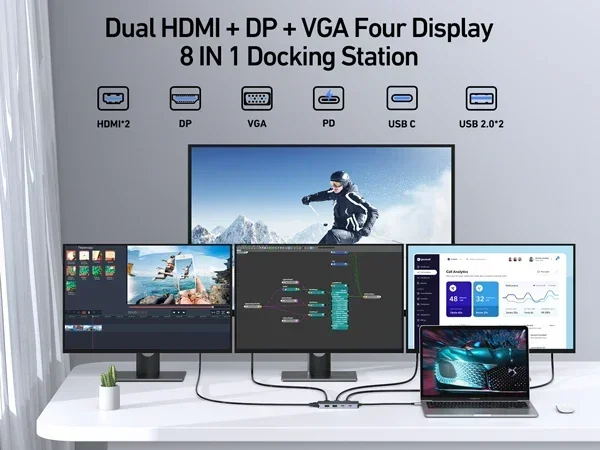
Yes, you can use multiple USB display adapters to connect more than one external monitor. Each adapter adds a new display to your setup. Just make sure your computer’s USB ports can handle the extra load. Using a powered USB hub can help if you are connecting several adapters at once.
Why is my USB to HDMI adapter not working after a Windows update?
Windows updates sometimes change driver settings or remove compatibility with certain hardware. If your adapter stops working after an update, go to Device Manager, find the adapter, and uninstall the device. Then restart your computer. Windows will reinstall the driver, which often fixes the problem.
Final Thoughts
So, can I connect USB to HDMI and see it work perfectly? Absolutely. With the right USB to HDMI adapter, a simple HDMI cable, and a few minutes of your time, you can turn any USB port into a full video output. Whether you are setting up a dual monitor workspace, giving a presentation, or just enjoying movies on a bigger screen, this setup works beautifully.
Remember to choose the right adapter type for your device. Use USB 3.0 or USB-C ports whenever possible. Keep your drivers updated. And do not be afraid to troubleshoot if something goes wrong — most issues have quick and easy fixes.
The world of HDMI connectivity through USB is more accessible than ever. Adapters are affordable, widely available, and incredibly useful. Once you set up your first USB to HDMI connection, you will wonder how you ever worked without it. Give it a try and enjoy the extra screen space today.