Can I Get A Hdmi To Usb Adapter And How To Choose One
Yes, you can get an HDMI to USB adapter, and it opens up a world of possibilities for connecting your devices. Whether you want to hook up a gaming console, stream content to a laptop, or extend your display, the right HDMI to USB adapter makes it simple. This guide covers everything you need to know about choosing the perfect video converter for your setup.
Have you ever stared at your laptop or desktop and thought, “I wish I could just plug in that HDMI device and get it working”? You are not alone. The question “Can I get a HDMI to USB” comes up more often than most people realize. Whether you want to connect a gaming console to your computer, capture video for streaming, or simply extend your laptop display, the answer is yes. But finding the right HDMI to USB adapter is where things get tricky.
The market is flooded with options, and not all of them are created equal. Some adapters work beautifully, while others leave you frustrated with flickering screens and no sound. This guide walks you through everything you need to know. We will cover what these adapters do, the different types available, and how to pick the best one for your specific needs. By the end, you will feel confident making the right choice.
Let us dive in and break down the world of HDMI to USB adapters once and for all.
Key Takeaways
- HDMI to USB adapters exist and serve a real purpose: They convert HDMI signals to USB for display output, video capture, and more.
- Choose based on your device and use case: USB-C adapters differ from USB-A adapters, and your needs dictate the right pick.
- Check compatibility first: Not every adapter works with every device, so verify support before buying.
- Display resolution matters: Look for adapters that support 4K HDMI or at least 1080p for a clear picture.
- Active adapters outperform passive ones: Active models provide better signal conversion and reliability.
- Avoid common mistakes: Cheap, unsupported adapters cause flickering, lag, and no audio issues.
📑 Table of Contents
- What Is an HDMI to USB Adapter?
- Why Do You Need an HDMI to USB Adapter?
- Types of HDMI to USB Adapters Available
- How to Choose the Right HDMI to USB Adapter
- Best Practices for Using Your HDMI to USB Adapter
- Common Problems and How to Fix Them
- Quick Tips for Buying the Right Adapter
- Expert Insights on HDMI to USB Adapters
- Final Thoughts
What Is an HDMI to USB Adapter?
An HDMI to USB adapter is a small device that bridges the gap between HDMI and USB connections. It takes an HDMI signal from a source device and converts it into a format your USB-equipped device can understand. Think of it as a translator between two different languages.
The most common use cases include connecting a gaming console to a laptop for screen mirroring, plugging a camera into a computer for live streaming, or using a video converter to capture gameplay footage. These adapters handle audio and video signals, turning them into data your computer can process through a USB port.
How Does Signal Conversion Work?
Inside every HDMI to USB adapter, there is a chip that performs signal conversion. This chip takes the digital video and audio from the HDMI input and re-encodes it into a USB-compatible format. The process happens in real time, which is why you see the image on your screen almost instantly.
Some adapters use a passive adapter design, which simply routes the signal with minimal processing. Others use an active adapter with dedicated hardware for better performance. The active models tend to offer smoother video and more reliable display output, especially at higher resolutions.
Why Do You Need an HDMI to USB Adapter?
You might wonder why you cannot just use an HDMI cable directly. The answer comes down to the ports on your device. Many modern laptops and tablets only have USB-C ports or USB-A ports, and no HDMI input at all. An adapter fills this gap.
Here are some real-world reasons you might need one:
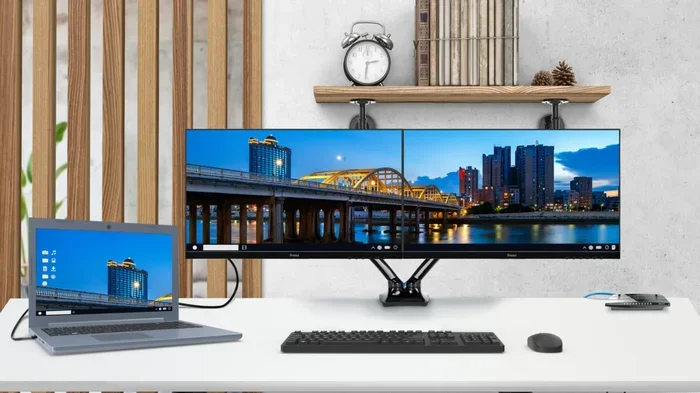
- Extending your laptop display: Plug in an external monitor or TV using an HDMI to USB adapter for a bigger workspace.
- Streaming and content creation: Capture video from cameras, consoles, or other HDMI sources directly into editing software.
- Gaming on the big screen: Connect a console or handheld device to a monitor or TV through your computer setup.
- Presentations and meetings: Hook up a laptop to a projector or display in a conference room without needing a dedicated HDMI port.
- Recording gameplay: Streamers and content creators use these adapters to capture high-quality footage from consoles.
Without the right video converter, many of these tasks would be impossible or require expensive equipment. A good HDMI to USB adapter solves the problem affordably and efficiently.
Types of HDMI to USB Adapters Available
Not all adapters are the same. Understanding the different types helps you avoid buying the wrong one. Here is a closer look at what is out there.
USB-A to HDMI Adapters
These are the most basic HDMI to USB adapters. They plug into a standard USB-A port, which is the rectangular port found on older computers and laptops. They work well for simple tasks like connecting a second monitor or capturing video from a camera.
However, USB-A ports have limited bandwidth compared to newer standards. This means display resolution may be capped at 1080p or lower on some models. If you need 4K HDMI support, a USB-A adapter might not cut it.
USB-C to HDMI Adapters
USB-C is the modern standard, and USB-C adapters offer much better performance. They support higher bandwidth, which means smoother video, better display resolution, and sometimes even audio passthrough. Most new laptops, tablets, and phones use USB-C, making these adapters incredibly popular.
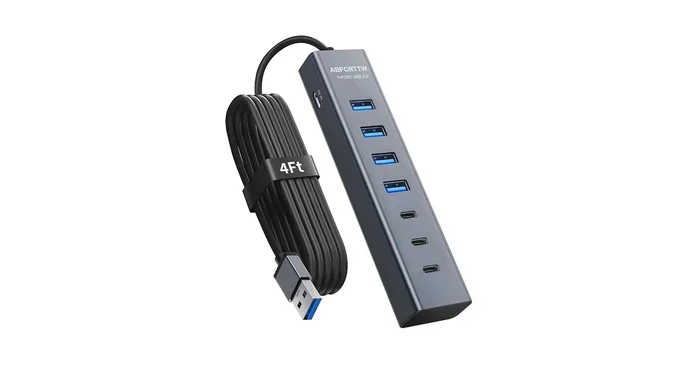
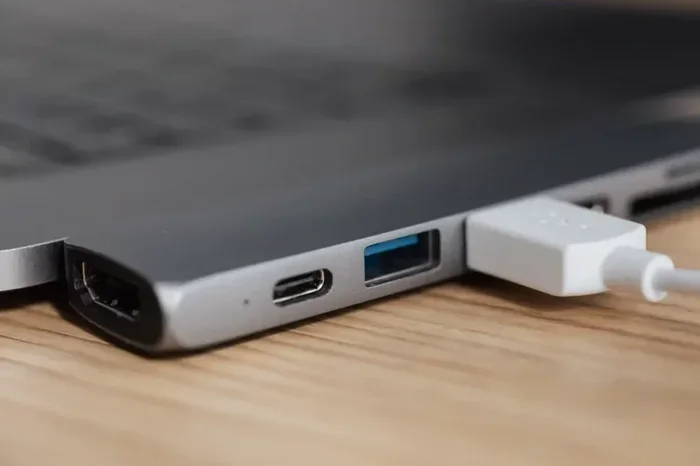
Many USB-C adapters also work as a USB hub, giving you extra ports for charging, data transfer, and more. This makes them a versatile choice for people who need multiple connections in one compact device.
HDMI Capture Cards
If your goal is video capture rather than simple display output, you want an HDMI capture card. These are a specialized type of HDMI to USB adapter designed for recording and streaming. They work with software like OBS Studio and let you capture video input from external sources.
Capture cards range from budget-friendly options to professional-grade models. For casual streaming, a mid-range card works great. For professional content creators, investing in a higher-end model pays off in quality and reliability.
How to Choose the Right HDMI to USB Adapter
Choosing the right adapter does not have to be overwhelming. Follow these steps to find the perfect match for your needs.
Step 1: Identify Your Device and Ports
Start by checking what ports your device has. Do you have a USB-C port or a USB-A port? Is your device a Windows laptop, a Mac, a Chromebook, or a tablet? The answer determines which type of HDMI adapter you need.
Also check if your device supports display output over USB. Some devices can only receive data through USB, not video signals. This is a common oversight that leads to frustration.
Step 2: Consider Your Resolution Needs
Think about the display resolution you need. Do you want 1080p, 4K HDMI, or even higher? Higher resolution requires more bandwidth, which means you need a better-quality adapter and a compatible port.
For most everyday tasks, 1080p is more than enough. If you are a content creator or gamer, look for adapters that support 4K at 30Hz or 60Hz. The higher the refresh rate, the smoother your video will look.
Step 3: Check for Plug and Play Support
The best HDMI to USB adapters are plug and play. You plug them in, and they work immediately without installing drivers or software. This makes setup simple and fast, which is perfect for most users.
Some adapters do require driver installation, especially capture cards. Before you buy, check the product description to see if your operating system is compatible. Windows, macOS, and Chrome OS all have different requirements.
Step 4: Read Reviews and Check Brand Reputation
Not all brands are equal. Stick with reputable manufacturers known for quality HDMI to USB adapters. Read customer reviews to learn about real-world performance, durability, and any quirks.
Look for reviews that mention long-term use. A product that works fine for a week but fails after a month is not a good buy. Pay attention to comments about build quality, overheating, and whether the adapter handles the advertised resolution well.
Step 5: Compare Prices and Features
Price matters, but it should not be the only factor. A cheap adapter might save you money upfront but cost you in frustration later. Compare features across options and find the best balance of price and quality.
Here is a quick comparison of common adapter types:
| Adapter Type | Avg. Price Range | Max Resolution | Best For |
|---|---|---|---|
| USB-A to HDMI | $10 – $25 | 1080p | Basic display output |
| USB-C to HDMI | $15 – $40 | 4K at 60Hz | Modern laptops and tablets |
| HDMI Capture Card | $30 – $150+ | 4K at 30-60Hz | Streaming and recording |
| USB-C Hub with HDMI | $25 – $60 | 4K at 30-60Hz | Multi-device connectivity |
Best Practices for Using Your HDMI to USB Adapter
Once you have the right HDMI to USB adapter, a few best practices will keep things running smoothly.
Use High-Quality Cables
The adapter is only as good as the cables you pair it with. Use a high-quality HDMI cable that supports the resolution and bandwidth you need. Cheap cables can cause signal loss, flickering, and audio dropouts.
Keep Your Adapter Cool
Adapters generate heat during use, especially during long gaming or streaming sessions. Place the adapter in a well-ventilated area and avoid covering it with other devices or cables. Overheating can cause performance issues and shorten the lifespan of your HDMI adapter.
Update Your Drivers and Software
If your adapter requires drivers, keep them up to date. Manufacturers often release updates that improve compatible devices support and fix bugs. Check the manufacturer’s website periodically for the latest versions.
Test Before You Commit
If possible, test the adapter with your specific setup before relying on it for important tasks. Connect it, check the display output, test the audio, and make sure everything works as expected. This simple step can save you from headaches down the road.
Common Problems and How to Fix Them
Even the best HDMI to USB adapters can run into issues. Here are the most common problems and their solutions.
No Signal or Black Screen
This is the most common complaint. First, check that the HDMI cable is securely connected on both ends. Try a different cable or a different USB port. If you are using a USB hub, plug the adapter directly into the computer to rule out the hub as the cause.
No Audio
If the video works but you hear no sound, check your computer’s audio settings. Make sure the HDMI to USB adapter is set as the default audio output device. On Windows, go to Sound Settings and select the adapter under Output devices.
Flickering or Glitchy Video
Flickering usually means the adapter cannot handle the resolution or refresh rate you have set. Lower the display resolution or refresh rate and see if the problem goes away. Using a shorter, higher-quality HDMI cable can also help.
Adapter Not Recognized by Device
If your device does not detect the adapter, try plugging it into a different port. Restart your computer and check for driver updates. Some devices simply do not support video input over USB, which is a hardware limitation rather than an adapter problem.
Quick Tips for Buying the Right Adapter
- Match the USB type to your device: USB-C for modern laptops, USB-A for older ones.
- Check for 4K HDMI support if you need high-resolution output.
- Look for active adapters for better signal conversion and reliability.
- Read the fine print on compatible devices before purchasing.
- Buy from reputable sellers to avoid counterfeit or low-quality products.
- Consider a USB hub with HDMI output if you need multiple ports.
- Check the return policy in case the adapter does not work with your setup.
Expert Insights on HDMI to USB Adapters
According to tech reviewers and hardware experts, the key to a great experience with an HDMI to USB adapter is matching the adapter to your specific use case. A capture card is not the same as a simple display adapter, and treating them as interchangeable leads to disappointment.
Experts also emphasize the importance of bandwidth. USB 3.0 ports offer significantly more bandwidth than USB 2.0 ports, which directly impacts the display resolution and smoothness of video you can achieve. If your device has a USB 3.0 or USB-C port, use it for the best results with any video converter.
Another tip from professionals: always check the adapter’s supported display output specifications against your source device. A console that outputs 4K will not magically downscale to work perfectly with an adapter that only supports 1080p. Match the specs, and you will have a seamless experience every time.
Final Thoughts
The answer to “Can I get a HDMI to USB adapter” is a resounding yes. These handy little devices bridge the gap between your HDMI-equipped devices and computers with only USB ports. Whether you are a gamer, a content creator, a student, or a professional, the right HDMI to USB adapter makes your setup more flexible and capable.
Remember to choose based on your specific needs. Consider the type of ports on your device, the resolution you want, and whether you need simple display output or video capture. With the right adapter, you can connect almost any HDMI source to your computer and enjoy a seamless experience.
Take the time to research, read reviews, and pick a quality product from a trusted brand. Your HDMI to USB adapter should work reliably for years, and making a smart choice from the start makes all the difference.
Frequently Asked Questions
Can I connect a gaming console to my laptop using an HDMI to USB adapter?
Yes, you can connect a gaming console to your laptop with the right HDMI to USB adapter. You will need an HDMI capture card or a video converter that supports your console’s output. Make sure your laptop has a compatible USB port and enough processing power to handle the video signal in real time.
Do HDMI to USB adapters work with Mac computers?
Many HDMI to USB adapters work with Mac computers, but compatibility varies. Check the adapter specifications to confirm it supports macOS. USB-C adapters tend to work well with newer MacBooks, while older Macs with USB-A ports may need a specific USB-A to HDMI adapter.
What is the difference between a passive and active HDMI to USB adapter?
A passive adapter simply routes the HDMI signal with minimal processing. An active adapter has built-in hardware that actively converts the signal for better performance. Active adapters generally offer smoother video, better display resolution support, and more reliable audio and video output.
Can I use an HDMI to USB adapter for 4K video?
Yes, but you need an adapter that specifically supports 4K HDMI output. Not all HDMI to USB adapters handle 4K resolution. Look for adapters that advertise 4K support at 30Hz or 60Hz, and make sure your source device and USB port can handle the bandwidth requirements.
Do I need to install drivers for an HDMI to USB adapter?
Most basic HDMI to USB adapters are plug and play and do not require drivers. However, capture cards and advanced video converters often need driver installation. Check the product description before buying to confirm whether your operating system supports the adapter without additional software.
Why does my HDMI to USB adapter have no sound?
No sound usually means your computer is not set to use the adapter as the audio output device. Go to your sound settings and select the HDMI to USB adapter as the default output. If the problem persists, try a different HDMI cable or check that your source device is sending audio through the HDMI connection.