Can I Use Hdmi Cable On Displayport With Simple Adapters
Yes, you can use an HDMI cable on a DisplayPort monitor with the right adapter. This guide covers how signal conversion works, which adapters you need, and common compatibility issues. Whether you are gaming, working, or setting up a home office, understanding HDMI to DisplayPort adapters saves time and money.
Setting up a new monitor or connecting a laptop to a display can sometimes be confusing. You might have an HDMI cable in hand but a DisplayPort input on your screen. Or you might wonder if your existing setup will work with a new device. The good news is that mixing HDMI and DisplayPort is very common and totally doable. With the right adapter, you can bridge the gap between these two popular video standards without any hassle.
Many people assume all video cables work the same way. They do not. HDMI and DisplayPort use different signaling methods and connector designs. This means you cannot plug an HDMI cable directly into a DisplayPort monitor and expect it to work. You need a converter to translate the signal from one format to another. Understanding this basic difference is the first step to getting your display set up correctly.
The good thing is that adapters have become very affordable and easy to find. You do not need to be a tech expert to make this work. This guide will walk you through everything you need to know. We will cover how these two standards differ, which adapters to buy, setup steps, and common problems you might face.
Key Takeaways
- HDMI and DisplayPort are different standards: They use different signaling methods, so you need an adapter to connect them.
- Active adapters are often required: Passive adapters only work in specific scenarios, while active adapters handle signal conversion properly.
- Resolution and refresh rate matter: Your adapter must support the bandwidth your display needs for the best picture quality.
- Audio may or may not carry over: HDMI carries audio, but DisplayPort audio behavior depends on your adapter and device settings.
- Check your devices first: Always verify the port types on both your source device and display before buying an adapter.
- USB-C adapters offer versatility: Many modern adapters use USB-C to convert signals, giving you more flexibility.
📑 Table of Contents
How HDMI and DisplayPort Work Together
HDMI and DisplayPort are both digital display interfaces, but they were designed with different goals in mind. HDMI is most common in TVs, gaming consoles, and home theater setups. DisplayPort is often found on computer monitors and graphics cards designed for PC use. Both can carry high-quality video and audio, but they handle the signal differently.
Understanding HDMI and DisplayPort Basics
HDMI stands for High-Definition Multimedia Interface. It has been around since the early 2000s and is now in nearly every TV, Blu-ray player, and game console. DisplayPort was developed by VESA and is built primarily for computer displays. It offers higher bandwidth in many versions, which makes it great for high-resolution monitors.
The physical connectors look different too. HDMI uses a flat, trapezoidal plug. DisplayPort has a rectangular shape with a small clip on one side. These design differences mean you cannot swap cables without an adapter. Each port on your motherboard serves a specific purpose, and video output ports are no exception.
Why Do HDMI and DisplayPort Need Adapters?
Think of it like plugging a US plug into a European outlet. The electricity is similar, but the shape is different. An adapter changes the shape and converts the signal so your devices can talk to each other.
HDMI sends video and audio data in a specific format. DisplayPort does the same but uses a different protocol. When you use an adapter, it takes the HDMI signal and re-encodes it into DisplayPort language. This process is called signal conversion. Without it, your monitor would not understand what the source device is sending.
Types of Adapters for HDMI to DisplayPort
Not all adapters are the same. Choosing the wrong type can lead to frustration and wasted money. Let us break down the main options available.
Active Adapters vs Passive Adapters
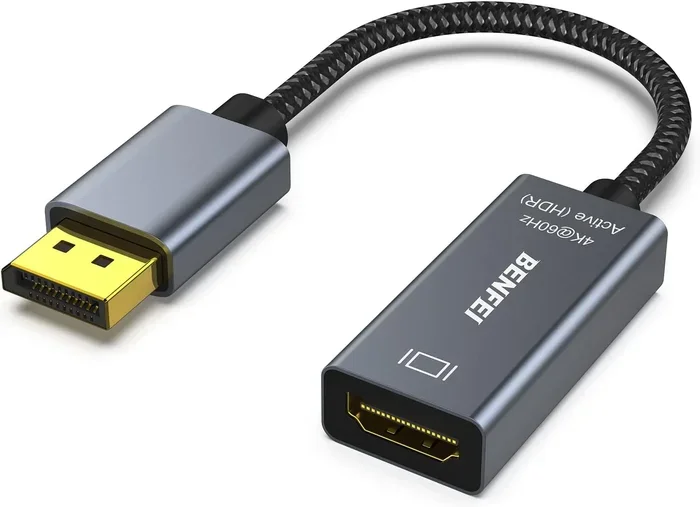
Active adapters contain chipsets that actively convert the HDMI signal into DisplayPort. They require power, usually through a USB port. These adapters work in most situations and are the safest choice for general users.
Passive adapters, on the other hand, simply change the physical connector shape without converting the signal. They only work when the source device already supports DisplayPort over HDMI. This is rare and usually only works in very specific scenarios. For most people, an active adapter is the right pick.
Here is a simple comparison to help you decide:
- Active Adapter: Converts the signal, needs power, works in most setups, costs a bit more.
- Passive Adapter: Changes connector shape only, no power needed, limited compatibility, cheaper.
USB-C Adapters and Docking Stations
Many modern laptops and devices use USB-C ports. These can carry DisplayPort signals through a protocol called DisplayPort Alt Mode. If your source device has USB-C, you can use a USB-C to DisplayPort adapter instead of a direct HDMI-to-DisplayPort adapter.
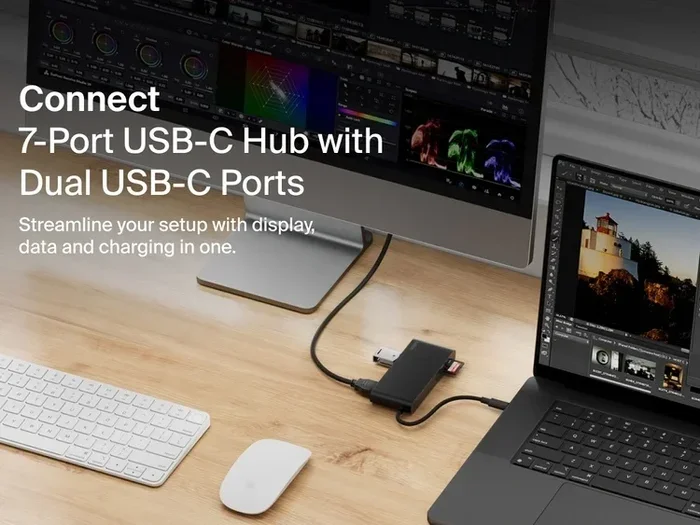
Docking stations are another great option. They give you multiple ports in one device. You can connect your HDMI source to the dock, and the dock handles the conversion to DisplayPort. This is especially useful for desk setups where you need several connections at once.
Compatibility and Signal Conversion
Compatibility is the biggest concern when mixing HDMI and DisplayPort. Not every adapter works with every device. Several factors determine whether your setup will function properly.
Resolution and Refresh Rate Support
Your adapter must support the resolution and refresh rate you want to use. A basic adapter might only handle 1080p at 60Hz. If you have a 4K monitor at 144Hz, you need an adapter with enough bandwidth to handle that.
Here are some general guidelines:
- 1080p at 60Hz: Most adapters handle this easily. Budget options work fine.
- 1440p at 60Hz or 1080p at 144Hz: You need a mid-range adapter with decent bandwidth.
- 4K at 60Hz or higher: Look for adapters that support DisplayPort 1.2 or higher.
Always check the adapter specifications before buying. The bandwidth rating tells you the maximum resolution and refresh rate it can support. Choosing an adapter that does not match your display’s capabilities will result in poor image quality or no signal at all.
Audio Transmission Over HDMI and DisplayPort
HDMI carries both video and audio through a single cable. This is one of its biggest advantages. DisplayPort also carries audio, but how it works depends on your adapter and device settings.
When you use an HDMI to DisplayPort adapter, audio usually passes through fine. However, sometimes your computer might default to the wrong audio output. You may need to go into your sound settings and select the DisplayPort output manually.
If you are using a USB-C adapter, audio should work automatically in most cases. Just make sure your device recognizes the adapter as an audio output device.
Step-by-Step Setup Guide
Setting up an HDMI to DisplayPort connection is straightforward. Follow these steps and you will be up and running in minutes.
What You Need Before Starting
Before you begin, gather these items:
- Your source device (laptop, PC, gaming console, or media player)
- An HDMI cable
- An HDMI to DisplayPort active adapter
- A DisplayPort cable (if your monitor does not have one included)
- A USB port for powering the active adapter (if needed)
Connecting Your Devices
Start by plugging the HDMI cable into your source device. Connect the other end of the HDMI cable into the input side of the adapter. Next, plug a DisplayPort cable into the output side of the adapter. Run that cable to your monitor and plug it into the DisplayPort input.
If your adapter needs external power, plug the USB cable into a laptop port or a USB wall charger. Turn on your monitor and switch the input source to DisplayPort. Your screen should now show the output from your HDMI source device.
If you see a blank screen, do not panic. Check that the DisplayPort cable is fully seated. Try unplugging and plugging it back in. Also make sure your monitor is set to the correct input channel. Sometimes the monitor auto-detects the wrong source.
Common Problems and How to Fix Them
Even with the right adapter, you might run into issues. Here are the most common problems and their solutions.
No Signal or Black Screen Issues
A black screen is the most common complaint. It usually happens for one of a few reasons. The adapter might not be getting enough power. Try plugging it into a different USB port. The DisplayPort cable might be loose. Reseat both ends of the cable. Or your adapter might simply be incompatible with your devices.
Another cause is using a passive adapter when you need an active one. Passive adapters only work when the source device outputs a DisplayPort-compatible signal over HDMI. Most devices do not do this. Always go with an active adapter to avoid this problem.
Adapter Not Recognized by Your Device
Sometimes your computer will not detect the adapter at all. This can happen with older devices or certain graphics cards. Your graphics card and motherboard need to support the adapter’s protocol. Try a different USB port or a different adapter if this happens.
Updating your display drivers can also fix recognition issues. Go to your GPU manufacturer’s website and download the latest drivers. Restart your computer after installing them and try connecting again.
Poor Image Quality or Flickering
If your picture looks fuzzy, flickers, or shows artifacts, the adapter might not have enough bandwidth. This is common with cheap adapters that do not support high resolutions. Upgrade to a better-quality adapter that matches your display’s resolution and refresh rate requirements.
Expert Tips for Best Performance
Choosing the Right Cable Length
Longer cables can weaken the signal. If you can, keep your HDMI and DisplayPort cables under six feet. If you need a longer run, consider using a higher-quality cable or a signal booster. Cheap long cables often cause signal loss and image problems.
When to Upgrade Your Cables and Ports
If you are using an older HDMI 1.4 cable, it might not support the bandwidth you need for 4K. Upgrade to HDMI 2.0 or higher for better performance. Similarly, make sure your DisplayPort cable supports the version you need. DisplayPort 1.2 handles 4K at 60Hz, while DisplayPort 1.4 supports even higher resolutions.
Your graphics card and the ports on your motherboard also play a role. A modern GPU with DisplayPort 1.4 outputs will give you the best results when paired with a quality adapter.
Final Thoughts
Using an HDMI cable on a DisplayPort monitor is absolutely possible with the right adapter. The key is understanding the difference between active and passive adapters, checking your resolution and bandwidth needs, and following a simple setup process. Most people can get their display working in under ten minutes once they have the right adapter.
Do not let cable confusion stop you from using the best display for your needs. Whether you are building a gaming rig, setting up a home office, or connecting a laptop to an external monitor, the right adapter makes everything seamless. Take a moment to check your ports, pick a quality adapter, and enjoy your setup.
Frequently Asked Questions
Can I plug an HDMI cable directly into a DisplayPort monitor?
No, you cannot plug an HDMI cable directly into a DisplayPort monitor. The connectors and signals are different. You need an active HDMI to DisplayPort adapter to convert the signal so your monitor can display it correctly.
Do I need an active or passive adapter for HDMI to DisplayPort?
You almost always need an active adapter. Active adapters convert the HDMI signal into DisplayPort, which is what your monitor needs. Passive adapters only change the connector shape and rarely work for this specific conversion.
Will my audio work through an HDMI to DisplayPort adapter?
Yes, audio usually works. HDMI carries both video and audio, and most active adapters pass the audio through to DisplayPort. If your sound is not working, check your computer’s audio output settings and make sure it is set to the DisplayPort device.
Can I use a USB-C to DisplayPort adapter instead?
Yes, if your source device has a USB-C port that supports DisplayPort Alt Mode, a USB-C to DisplayPort adapter works great. This is a common and reliable alternative to a direct HDMI to DisplayPort adapter.
What resolution can an HDMI to DisplayPort adapter support?
It depends on the adapter. Most budget adapters support 1080p at 60Hz. Mid-range adapters handle 1440p at 60Hz or 1080p at 144Hz. High-end adapters can support 4K at 60Hz or higher. Always check the adapter specs before buying.
Why is my adapter not working even though I have the right type?
This can happen if your graphics card or device does not support the adapter’s protocol. Try a different USB port, update your display drivers, or test with a different adapter. Compatibility issues between specific devices and adapters are not uncommon.
=== CONCLUSION ===
Using an HDMI cable on a DisplayPort monitor is simpler than most people think. With an active adapter, the right cable, and a quick setup process, you can connect virtually any HDMI source to a DisplayPort display. The key is choosing an adapter that matches your resolution, refresh rate, and device needs.
Remember to check your ports, verify your adapter type, and do not be afraid to update your drivers if something goes wrong. A little knowledge goes a long way when it comes to display connections. Now that you know how HDMI to DisplayPort adapters work, you can set up your display with confidence and enjoy a smooth, high-quality viewing experience.