Can Usb C Be Used For Display Input On Your Devices
Yes, USB C can be used for display input on many modern devices. USB-C supports video output through Alt Mode and Thunderbolt, letting you connect laptops, tablets, and phones to external monitors. This guide covers everything you need to know about USB-C display input, including compatibility, setup, and troubleshooting tips.
USB-C has become the go-to connector for charging, data transfer, and now display output. If you have ever looked at your laptop or phone and wondered, “Can I plug it straight into a monitor?” the answer is likely yes. USB-C display input is now standard on most modern devices, from budget laptops to flagship smartphones. In this guide, we break down everything you need to know about using USB-C for display purposes.
Whether you want to hook up a second monitor for work, connect your tablet to a TV, or simplify your desk setup, USB-C makes it possible. But not all USB-C ports are the same. Some support video output while others do not. Understanding the difference saves you time, money, and frustration. Let us dive into how USB-C connectivity works for displays and what you need to look out for.
Key Takeaways
- USB-C supports display input: Most modern devices can output video through a USB-C port using Alt Mode or Thunderbolt technology.
- Not all USB-C ports are equal: Some only carry data and power, while others support video output too.
- Adapters and hubs make it easy: You can use USB-C to HDMI, DisplayPort, or VGA adapters to connect to almost any monitor.
- Thunderbolt offers the best experience: Thunderbolt 3 and 4 deliver higher resolutions and refresh rates than standard USB-C.
- Check your device specs: Always verify that your device supports video output over USB-C before buying cables or adapters.
- Common issues are fixable: Most USB-C display problems stem from cable quality, adapter compatibility, or outdated drivers.
📑 Table of Contents
What Is USB-C and Why Does It Matter for Display?
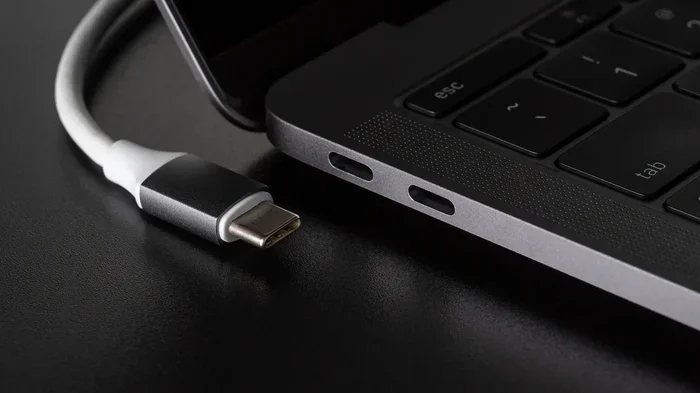
USB-C is a small, reversible connector that has replaced older ports like USB-A and even HDMI in many devices. Its compact size and versatility make it ideal for modern laptops, tablets, and phones. But what makes USB-C special for display purposes is something called Alt Mode.
Alt Mode lets a USB-C port carry video signals alongside data and power. This means a single cable can charge your device, transfer files, and send video to a monitor. That is a huge deal for anyone who wants a clean, clutter-free workspace. You no longer need a tangle of cables behind your desk. One USB-C cable can do it all.
How Alt Mode Works
When your device supports USB-C Alt Mode, it can send a raw video signal through the USB-C port. This signal can be converted to HDMI, DisplayPort, or VGA using the right adapter. The video quality depends on your device’s hardware and the cable you use. USB-C alt mode supports resolutions up to 4K and beyond on many devices.
Think of Alt Mode like a highway. The USB-C port is the road, and the video signal is one of the lanes of traffic. Without Alt Mode, the road only carries data and power. With Alt Mode, the video lane opens up too. This is why checking your device specifications matters so much. Not every USB-C port has this capability.
How USB-C Handles Display Input
Understanding how USB-C video output actually works helps you make better buying decisions. There are two main technologies behind USB-C display support: Alt Mode and Thunderbolt. Both let you connect external displays, but they differ in performance and compatibility.
USB-C Alt Mode
Alt Mode is the most common way USB-C handles display input. It is built into the USB-C specification and supported by many device manufacturers. When your laptop or phone has Alt Mode, it can directly output video to a compatible display or adapter. You do not need any extra software or drivers in most cases.
Most modern smartphones with USB-C support Alt Mode. This means you can plug your phone directly into a TV or monitor and mirror your screen. It is incredibly handy for presentations or watching movies on a bigger display. USB-C to HDMI cables and adapters make this process simple and straightforward.
Thunderbolt 3 and Thunderbolt 4
Thunderbolt takes USB-C display capabilities to the next level. Thunderbolt 3 and Thunderbolt 4 use the same USB-C connector but offer much higher bandwidth. This means they can support multiple monitors, higher resolutions, and smoother refresh rates. If you are a creative professional or a gamer, Thunderbolt is the way to go.
Thunderbolt 3 supports two 4K displays or one 5K display. Thunderbolt 4 raises the bar even further with improved performance and reliability. Many high-end laptops from Apple, Dell, HP, and Lenovo now come with Thunderbolt ports. If you see the Thunderbolt symbol next to a USB-C port, you know it has full display support built in.
USB-C vs Other Display Connections
How does USB-C display compare to older connection types like HDMI and DisplayPort? Let us look at the key differences so you can decide what works best for your setup.
| Feature | USB-C (Alt Mode) | HDMI | DisplayPort |
|---|---|---|---|
| Video Resolution | Up to 4K or 8K | Up to 4K or 8K | Up to 8K |
| Refresh Rate | Up to 144Hz (varies) | Up to 120Hz at 4K | Up to 240Hz |
| Power Delivery | Yes (up to 100W) | No | No |
| Cable Reversibility | Yes | No | No |
| Device Compatibility | Laptops, phones, tablets | TVs, monitors, consoles | Monitors, desktops |
| Adapter Needed | Sometimes | Rarely | Rarely |
As you can see, USB-C offers a great balance of versatility and performance. It carries video, data, and power in one cable. HDMI and DisplayPort are still excellent for dedicated display setups, but USB-C wins on convenience. For a minimalist desk setup, a single USB-C cable replaces three or four older cables.
One thing to keep in mind is that USB-C to HDMI adapters can sometimes limit resolution or refresh rate. Always check the adapter specs to make sure it supports your desired output. A cheap adapter might bottleneck a great monitor.
Devices That Support USB-C Display Input
Not every device can output video through USB-C. Here is a breakdown of the most common device types and their display support capabilities.
Laptops
Most modern laptops come with at least one USB-C port that supports video output. Whether you use a Windows laptop, a MacBook, or a Chromebook, chances are good that your USB-C port can connect to an external monitor. Apple’s MacBook lineup has relied heavily on USB-C for display output since 2016.
If you are shopping for a new laptop and want to use USB-C display, look for ports labeled with a lightning bolt (Thunderbolt) or a “D” symbol (DisplayPort Alt Mode). These markings confirm that the port supports video output. Some budget laptops only have USB-C ports for charging and data, so always double-check before you buy.
Tablets and Smartphones
Many Android phones and tablets with USB-C now support display output. Samsung, Google, and other manufacturers have embraced USB-C Alt Mode for years. You can connect your phone to a monitor or TV using a simple USB-C to HDMI adapter. This is great for sharing photos, giving presentations, or playing mobile games on a bigger screen.
iPads with USB-C (like the iPad Pro and iPad Air) also support external display connections. You can connect them to monitors for creative work or extended screen space. The ability to use your tablet as a second display or a standalone monitor is a game-changer for many professionals.
Interestingly, the way devices like these connect to networks and share data also ties into broader communication infrastructure. For instance, understanding the advantages and disadvantages of using a value added network for electronic commerce communication can give you deeper insight into how connected devices exchange data. You can read more about that here.
Desktops and Mini PCs
Some desktop computers and mini PCs now include USB-C ports with display output. This is especially common in compact builds where space is limited. A mini PC with USB-C display support can connect directly to a monitor without needing a dedicated graphics card. This makes USB-C a great option for office work and media consumption.
How to Set Up USB-C Display Input
Setting up an external display through USB-C is straightforward. Follow these steps to get your monitor or TV working with your device.
Step 1: Check Your Device Compatibility
Before you buy anything, confirm that your device supports video output over USB-C. Check the manufacturer’s website or your device manual. Look for terms like “DisplayPort Alt Mode,” “Thunderbolt,” or “video output supported.” If you are unsure, search for your specific device model online.
Step 2: Choose the Right Cable or Adapter
Once you know your device supports USB-C display, pick the right cable or adapter. Here are the most common options:
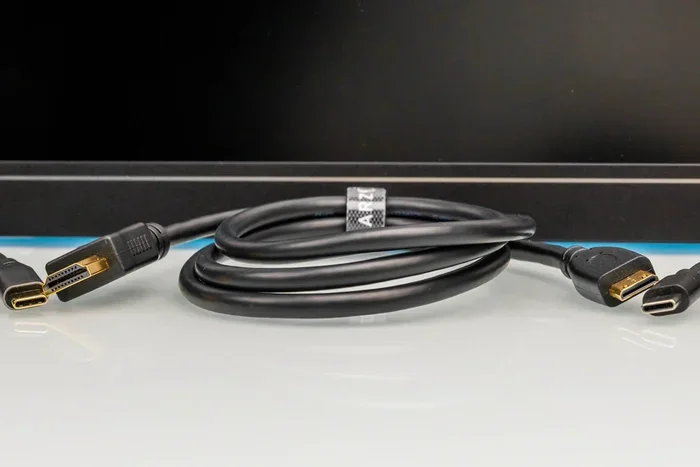
- USB-C to HDMI cable: Best for connecting to most TVs and monitors.
- USB-C to DisplayPort cable: Ideal for high-refresh-rate gaming monitors.
- USB-C docking station: Great for setups that need multiple ports and connections.
- USB-C hub: Compact and portable, perfect for travelers who need extra ports.
Always buy from reputable brands. Cheap, unbranded cables can cause flickering, low resolution, or no signal at all. A good USB-C adapter ensures a stable and reliable connection.
Step 3: Connect and Configure
Plug the USB-C end into your device and the other end into your monitor or TV. Most devices will automatically detect the external display. If nothing happens, check your display settings. On Windows, go to Settings > System > Display. On macOS, go to System Settings > Displays. You can choose to mirror your screen or extend it as a second display.
On Android devices, you may need to enable “Screen Casting” or “HDMI Output” in your settings. On iPads, the display should mirror automatically once you connect the adapter. If you run into issues, try a different cable or adapter before troubleshooting further.
Quick Tips for Best Performance
- Use a certified USB-C cable to avoid signal loss.
- Keep your device drivers and firmware up to date.
- For 4K at 60Hz, make sure your cable supports that bandwidth.
- Use a powered USB-C hub if connecting multiple devices at once.
- Avoid running extremely long USB-C cables (over 6 feet) without a signal booster.
For professionals who rely on computers for specialized work, the way we use technology has evolved significantly. Computers are used in many fields today, including medicine, where they help with diagnostics, imaging, and research. You can explore 10 ways computers are used in medicine to see how technology continues to transform industries.
Common Problems and How to Fix Them
Even with the right equipment, you might run into issues when setting up USB-C display input. Here are the most common problems and their solutions.
No Signal on the Monitor
This is the most common issue. It usually means the cable or adapter is not properly connected, or the port does not support video output. Try unplugging and replugging the cable. If that does not work, test with a different cable or adapter. Sometimes simply switching to a different USB-C port on your device fixes the problem.
Low Resolution or Flickering
If your external display shows a blurry or flickering image, your cable may not support the resolution you are trying to use. Upgrade to a higher-quality USB-C cable that supports the bandwidth needed for your monitor’s resolution. Also check your device’s display settings to make sure it is outputting at the correct resolution.
Audio Not Working
USB-C video output sometimes does not carry audio by default. On Windows, go to Settings > System > Sound and select your external display as the audio output device. On macOS, go to System Settings > Sound and choose the HDMI or USB-C display under Output.
Adapter Not Recognized
If your device does not recognize the adapter, it may be incompatible or faulty. Try a different adapter from a trusted brand. Also make sure your device’s operating system is up to date, as outdated software can cause compatibility issues with newer adapters.
Key Takeaways
- USB-C can carry video signals: Through Alt Mode and Thunderbolt, USB-C ports can output display signals to external monitors and TVs.
- Check your port type: Not all USB-C ports support video output. Look for Thunderbolt or DisplayPort Alt Mode symbols.
- Adapters are essential: You will likely need a USB-C to HDMI or USB-C to DisplayPort adapter to connect to most monitors.
- Thunderbolt offers the best performance: If you need multiple displays or high refresh rates, Thunderbolt 3 or 4 is the way to go.
- Quality matters: Invest in certified cables and adapters to avoid signal issues and ensure reliable performance.
- Setup is simple: Most devices auto-detect external displays. Just plug in and configure in your system settings.
Conclusion
USB-C has transformed the way we connect displays to our devices. With support for high resolutions, power delivery, and data transfer all in one cable, it is the most versatile connector available today. Whether you are a student, a professional, or a casual user, knowing how to use USB-C display input gives you more flexibility and freedom in your setup.
The key is to understand your device’s capabilities and choose the right accessories. Check for Alt Mode or Thunderbolt support, invest in quality cables and adapters, and do not be afraid to experiment with different setups. Once you experience the simplicity of a single-cable connection, you will wonder how you ever managed with multiple ports and cables.
Embrace the USB-C revolution. Your desk will be cleaner, your workflow smoother, and your connectivity more seamless than ever before. USB-C display input is not just a feature, it is the future of how we connect to our screens.
Frequently Asked Questions
Can any USB-C port be used for display output?
No, not all USB-C ports support video output. Some ports only handle data transfer and charging. Look for labels like Thunderbolt, DisplayPort Alt Mode, or a lightning bolt icon to confirm your port supports display output.
Do I need a special cable to use USB-C for display?
It depends on your monitor. If your monitor has a USB-C input, a standard USB-C cable works. For HDMI or DisplayPort monitors, you need a USB-C to HDMI or USB-C to DisplayPort adapter or cable.
Can I connect multiple monitors through a single USB-C port?
Yes, but only if your device supports Thunderbolt 3 or Thunderbolt 4. These protocols have enough bandwidth to drive multiple displays. Standard USB-C Alt Mode usually supports only one external display at a time.
Does USB-C display support audio?
Yes, most USB-C video outputs also carry audio. However, you may need to configure your device’s sound settings to route audio to the external display or monitor speakers.
What is the maximum resolution USB-C can support?
USB-C Alt Mode can support up to 4K at 60Hz on most devices. Thunderbolt 3 and 4 can push higher resolutions, including dual 4K displays or a single 5K display, depending on your hardware.
Why is my USB-C display connection flickering or showing no signal?
Flickering or no signal is usually caused by a low-quality cable, an incompatible adapter, or outdated device drivers. Try using a certified cable and adapter, and update your device’s software to the latest version.