Can You Connect a VGA Monitor to USB C Without Any Adapter
Can you connect a VGA monitor to USB C without any adapter? The short answer is no. You need either an active USB-C to VGA adapter or a USB-C hub with a VGA port. This guide walks you through every option, common problems, and simple fixes so you can get your legacy monitor working with modern laptops and devices in minutes.
You have a VGA monitor sitting on your desk. Maybe it still works perfectly. Maybe it is older but reliable. And now you have a new laptop with only USB-C ports. So the question hits you: can you connect VGA monitor to USB C? It is a frustrating problem that more people face every day. Old monitors do not go away just because new laptops dropped them. And the good news is, you can absolutely make this work. But you cannot do it without some kind of adapter or hub. In this guide, we will walk through everything you need to know. We will cover the different types of adapters, step-by-step setup, common problems, and even when it is time to let go of that old VGA monitor. Let us get into it.
The world of ports and cables can feel confusing. You have USB-C, HDMI, DisplayPort, VGA, and more. Each one carries a different kind of signal. VGA is old school. It uses an analog signal that has been around since the 1980s. USB-C is the new kid on the block. It is digital, tiny, and reversible. These two technologies do not speak the same language directly. That is why you need a bridge between them. This bridge is what we call an adapter or a converter. Once you understand this basic idea, everything else falls into place. You will know exactly what to buy, how to set it up, and what to do when things go wrong. Let us start with the basics.
Key Takeaways
- You cannot connect VGA directly to USB-C: These are different signal types, so you always need an adapter or hub.
- Active adapters are your best friend: They convert the digital USB-C signal to the analog VGA signal your monitor needs.
- USB-C hubs save desk space: A single hub can give you VGA, HDMI, USB ports, and charging all in one.
- Thunderbolt 3 and 4 support video output: These USB-C variants make VGA connections more reliable and higher quality.
- Common issues are easy to fix: Most problems like no signal or poor quality come down to adapter choice or cable seating.
- Consider upgrading your monitor: Modern USB-C monitors offer better picture quality and fewer cables.
- Check your device first: Not all USB-C ports support video output, so verify before buying any adapter.
📑 Table of Contents
- Understanding VGA and USB-C Connections
- Can You Connect VGA to USB-C Without an Adapter?
- Types of Adapters You Need for USB-C to VGA
- Step-by-Step Guide to Connecting Your VGA Monitor
- Common Problems and How to Fix Them
- When to Upgrade Away from VGA
- Key Things to Know Before You Buy
- Frequently Asked Questions
- Conclusion
Understanding VGA and USB-C Connections
Before you buy anything, it helps to understand what each port does. This section breaks down both VGA and USB-C in simple terms. You do not need to be a tech expert to follow along.
What Is VGA?
VGA stands for Video Graphics Array. It is an older standard for connecting monitors to computers. You have probably seen the blue D-shaped port on the back of desktop PCs. That is a VGA port. It carries an analog video signal. This means it translates image data into electrical waves. Those waves travel through the cable to your monitor. VGA has been around since 1987. That is over 35 years old! Many people still use VGA monitors because they work fine for basic tasks. Office work, browsing, and document editing do not need fancy digital signals. But VGA has limits. It cannot carry audio. It maxes out at lower resolutions compared to modern standards. And the analog signal can pick up interference over long cable runs. Still, VGA monitors are everywhere in offices, schools, and homes around the world.
What Is USB-C?
USB-C is a universal connector that has taken the tech world by storm. It is small, oval-shaped, and reversible. You can plug it in either way, which is a huge upgrade over older USB types. USB-C can do a lot more than just charge your phone. It can transfer data, carry video signals, and deliver power all through one cable. This is called alternate mode. When a USB-C port supports video output, it uses something called DisplayPort Alt Mode or Thunderbolt. Not all USB-C ports support video though. Some USB-C ports are power-only. They charge your device but do not send any video signal. This is an important distinction. Before you buy a USB-C to VGA adapter, make sure your port can output video. Check your laptop or device manual to confirm. Look for symbols like a lightning bolt or a monitor icon next to the port.
Can You Connect VGA to USB-C Without an Adapter?
Here is the honest truth. You cannot plug a VGA cable directly into a USB-C port. They are physically different shapes and carry different signals. VGA has 15 pins in a D-sub connector. USB-C has 24 pins in a tiny oval shape. They simply do not match. And even if you could force them together, the signal types are incompatible. VGA is analog. USB-C is digital. You need a converter to bridge this gap.
The Hard Truth About Direct Connections
Some people search for a direct VGA-to-USB-C cable. You might find these online. They look like a normal cable with VGA on one end and USB-C on the other. But here is the catch. These cables contain a small chip inside that does the conversion. That chip is, in essence, an adapter built into a cable. So even these so-called direct cables are really just adapters in disguise. They do not eliminate the need for a converter. They just make it more convenient. If you see a cable that promises to connect VGA directly to USB-C without any adapter, read the fine print. There is always some form of conversion happening inside. The real question is not whether you need a converter. It is what kind of converter works best for your setup.
Types of Adapters You Need for USB-C to VGA
Now that you know a direct connection is impossible, let us talk about your options. There are several ways to get your VGA monitor working with a USB-C device. Each has its pros and cons. Let us break them down.
Active vs Passive Adapters
You will hear the terms active and passive a lot when shopping for adapters. Here is the difference.
Active adapters have a built-in chip that does the actual signal conversion. They take the digital signal from USB-C and convert it to the analog signal VGA needs. Active adapters work reliably for most setups. They are the go-to choice for connecting USB-C to VGA. You plug them in, install any needed driver, and you are good to go.
Passive adapters do not have a conversion chip. They simply reroute pins. A passive USB-C to VGA adapter will not work for most people. USB-C outputs a digital signal, and VGA needs an analog signal. A passive adapter cannot change digital to analog. So avoid passive adapters for this specific connection. Always look for active adapters when you need USB-C to VGA.
USB-C to VGA Adapter Options
There are several types of adapters available on the market. Here is what you will encounter:
- Simple USB-C to VGA adapter: This is the most basic option. It plugs into your USB-C port and has a VGA output on the other end. These are affordable and easy to use. They usually cost between $10 and $30. Look for brands that include active conversion chips.
- USB-C hub with VGA port: A hub gives you multiple ports in one device. You plug it into your USB-C port. Then you can connect VGA, HDMI, USB drives, and more. Hubs are great if you need several connections at once. They also charge your laptop while you work.
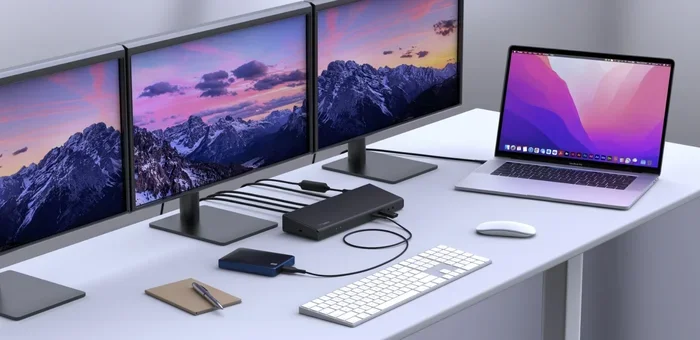
- USB-C docking station: A dock is like a hub on steroids. It sits on your desk and connects to your laptop with one USB-C cable. Docks offer VGA, HDMI, DisplayPort, Ethernet, multiple USB ports, and power delivery. They are perfect for a permanent workspace setup.
- Thunderbolt 3 or 4 to VGA adapter: If your laptop has Thunderbolt ports, you can use a Thunderbolt-specific adapter. These offer the most reliable video output. They support higher resolutions and smoother performance than standard USB-C adapters.
| Adapter Type | Price Range | Best For |
|---|---|---|
| USB-C to VGA Adapter | $10 – $30 | Simple, single-monitor setups |
| USB-C Hub with VGA | $30 – $80 | Multiple connections on the go |
| USB-C Docking Station | $80 – $200 | Permanent desk setups |
| Thunderbolt to VGA Adapter | $20 – $50 | Thunderbolt laptop users |
Step-by-Step Guide to Connecting Your VGA Monitor
Now let us get your monitor connected. The process is simpler than you might think. Follow these steps and you will be up and running in minutes.
Using a USB-C to VGA Adapter
This is the most common setup. Here is exactly what to do:
- Check your USB-C port: Make sure your laptop or device has a USB-C port that supports video output. Look for a lightning bolt icon or check the product specs.
- Plug in the adapter: Insert the USB-C end of the adapter into your laptop port. It should fit snugly with no wiggle.
- Connect the VGA cable: Take your VGA cable and plug it into the VGA output on the adapter. You will hear a click when it seats properly.
- Connect to the monitor: Plug the other end of the VGA cable into your VGA monitor. Again, listen for the click.
- Power on the monitor: Turn on your monitor and select the correct input source. Use the monitor buttons to switch to VGA input.
- Adjust display settings: On your laptop, go to display settings. You may need to detect the second display. Choose to extend or duplicate your screen.
That is it! In six simple steps, your VGA monitor should be displaying your laptop screen. If nothing shows up, do not panic. Head to the troubleshooting section below.
Using a USB-C Hub with VGA Port
If you have a USB-C hub, the process is almost the same. Plug the hub into your laptop. Connect the VGA cable from the hub to your monitor. The hub handles the signal conversion for you. The advantage here is that you can keep your keyboard, mouse, and other USB devices connected to the hub. Everything stays plugged in, and you just connect or disconnect one USB-C cable to your laptop. It is a clean and convenient setup.
Quick Tip: Always use a high-quality VGA cable. Cheap cables can cause flickering or blurry text. A well-shielded cable makes a noticeable difference in display quality.
Common Problems and How to Fix Them
Even with the right adapter, you might run into issues. This happens to everyone. The good news is that most problems have simple fixes.
No Signal on Your VGA Monitor
This is the most common complaint. You plug everything in, but the monitor says no signal. Here is what to check:
- Make sure the adapter is fully seated: A loose connection is the number one cause of no signal. Unplug and replug both ends of the adapter.
- Check your USB-C port for video support: Some USB-C ports only charge devices. They do not output video. Verify your port supports alternate mode or Thunderbolt.
- Install the adapter drivers: Some active adapters need drivers to work. Visit the manufacturer website and download the latest driver for your adapter model.
- Try a different USB-C port: If your laptop has multiple USB-C ports, test another one. Some ports may be defective or power-only.
- Restart your laptop: Sometimes a simple restart fixes detection issues. It sounds basic, but it works more often than you would think.
Poor Display Quality or Flickering
If your screen looks blurry, flickers, or has color issues, try these steps:
- Replace your VGA cable: Old or damaged cables are a common culprit. A new cable can instantly improve picture quality.
- Lower the resolution: VGA supports lower resolutions than modern displays. Try setting your laptop to 1080p or 720p instead of 4K.
- Check for interference: Keep your VGA cable away from power cables and wireless devices. Electromagnetic interference can degrade the analog signal.
- Update your graphics drivers: Outdated drivers can cause display issues. Go to your laptop manufacturer website and grab the latest drivers.
Audio Issues
VGA does not carry audio. This is a limitation of the VGA standard. If you need sound, you will need a separate audio connection. You can use your laptop speakers, a Bluetooth speaker, or a 3.5mm headphone jack. Some USB-C hubs also include a 3.5mm audio jack. This can be a lifesaver for presentations or video calls.
When to Upgrade Away from VGA
VGA has served us well for decades. But it is time to face facts. VGA is an older technology with real limitations. If you are still relying on a VGA monitor, it might be time to consider an upgrade.
Modern Alternatives to VGA Monitors
Here are some better options for modern setups:
- USB-C monitors: These monitors connect directly to USB-C with a single cable. They carry video, audio, and data all in one. Many also charge your laptop through the same cable. This is the cleanest and simplest setup you can get.
- HDMI monitors: HDMI is a modern digital standard that supports high resolutions and audio. Most laptops still have HDMI output, and HDMI-to-USB-C adapters are widely available.
- DisplayPort monitors: DisplayPort offers excellent quality and high refresh rates. It is the preferred choice for gaming and creative work. DisplayPort-to-USB-C adapters are also common.
Upgrading does not mean throwing away your old VGA monitor. You can still use it with a USB-C to VGA adapter for secondary displays. But for your main monitor, a modern USB-C or HDMI display will give you a much better experience. The picture is sharper. Colors are more vibrant. And you get rid of the bulky VGA cable forever.
Expert Insight: Many office workers keep their old VGA monitors as backup displays. A USB-C to VGA adapter makes this easy. You plug it in when needed and unplug it when not. It is a smart way to extend the life of your existing equipment without spending a lot of money.
Key Things to Know Before You Buy
Before you spend money on a USB-C to VGA adapter, keep these tips in mind. They will save you time, money, and frustration.
- Check compatibility first: Not every adapter works with every device. Some adapters work better with Windows, others with Mac or ChromeOS. Check the product description for supported devices.
- Look for certified products: Certified adapters meet quality standards and are less likely to damage your device. Look for USB-IF certification or Thunderbolt certification.
- Consider resolution needs: Most USB-C to VGA adapters support up to 1080p. If you need 4K, you will need a different solution, like a USB-C to HDMI adapter instead.
- Read reviews: Customer reviews tell you real-world performance. Look for reviews that mention reliability, ease of use, and display quality.
- Check the warranty: A good adapter should come with at least a one-year warranty. This protects you if the adapter fails or stops working.
Frequently Asked Questions
Can I connect a VGA monitor directly to a USB-C port without any adapter?
No, you cannot connect a VGA monitor directly to a USB-C port. VGA uses an analog signal while USB-C is digital. You need an active USB-C to VGA adapter or a USB-C hub that includes a VGA port. There is no way around this conversion requirement.
Do I need a special adapter to connect USB-C to VGA?
Yes, you need an active USB-C to VGA adapter. Passive adapters will not work because they cannot convert the digital USB-C signal to the analog VGA signal. Always look for adapters that explicitly state they have active conversion capability.
Can a USB-C hub with VGA work for gaming?
USB-C hubs with VGA are not ideal for gaming. VGA is an older analog standard with limited resolution and refresh rate support. For gaming, use a modern digital connection like HDMI or DisplayPort. If you must use VGA, expect lower performance and image quality.
Why does my VGA monitor show no signal when connected via USB-C?
This usually happens because the USB-C port does not support video output, the adapter is not fully seated, or drivers are missing. Check that your USB-C port supports video. Make sure the adapter is firmly connected. Install any required drivers from the adapter manufacturer website.
Can USB-C to VGA adapters support 4K resolution?
Most USB-C to VGA adapters max out at 1080p or 1920×1200 resolution. VGA itself is not designed for 4K. If you need 4K output, use a USB-C to HDMI or USB-C to DisplayPort adapter instead. These digital connections support much higher resolutions.
Is it better to use a USB-C docking station or a simple adapter?
A docking station is better if you need multiple connections like VGA, HDMI, USB ports, and Ethernet. A simple adapter is better if you only need to connect one VGA monitor and want a lightweight, affordable solution. Choose based on your specific needs and workspace setup.
Conclusion
So, can you connect a VGA monitor to USB C? Absolutely yes, but you need the right adapter. You cannot do it without one. The good news is that adapters are affordable, easy to use, and widely available. Whether you choose a simple USB-C to VGA adapter, a versatile USB-C hub, or a full docking station, you have options that fit every budget and need.
Remember to check that your USB-C port supports video output before buying anything. Always go with an active adapter for the best results. And if you keep running into issues, the troubleshooting tips in this guide should help you solve most problems quickly.
VGA monitors are not obsolete. They still serve a purpose in many environments. With the right USB-C to VGA adapter, your old monitor can work perfectly with your new laptop. It is a simple, cost-effective solution that keeps your existing equipment useful. Do not let an old monitor become e-waste. Give it a new life with a USB-C connection. You will save money, reduce waste, and keep working exactly the way you always have.