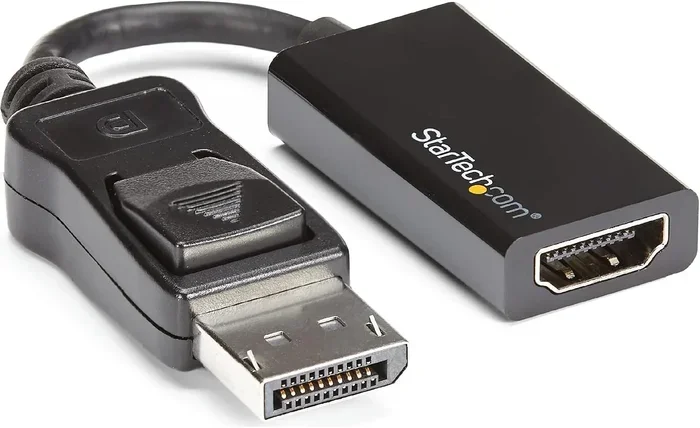
Can You Get A Displayport To Hdmi Adapter Right Now
Yes, you can get a Displayport To Hdmi Adapter right now, and they are widely available online and in stores. These adapters let you connect DisplayPort-equipped devices to HDMI displays with ease. Whether you need a passive adapter, an active converter, or a USB-C solution, this guide covers everything you need to know about choosing the right one for your setup.
Key Takeaways
- Displayport To Hdmi Adapters Are Easy to Find: You can buy them online, at electronics stores, and from major retailers right now.
- Passive and Active Adapters Serve Different Needs: Passive adapters work for simple signal conversion, while active adapters handle more complex tasks like resolution scaling.
- Check Compatibility Before You Buy: Not all adapters work with every device, so always verify your display and graphics card specifications.
- Resolution and Refresh Rate Matter: The right adapter supports the resolution and refresh rate you need, whether that is 1080p, 4K, or higher.
- Common Mistakes Can Cause Problems: Avoid buying cheap, uncertified adapters and always check for audio support and cable quality.
- Expert Tips Can Boost Performance: Firmware updates, cable placement, and driver checks all help you get the best results from your adapter.
📑 Table of Contents
- Can You Get A Displayport To Hdmi Adapter Right Now?
- What Is A Displayport To Hdmi Adapter?
- Types Of Displayport To Hdmi Adapters Available
- Key Factors To Consider Before Buying
- Common Problems And How To Fix Them
- Quick Tips For Choosing The Right Adapter
- Common Mistakes To Avoid
- Expert Insights And Pro Advice
- Where To Buy A Displayport To Hdmi Adapter
- Conclusion
Can You Get A Displayport To Hdmi Adapter Right Now?
The short answer is yes. You can get a Displayport To Hdmi Adapter right now, and the market is full of options. Whether you are a gamer, a remote worker, or someone setting up a home theater, this little adapter solves a big problem. It bridges the gap between DisplayPort and HDMI devices so you can connect almost any screen to almost any source.
DisplayPort and HDMI are two of the most common display connection standards. They both carry high-quality video and audio signals. But not every device has both ports. That is where the adapter comes in. It takes the signal from a DisplayPort output and converts it to an HDMI input. This lets you plug in monitors, projectors, and TVs that only have HDMI ports.
The good news is that adapters are affordable and widely available. You do not need to spend a lot of money. A basic adapter can cost as little as ten to fifteen dollars. More advanced models with higher resolution support may run a bit more, but they are still very reasonably priced. The key is knowing what you need before you buy.
In this guide, we walk you through everything you need to know. We cover how these adapters work, the different types available, what to look for when buying, and common mistakes to avoid. By the end, you will feel confident picking the right Displayport To Hdmi Adapter for your setup.
What Is A Displayport To Hdmi Adapter?
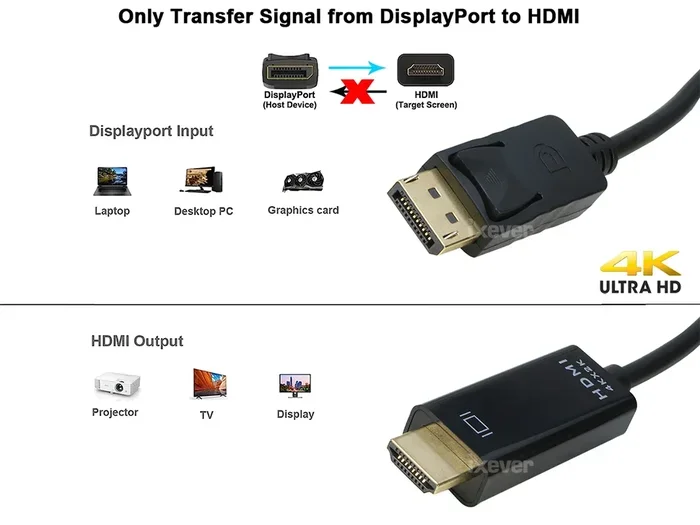
A Displayport To Hdmi Adapter is a small device that converts a DisplayPort signal into an HDMI signal. Think of it as a translator between two different languages. Your computer or laptop speaks DisplayPort, and your monitor or TV speaks HDMI. The adapter helps them understand each other.
These adapters come in different shapes and sizes. Some are small dongles that plug directly into your device. Others are cable-style adapters with a DisplayPort connector on one end and an HDMI connector on the other. There are also adapters that connect through USB-C or Thunderbolt ports, which adds even more flexibility.
How Does Signal Conversion Work?
Inside every adapter, there is a chip that handles the conversion process. When a video signal travels from your device through the DisplayPort connector, the chip reads that signal and re-encodes it into the HDMI format. This happens in real time, so you do not notice any delay. The video and audio signals are both converted together, so you get picture and sound through a single HDMI cable.
Some adapters use a passive conversion method. This means they do not need external power. They simply reroute the signal from one format to another. Other adapters use active conversion, which requires a power source. Active adapters can handle more complex tasks, such as scaling the resolution or converting between different signal versions.
Types Of Displayport To Hdmi Adapters Available
Not all adapters are the same. Different types serve different purposes. Here is a breakdown of the most common options you will find when shopping for a Displayport To Hdmi Adapter.
Passive Adapters
Passive adapters are the simplest and most affordable option. They do not need a power source. They work by converting the DisplayPort signal directly to HDMI without any extra processing. Passive adapters are great for everyday use. They work well for connecting a laptop to a monitor or a desktop to a TV.
However, passive adapters have limitations. They usually support standard resolutions like 1080p or 1440p. If you need 4K resolution at high refresh rates, a passive adapter may not cut it. Also, some passive adapters do not support audio extraction, which means you might need a separate audio cable.
Active Adapters
Active adapters are more powerful. They include a built-in chip that actively converts and boosts the signal. These adapters can handle higher resolutions, including 4K and even 8K in some cases. They also tend to support better refresh rates, which is important for gaming and video editing.
Active adapters often require a USB power cable or a power source from the display itself. This extra power allows them to perform more complex conversions. If you need a Displayport To Hdmi Adapter for professional work or high-performance gaming, an active adapter is the way to go.
USB-C and Thunderbolt Adapters
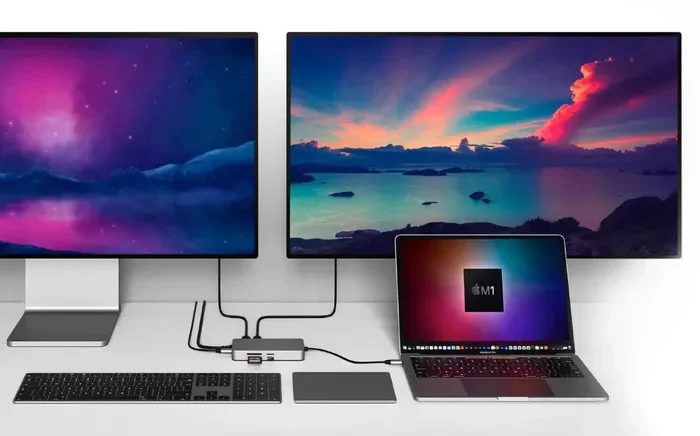
Many modern laptops and tablets use USB-C or Thunderbolt ports instead of traditional DisplayPort connectors. Luckily, there are adapters that work with these ports too. A USB-C to HDMI adapter can carry DisplayPort signals through the USB-C protocol. Thunderbolt adapters offer even faster data transfer speeds and support for daisy-chaining multiple displays.
These adapters are especially useful for professionals who travel. They are compact, versatile, and work with a wide range of devices. If your device only has USB-C ports, this type of adapter is a must-have.
Key Factors To Consider Before Buying
Before you rush out to buy a Displayport To Hdmi Adapter, there are a few important factors to consider. Taking a moment to think about your needs will save you time, money, and frustration.
Resolution and Refresh Rate Support
The first thing to check is what resolution and refresh rate your adapter supports. If you only need 1080p for basic office work or web browsing, most adapters will do the job. But if you are into gaming or video editing, you need an adapter that supports 4K at 60Hz or higher.
Here is a quick comparison of what different adapter types typically support:
- Basic Passive Adapters: 1080p at 60Hz, no audio support in some models
- Mid-Range Active Adapters: 4K at 30Hz or 60Hz, with audio support
- Premium Active Adapters: 4K at 60Hz or 8K at 30Hz, full audio and HDR support
- USB-C Thunderbolt Adapters: Up to 4K at 144Hz, multi-display support
Audio Support
Not all adapters carry audio along with video. Some Displayport To Hdmi Adapter models only convert the video signal and leave the audio behind. If you need sound through your HDMI display, make sure the adapter explicitly states that it supports audio transmission.
Audio support is especially important if you are connecting a computer to a TV or a soundbar. Without it, you will have picture but no sound, which can be very frustrating. Always check the product specifications before you purchase.
Build Quality and Certifications
Cheap adapters might seem like a good deal, but they can cause problems. Low-quality adapters may drop frames, overheat, or fail to support the resolution you need. Look for adapters that are certified by DisplayPort or HDMI licensing groups. These certifications guarantee that the adapter meets certain quality and performance standards.
Also, pay attention to the build quality. A well-built adapter with a solid connector will last longer and perform better. Avoid adapters with flimsy plastic housings or loose connections.
Compatibility With Your Devices
Make sure the adapter works with your specific devices. Some adapters work better with certain graphics cards or operating systems. For example, adapters that work seamlessly with proprietary operating systems may have different compatibility profiles than those designed for open-source systems. Check the manufacturer’s compatibility list before buying.
If you plan to use the adapter for electronic commerce communication setups or video conferencing, make sure it supports the resolution and frame rate needed for smooth video calls. A poor adapter can cause lag, blurry images, and dropped frames during important meetings.
Common Problems And How To Fix Them
Even the best Displayport To Hdmi Adapter can cause issues sometimes. Here are the most common problems and how to solve them.
No Signal or Black Screen
If your screen goes black after connecting the adapter, do not panic. This is a very common issue. First, check that both ends of the adapter are firmly plugged in. Sometimes the connection feels secure but is actually slightly loose. Unplug and replug both connections firmly.
Next, check your display settings. Your computer might not automatically detect the new display. Go to your display settings and look for an option to detect or add a new display. On Windows, this is found in the Display Settings menu. On macOS, go to System Preferences and then Displays.
No Audio Through HDMI
If you have video but no sound, the adapter might not be passing the audio signal. Check the adapter specifications to confirm audio support. Also, make sure your computer’s audio output is set to HDMI, not to the built-in speakers or a different output.
On Windows, right-click the speaker icon in your taskbar and select the HDMI output device. On macOS, go to Sound Preferences and choose the HDMI display as the output. This simple step fixes the problem in most cases.
Low Resolution or Flickering
If the image looks blurry or flickers, your adapter might not support the resolution you are trying to use. Lower the resolution in your display settings and see if the problem goes away. If it does, you may need a better adapter that supports higher resolutions.
Flickering can also be caused by a faulty cable or a loose connection. Try using a different HDMI cable or a different DisplayPort cable. Sometimes the cable itself is the problem, not the adapter.
Quick Tips For Choosing The Right Adapter
Here are some quick tips to keep in mind when shopping for a Displayport To Hdmi Adapter:
- Know Your Resolution Needs: Decide what resolution you need before you shop. This narrows down your options quickly.
- Check for Audio Support: If you need sound through your display, make sure the adapter supports it.
- Read Reviews: Real user reviews tell you a lot about quality and reliability. Look for reviews that mention long-term use.
- Buy From Reputable Sellers: Stick to trusted brands and sellers. Cheap no-name adapters often cause more problems than they solve.
- Consider Future Needs: If you plan to upgrade your display or devices soon, buy an adapter that supports higher resolutions than you currently need.
Common Mistakes To Avoid
Avoiding mistakes when buying a Displayport To Hdmi Adapter can save you a lot of headaches. Here are the most common mistakes people make.
Buying the Cheapest Option
The cheapest adapter is not always the best value. Very cheap adapters often use low-quality components that fail quickly or do not support the features you need. Spending a little more on a certified, well-reviewed adapter pays off in the long run.
Ignoring Compatibility
Not every adapter works with every device. Some adapters are designed for specific graphics cards or operating systems. Always check the compatibility list before you buy. This is especially important if you use a proprietary operating system that has unique display requirements.
Overlooking Cable Length
Cable length matters more than you might think. A very short cable limits where you can place your display. A very long cable can cause signal loss. Choose a cable length that fits your setup. For most desk setups, a 3 to 6-foot cable works well.
Assuming All Adapters Support 4K
Just because an adapter says it supports 4K does not mean it supports 4K at 60Hz. Some adapters only support 4K at 30Hz, which can make the image feel laggy. Always check the exact specifications for resolution and refresh rate support.
Expert Insights And Pro Advice
We asked some experts in the display technology space for their advice on choosing a Displayport To Hdmi Adapter. Here is what they had to say.
From Display Technology Professionals
Experts recommend always buying adapters from well-known brands like StarTech, Cable Matters, or Uni. These brands invest in quality testing and offer solid warranties. They also suggest checking for firmware updates for your adapter. Some manufacturers release firmware updates that improve compatibility and fix bugs. Keeping your adapter’s firmware up to date can make a big difference in performance.
Another expert tip is to avoid adapters that do not have their own power source if you are pushing high resolutions. Active adapters with a dedicated power input handle demanding tasks much better than passive ones. This is especially true for 4K gaming and professional video work.
Real-World Use Cases
In real-world setups, adapters are used in many different ways. Gamers use them to connect desktop PCs to HDMI monitors. Professionals use them to connect laptops to projectors in conference rooms. Content creators use them to connect editing workstations to external displays for color grading.
One expert shared a story about a remote team that relied on adapters for their daily video calls. They found that using high-quality adapters with proper audio support made their meetings much smoother. The team switched from a low-cost adapter that dropped audio frames to a certified model, and the difference was immediate.
Where To Buy A Displayport To Hdmi Adapter
You can find a Displayport To Hdmi Adapter in many places. Online marketplaces offer the widest selection and often the best prices. Electronics stores carry adapters on their shelves, so you can see and test them before you buy. Manufacturer websites are also a good source, especially for certified and branded adapters.
When buying online, check the seller’s ratings and return policy. A good return policy gives you peace of mind if the adapter does not work with your setup. Also, look for adapters that come with a warranty. A warranty shows that the manufacturer stands behind their product.
For those who shop through electronic commerce platforms, the value added network for electronic commerce communication can help ensure secure and reliable transactions when purchasing adapters online. Always use trusted platforms and verified sellers to protect your purchase.
Conclusion
So, can you get a Displayport To Hdmi Adapter right now? Absolutely. These adapters are affordable, widely available, and easy to use. Whether you need a simple passive adapter for everyday tasks or a powerful active adapter for gaming and professional work, there is an option that fits your needs.
The key is knowing what you need before you buy. Check your resolution requirements, confirm audio support, and make sure the adapter is compatible with your devices. Avoid common mistakes like buying the cheapest option or ignoring compatibility. And when you do find the right adapter, you will wonder how you ever managed without it.
A good Displayport To Hdmi Adapter opens up new possibilities for your setup. It lets you use any display with any source device. It is a small investment that makes a big difference. So go ahead, find the right adapter, and enjoy a seamless connection between your devices today.
Frequently Asked Questions
Do I Need A Special Displayport To Hdmi Adapter For 4K?
Not necessarily, but you do need an adapter that supports 4K resolution. Basic passive adapters usually max out at 1080p. For 4K, you will need an active adapter or a USB-C to HDMI adapter that explicitly states 4K support. Always check the product specifications before buying.
Can I Use A Displayport To Hdmi Adapter For Gaming?
Yes, you can use a Displayport To Hdmi Adapter for gaming. For the best experience, choose an active adapter that supports high refresh rates like 144Hz or higher. Passive adapters may work for casual gaming, but they may not deliver the smooth performance that competitive gamers need.
Will My Adapter Support Audio?
Most modern adapters do support audio, but not all of them. Check the product description carefully. If audio support is not listed, assume it is not included. You can always test the adapter after purchase and return it if audio does not work.
Are USB-C Adapters The Same As Displayport To Hdmi Adapters?
USB-C adapters can carry DisplayPort signals, but they are not exactly the same. A USB-C to HDMI adapter uses the USB-C port to output a DisplayPort signal that converts to HDMI. A traditional Displayport to HDMI adapter connects directly to a DisplayPort output. Choose based on the ports available on your device.
How Long Does A Displayport To Hdmi Adapter Last?
A good quality adapter can last several years with regular use. Build quality matters a lot here. Adapters with metal housings and solid connectors tend to outlast those with cheap plastic. Avoid unplugging the adapter forcefully, and store it properly when not in use.
Can I Daisy Chain Multiple Displays With An Adapter?
Daisy chaining requires a DisplayPort output that supports Multi-Stream Transport (MST). Most standard Displayport To Hdmi Adapter models do not support daisy chaining. If you need to connect multiple displays, look for a DisplayPort hub or a Thunderbolt adapter that supports MST.