Can You Get An Hdmi Cable For The Nintendo Wii Console
Yes, you can get an HDMI cable for the Nintendo Wii console, but not directly from Nintendo. The original Wii does not have a built-in HDMI port, so you need a third-party adapter or converter to connect it to modern HDTVs. This guide covers every option, from affordable converters to component cables, helping you choose the best setup for your gaming experience.
If you own a Nintendo Wii and want to connect it to a modern TV, you have probably wondered about HDMI. The short answer is yes, you can get an HDMI cable for the Wii, but the full story is a bit more involved. The original Wii console does not come with an HDMI port built in. That means you cannot simply plug an HDMI cable straight into the back of the console and expect it to work. Instead, you need an adapter or a converter to bridge the gap between the Wii’s older video outputs and your modern HDTV.
This guide walks you through everything you need to know. We will cover why the Wii does not have HDMI, what your options are, how to set things up, and what mistakes to avoid. Whether you are a casual gamer or a retro gaming fan, this article will help you get the best picture quality from your Nintendo Wii console.
Key Takeaways
- The Nintendo Wii lacks a native HDMI port, so you need an adapter or converter to use HDMI.
- Third-party HDMI adapters are widely available and affordable, ranging from $10 to $30.
- Component video cables offer a solid alternative if you want to avoid adapters altogether.
- Using the wrong cable or adapter can cause signal loss, so choosing quality hardware matters.
- The Wii U and newer consoles have native HDMI, making them a better option if you want plug-and-play simplicity.
- Setting up HDMI on your Wii is simple and takes just a few minutes with the right equipment.
📑 Table of Contents
- Why Does the Nintendo Wii Not Have HDMI?
- Your Options for Connecting the Wii to an HDTV
- How to Set Up HDMI on Your Nintendo Wii
- Common Mistakes People Make When Adding HDMI to the Wii
- How the Wii Compares to Other Nintendo Consoles
- Understanding the Wii’s Hardware and Connectivity
- Expert Tips for the Best Wii Visual Experience
- Is It Worth Upgrading Your Wii Setup?
- Final Thoughts
Why Does the Nintendo Wii Not Have HDMI?
The Nintendo Wii was released in 2006. At that time, HDMI was still becoming standard in homes. Many TVs used composite or component connections. Nintendo designed the Wii to match the technology of that era. The console shipped with composite AV cables right out of the box. These cables use red, white, and yellow connectors. They work fine on older TVs, but they do not carry a high-definition signal.
The Technology Gap Between Old and New
HDMI carries both audio and video through a single cable. It supports high resolutions and digital signals. The Wii’s hardware was built to output standard-definition video. Its internal design focuses on motion controls and affordable gaming, not high-end visuals. This means the console simply does not have the hardware to produce an HDMI signal on its own.
However, this does not mean you are stuck with blurry picture quality. There are several ways to upgrade your Wii connection. Let us look at those options next.
Your Options for Connecting the Wii to an HDTV
You have a few different paths when it comes to getting better video from your Wii. Each option has its pros and cons. Here is a breakdown of what is available.
Option 1: Third-Party HDMI Adapters
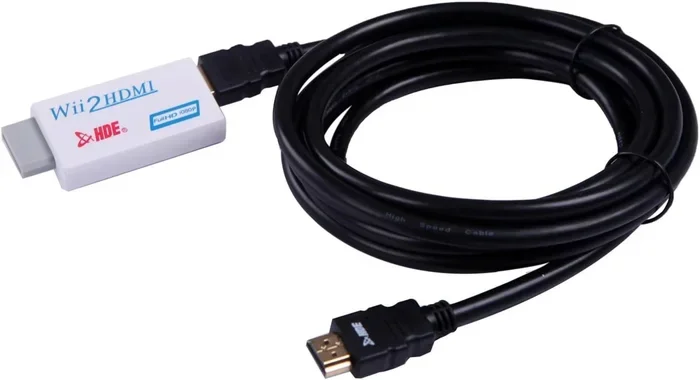
The most popular way to get HDMI from a Wii is to use a third-party adapter. These small devices plug into the Wii’s AV output. Then they convert the signal to HDMI. You simply connect the adapter to the Wii, run an HDMI cable from the adapter to your TV, and you are good to go.
These adapters are widely available online. You can find them on Amazon, eBay, and many electronics retailers. Prices typically range from $10 to $30. Some adapters also upscale the signal, which means they try to improve the picture quality by converting standard definition to a higher resolution.
- Affordable: Most adapters cost under $30.
- Easy to set up: Plug and play in most cases.
- Widely available: You can find them from many brands.
- Variable quality: Cheap adapters may not give the best picture.
Option 2: Component Video Cables
If you want to skip adapters entirely, component video cables are a great choice. These cables use three RCA connectors for video (red, green, and blue) plus red and white for audio. They offer a much sharper picture than composite cables. Component cables can support 480p resolution, which looks noticeably better on an HDTV.
Nintendo actually sold official component cables for the Wii. You can still find them online or at retro gaming stores. They do not give you true HDMI quality, but they are a big step up from the standard composite cables that come with the console.
Option 3: Upgrade to the Wii U
If you want native HDMI without any extra gear, consider the Wii U. This is Nintendo’s successor to the original Wii. The Wii U has a built-in HDMI port. It supports 1080p output, which is a huge upgrade. The console also plays Wii games, so you get backward compatibility.
The Wii U is not as cheap as the original Wii, but it solves the HDMI problem completely. If you are serious about retro gaming or want a cleaner setup, this is worth considering.
How to Set Up HDMI on Your Nintendo Wii
Setting up HDMI on your Wii is straightforward. You just need the right adapter and a little patience. Here is a step-by-step guide to get you started.
First, gather your materials. You will need your Wii console, a third-party HDMI adapter, an HDMI cable, and your HDTV. Make sure your TV has an available HDMI input. Most modern TVs have at least three or four HDMI ports.
Next, plug the adapter into the Wii’s AV output port. This is the same port where your composite cables connect. Then attach the HDMI cable to the adapter and plug the other end into your TV. Switch your TV to the correct HDMI input using your remote.
Power on the Wii and check the picture. You should see the Wii menu on your screen. If the picture looks wrong, go into the Wii settings and adjust the screen resolution. The Wii allows you to choose between 480p and 576i. Pick 480p for the clearest image on your HDTV.
Quick Tip: Use a short HDMI cable to keep your setup clean. Long cables can sometimes cause signal issues, especially with budget adapters. Keep your cable run as short as possible for the best results.
Common Mistakes People Make When Adding HDMI to the Wii
Many people run into problems when trying to add HDMI to their Wii. Most of these issues come from simple mistakes. Here are the ones to watch out for.
Buying a Low-Quality Adapter
The cheapest adapters on the market often produce poor results. You might get a flickering screen, no sound, or a blurry image. Always read reviews before buying. Stick with well-known brands or adapters with good ratings. A $15 adapter from a reputable seller will almost always outperform a $5 no-name product.
Forgetting to Change the Wii Settings
After connecting your adapter, you need to change the Wii’s video settings. If you do not do this, you might get no picture at all or a distorted image. Go to the Wii settings menu, select “Screen,” and choose the correct resolution. This is a quick step, but many people skip it.
Using the Wrong Type of Cable
Not all HDMI cables are the same. For the Wii, you do not need an expensive premium HDMI cable. A standard High Speed HDMI cable works perfectly fine. Do not waste money on 4K or 8K cables for a console that outputs standard definition.
How the Wii Compares to Other Nintendo Consoles
To really understand the Wii’s video output, it helps to compare it with other Nintendo consoles. Each generation brought improvements in connectivity and visual quality.
| Console | Native HDMI | Max Resolution | Cable Type |
|---|---|---|---|
| Nintendo Wii | No | 480p | Composite or Component |
| Nintendo Wii U | Yes | 1080p | HDMI |
| Nintendo Switch | Yes | 1080p (dock) / 720p (handheld) | HDMI (dock) |
| Nintendo GameCube | No | 480i | Composite |
As you can see, the original Wii is the only console in this list without native HDMI. The Wii U and Switch both offer plug-and-play HDMI connections. If you want a clean, modern setup without adapters, these are the better choices. But if you love the Wii for its unique motion controls and game library, an adapter will get the job done just fine.
Understanding the Wii’s Hardware and Connectivity
The Nintendo Wii is a well-designed console for its time. Its hardware focuses on motion-sensing gaming rather than high-definition graphics. The console uses a proprietary operating system that handles all its functions, from menu navigation to game execution. This system was designed to be simple and user-friendly, which is part of why the Wii became so popular.
When it comes to connectivity, the Wii was ahead of its time in some ways. It included built-in Wi-Fi for online gaming and browsing. It also had USB ports for accessories like the Wii Remote charger and the Wii Speak microphone. However, its video output options were limited to composite and component connections. This is where the HDMI adapter comes in to fill the gap.
The Wii’s motherboard contains all the key components that handle video processing. The console uses custom chips designed by ATI (now AMD) to render graphics at standard definition. Understanding this hardware helps explain why a simple HDMI cable will not work on its own. The console’s internal design simply does not include the hardware needed to produce a digital HDMI signal without external help.
The Wii also connects to Nintendo’s online services for downloading games and updates. While these services were eventually discontinued, they showed Nintendo’s vision for connected gaming. The connectivity features of the Wii, combined with the right adapters today, can still provide a fun and functional gaming experience on modern displays.
Expert Tips for the Best Wii Visual Experience
Getting the best picture from your Nintendo Wii takes a little effort, but the results are worth it. Here are some expert tips to help you get the most out of your setup.
- Use a quality HDMI adapter. Do not go for the absolute cheapest option. Look for adapters with good reviews and solid build quality. A reliable adapter ensures a stable connection and clear picture.
- Clean your console’s AV port. Over time, dust can build up inside the AV output port. Use compressed air to blow out any debris before connecting your adapter. A clean connection means fewer signal problems.
- Set your TV to the right format. Make sure your HDTV is set to display standard definition or 480p signals. Some TVs struggle to display lower-resolution content and may look blurry or stretched.
- Consider component cables first. Before buying an HDMI adapter, try official Nintendo component cables. They are cheap, easy to find, and offer a noticeable picture improvement over composite cables.
- Keep your setup organized. Use cable ties or Velcro straps to keep your cords neat. A tidy setup not only looks better but also prevents accidental disconnections during intense gaming sessions.
These simple steps can make a big difference in how your Wii looks on a modern TV. You do not need expensive equipment to get a great picture. Just a little knowledge and the right accessories.
Is It Worth Upgrading Your Wii Setup?
The answer depends on what you value. If you love playing Wii games and want the best possible picture on your HDTV, then yes, an HDMI adapter is worth it. The difference between composite cables and an HDMI connection is night and day. Colors are sharper, text is clearer, and the overall image looks much better on a large modern television.
On the other hand, if you only play your Wii occasionally or on a small CRT TV, you might not notice much difference. The Wii was designed for standard-definition displays, and it still looks fine on older TVs. It is all about what works best for your setup and your budget.
One more thing to consider is the Wii’s game library. The console has hundreds of great games, from Mario Kart Wii to The Legend of Zelda: Twilight Princess. These games are still fun to play today, and a better picture quality makes them even more enjoyable. If you are into retro gaming or just want to revisit some classic titles, improving your Wii setup is a small investment that pays off.
Final Thoughts
So, can you get an HDMI cable for the Nintendo Wii? Yes, you absolutely can, but you need an adapter to make it work. The original Wii does not have a built-in HDMI port, which means you need a third-party converter to connect it to modern HDTVs. The good news is that these adapters are affordable, easy to use, and widely available.
You also have other options, like component video cables, that can improve your picture without any extra hardware. And if you want a native HDMI experience, the Wii U is a great upgrade path that also plays all your favorite Wii games.
No matter which route you choose, the goal is the same: to enjoy your Nintendo Wii on a modern TV with the best possible picture quality. With the right setup, your Wii can still provide hours of fun and nostalgia. Grab your adapter, plug in your console, and get ready to play.
Frequently Asked Questions
Can I plug an HDMI cable directly into the Nintendo Wii?
No, the original Nintendo Wii does not have an HDMI port. You need a third-party HDMI adapter or converter to connect the Wii to an HDTV using HDMI. The adapter plugs into the Wii’s AV output and converts the signal to HDMI.
How much does a Wii HDMI adapter cost?
Most Wii HDMI adapters cost between $10 and $30. Prices vary depending on the brand and features. Avoid the cheapest options, as they may produce poor picture quality or connection issues.
Will an HDMI adapter improve the picture quality on my Wii?
Yes, using an HDMI adapter will generally improve your picture compared to composite cables. The digital HDMI signal looks cleaner and sharper on modern TVs. However, the Wii’s maximum output is still 480p, so the improvement has limits.
Can I use component cables instead of an HDMI adapter?
Yes, component video cables are a great alternative to HDMI adapters. They offer a sharper picture than composite cables and do not require any extra hardware. Nintendo sold official component cables for the Wii, and they are still available today.
Is the Wii U a better choice for HDMI connectivity?
The Wii U has a built-in HDMI port and supports 1080p output. It is a better choice if you want plug-and-play HDMI without any adapters. The Wii U also plays all Wii games, so it offers backward compatibility.
What resolution does the Nintendo Wii support?
The original Wii supports a maximum resolution of 480p. This is standard definition, which looks good on older TVs but may appear soft on large modern HDTVs. Using an HDMI adapter or component cables helps get the best possible picture at this resolution.
=== CONCLUSION ===
Getting an HDMI connection for your Nintendo Wii is entirely possible with the right approach. The console does not have native HDMI support, but third-party adapters and component cables bridge the gap effectively. Whether you choose a simple converter or upgrade to component video, you can enjoy your favorite Wii games with better picture quality on modern displays. The key is to choose quality hardware, set your Wii settings correctly, and avoid the common mistakes outlined in this guide. With the right setup, your Nintendo Wii remains a fun and viable gaming option in today’s world of high-definition displays.