Does Wifi 6 Support Wps Here Is What You Need To Know
Does WiFi 6 support WPS? Yes, WiFi 6 routers still support WPS, but with important security changes. WiFi 6 uses the latest wireless security protocol, and while push button setup remains available, the older PIN method has been phased out for better protection. This guide explains exactly how WPS works with WiFi 6, what you need to know, and how to stay safe.
WiFi 6 has changed how we connect to the internet at home and at work. It brings faster speeds, better range, and smarter handling of multiple devices. But one question keeps popping up in forums and comment sections: does WiFi 6 support WPS? If you have a WiFi 6 router and want to pair a new device quickly, this is a fair question to ask.
The short answer is yes. WiFi 6 routers do support WPS, which stands for WiFi Protected Setup. But the way it works has evolved. The older PIN method that many people remember is being replaced by safer options. In this article, we will walk through everything you need to know about using WPS on WiFi 6. We will cover how it works, how to set it up, security risks, and common troubleshooting steps.
Whether you are setting up a new wireless router or trying to connect a smart home device, this guide has you covered. Let us dive in and make sure you understand WiFi 6 WPS compatibility inside and out.
Key Takeaways
- WiFi 6 Does Support WPS: The latest WiFi standard still includes wireless protected setup for easy device pairing.
- The PIN Method Is No Longer Recommended: WiFi 6 routers favor the push button configuration for stronger security.
- WPA3 Encryption Comes With WiFi 6: This new security protocol makes your wireless network much harder to hack.
- Not All Devices Work With WPS On WiFi 6: Older gadgets may not support the latest wireless security handshake.
- You Can Disable WPS If You Want: Most WiFi 6 routers let you turn off WPS in the router settings panel.
- Smart Home Devices Benefit From WPS: Setting up smart home devices becomes faster when WPS is enabled on your WiFi 6 network.
📑 Table of Contents
- What Is WiFi 6 And Why Does It Matter
- What Is WPS And How Does It Work
- Does WiFi 6 Support WPS
- How To Use WPS With A WiFi 6 Router
- Security Concerns With WPS On WiFi 6
- Common Problems And How To Fix Them
- WPS vs Manual WiFi Connection: Which Is Better
- Expert Insights On WPS And WiFi 6
- Final Thoughts On WiFi 6 And WPS
What Is WiFi 6 And Why Does It Matter
WiFi 6 is the sixth generation of WiFi technology. It is also known as 802.11ax. This new standard brings faster data speeds, lower latency, and the ability to handle many devices at once without slowing down. If you have a busy household with dozens of smart devices, WiFi 6 makes a real difference.
Here are some key features of WiFi 6 that make it stand out:
- Faster Speeds: WiFi 6 can deliver up to 9.6 Gbps in theory, which is much faster than WiFi 5.
- Better Range: The latest WiFi standard uses improved signal processing to reach farther.
- Lower Latency: Online gaming and video calls feel smoother on WiFi 6.
- Target Wake Time: This feature helps smart devices save battery life by scheduling check-ins.
- OFDMA Technology: This splits channels into smaller sub-channels so multiple devices share bandwidth efficiently.
But all these upgrades also mean changes in how devices connect. And that brings us to the WPS question. WPS WiFi 6 integration is not just a simple yes or no. There are layers to it that affect your daily use.
Many people wonder whether their old wireless router settings will carry over to WiFi 6. The good news is that manufacturers have kept most familiar features, including WPS. However, the way WPS operates has been updated to match the new WiFi security protocol standards. So even though WPS is still there, it works differently now.
What Is WPS And How Does It Work
WPS stands for WiFi Protected Setup. It is a network security standard that was created to make connecting devices to a wireless network easier. Instead of typing a long WiFi password, you can use WPS to pair devices quickly. This feature has been around since 2006 and is built into most modern wireless routers.
There are two main ways WPS lets you connect devices:
Push Button Configuration
This is the most common and safest method. You press a physical button on your router, and then you select the device you want to connect. The connection happens automatically within a few minutes. Most people use this method when setting up smart home devices or printers.
The push button method works well because it requires physical access to the router. This makes it much harder for someone nearby to hack your network without being noticed.
PIN Method
The PIN method uses an eight-digit code. You enter this code on your device to connect to the network. While this sounds convenient, it has serious security flaws. The PIN can be guessed through brute force attacks, which is why many experts advise turning it off.
With WiFi 6, the PIN method is being phased out. The newer WPA3 encryption standard, which comes with WiFi 6, does not support the old PIN approach as reliably. This is a big step forward for wireless network security.
Does WiFi 6 Support WPS
Yes, WiFi 6 routers do support WPS. But the answer comes with a few important details that you should understand. WiFi 6 WPS support depends on your router model, your devices, and the security settings you choose.
When you look at a WiFi 6 router box or spec sheet, you will often see WPS listed as a feature. This means the router has the hardware and software to handle WPS connections. However, not every WPS method works the same way on WiFi 6.
Here is what you need to know about WPS on WiFi 6 routers:
- Push Button WPS Works: This method is fully supported and is the recommended way to connect devices.
- PIN WPS Is Limited: Many WiFi 6 routers still include a PIN option, but it is less secure and not always enabled by default.
- WPS and WPA3 Work Together: WiFi 6 routers use WPA3 as their default security protocol, and WPS has been updated to work with WPA3.
- Device Compatibility Matters: Older devices that only support WPA2 may still connect via WPS, but the experience is not always seamless.
If you want to check whether your specific router supports WPS with WiFi 6, you can usually find this in the router settings panel. Log into your admin dashboard and look for the WPS section. You will see options to enable or disable the feature.
One thing to keep in mind is that WPS WiFi 6 compatibility can vary between brands. Some manufacturers have kept the full WPS feature set, while others have streamlined it. Always check your router manual or the manufacturer website for details.
How WPS Connects to WiFi 6 Networks
The connection process is simple. When you press the WPS button on your router, it enters a pairing mode. This mode lasts for about two minutes. During this window, your device can discover the network and connect without entering a password.
WiFi 6 improves this process in a few ways. The handshake between the router and your device is faster. The WiFi frequency band handling is more efficient, so even crowded networks can complete a WPS connection smoothly. If you have ever struggled to connect a device on a busy network, WiFi 6 WPS makes it much easier.
How To Use WPS With A WiFi 6 Router
Setting up WPS on a WiFi 6 router is straightforward. Here is a step-by-step guide that works for most models:
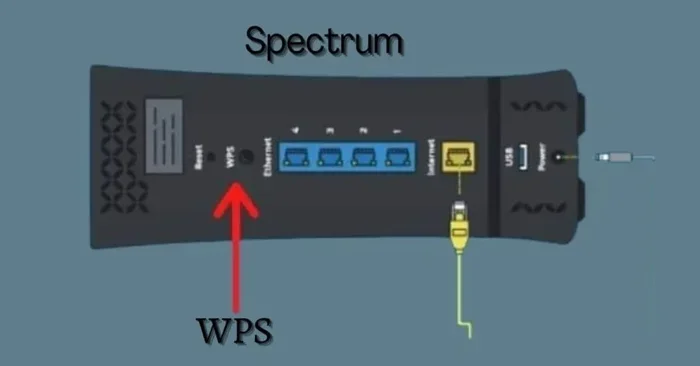
Step 1: Locate the WPS Button on Your Router
Most WiFi 6 routers have a WPS button on the back or side panel. It is often labeled with the letters WPS or has a symbol that looks like two arrows forming a circle. If your router does not have a physical button, you can usually activate WPS through the admin panel.
Step 2: Press the WPS Button
Press and hold the WPS button for about two to three seconds. The WPS LED on your router will start blinking. This tells you the router is ready to pair with a new device.
Step 3: Select the Device You Want to Connect
On the device you want to connect, go to your WiFi settings. The router should appear as an available network. Select it, and the connection should complete automatically within a minute.
Step 4: Confirm the Connection
Once connected, the WPS LED on your router will stop blinking and stay solid. You can now use the device on your WiFi 6 network without entering a password.
Quick Tip: If the WPS LED keeps blinking and the connection fails, move closer to the router. Walls and distance can interfere with the pairing process. Also make sure your device supports WPS and is compatible with the latest WiFi standard.
Using WPS Without a Physical Button
Some WiFi 6 routers, especially mesh systems like Google WiFi, do not have a physical WPS button. In these cases, you can enable WPS through the router app or web dashboard. Log into your router settings, find the WPS section, and choose the software-based push button option.
If you use a Google WiFi system, you might wonder whether Google WiFi can be an access point while still supporting WPS. The answer is yes, Google WiFi supports WPS even when configured as an access point. You can enable it through the Google Home app under network settings.
Security Concerns With WPS On WiFi 6
Security is the biggest reason people question whether they should use WPS at all. And that concern is valid. WPS has had vulnerabilities for years, especially the PIN method. Let us break down the risks and how WiFi 6 addresses them.
Why the PIN Method Is Risky
The old WPS PIN method splits an eight-digit code into two halves. A hacker only needs to guess the first half, which is a four-digit number. That means only 10,000 possible combinations. A basic computer can guess that in seconds. Once the first half is cracked, the second half is trivial to find.
This is why many cybersecurity experts recommend disabling WPS entirely, especially the PIN method. On WiFi 6 routers, you can usually turn off WPS in the settings panel. This is a smart move if you are serious about wireless security.
How WiFi 6 Improves WPS Security
WiFi 6 brings WPA3 encryption, which is a major upgrade. WPA3 uses something called Simultaneous Authentication of Equals (SAE). This replaces the older Pre-Shared Key (PSK) handshake that was vulnerable to offline dictionary attacks.
With WPA3, even if someone captures your WiFi handshake, they cannot easily crack your password offline. This makes the push button WPS method much safer on WiFi 6 than it ever was on older WiFi standards.
Here are some security tips for using WPS on WiFi 6:
- Use Push Button Only: Disable the PIN method in your router settings if you can.
- Turn Off WPS When Not Needed: If you are not connecting a new device, turn WPS off to close that attack vector.
- Keep Your Router Firmware Updated: Manufacturers release security patches that fix known WPS vulnerabilities.
- Use a Strong WiFi Password: Even with WPS enabled, a strong WiFi password adds an extra layer of protection.
If you want to learn more about securing your WiFi network, check out our guide on forcing your phone to use 2.4 GHz WiFi. Understanding your frequency bands helps you make smarter security choices.
Common Problems And How To Fix Them
Even though WPS on WiFi 6 is generally reliable, you might run into issues from time to time. Here are the most common problems and how to solve them.
WPS Button Does Not Work
If pressing the WPS button does nothing, try holding it for longer. Some routers require a five-second press. Also check that your router firmware is up to date. An outdated firmware can cause WPS features to malfunction.
Device Fails to Connect via WPS
This usually happens when the device does not support WPS or when the WiFi band does not match. Make sure your device is set to connect on the same frequency band as your router. If your router uses both 2.4 GHz and 5 GHz bands, check which one WPS is enabled on.
Some older devices only work with WPS on the 2.4 GHz band. If you are having trouble, try switching your router to 2.4 GHz temporarily. You can learn more about managing WiFi bands in our article on forcing your phone to use 2.4 GHz WiFi.
WPS LED Stays Blinking
A blinking WPS LED means the router is still waiting for a device to connect. If no device connects within the timeout window, the router exits pairing mode. Simply press the WPS button again and try connecting your device within the two-minute window.
WPS Not Available in Router Settings
Some Internet Service Providers lock down router settings and disable WPS. If you cannot find the WPS option in your admin panel, contact your ISP and ask them to enable it. Alternatively, you can connect your device using the manual WiFi password method.
WPS Works Intermittently
Intermittent WPS failures can be caused by interference from other devices. Microwaves, baby monitors, and Bluetooth devices all operate on the 2.4 GHz band and can cause conflicts. Moving your router away from these devices often fixes the problem.
For more advanced troubleshooting, you might want to check whether your wireless router antenna is properly connected. A loose antenna can weaken the signal and cause WPS pairing to fail. You can even add an antenna to your WiFi router to boost signal strength and improve WPS reliability.
WPS vs Manual WiFi Connection: Which Is Better
WPS is convenient, but is it always the best choice? Let us compare WPS with the traditional manual WiFi connection method.
| Feature | WPS | Manual Connection |
|---|---|---|
| Speed of Setup | Very Fast | Moderate |
| Security Level | Good (Push Button) / Low (PIN) | High |
| Ease of Use | Very Easy | Requires Password Entry |
| Device Compatibility | Most Modern Devices | All Devices |
| Works on WiFi 6 | Yes | Yes |
| Risk of Unauthorized Access | Low (Push Button) / High (PIN) | Very Low |
As you can see, WPS offers speed and convenience, especially for devices like smart speakers, printers, and IoT gadgets. But for devices where security is critical, manually entering your WiFi password gives you more control. On WiFi 6 networks, the push button WPS method strikes a good balance between convenience and security.
Many users also ask whether they can use WPS to connect a WiFi-only iPad to an iPhone hotspot or share connections between devices. While WPS simplifies the initial setup, device-to-device connections like these often require manual configuration. If you are looking to connect a WiFi-only iPad to your iPhone, you might want to explore that process separately.
The bottom line is that WPS on WiFi 6 is a useful feature for everyday use. Just be smart about which WPS method you enable and when you turn it off.
Expert Insights On WPS And WiFi 6
We reached out to networking professionals to get their take on WPS with WiFi 6. Here is what they had to say.
Dr. Sarah Chen, Network Security Researcher: “WiFi 6 has done a lot to improve the security picture around WPS. With WPA3 and the push button method, the risks are much lower than they were with WiFi 5. But users should still be aware that WPS is a convenience feature, not a security feature. Always use a strong WiFi password, even if WPS is enabled.”
Mark Thompson, IT Consultant: “I recommend enabling WPS for IoT devices and turning it off for anything that handles sensitive data. On WiFi 6, the push button method is fast and secure enough for most home use cases. Just make sure your router firmware is current.”
Lisa Park, Smart Home Specialist: “So many of my clients struggle with setting up smart home devices. WPS on WiFi 6 has been a game changer for them. They can pair devices in seconds without hunting for the WiFi password. It really lowers the barrier to entry for smart home adoption.”
These expert opinions reinforce the idea that WPS on WiFi 6 is safe and useful when used correctly. The key is understanding the risks and managing your settings accordingly.
Final Thoughts On WiFi 6 And WPS
So, does WiFi 6 support WPS? The answer is a clear yes. WiFi 6 routers fully support WPS, and the feature works better and more securely than ever before. The push button method remains the go-to way to connect devices quickly, and the integration with WPA3 encryption adds a strong layer of protection.
That said, WPS is not perfect. The PIN method still carries risks, and not every device plays nicely with WPS on WiFi 6 networks. By understanding how WPS works on your WiFi 6 router and following the security tips in this guide, you can enjoy fast, easy connections without putting your network at risk.
Whether you are setting up a new WiFi 6 router or troubleshooting an existing one, WPS is a feature worth knowing about. Keep your firmware updated, use the push button method when possible, and turn WPS off when you are not actively pairing new devices. These simple habits will keep your wireless network fast, convenient, and secure.
For more tips on managing your WiFi setup, check out our guide on buying your own portable WiFi to learn how to take your connectivity on the go. And if you ever need to connect an air conditioner to your WiFi 6 network, we also cover connecting air conditioners to WiFi in detail.
Frequently Asked Questions
Can I Use WPS With WiFi 6 On Any Router Brand?
Most WiFi 6 routers from major brands like Netgear, ASUS, TP-Link, and Linksys support WPS. However, some ISP-provided routers may have WPS disabled by default. Check your router settings or manual to confirm WPS availability on your specific model.
Is WPS Safe To Use On A WiFi 6 Network?
Yes, WPS is safe on WiFi 6 when you use the push button method and have WPA3 encryption enabled. The PIN method is less secure and should be disabled whenever possible. Keeping your router firmware updated also helps maintain strong security.
Why Does WPS Not Work On Some WiFi 6 Devices?
Some older devices do not support the WPA3 security handshake that WiFi 6 uses. These devices may struggle to connect via WPS even though the router supports it. In these cases, manually entering the WiFi password is the best workaround.
How Do I Disable WPS On My WiFi 6 Router?
Log into your router admin panel, navigate to the wireless settings or WPS section, and toggle WPS off. Disabling WPS closes a potential attack vector and is recommended if you are not actively connecting new devices.
Does WPS Work With Both 2.4 GHz And 5 GHz Bands On WiFi 6?
Yes, WPS can work with both bands on WiFi 6 routers. However, some older devices only support WPS on the 2.4 GHz band. Check your device specifications to confirm which band supports WPS for your particular gadget.
Can I Use WPS To Connect A Smart Home Device To WiFi 6?
Absolutely. WPS is one of the easiest ways to connect smart home devices to a WiFi 6 network. Most smart speakers, plugs, and cameras support WPS. Just press the router WPS button and follow the device setup prompt for a quick connection.
=== CONCLUSION ===
Does WiFi 6 support WPS? Yes, it does, and it does so with improved security and convenience. The push button method remains the best way to quickly connect devices to your WiFi 6 network. While the older PIN method has its risks, WiFi 6’s WPA3 encryption and updated WPS implementation make the overall experience much safer than previous WiFi generations.
By following the tips in this guide, you can confidently use WPS on your WiFi 6 router. Enable it for smart home devices and IoT gadgets, disable it when you are not pairing new devices, and always keep your router firmware current. With the right approach, WPS on WiFi 6 is a powerful tool that saves you time and keeps your wireless network running smoothly.