Can You Convert Displayport To Hdmi Without Any Hassle
Yes, you can convert DisplayPort to HDMI easily using adapters, cables, or converter devices. Whether you need a simple cable or a full docking station, the right solution depends on your display setup and resolution needs. This guide covers everything from passive adapters to active converters so you can make the right choice quickly.
Key Takeaways
- Easy Conversion: You can convert DisplayPort to HDMI using adapters, cables, or active converter devices.
- Active vs Passive: Active adapters are needed for certain graphics cards, while passive ones work in most cases.
- 4K and 8K Support: Modern adapters support high resolutions including 4K display and even 8K resolution.
- Audio Works Too: Most converters carry audio signals along with video for a complete experience.
- Check Compatibility: Always verify your graphics card and monitor specs before buying an adapter.
- Quick Setup: The conversion process is simple and takes just a few minutes.
📑 Table of Contents
- Can You Convert Displayport To Hdmi? Yes, And It Is Easier Than You Think
- How DisplayPort to HDMI Conversion Works
- Types of Adapters and Converters for DisplayPort to HDMI
- Step-by-Step Guide to Converting DisplayPort to HDMI
- Common Problems and How to Fix Them
- Comparison Table: Active vs Passive Adapters
- Best Adapters and Converters for the Job
- Why DisplayPort to HDMI Conversion Matters for Your Setup
- Final Thoughts on Converting DisplayPort to HDMI
Can You Convert Displayport To Hdmi? Yes, And It Is Easier Than You Think
So, can you convert DisplayPort to HDMI? The short answer is absolutely yes. Whether you are hooking up a new monitor, setting up a home theater, or connecting a laptop to a TV, the process is straightforward. You just need the right DisplayPort to HDMI adapter or converter device, and you are good to go.
Many people run into this situation. You buy a great monitor with a DisplayPort input, but your PC only has HDMI output. Or maybe you have a DisplayPort output but need to connect to an HDMI input on your TV. The good news is that video signal conversion between these two standards is well supported and widely available. You do not need to be a tech expert to figure it out.
In this guide, we will walk you through every step. You will learn how the conversion works, which type of adapter you need, and what to watch out for. By the end, you will feel confident making the right choice for your monitor setup. Let us dive in and make this simple.
Why Do People Need to Convert DisplayPort to HDMI?
There are several common reasons you might need to convert DisplayPort output to HDMI input. Here are the most frequent ones:
- Monitor Compatibility: Your new monitor only has HDMI ports, but your graphics card uses DisplayPort.
- TV Connections: You want to connect your PC to a TV that only accepts HDMI.
- Docking Station Setup: Your laptop dock has HDMI ports but your laptop uses DisplayPort.
- Cable Availability: You already own HDMI cables and do not want to buy new ones.
- Room Layout: Your HDMI cables are already run through the wall, and adding DisplayPort is impractical.
No matter the reason, converting between these two standards is a common need. The adapter compatibility landscape has improved a lot in recent years, making it easier than ever to get a clean signal from one port type to another.
How DisplayPort to HDMI Conversion Works
Understanding how display connectivity conversion works helps you choose the right product. At its core, the process involves translating the digital signal from your graphics card into a format that an HDMI device can read. This happens inside the adapter or converter box.
The DisplayPort standard sends video and audio data through a digital packet structure. When you use an adapter, that signal gets re-encoded into the HDMI format. This is why the quality of the adapter matters. A cheap or faulty adapter can degrade your signal quality or drop features like HDR support.
Here is a quick look at what happens during the conversion process:
- The graphics card sends a digital video signal through the DisplayPort connector.
- The adapter receives this signal and processes it using a built-in chip.
- The chip re-encodes the signal into HDMI format.
- The converted signal travels through an HDMI cable to your display.
- Your monitor or TV receives the signal and displays the image.
Most modern adapters handle this process seamlessly. You plug them in, and the display just works. However, the type of adapter you choose can affect whether you get full resolution, refresh rate, and audio support.
Active vs Passive Adapters
One of the most important decisions you will make is choosing between an active adapter and a passive adapter. These two types work very differently, and picking the wrong one can cause problems.
Passive adapters are simple and inexpensive. They do not have any internal processing chip. They just route the signal from one connector to another. Passive adapters work well when your graphics card supports DisplayPort over HDMI natively. Most modern GPUs from AMD and Intel work fine with passive adapters.
Active adapters contain a processing chip that actively converts the signal. These are necessary when your graphics card does not support passive conversion. Nvidia GPUs, for example, often require an active adapter for DisplayPort to HDMI conversion. Active adapters tend to cost more but offer better reliability and broader compatibility.
Types of Adapters and Converters for DisplayPort to HDMI
Not all adapters are created equal. The market offers several different form factors and feature sets. Let us break down the main types so you can find the right fit for your needs.
Simple Adapter Cables
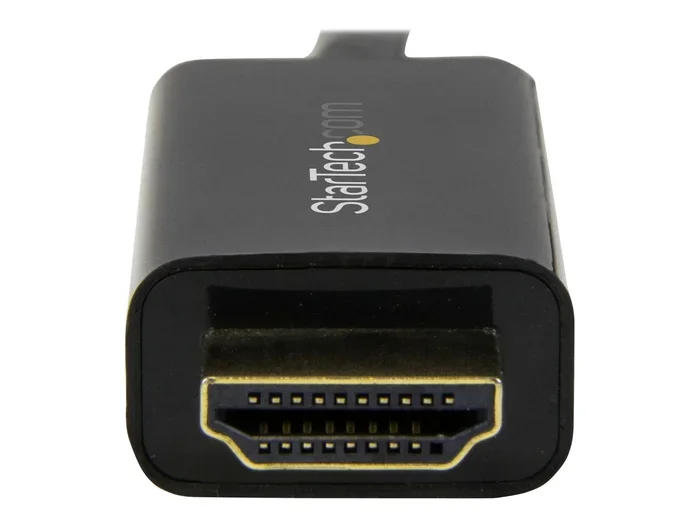
The most basic option is a DisplayPort to HDMI cable with the connector built into one end. These are compact and easy to use. You plug the DisplayPort end into your PC and the HDMI end into your monitor. That is it. They work great for basic setups where you need a quick and clean connection.
These cables usually support up to 4K resolution at 60Hz. They are affordable and widely available. However, they do not offer extra ports or features. If you need multiple connections or power delivery, a simple cable will not cut it.
DisplayPort to HDMI Adapters (Dongle Style)
A dongle-style adapter is a small box that plugs directly into your DisplayPort output. It has an HDMI female port on the other end where you connect your cable. These adapters are slightly bulkier than cables but offer better signal processing.
Most dongle adapters support audio pass-through, which means your sound travels along with the video signal. This is great for connecting to TVs and soundbars. Look for adapters that support resolution compatibility up to 4K or higher for the best experience.
USB-C to HDMI Adapters with DisplayPort Alt Mode
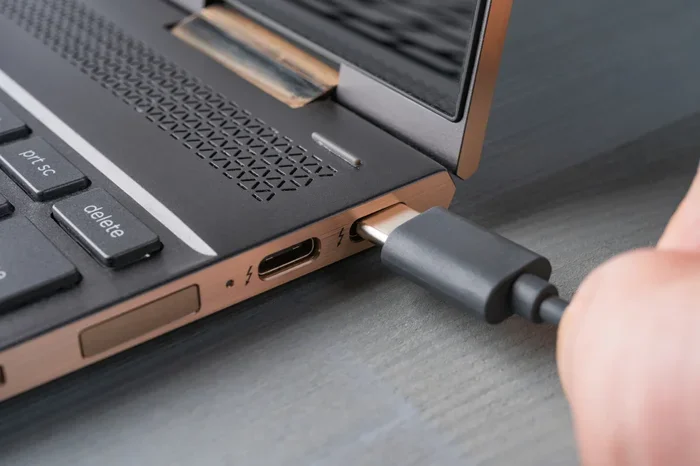
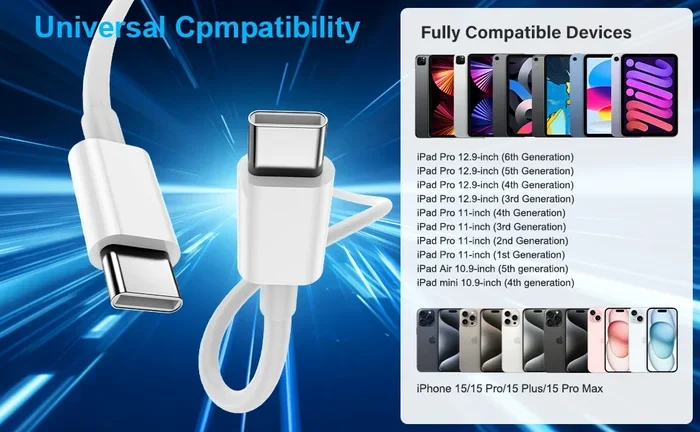
Many modern laptops and tablets use USB-C ports that support DisplayPort Alt Mode. This means you can use a USB-C to HDMI adapter to achieve the same result. The adapter reads the DisplayPort signal from the USB-C port and converts it to HDMI.
This is a popular choice for professionals who travel. You only need to carry one adapter instead of multiple cables. Just make sure your laptop supports DisplayPort Alt Mode before purchasing this type of adapter.
Docking Stations with DisplayPort to HDMI Conversion
If you need more than just a simple connection, a docking station is the way to go. A docking station provides multiple ports including HDMI output, USB ports, Ethernet, and power delivery. It is essentially a hub that expands your laptop or PC connectivity.
Docking stations are ideal for office setups where you connect to a monitor, keyboard, mouse, and other peripherals at once. They handle display connectivity seamlessly and often support higher refresh rates and HDR content.
Step-by-Step Guide to Converting DisplayPort to HDMI
Ready to set up your conversion? Here is a simple walkthrough that works for most setups. Follow these steps and you will have your display connected in minutes.
Step 1: Check Your Ports
First, look at the back of your computer or graphics card. Identify the DisplayPort output. Then check your monitor or TV for an HDMI input. Make sure both ports are available and accessible. If your PC has a DisplayPort output and your display has an HDMI input, you are in good shape.
Step 2: Choose the Right Adapter
Based on your needs, pick the right type of adapter. For a simple setup, a basic adapter cable works well. If you need extra ports, consider a docking station. Remember to check whether you need an active or passive adapter based on your graphics card brand.
Step 3: Connect the Adapter
Plug the DisplayPort end of the adapter into your PC or graphics card. You should feel a secure click when it seats properly. Then connect an HDMI cable from the adapter to your monitor or TV.
Step 4: Power On and Configure
Turn on both your computer and display. Windows and macOS should automatically detect the new display. If the screen does not appear right away, try pressing the Windows key plus P to open the display projection menu. Select Duplicate or Extend as needed.
Step 5: Adjust Display Settings
Go to your display settings to fine-tune the output. You can adjust resolution, refresh rate, and scaling here. For the best 4K display experience, make sure your adapter supports the resolution you want. Most modern adapters handle 4K at 60Hz without any issues.
Common Problems and How to Fix Them
Even with the right adapter, you might run into issues. Here are the most common problems people face when converting DisplayPort output to HDMI, along with practical fixes.
No Signal on the Display
This is the most common issue. If your monitor shows no signal, try these steps:
- Unplug the adapter and plug it back in firmly.
- Try a different HDMI cable to rule out a faulty cable.
- Check that your graphics card drivers are up to date.
- If using a passive adapter with an Nvidia GPU, switch to an active adapter instead.
Sometimes the issue is as simple as a loose connection. A firm reseat of the adapter often fixes the problem immediately.
No Audio Through HDMI
Video works but there is no sound? This happens when the system defaults to the wrong audio output device. To fix this:
- Right-click the speaker icon in your taskbar.
- Select Open Sound Settings.
- Change the output device to your HDMI display.
- The audio should now play through your monitor or TV speakers.
Most adapters support audio support out of the box. If audio still does not work, try unplugging and replugging the adapter to force the system to re-detect the audio device.
Low Resolution or Flickering Screen
If your display shows a low resolution or flickers, your adapter might not support the full resolution of your monitor. Check the adapter specifications for maximum supported resolution and refresh rate. Upgrading to a higher-quality adapter usually resolves this issue. Also, make sure your HDMI cable supports the bandwidth needed for your desired resolution.
HDR Content Does Not Display Properly
HDR support depends on both your adapter and your display. Not all adapters pass through HDR metadata correctly. If HDR content looks washed out or dim, check your display settings and ensure your adapter supports HDR passthrough. Premium adapters from reputable brands tend to handle HDR better than budget options.
Comparison Table: Active vs Passive Adapters
| Feature | Passive Adapter | Active Adapter |
|---|---|---|
| Price | Low ($5-$15) | Moderate ($15-$40) |
| Internal Chip | No | Yes |
| Nvidia GPU Compatible | No | Yes |
| AMD GPU Compatible | Yes | Yes |
| Audio Support | Yes | Yes |
| Max Resolution | 4K at 60Hz | 4K at 60Hz or higher |
| Best For | Simple AMD/Intel setups | Nvidia GPUs and complex setups |
As you can see, each type has its strengths. For most users with AMD or Intel graphics, a passive adapter works perfectly. Nvidia users should go with an active adapter to avoid compatibility headaches. Either way, both options deliver reliable video signal conversion for everyday use.
Best Adapters and Converters for the Job
When it comes to picking a product, quality matters. Here are some tips for choosing the best converter device for your needs.
Look for Brand Reputation
Stick with well-known brands like Cable Matters, StarTech, UGREEN, and Sabrent. These companies test their products thoroughly and offer solid warranties. A reputable brand ensures better signal quality and longer product life.
Check Resolution and Refresh Rate Support
Before buying, verify that the adapter supports your desired resolution and refresh rate. If you have a 4K monitor at 144Hz, you need an adapter that can handle that bandwidth. Budget adapters often cap out at 4K 60Hz, which is fine for most users but not ideal for gamers.
Consider Your Setup Needs
Think about what else you need from the adapter. Do you want a simple cable or a full docking station? If you work in an office, a docking station with multiple ports gives you the most flexibility. For a home theater setup, a simple adapter cable with audio support is all you need.
Read Reviews Before Buying
Always check user reviews before purchasing. Look for feedback on reliability, ease of use, and whether the adapter works with specific GPU models. Real-world reviews give you insights that product descriptions cannot.
Why DisplayPort to HDMI Conversion Matters for Your Setup
The ability to convert between DisplayPort and HDMI gives you flexibility. You are not locked into one ecosystem or one type of display. Whether you are building a gaming rig, setting up a home office, or creating a media center, the right cable connection makes all the difference.
Modern adapters also support advanced features like HDR support and high refresh rates. This means you do not have to sacrifice quality when converting between formats. A good adapter preserves the full visual fidelity of your content, from vibrant colors to smooth motion.
As display technology continues to evolve, conversion tools are keeping pace. New adapters support 8K resolution and higher refresh rates. Even if your current setup does not need these features today, investing in a quality adapter future-proofs your monitor setup.
One more thing worth mentioning is the role of display connectivity standards in the broader tech ecosystem. DisplayPort and HDMI each have their strengths. DisplayPort offers higher bandwidth and features like daisy-chaining multiple monitors. HDMI is more universally supported across consumer devices like TVs, projectors, and game consoles. Having the ability to convert between them means you get the best of both worlds.
The adapter compatibility landscape has improved dramatically. Five years ago, finding a reliable DisplayPort to HDMI adapter was a challenge. Today, you can pick up a quality adapter for under $20 and have it working in minutes. The market has matured, and consumers benefit from better products at lower prices.
For professionals who rely on multiple displays, conversion tools are essential. A docking station with DisplayPort to HDMI conversion lets you connect several monitors to a single laptop. This setup boosts productivity and makes it easy to switch between work and play without unplugging cables.
Gamers also benefit from proper conversion. A high-quality converter device ensures you get the full frame rate and visual quality your GPU delivers. Cheap adapters can bottleneck your performance by limiting resolution or refresh rate. Investing in a good adapter protects your gaming experience.
In summary, converting DisplayPort to HDMI is a simple process that opens up a world of display options. Whether you are using a passive adapter for a basic setup or a premium docking station for a professional environment, the right tool makes the job easy and reliable.
Final Thoughts on Converting DisplayPort to HDMI
So, can you convert DisplayPort to HDMI without any hassle? Absolutely yes. The process is simple, affordable, and well supported by modern hardware. You just need the right adapter or converter, a few minutes of your time, and a basic understanding of what your setup requires.
Start by identifying your ports and checking your graphics card compatibility. Choose between a passive or active adapter based on your GPU brand. Pick the form factor that fits your needs, whether that is a simple cable, a dongle adapter, or a full docking station. Connect everything, configure your display settings, and enjoy your new setup.
The key takeaway is that there is no single best solution for everyone. Your ideal adapter depends on your specific hardware, your resolution needs, and your budget. But with the information in this guide, you are now equipped to make the right choice confidently. Converting DisplayPort to HDMI does not have to be complicated. It can be quick, easy, and completely hassle-free.
Take action today. Check your current setup, find the right adapter, and enjoy a seamless display experience. You will wonder why you did not do it sooner.
Frequently Asked Questions
Can You Convert Displayport To Hdmi With a Simple Cable?
Yes, you can use a simple DisplayPort to HDMI cable for basic conversions. These cables have the DisplayPort connector on one end and the HDMI connector on the other. They work well for most setups, especially when your graphics card supports passive conversion. Just make sure the cable supports your desired resolution and refresh rate.
Do I Need an Active or Passive Adapter for Nvidia Graphics Cards?
Nvidia graphics cards typically require an active adapter for DisplayPort to HDMI conversion. Nvidia GPUs do not support passive conversion over HDMI in most cases. Using a passive adapter with an Nvidia GPU will usually result in no signal or a black screen. Always check your GPU specifications before purchasing.
Does Converting DisplayPort to HDMI Affect Audio Quality?
No, most modern adapters carry audio along with the video signal without any loss in quality. The audio is embedded in the DisplayPort signal and gets passed through to the HDMI output. You just need to make sure your system is set to use the HDMI audio output device in your sound settings.
Can I Use a DisplayPort to HDMI Adapter for 4K Gaming?
Yes, you can use a DisplayPort to HDMI adapter for 4K gaming, but you need the right adapter. Look for an adapter that supports 4K resolution at your target refresh rate, such as 4K at 60Hz or 120Hz. Premium adapters with better signal processing deliver the best gaming experience without frame drops or resolution limitations.
Are USB-C to HDMI Adapters the Same as DisplayPort to HDMI Adapters?
Not exactly. USB-C to HDMI adapters use a technology called DisplayPort Alt Mode, which is different from a native DisplayPort connection. They can achieve similar results but depend on your device supporting USB-C Alt Mode. Not all USB-C ports support video output, so always check your device specifications before buying.
How Do I Know if My Adapter Supports HDR?
Check the adapter specifications for HDR support or HDR passthrough. Premium adapters from reputable brands usually mention HDR compatibility in their product details. If the adapter does not list HDR support, it likely will not pass through HDR metadata correctly, and your HDR content may look less vibrant than expected.