Can You Piggyback Hdmi Cables Everything You Should Know
Can You Piggyback HDMI Cables? The short answer is yes, but with important caveats. You can join two HDMI cables using a coupler, but signal loss may degrade quality, especially for 4K and 8K. This guide explains how to extend your setup safely with active extenders, proper cable management, and the right accessories. Piggybacking HDMI cables the wrong way can cause flickering, no signal, or audio dropouts.
If you have ever asked yourself, Can You Piggyback HDMI Cables, you are not alone. Many people need to extend an HDMI connection but only have two shorter cables. The idea of joining them seems simple, but the answer is more nuanced than a yes or no. Piggybacking HDMI cables can work, but the method you choose determines whether you get a clear picture or a frustrating signal dropout.
HDMI cables carry high-bandwidth audio and video signals. When you daisy-chain two cables together, you introduce potential weak points. A passive coupler might work for a short jump, but longer runs often need an active HDMI extender. This guide walks you through everything you should know about connecting multiple HDMI cables, from basic couplers to fiber optic solutions. I will share practical tips, common mistakes, and expert insights so you can set up your home theater or office display with confidence.
By the end, you will know exactly how to extend your HDMI setup safely. You will understand the difference between a passive coupler and an active repeater. You will also learn how to avoid signal loss, latency, and interference. Let us dive in and explore the world of piggybacking HDMI cables.
Key Takeaways
- Point 1: You can physically connect two HDMI cables with a coupler, but it is not always reliable for long runs.
- Point 2: Passive couplers work for short extensions, while active extenders are essential for distances over 25 feet.
- Point 3: Signal loss and resolution drop are real risks when piggybacking cables, especially for 4K and 8K content.
- Point 4: HDMI over Ethernet or fiber optic cables offer the best long-distance solutions without quality loss.
- Point 5: Always check your cable version (HDMI 2.0/2.1) and bandwidth needs before extending.
- Point 6: Avoid running HDMI cables alongside power cords to prevent interference and audio sync issues.
📑 Table of Contents
What Does It Mean to Piggyback HDMI Cables?
Piggybacking an HDMI cable means connecting two cables end-to-end to create a longer run. People do this because they have a short cable and a longer one, or because the device is far from the TV. You might also hear terms like HDMI coupler, HDMI extender, or daisy chain. All of these relate to extending the distance between a source device and a display.
How HDMI Signals Travel
HDMI uses a digital protocol called TMDS (Transition Minimized Differential Signaling). The signal travels as tiny electrical pulses. These pulses carry uncompressed audio and video data. The longer the cable, the more the signal can degrade. HDMI 2.0 supports up to 18 Gbps, while HDMI 2.1 supports up to 48 Gbps. Higher bandwidth means more data, but also more vulnerability to loss over distance.
Why People Want to Extend HDMI Cables
Common reasons include wall-mounted TVs, projector setups, and conference rooms. You might have a Blu-ray player on one side of the room and a TV on the other. A single 30-foot HDMI cable can be expensive and stiff. So you look for a way to join two shorter cables. That is where the idea of piggybacking comes in. You want to keep the audio video quality high without buying a new long cable.
Quick Tips: When You Need to Extend
- Measure the total distance first. Buy the shortest cables you can.
- Check if your devices support HDMI Ethernet Channel. This can simplify wiring.
- Always use cables with gold-plated connectors to prevent corrosion and ensure a snug fit.
- Keep the combined cable length under 50 feet for passive setups.
Can You Simply Connect Two HDMI Cables Together?
The most direct way to piggyback HDMI cables is with a passive HDMI coupler. A coupler is a small adapter with two female HDMI ports. You plug one cable into each side. It looks like a simple bridge. But simple does not always mean reliable.
Using a Passive HDMI Coupler
A passive coupler does not amplify the signal. It just connects the wires. If you join two 10-foot cables, you get a 20-foot cable. For a quick, temporary setup, this can work. You might see no problems at 720p or 1080p. But when you push higher resolutions, the signal weakens. The cable gauge matters too. Thinner cables have more resistance, which increases signal loss.
The Risks of Daisy-Chaining Passive Cables
Daisy-chaining means linking multiple cables in a row. Each connection point adds a tiny amount of resistance. It also creates a spot where the signal can bounce and reflect. Over time, this leads to resolution degradation. You might notice sparkles, flickering, or a blank screen. Audio sync can drift, causing lip-sync issues. Latency may increase, which is bad for gaming or live presentations.
| Feature | Passive HDMI Coupler | Active HDMI Extender |
|---|---|---|
| Signal Amplification | None | Yes, boosts signal |
| Max Reliable Length | Under 15 feet total | Up to 100+ feet |
| 4K Support | Risky beyond 10 ft | Full 4K and 8K support |
| Power Required | No | Yes (USB or AC) |
| Cost | Low ($5–$15) | Moderate ($30–$100+) |
| Ease of Use | Plug and play | Requires setup |
Common Mistakes When Piggybacking HDMI Cables
- Using a cheap coupler: Poorly made couplers have loose contacts. This increases resistance and drops the signal.
- Exceeding recommended length: Even with a good coupler, 50 feet of passive cable will fail for 4K.
- Mixing cable versions: An HDMI 1.4 cable with an HDMI 2.1 cable can bottleneck your bandwidth.
- Ignoring cable gauge: Thin 28AWG cables lose signal faster than thicker 24AWG cables.
Active Solutions for Extending HDMI
When a passive coupler is not enough, you turn to active solutions. Active devices regenerate the HDMI signal, keeping it strong over long cable runs. These are the true way to piggyback HDMI cables for serious distances.
HDMI Over Cat5/6 Extenders
An HDMI extender over Cat5/6 cable is a popular choice. You connect a sender unit to your source device with a short HDMI cable. Then you run a Cat5e or Cat6 Ethernet cable up to 300 feet. At the other end, a receiver unit connects to your TV with another short HDMI cable. These extenders convert the HDMI signal to a format that travels over Ethernet and then back again. They often include an IR blaster so you can control the source device from the TV.
Active extenders are great for conference rooms and auditoriums. They also solve the problem of running a rigid HDMI cable through walls. The Cat5 cable is flexible and cheap. You can even use existing Ethernet wiring in a building.
Fiber Optic HDMI Cables
Fiber optic HDMI cables use light to transmit data. They are the gold standard for long-distance HDMI. A single fiber optic HDMI cable can run 100 feet or more without any signal loss. You do not need a separate extender box. The cable itself contains active electronics at the ends. These cables support HDMI 2.1 bandwidth, so 8K and 4K at 120Hz are possible.
However, fiber optic cables are more expensive and fragile than copper. They also require careful handling of the connectors. If you bend them too sharply, the internal fibers can break. For permanent installations, they are the best choice.
HDMI Repeaters and Boosters
An HDMI repeater sits inline between two cables. It receives the signal, cleans it up, and retransmits it at full strength. A repeater is different from a coupler because it actively boosts the signal. You can daisy-chain repeaters to extend a run even further. Some repeaters also act as an HDMI switch, letting you connect multiple sources.
Expert Insight: When to Choose an Active Extender
“If your total HDMI run exceeds 25 feet, a passive coupler will likely cause problems. An active extender or a fiber optic cable is the only way to maintain 4K resolution and zero latency.” – AV Installation Specialist
Quick Tips for Active Extensions
- Always check the extender’s bandwidth rating. It must support HDMI 2.0 or 2.1 for 4K/8K.
- Use Cat6 cables for Ethernet extenders to reduce interference.
- Place the extender in a well-ventilated area. They can get warm during long use.
- Test the setup with a short cable first before running long cables through walls.
Piggybacking HDMI Cables with Splitters and Switches
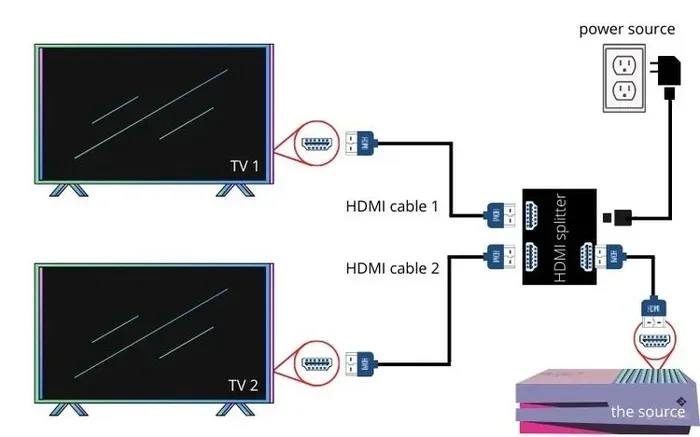
Sometimes you do not just want to extend a cable, but to split or switch signals. An HDMI splitter duplicates a source to multiple displays. An HDMI switch lets you connect several devices to one TV input. These are different from a simple coupler, but they are part of the piggybacking family.
HDMI Splitters vs. Couplers
A coupler joins two cables to make one longer cable. A splitter takes one input and sends the same signal to two or more TVs. You cannot use a splitter to extend a cable. But you can use a splitter with long cables going to each display. This is a common setup in digital signage or sports bars.
When you piggyback cables to a splitter, you must consider the splitter’s bandwidth. A cheap 1080p splitter will not pass 4K signals. Look for splitters that are rated for the resolution you need. Also, some splitters require an external power supply. This is another form of active extension.
When You Need an HDMI Switch
An HDMI switch solves the problem of too few TV inputs. You connect multiple game consoles, streaming boxes, and Blu-ray players to the switch. Then you use one HDMI cable from the switch to the TV. If your TV is far away, you can piggyback that single cable with an extender. This keeps cable runs tidy and avoids cable clutter on the floor.
| Device | Purpose | Signal Direction | Power Needed |
|---|---|---|---|
| HDMI Coupler | Join two cables | One-way, passive | No |
| HDMI Splitter | Copy signal to multiple TVs | One input to many outputs | Often yes |
| HDMI Switch | Connect many devices to one TV | Many inputs to one output | Sometimes |
| HDMI Extender | Increase cable length | One input to one output | Yes |
Common Mistakes with Splitters and Switches
- Buying an unrated splitter: A splitter that says “4K” but only supports 30Hz will cause motion blur.
- Daisy-chaining splitters: Never connect the output of one splitter into another. This will kill the signal.
- Ignoring EDID handshake: Switches and splitters must properly communicate with source devices. Cheap models often fail here.
Signal Loss and Quality Degradation
Signal loss is the biggest enemy when you piggyback HDMI cables. Understanding how it happens helps you prevent it. Digital signals are supposed to be perfect or nothing, but in practice, they degrade gradually.
How Length Affects 4K and 8K Signals
Every meter of copper cable adds resistance and capacitance. For 4K resolution at 60Hz, you need at least 18 Gbps of bandwidth. HDMI 2.0 cables can handle this, but only up to a certain length. Beyond 15 feet, the signal starts to weaken. For 8K or 4K at 120Hz (HDMI 2.1), the limit drops to around 10 feet for passive copper cables. This is why active extenders and fiber optics are so important for high-resolution content.
Cable gauge also plays a role. A 24AWG cable is thicker and carries signal better than a 28AWG cable. If you are piggybacking cables, check the gauge of both. Mixing a thick cable with a thin one can create a bottleneck at the thinner section.
Latency and Audio Sync Issues
Latency is the delay between pressing a button and seeing the action on screen. In a passive coupler setup, latency is usually negligible. But with active extenders that convert signals, latency can increase. For gaming, this matters. For movie watching, it is less noticeable. Audio sync problems often show up as the voice not matching the lips. This happens when the audio and video travel different paths or get delayed differently.
Key Takeaways on Signal Quality
- Keep total passive length under 15 feet for reliable 4K.
- Use 24AWG or thicker cables for any piggybacked run.
- Test with a short cable first before committing to a long run.
- Choose an extender with low latency if you game or do live presentations.
Best Practices for Connecting Multiple HDMI Cables
Now that you understand the options, here is a step-by-step approach to piggybacking HDMI cables the right way. Following these best practices will save you from frustration and wasted money.
Step-by-Step Guide to a Reliable Extension
- Measure the total distance. Know exactly how far the signal must travel.
- Choose your method. For under 15 feet, a passive coupler may work. For longer runs, use an active extender or fiber cable.
- Buy quality cables. Look for High Speed HDMI or Premium High Speed HDMI certification. These cables are tested for bandwidth.
- Use the right coupler or extender. Ensure the coupler supports the HDMI version you need. An HDMI 2.1 extender is necessary for 8K.
- Manage your cables. Use cable ties or raceways. Avoid sharp bends. Keep HDMI cables away from power cords to reduce interference.
- Test before you install. Power on all devices and check for a stable picture and sound. Watch for flickering or audio dropouts.
Quick Tips for Reliable HDMI Extensions
- Always use the shortest possible total cable length. Every extra foot adds risk.
- Choose cables with braided nylon shielding. This reduces electromagnetic interference.
- Label both ends of your cables. It makes troubleshooting much easier later.
- Keep a spare coupler and a short cable in your setup bag. You never know when you will need a quick fix.
- For permanent wall runs, use in-wall rated cables. Standard cables can overheat inside walls.
Common Mistakes to Avoid
- Daisy-chaining more than two cables: Three or more connections multiply the signal loss. Keep it to two cables maximum with a coupler.
- Using old HDMI 1.4 cables for 4K: HDMI 1.4 can only handle 4K at 30Hz. You need HDMI 2.0 for smooth 4K.
- Ignoring the Ethernet channel: Some HDMI cables have an Ethernet wire. If you use an extender, you can share your internet connection without a extra Ethernet cable.
- Not testing before the install: Always test the complete setup on a table before you run cables through conduits or walls.
Expert Insight: Cable Management Matters
“A clean cable run is not just about looks. Proper cable management reduces strain on connectors and prevents accidental disconnects. Use velcro straps instead of zip ties, and never force a cable around a sharp corner.” – Professional AV Installer
Conclusion
Can You Piggyback HDMI Cables? Yes, you can, but you must choose the right method for your needs. A passive coupler works for short, temporary jumps. For any serious distance or high-resolution content, an active HDMI extender or a fiber optic cable is the way to go. Understanding signal loss, cable gauge, and bandwidth requirements will protect your viewing experience.
Take the time to plan your setup. Measure your distances, buy certified cables, and test before you commit. Whether you are setting up a home theater, a gaming room, or a business conference display, the right extension method makes all the difference. Follow the best practices in this guide, and you will enjoy a strong, clear audio video signal every time. Apply these tips today and say goodbye to flickering screens and frustrating dropouts.
Frequently Asked Questions
Can you connect two HDMI cables together directly?
Yes, you can use a passive HDMI coupler to join two cables end-to-end. However, this works best for short runs under 15 feet. For longer distances or 4K/8K content, a passive coupler often causes signal loss and flickering.
Does a coupler reduce HDMI quality?
A coupler itself does not reduce quality if the total cable length remains short and the cables are high quality. But each connection adds a small amount of resistance. Over longer combined lengths, this can lead to resolution degradation and audio sync issues.
How long can an HDMI cable be before signal loss?
For passive copper HDMI cables, signal loss becomes a problem around 15 to 25 feet for 1080p. For 4K, the safe limit is often under 10 to 15 feet. Active extenders and fiber optic cables can push these limits to 100 feet or more without quality loss.
Can you piggyback HDMI cables for 4K?
You can piggyback HDMI cables for 4K, but only if the total length is short and you use High Speed HDMI cables rated for 18 Gbps. For longer 4K runs, use an active HDMI extender or a fiber optic HDMI cable to maintain full bandwidth and 60Hz refresh rates.
What is the best way to extend HDMI?
The best way depends on distance. For under 15 feet, a passive coupler works. For 25 to 100 feet, an HDMI over Cat5/6 extender is ideal. For runs over 100 feet or for 8K, a fiber optic HDMI cable provides the most reliable, loss-free extension.
Do HDMI extenders need power?
Yes, active HDMI extenders and repeaters need power. They usually draw power from a USB port or a small AC adapter. This power is used to amplify and regenerate the HDMI signal so it stays strong over long cable runs.