Can You Power A Ssd From A Usb Port And Make It Work
Yes, you can power an SSD from a USB port in many cases, but it depends on the SSD type, USB version, and power delivery limits. USB 3.0 and USB-C ports often provide enough wattage for 2.5-inch SSDs, while NVMe drives may need extra help. This guide walks you through every scenario so you can make your external SSD work without frustration or guesswork.
Have you ever plugged an SSD into a USB port and wondered if it would actually work? The short answer is yes, in most cases. But the full story has some important details you need to know before you plug in and hope for the best.
Powering an SSD from a USB port is something more people are asking about every day. Portable SSDs have gotten incredibly popular. They offer fast speeds, small sizes, and no need for a wall outlet. But the real question is whether your laptop, desktop, or tablet can deliver enough juice through that little USB connector.
In this guide, we will break down everything you need to know. We will cover USB power limits, different SSD types, what cables you need, and how to troubleshoot when things go wrong. By the end, you will feel confident about using your SSD over USB without any guesswork.
Key Takeaways
- USB ports can power SSDs: Most 2.5-inch SSDs draw under 2 watts, which standard USB 3.0 ports easily supply.
- USB-C with Power Delivery is ideal: It can deliver up to 100 watts, covering even power-hungry external NVMe enclosures.
- Check your SSD wattage: Not all SSDs need the same amount of power. Always verify before connecting.
- Y-cable and hub solutions work: If one USB port lacks power, a dual-USB cable or powered hub can fill the gap.
- OS compatibility matters: Your operating system must recognize the drive, so check driver and format support first.
- Avoid cheap unpowered hubs: They often fail to deliver stable power and can cause data loss.
📑 Table of Contents
How USB Ports Deliver Power
Before we talk about SSDs, it helps to understand what a USB port can actually deliver. Every USB standard has a power budget. This budget determines how much electricity your port can send to a connected device.
USB 2.0 Power Output
USB 2.0 is the oldest common standard. It provides up to 500 milliamps at 5 volts. That equals about 2.5 watts total. Most modern SSDs need more than this. So if you try to run a 2.5-inch SSD on USB 2.0 alone, you will likely run into problems. The drive may not mount, or it could disconnect randomly during use.
USB 3.0 and USB 3.1 Power Output
USB 3.0 raised the bar significantly. It can deliver 900 milliamps at 5 volts. That gives you about 4.5 watts. This is enough for most 2.5-inch SATA SSDs. These drives typically draw between 1 and 2 watts during normal use. So USB 3.0 handles them with room to spare.
USB-C and USB Power Delivery
USB-C is a game changer. It supports USB Power Delivery, which can push up to 100 watts. That is plenty for even the most demanding external NVMe enclosures. If your device has a USB-C port, you are in great shape for powering an SSD directly.
| USB Standard | Voltage | Max Current | Max Power | SSD Compatibility |
|---|---|---|---|---|
| USB 2.0 | 5V | 500mA | 2.5W | Too low for most SSDs |
| USB 3.0 | 5V | 900mA | 4.5W | Works with 2.5-inch SATA SSDs |
| USB 3.1 Gen 2 | 5V | 900mA | 4.5W | Works with 2.5-inch SATA SSDs |
| USB-C with PD | 5V–20V | Up to 5A | Up to 100W | Works with all SSD types |
Can A USB Port Power An SSD And Make It Work
The real question is whether your specific setup will work. The answer depends on three things. First, what kind of SSD you have. Second, which USB port you use. Third, whether you need any extra cables or adapters.
2.5-Inch SATA SSDs Over USB
These are the most common portable SSDs. Brands like Samsung T7, Crucial X8, and SanDisk Extreme fall into this category. They use a 2.5-inch SATA drive inside a small enclosure with a USB connector. These enclosures usually need between 1.5 and 2.5 watts. A standard USB 3.0 port can handle this easily.
You just plug the drive in, and it should show up on your computer. No extra power cable needed. This is why most people use these drives for portable backups and file transfers on the go.
M.2 NVMe SSDs Over USB
NVMe drives are faster but can be pickier about power. An M.2 NVMe SSD itself uses very little power, usually around 1 to 3 watts. But when you put it inside an external enclosure, the enclosure adds a small power draw too. Good enclosures manage this well. Cheap ones sometimes struggle.
If you buy an external NVMe enclosure with its own power chip, a single USB-C port will almost always work. But if the enclosure is poorly designed, you might need to plug into two USB ports for extra power. We will talk more about that below.
When USB Power Is Not Enough
Sometimes a USB port simply cannot provide enough power. This usually happens with USB 2.0 ports or when using long cables that lose voltage. You might notice the SSD clicks, disconnects, or shows an error message. In these cases, you need a workaround.
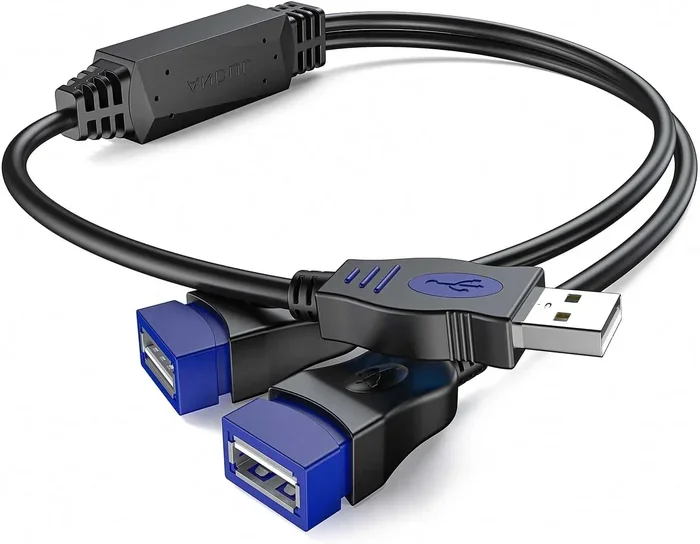
One common fix is a Y-cable. This cable plugs into two USB ports at once and combines their power. Another option is a powered USB hub. The hub plugs into the wall and gives your SSD a stable power source. Both solutions work well.
It is also worth noting that your operating system plays a role here. Some systems handle USB storage better than others. If you are using a proprietary operating system, check whether it supports external USB mass storage devices natively. Some systems need extra drivers or configuration steps to recognize a USB-connected SSD properly.
Types Of SSDs And Their Power Needs
Not all SSDs are the same when it comes to electricity. Understanding your drive’s power needs helps you choose the right setup.
SATA SSDs
SATA SSDs are the older but still very reliable type. They use the same connector as traditional hard drives. These drives draw about 1.5 to 2 watts during normal operation. A single USB 3.0 port can power them without any issues. They are the go-to choice for most portable storage solutions.
NVMe SSDs
NVMe drives use the PCIe bus and are much faster than SATA. They also tend to use slightly more power under heavy load. A typical NVMe drive draws about 2 to 4 watts during intensive tasks. Most USB-C enclosures handle this fine. But if you are doing large file transfers for hours, keep an eye on heat and power stability.
External SSD Enclosures
The enclosure matters a lot. A good enclosure has its own power management chip. It regulates the power going to the SSD. This keeps your drive safe and stable. A bad enclosure might not regulate power properly, which can lead to disconnects or even data corruption over time.
When choosing an enclosure, look for one that supports USB Power Delivery if you are using USB-C. This ensures your SSD gets a steady and reliable power supply. Think of it like a surge protector for your data.
How To Make An SSD Work From A USB Port
Now that you understand the power side, let us talk about the practical steps to get your SSD working over USB.
Step 1: Check Your USB Port Version
Look at your computer or laptop. Is the port USB 2.0, USB 3.0, or USB-C? USB 3.0 and USB-C are your best friends for SSD use. USB 2.0 will likely cause problems. If you only have USB 2.0, consider getting a USB 3.0 adapter or dock.
Step 2: Use The Right Cable
Not all USB cables are created equal. Some cables carry data only. Others carry both data and power. For SSDs, always use the cable that came with the drive or a high-quality USB 3.0 or USB-C cable. A cheap or damaged cable can cause power drops and disconnects.
If your drive came with a Y-cable, use it. Even if your single USB port seems to work, the Y-cable provides a safety net. It ensures the drive gets stable power at all times.
Step 3: Format The Drive Correctly
Before you can use your SSD, it needs to be formatted. Most computers support common formats like exFAT and NTFS. If you plan to use the drive on both Windows and Mac, choose exFAT. It works on both systems without any extra steps.
Some users run into issues when the drive uses a format their system does not recognize. This is not a power problem. It is a format problem. So always double-check your format before blaming the USB port.
Step 4: Install Drivers If Needed
Most modern operating systems recognize USB SSDs automatically. But some systems, especially those running a proprietary operating system, might need a manual driver install. Check the manufacturer’s website for support files. This step is quick and can save you hours of troubleshooting.
Step 5: Test With A Powered Hub If Needed
If your SSD keeps disconnecting or showing errors, try a powered USB hub. A powered hub has its own power supply. It takes the load off your computer’s USB port. This is especially helpful for NVMe enclosures that draw more power during heavy use.
Common Problems And How To Fix Them
Even with the right setup, things can go wrong. Here are the most common issues and their solutions.
SSD Not Showing Up
This is the most common complaint. Usually, it happens because of one of these reasons:
- The USB port does not provide enough power
- The cable is damaged or data-only
- The drive is not formatted for your system
- A driver is missing or outdated
Start by trying a different USB port. Then try a different cable. If neither works, check the format and drivers. This step-by-step approach solves the problem 90 percent of the time.
SSD Disconnects During Use
Random disconnects usually point to a power issue. Your USB port might be cutting out because the drive needs more power than it is getting. Try a Y-cable or a powered hub. Also, avoid using long extension cables. They drop voltage and cause instability.
Slow Transfer Speeds
If your SSD is slow over USB, the problem might be the port version. USB 2.0 caps your speed at about 28 megabytes per second. USB 3.0 gives you up to 400 megabytes per second. USB 3.1 Gen 2 and USB 4 can go even faster. Always match your port speed to your SSD’s capability.
Another hidden cause of slow speeds is the data transfer protocol. The way your device communicates over the USB connection can bottleneck performance. In some setups, especially those involving networked or shared storage, the underlying communication architecture can limit throughput. Understanding how different communication networks handle data flow can help you diagnose these bottlenecks and choose the right setup for your needs.
Quick Tips For Best Results
- Always use USB 3.0 or higher for SSD connections. USB 2.0 is too slow and often lacks enough power.
- Keep your SSD cool. Hot drives slow down and can disconnect. Use an enclosure with a heat sink if you work for long hours.
- Eject the drive properly. Always use the safe remove function before unplugging. This protects your data from corruption.
- Buy quality cables. A good USB-C cable costs a few dollars more but delivers stable power and faster speeds.
- Check your SSD’s wattage before buying. Match it to your USB port’s power budget.
- Keep firmware updated. SSD manufacturers release firmware updates that fix bugs and improve compatibility.
Expert Insights On USB-Powered SSDs
The portable storage market has changed dramatically in the last five years. SSDs have gotten faster, smaller, and more efficient. Most modern drives are designed to run entirely off USB power. This was not always the case.
Early external SSDs often needed separate power adapters. Today, the trend has shifted toward bus-powered designs. This means the SSD gets all its power from the USB connection. It makes the drives more portable and convenient. You do not need to carry a power brick everywhere.
Industry experts agree that USB-C with Power Delivery is the future of portable storage. It provides enough power for any SSD type and supports fast data transfer in a single cable. If you are buying a new external SSD or enclosure, look for USB-C support. It will future-proof your setup.
One thing to keep in mind is that not all USB ports on your computer are equal. Many laptops have a mix of USB 2.0, USB 3.0, and USB-C ports. The USB 2.0 ports are usually blue or black inside. The USB 3.0 ports are often blue or red. The USB-C ports are oval-shaped. Always check which port you are using before you blame the SSD.
Key Takeaways
- USB ports can power most SSDs: USB 3.0 and USB-C ports provide enough wattage for 2.5-inch SATA and NVMe SSDs in enclosures.
- Check power requirements first: Know your SSD’s wattage and compare it to your USB port’s power budget to avoid issues.
- Use the right cable and port: A quality USB 3.0 or USB-C cable makes a big difference in stability and speed.
- Y-cables and powered hubs solve power problems: If one port is not enough, these tools provide the extra juice your SSD needs.
- Format and drivers matter: A properly formatted drive with the right drivers will work smoothly across different systems.
- Troubleshoot step by step: Try a new port, then a new cable, then a hub before assuming the SSD is defective.
Frequently Asked Questions
Can I Power A 2.5 Inch Ssd From A Single USB 3.0 Port?
Yes, you can. A 2.5-inch SATA SSD typically draws about 1.5 to 2 watts. A USB 3.0 port delivers up to 4.5 watts. That is more than enough to run the drive. You do not need any extra cables or power sources. Just plug it in and it should work.
What Happens If The USB Port Does Not Provide Enough Power?
The SSD may not mount or may disconnect randomly during use. You might see error messages or hear clicking sounds. The fix is usually simple. Try a Y-cable that draws power from two USB ports, or use a powered USB hub. These solutions provide the extra wattage your drive needs.
Do I Need A Special Cable To Power An Ssd From USB?
Most SSDs come with the cable you need. But if you are using a bare M.2 NVMe drive in an enclosure, make sure the enclosure supports USB-C with Power Delivery. For 2.5-inch drives, a standard USB 3.0 cable works fine. If your drive keeps losing power, a Y-cable is a cheap and effective solution.
Can I Use A USB Hub To Power My Ssd?
Yes, but only if the hub is powered. A powered USB hub has its own wall adapter. It provides stable power to your SSD. An unpowered or bus-powered hub will not help. It shares the same power limits as a single USB port. Stick with a powered hub for best results.
Is It Safe To Leave An Ssd Plugged Into A USB Port Overnight?
Yes, it is generally safe. SSDs have built-in power management. They will go into a low-power state when idle. However, always use the safe eject function before unplugging. This protects your data from corruption. Leaving the drive connected overnight is fine for backup jobs or overnight syncing.
Will My Ssd Work On Both Windows And Mac When Powered From USB?
It depends on the format. If your SSD is formatted as exFAT, it will work on both Windows and Mac without any extra steps. If it is formatted as NTFS, Mac can read it but not write to it by default. If it is formatted as APFS, Windows cannot read it at all. Always choose exFAT for cross-platform compatibility.
=== CONCLUSION ===
Powering an SSD from a USB port is absolutely possible and works well for most users. The key is understanding your USB port’s power budget and matching it to your SSD’s needs. For 2.5-inch SATA SSDs, a standard USB 3.0 port is more than enough. For NVMe drives, USB-C with Power Delivery gives you the headroom you need.
Use quality cables, choose the right port, and troubleshoot step by step if problems arise. With the right setup, your USB-powered SSD will be fast, reliable, and portable. It is one of the easiest upgrades you can make to your workflow.
Start with the basics. Check your port version. Use the right cable. Format your drive correctly. If you follow these simple steps, you will have your SSD up and running in minutes. Happy storing.