Can You Output Audio Through Hdmi Without Any Hassle
Yes, you can output audio through HDMI on almost any device, and it is one of the simplest ways to get high-quality sound. HDMI audio output lets you send both video and sound through a single cable, cutting down on clutter. Whether you are connecting a laptop, TV, or soundbar, the process is straightforward once you know the right steps. This guide walks you through everything from basic setup to fixing common problems. By the end, you will feel confident handling any HDMI audio situation.
Have you ever plugged in an HDMI cable and expected sound, only to hear silence? You are not alone. Many people wonder about HDMI audio output and whether their setup will even work. The good news is that HDMI was designed to carry both picture and sound at the same time. This makes it one of the most convenient ways to connect your devices.
In this guide, we will walk you through everything you need to know about outputting audio through HDMI. We will cover how it works, how to set it up, common problems, and smart solutions like HDMI ARC and audio extractors. Whether you are hooking up a laptop to a TV or connecting a gaming console to a soundbar, this article has you covered.
By the time you finish reading, you will understand HDMI audio settings, know how to fix the most common issues, and feel confident making any connection work. Let us dive right in.
Key Takeaways
- HDMI carries both audio and video: You only need one cable to get sound and picture from your source device to your display or audio system.
- Setting up HDMI audio output is simple: A few clicks in your device settings are usually all it takes to route sound through HDMI.
- HDMI ARC and eARC add extra features: These modes let your TV send audio back to a soundbar or receiver using the same HDMI cable.
- Common issues have easy fixes: Wrong audio settings, outdated drivers, or cable problems are the most frequent culprits.
- An HDMI audio extractor helps in tricky setups: It splits audio and video when your device cannot send sound through HDMI directly.
- Audio formats matter: Choosing the right codec and format ensures the best sound quality from your HDMI connection.
- Troubleshooting is quick: Most HDMI audio problems can be solved in under five minutes with basic steps.
📑 Table of Contents
What Is HDMI Audio Output?
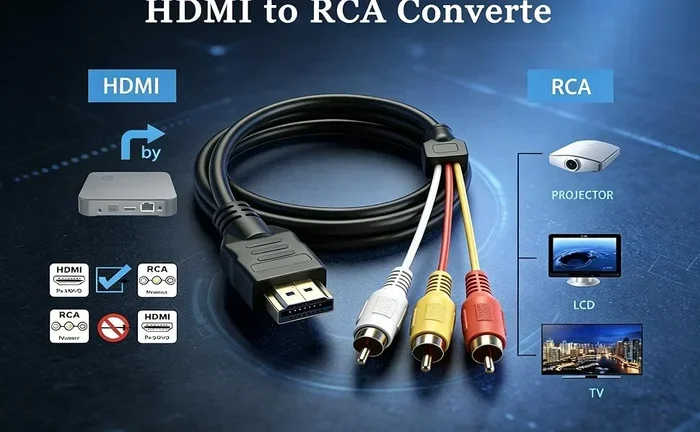
HDMI audio output refers to the ability of an HDMI cable to transmit sound alongside video. Before HDMI became popular, people needed separate cables for audio and video. You might have used RCA cables for sound and VGA for video. That meant extra wires, extra ports, and extra clutter.
HDMI changed all of that. A single HDMI cable can carry uncompressed video and compressed or uncompressed audio. This means one connection handles everything. Your TV, monitor, projector, or sound system receives both signals at once.
Here are some key things to know about how sound through HDMI works:
- Digital signal: HDMI sends audio as a digital signal, which means better quality than older analog connections.
- Multiple channels: HDMI supports surround sound formats like Dolby Digital and DTS.
- High bandwidth: Modern HDMI versions can carry lossless audio formats such as Dolby TrueHD and DTS-HD Master Audio.
- One cable solution: You do not need separate audio cables when using HDMI.
- Wide compatibility: Most devices made after 2004 support HDMI audio in some form.
The HDMI audio codec determines what type of sound gets transmitted. Common codecs include PCM (uncompressed stereo), Dolby Digital (compressed surround), and Dolby Atmos (immersive audio). Your device and display need to support the same codec for the best results.
How HDMI Audio Differs from Other Connections
Not all audio connections are the same. Let us compare HDMI audio to a few other common options so you can see why it is so popular.
- 3.5mm jack: This is the standard headphone plug. It carries analog audio and works with almost any device. However, the sound quality is lower than HDMI, especially for surround sound.
- Optical audio: Also called TOSLINK, this uses a fiber optic cable to send digital audio. It supports surround sound but cannot carry high-resolution formats like Dolby Atmos.
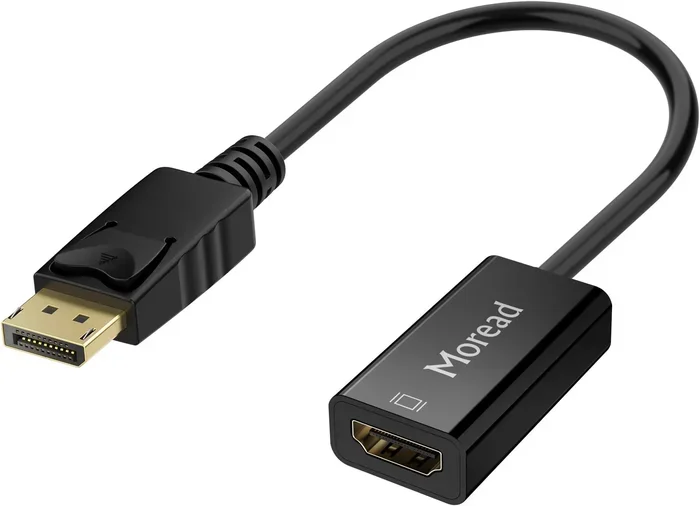
- DisplayPort: This carries both audio and video like HDMI, but it is mostly found on computers and monitors.
- USB audio: Some devices can send audio over USB, but this is less common and not as reliable for video setups.
HDMI audio vs optical is a common comparison. HDMI wins for most people because it handles both video and audio in one cable and supports higher-quality formats. Optical audio is still useful in some older setups, but HDMI is the go-to choice today.
How to Output Audio Through HDMI
Setting up HDMI audio output is easier than most people think. The exact steps depend on your device, but the general process is similar across laptops, desktops, TVs, and gaming consoles. Let us walk through the most common scenarios.
On Windows Laptops and Desktops
If you are connecting a Windows PC to a TV or monitor via HDMI, follow these steps:
- Plug the HDMI cable into your computer and the display device.
- Right-click the speaker icon in your taskbar.
- Select “Open Sound settings” or “Playback devices.”
- Look for the HDMI device in the list of audio outputs.
- Click on it and set it as the default device.
- Play a video or song to test the sound.
If you do not see the HDMI device, try updating your HDMI audio driver. Go to Device Manager, expand “Sound, video and game controllers,” right-click your audio device, and select “Update driver.”
On Mac Computers
Mac users can follow these steps:
- Connect your Mac to the display using an HDMI cable or an adapter.
- Go to System Settings (or System Preferences on older macOS versions).
- Click on “Sound.”
- Select the HDMI output under the “Output” tab.
- Adjust the volume and test the audio.
Macs usually recognize HDMI audio automatically. If the sound does not come through, restarting both devices often fixes the issue.
On Gaming Consoles
Both PlayStation and Xbox consoles send audio through HDMI by default. You rarely need to change any settings. However, you can adjust audio output in the console settings if needed:
- PlayStation: Go to Settings > Sound > Audio Output and choose HDMI as the primary output.
- Xbox: Go to Settings > General > Volume & Audio Output and select HDMI under the audio output option.
Most users never need to change these settings. The console and TV handle HDMI audio passthrough automatically.
HDMI Audio Settings You Need to Know
Getting the right HDMI audio settings can make a big difference in sound quality. Many people plug in their cable and assume everything works perfectly. But a few tweaks can unlock better audio and fix annoying problems.
Understanding Audio Formats
Your device and display need to agree on an audio format HDMI for sound to work properly. Here are the most common formats you will encounter:
- PCM (Pulse Code Modulation): This is the most basic format. It carries uncompressed stereo audio and works with almost every device.
- Dolby Digital: This compressed format supports 5.1 surround sound. It is common for TVs and set-top boxes.
- Dolby Atmos: This immersive format adds height channels for a 3D sound experience. You need HDMI eARC for full Dolby Atmos support.
- DTS and DTS-HD: These are competing surround sound formats often found on Blu-ray players and AV receivers.
When you go into your device’s audio settings, you will often see an option to select the output format. Choose “Auto” or “Bitstream” for the best compatibility. If you pick a specific format and your display does not support it, you may get no sound at all.
Setting the Correct Sample Rate
The sample rate affects audio quality. Most devices default to 48 kHz, which is standard for video. Some audio-only content uses 44.1 kHz. If you notice static or crackling, try changing the sample rate in your audio settings to match the content type.
Quick Tip: If your TV is connected to a soundbar or AV receiver, set the audio output format to “Bitstream” or “Passthrough.” This lets the external device decode the audio, giving you the best possible sound quality.
Common HDMI Audio Problems and Fixes
Even with a simple setup, HDMI audio not working can happen. The good news is that most problems have easy solutions. Here are the most common issues and how to fix them.
No Sound at All
If you get video but no audio, the first thing to check is your output device. Your computer or laptop might still be sending sound to its built-in speakers instead of the HDMI output.
Follow these steps:
- Click the speaker icon in your taskbar or menu bar.
- Look for the HDMI device in the list of output options.
- Select it as your default audio output.
- If it does not appear, check the cable connection at both ends.
- Try unplugging and replugging the HDMI cable.
Sometimes simply restarting both devices solves the problem. A fresh connection often resets the audio handshake between devices.
Audio and Video Are Out of Sync
Audio delay through HDMI is more common than you might think. You hear the dialogue a second or two after the lips move. This is called audio lag, and it can be very annoying.
Here is what you can do:
- Check your TV settings: Many TVs have an “Audio Delay” or “Lip Sync” setting. Adjust it until the sound matches the video.
- Enable game mode: Some TVs add processing delays that affect audio sync. Switching to game mode can reduce this.
- Use a shorter cable: Longer cables can introduce slight delays. A shorter HDMI cable may fix the problem.
- Update firmware: Make sure your TV and source device have the latest firmware updates.
HDMI Audio Cuts In and Out
Intermittent audio is often caused by a loose connection or a faulty cable. Try these fixes:
- Check that the HDMI cable is firmly seated in both ports.
- Try a different HDMI cable to rule out a damaged cable.
- Clean the HDMI ports with compressed air to remove dust.
- Avoid bending the cable sharply, which can damage internal wiring.
- If you are using an HDMI splitter or extender, bypass it temporarily to test.
Wrong Audio Channel Configuration
If you are getting sound but it does not feel like surround sound, your channel configuration might be wrong. Go into your audio settings and make sure the output is set to stereo, 5.1, or 7.1 depending on your setup and speakers.
Common Mistake: Many people forget to check the audio output on their source device. They adjust the TV volume but never realize the PC or laptop is set to mute or sending audio to the wrong output. Always double-check the source device first.
HDMI ARC vs eARC: What Is the Difference?
If you have ever shopped for soundbars or AV receivers, you have probably seen the terms HDMI ARC and HDMI eARC. These are special HDMI features that make audio connections much easier. But they are not the same thing.
What Is HDMI ARC?
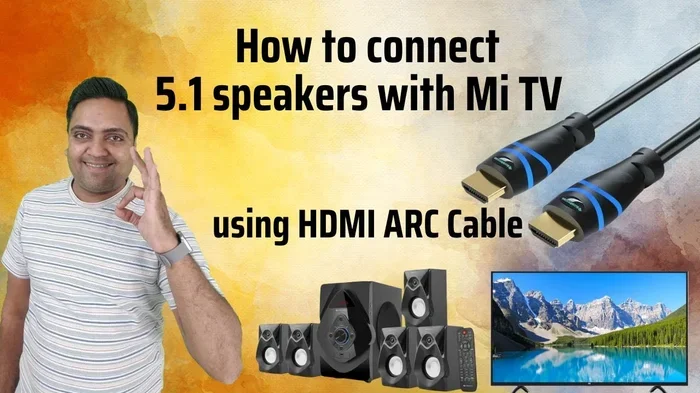
HDMI ARC stands for Audio Return Channel. It allows your TV to send audio back to your soundbar or AV receiver through the same HDMI cable you use for video input. Before ARC, you needed a separate cable (like optical audio) to send TV audio to your sound system.
Here is why HDMI ARC is useful:
- Fewer cables: One HDMI cable handles both directions of audio.
- Simpler setup: You do not need to configure multiple audio outputs.
- Better control: You can use your TV remote to control the volume of your soundbar.
- Widely supported: Most TVs and audio devices made after 2009 support ARC.
What Is HDMI eARC?
HDMI eARC stands for Enhanced Audio Return Channel. It is the newer, improved version of ARC. eARC supports higher-quality audio formats, including Dolby Atmos and DTS:X, which regular ARC cannot handle.
Key benefits of HDMI eARC include:
- Higher bandwidth: eARC can carry uncompressed and lossless audio formats.
- Automatic device discovery: Devices connected via eARC often recognize each other automatically.
- Better lip sync: eARC has improved synchronization between audio and video.
- Future-proof: eARC supports the latest audio formats as they emerge.
Which One Do You Need?
For most people, HDMI ARC is perfectly fine. It handles stereo and standard surround sound well. If you are a serious home theater enthusiast or you want to experience Dolby Atmos, look for devices with HDMI eARC support.
Quick Comparison:
- ARC supports Dolby Digital and basic surround sound.
- eARC supports Dolby Atmos, DTS:X, and lossless formats.
- ARC has been around since HDMI 1.4.
- eARC was introduced with HDMI 2.1.
- Both use the same HDMI port — look for the ARC label on your TV or device.
When to Use an HDMI Audio Extractor
Not every device plays nicely with HDMI audio output. Some older monitors, projectors, or PCs do not have built-in speakers and cannot process HDMI audio. In these cases, an HDMI audio extractor is a handy solution.
An HDMI audio extractor splits the HDMI signal into two separate outputs. One output carries the video signal (usually via HDMI or VGA), and the other carries the audio signal (usually via 3.5mm, optical, or RCA). This lets you connect audio to a separate speaker system while still displaying video on a monitor that does not support sound.
Who Needs an HDMI Audio Extractor?
You might need one of these devices if:
- Your monitor has HDMI input but no speakers.
- You are using a projector that only accepts video signals.
- You want to connect older speakers or a stereo system that does not have HDMI.
- You need to run audio to a separate room while keeping video in one place.
- Your HDMI audio passthrough is not working correctly with a specific device.
How to Set Up an HDMI Audio Extractor
Setting up an extractor is straightforward:
- Connect the HDMI source (like a laptop or gaming console) to the extractor’s HDMI input.
- Plug an HDMI cable from the extractor’s HDMI output to your display.
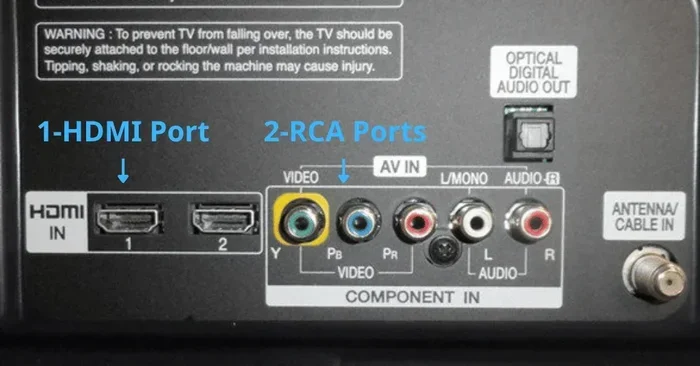
- Connect an audio cable (3.5mm, optical, or RCA) from the extractor’s audio output to your speakers or sound system.
- Power on the extractor if it requires external power.
- Select the correct audio output on your source device.
- Test the sound and adjust volume as needed.
Most extractors are plug-and-play and do not require any drivers or software. They are affordable and work with a wide range of devices. If you run into issues, make sure the extractor supports the audio format HDMI your device is using.
Expert Tips for the Best HDMI Audio Experience
After helping people set up HDMI audio systems for years, here are some tips that make a real difference:
- Use high-quality cables: A certified Premium High Speed HDMI cable ensures reliable audio and video transmission. Cheap cables can cause dropouts and poor sound.
- Keep firmware updated: Both your source device and display should have the latest firmware for the best HDMI audio codec compatibility.
- Label your cables: If you have multiple HDMI connections, label them. It saves a lot of confusion when troubleshooting audio issues.
- Use an HDMI switch for multiple devices: If you have more devices than TV ports, a good HDMI switch lets you connect everything and switch between them easily.
- Check your soundbar or receiver settings: Sometimes the problem is not your source device. Make sure your audio equipment is set to the correct input and format.
- Disable HDMI CEC if needed: Consumer Electronics Control (CEC) lets devices communicate over HDMI, but it can sometimes cause audio routing issues. Try disabling it if sound does not route correctly.
HDMI audio troubleshooting does not have to be stressful. Most issues come down to simple settings or cable problems. Start with the basics — check the output device, try a different cable, and restart both devices. These three steps solve the majority of HDMI audio problems.
Conclusion
Outputting audio through HDMI is one of the easiest and most reliable ways to get high-quality sound from your devices. Whether you are connecting a laptop to a TV, a console to a soundbar, or a Blu-ray player to an AV receiver, HDMI handles both video and audio through a single cable. The process is simple, the quality is excellent, and the convenience is hard to beat.
We have covered how HDMI audio output works, how to set it up on different devices, the best HDMI audio settings to use, and how to fix the most common problems. You also learned about HDMI ARC and eARC, which make connecting external speakers easier than ever. And if your setup is tricky, an HDMI audio extractor can bridge the gap.
The key takeaway is this: you can absolutely output audio through HDMI without any hassle. A little knowledge and a few minutes of setup go a long way. Now that you understand how it all works, you can confidently connect any device and enjoy great sound every time.
Try these steps with your own setup today. You will be surprised how simple HDMI audio really is once you know the right approach. Happy connecting!
Frequently Asked Questions
Can I get surround sound through HDMI?
Yes, HDMI supports surround sound formats like Dolby Digital and DTS. For the best experience, make sure your device, cable, and display all support the surround sound format you want to use. HDMI eARC is ideal for immersive formats like Dolby Atmos.
Why is there no sound when I connect HDMI?
The most common reason is that your device is still set to output audio through its built-in speakers instead of the HDMI port. Check your sound settings and select the HDMI device as the default output. Also try unplugging and replugging the cable.
Do I need a special HDMI cable for audio?
No, any standard HDMI cable carries audio. However, using a certified Premium High Speed HDMI cable ensures the best performance, especially for higher-resolution content and advanced audio formats like Dolby Atmos.
What is the difference between HDMI ARC and optical audio?
HDMI ARC sends both audio and video through one cable and supports more audio formats than optical. Optical audio uses a separate cable and only carries digital audio. HDMI ARC is more convenient and offers better sound quality overall.
Can I split HDMI audio to multiple speakers?
Yes, you can use an HDMI audio extractor or an AV receiver with multiple HDMI inputs. These devices split the audio signal and send it to different speaker systems. Make sure your splitter or extractor supports the audio format you need.
Does HDMI audio have any delay?
HDMI audio is nearly instantaneous, but some TVs add processing delays that can cause lip sync issues. Most modern TVs have a “lip sync” or “audio delay” setting to compensate for this. Using a shorter cable and enabling game mode can also reduce any perceived delay.
=== CONCLUSION ===
Can you output audio through HDMI? Absolutely. It is one of the simplest, most reliable, and highest-quality ways to get sound from your devices. From basic setup to advanced features like HDMI eARC, this guide has given you everything you need to know. The next time you connect a device, you will know exactly what to do — and how to fix things if they do not work right away.