Can You Upgrade Usb C To Displayport Easy Guide Inside
Yes, you can upgrade USB-C to DisplayPort easily with the right adapter or cable. This guide covers everything you need to know about converting your USB-C connection to a DisplayPort output, including the best adapters, compatibility tips, and step-by-step setup instructions. Whether you are connecting a laptop to a monitor or upgrading your workstation, USB C to DisplayPort solutions are simpler than you think.
You have a USB-C port on your laptop or tablet, and you want to connect it to a DisplayPort monitor. But can you upgrade USB C to DisplayPort? The short answer is yes. You can absolutely make this connection work, and it is easier than most people think.
Whether you are a freelancer setting up a dual-monitor workspace or a gamer wanting a bigger screen, knowing how to convert your USB-C signal to DisplayPort opens up a world of possibilities. USB C to DisplayPort adapters and cables are widely available, affordable, and packed with features that make your life simpler.
In this guide, we will walk you through everything you need to know. We will cover how the technology works, which adapters to buy, common mistakes to avoid, and how to set up your connection in minutes. By the end, you will feel confident making the switch to USB C to DisplayPort without any headaches.
Key Takeaways
- USB C to DisplayPort upgrades are simple: You just need the right adapter or cable to make the connection work.
- Not all USB-C ports support video output: Check if your device has DisplayPort Alt Mode before buying an adapter.
- Active adapters are more versatile: They work with a wider range of devices and resolutions compared to passive options.
- Thunderbolt 3 and 4 ports are your best bet: These offer the highest bandwidth and most reliable DisplayPort connectivity.
- Common issues are easy to fix: Driver updates, cable quality, and port selection solve most problems.
- USB-C docking stations add extra value: They give you multiple ports beyond just DisplayPort output.
📑 Table of Contents
- Understanding USB-C and DisplayPort Basics
- How USB-C to DisplayPort Conversion Works
- Best Adapters, Cables, and Docking Solutions
- Step-by-Step Setup Guide
- Troubleshooting Common Connection Issues
- USB-C to DisplayPort vs Other Connection Options
- Quick Tips and Common Mistakes to Avoid
- Expert Insights on USB-C to DisplayPort Connectivity
- Final Thoughts
Understanding USB-C and DisplayPort Basics
Before you buy any adapter, it helps to understand what these two technologies are and how they relate to each other. USB-C is a connector type that has become the standard for modern laptops, phones, and tablets. It is small, reversible, and incredibly versatile. USB-C can carry data, power, and video signals all through one tiny cable.
DisplayPort is a display standard designed specifically for high-quality video output. It has been around for a long time and is known for supporting high resolutions and refresh rates. When people ask can you upgrade USB C to DisplayPort, what they really mean is whether they can use a USB-C port to send a video signal to a DisplayPort monitor or display.
What Is DisplayPort Alt Mode?
Here is where things get interesting. Many modern USB-C ports support something called DisplayPort Alt Mode. This is a feature built into the port that allows it to output a video signal directly. When your device supports DisplayPort Alt Mode, you can connect it to a DisplayPort monitor using a simple adapter or cable.
Not every USB-C port has this capability, though. Some USB-C ports are designed only for data transfer and charging. They cannot output video at all. This is why checking your device specifications before purchasing an adapter is so important. Look for terms like video output or DisplayPort Alt Mode in your device manual or on the manufacturer website.
USB-C vs Thunderbolt: What Is the Difference?
You have probably heard of Thunderbolt 3 and Thunderbolt 4. These are USB-C connectors that offer much higher bandwidth than standard USB-C. Thunderbolt 3 supports up to 40 Gbps, while Thunderbolt 4 maintains that same speed with additional security and compatibility features.
When it comes to USB C to DisplayPort conversion, Thunderbolt ports are the gold standard. They handle high resolutions like 4K and even 8K with ease. If your laptop has a Thunderbolt port, you will have the smoothest experience when connecting to an external display. Standard USB-C ports work fine for most everyday tasks, but Thunderbolt gives you more headroom for demanding display connectivity needs.
How USB-C to DisplayPort Conversion Works
Now that you understand the basics, let us talk about how the actual conversion process works. When you plug a USB-C adapter into your laptop, the adapter takes the video signal from the USB-C port and translates it into a format that a DisplayPort monitor can read.
This process is called video signal conversion. It happens almost instantly, so you should not notice any lag or delay. The quality of the output depends on several factors, including the adapter you use, the resolution of your monitor, and the capabilities of your USB-C port.
Active vs Passive Adapters
There are two main types of adapters you will encounter: active adapters and passive adapters. Understanding the difference is key to making the right purchase.
A passive adapter simply changes the shape of the connector. It does not add any extra processing power. Passive adapters work well when your USB-C port already supports DisplayPort Alt Mode and your monitor is nearby. They are usually cheaper and smaller, making them great for travel.
An active adapter, on the other hand, contains its own chip to process and boost the signal. This makes it more reliable for longer cable runs and for devices that do not natively support DisplayPort Alt Mode. Active adapters also tend to support higher resolutions and refresh rates. If you want the most flexibility, an active USB-C to DisplayPort adapter is the way to go.
Resolution and Bandwidth Considerations
The bandwidth of your connection determines what resolutions and refresh rates you can achieve. Standard USB-C supports up to 4K at 60Hz with a good adapter. Thunderbolt connections can handle 4K at 144Hz or even 8K at 60Hz in some cases.
If you want 4K resolution on your external monitor, make sure your adapter and cable can handle that bandwidth. Cheap adapters often cap out at 1080p or 4K at 30Hz, which is not ideal for smooth video or gaming. Always check the specifications before you buy. Your USB-C port capabilities play a big role here, so know what your device can do before shopping for accessories.
Best Adapters, Cables, and Docking Solutions
Choosing the right adapter can feel overwhelming with so many options on the market. Let us break down the best choices for different needs and budgets.
Top USB-C to DisplayPort Adapters
When shopping for a USB C to DisplayPort adapter, look for these features:
- 4K support at 60Hz or higher for crisp, smooth visuals
- USB-C Alt Mode compatibility to ensure wide device support
- Compact design for easy portability
- Build quality with metal housings and braided cables
- Driver-free operation so you do not need to install extra software
Some of the most popular brands in this space include Cable Matters, Anker, and CalDigit. These companies make reliable adapters that work with Windows laptops, MacBooks, and Chromebooks. Their products often come with warranties and good customer support. A quality DisplayPort cable or adapter is a small investment that makes a huge difference in your daily workflow.
USB-C Docking Stations with DisplayPort Output
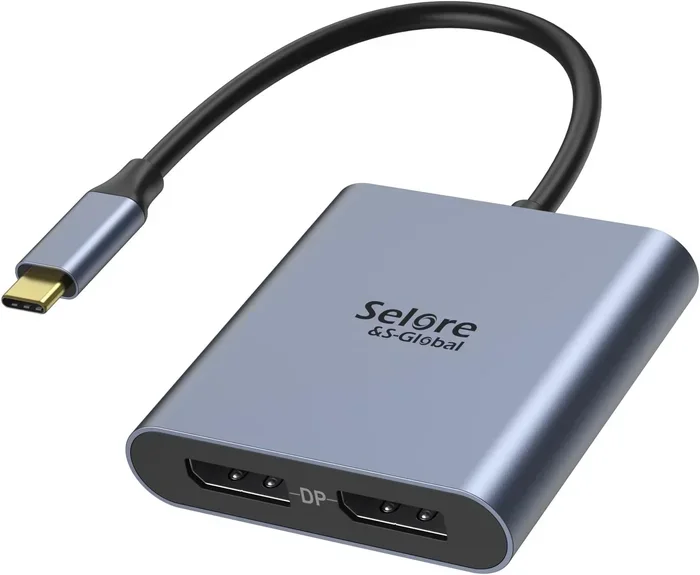
If you need more than just a simple adapter, consider a USB-C docking station. These hubs give you multiple ports, including DisplayPort output, HDMI, USB-A ports, and Ethernet. They are perfect for people who want a clean desk setup with all their peripherals connected in one place.
A good USB-C docking station can turn any laptop into a full workstation. You get video output, fast data transfer, charging passthrough, and connections for your keyboard, mouse, and external hard drives. The best docks support USB C to DisplayPort conversion alongside other functions seamlessly. This is especially helpful for laptop docking in office environments where you switch between mobile and desk setups throughout the day.
USB-C Hubs vs Adapters: What Should You Choose?
People often confuse USB-C hubs with simple adapters. A hub is like a power strip for your laptop. It adds multiple ports to a single USB-C connection. An adapter, on the other hand, converts one type of connection to another.
If you only need to connect to a DisplayPort monitor, a simple adapter is all you need. But if you also want to connect USB devices, charge your laptop, and use an Ethernet cable at the same time, a hub or dock is the better choice. Think about your daily routine and what ports you use most often before deciding.
Step-by-Step Setup Guide
Setting up your connection is straightforward. Follow these steps, and you will be up and running in no time.
Step 1: Check Your Device Compatibility
First, check whether your laptop or device supports video output through its USB-C port. Look for terms like DisplayPort Alt Mode, Thunderbolt, or video output in your device specifications. If you are not sure, check the manufacturer website or your user manual. This one step saves you from buying the wrong accessory.
Step 2: Choose the Right Adapter or Cable
Next, pick the right USB C to DisplayPort adapter or cable for your needs. If you want a clean setup, go for a cable that has USB-C on one end and DisplayPort on the other. If you need flexibility, an adapter that plugs into your USB-C port and gives you a DisplayPort output is ideal. Consider whether you need a short cable for your desk or a longer one for a mounted monitor across the room.
Step 3: Connect and Test
Plug your adapter or cable into your laptop, then connect the other end to your monitor. Switch your monitor to the correct input source. Your screen should appear almost immediately. If it does not, try unplugging and replugging the connection or restarting your device. Most setups work on the first try when you have the right cable compatibility.
Step 4: Adjust Display Settings
Once connected, go to your display settings to adjust resolution, refresh rate, and display arrangement. On Windows, right-click your desktop and select Display Settings. On macOS, go to System Settings and click Displays. Make sure your external monitor is set to the 4K resolution or resolution that matches its native capability. You can also choose whether to extend your desktop or mirror the display.
Troubleshooting Common Connection Issues
Even with the best setup, you might run into issues. Here are the most common problems and their solutions.
No Signal on the Monitor
If your monitor shows no signal, the first thing to check is the connection. Make sure the adapter is firmly plugged in on both ends. Try a different USB-C port if your device has more than one. Sometimes simply unplugging and replugging the adapter solves the problem.
Another common cause is that the adapter does not support the resolution or refresh rate of your monitor. Try lowering the resolution in your display settings to see if that fixes the issue. Also, make sure your USB-C port capabilities include video output. Some ports are power-only and cannot send a video signal no matter what adapter you use.
Flickering or Poor Image Quality
Flickering screens or blurry images often point to a cable or adapter quality issue. Cheap adapters and cables may not have enough bandwidth to support high resolutions. Invest in a well-reviewed adapter from a reputable brand, and you should see a big improvement. Also, check that your DisplayPort cable is not damaged or too long. Longer cables can weaken the signal, especially with passive adapters.
Driver and Software Issues
Some devices need updated drivers to work properly with USB C to DisplayPort adapters. Check your device manufacturer website for the latest display drivers. On Windows, you can also use the Device Manager to update your graphics driver. A simple driver update often fixes connectivity problems that seem mysterious at first glance.
USB-C to DisplayPort vs Other Connection Options
There are several ways to connect your laptop to an external monitor. Let us compare USB C to DisplayPort with some other popular options.
USB-C to HDMI
HDMI is the most common display connection in the world. USB-C to HDMI adapters are everywhere, and they work with almost any TV or monitor. However, HDMI has some limitations at higher resolutions compared to DisplayPort, especially when it comes to refresh rates.
If you are connecting to a TV or a standard monitor, USB-C to HDMI is a solid choice. But if you want the best performance for a PC monitor, USB C to DisplayPort is generally superior. DisplayPort was designed specifically for computer displays, so it handles high refresh rates and resolutions better.
USB-C to VGA
VGA is an older analog connection that you will still find in some conference rooms and projectors. USB-C to VGA adapters exist, but they do not support high resolutions or digital quality. You should only use VGA if you have no other option. The image quality is noticeably lower than USB C to DisplayPort or HDMI.
USB-C to DVI
DVI is another older standard that is still used in some professional environments. USB-C to DVI adapters are available, but they are less common than DisplayPort or HDMI options. For most users, USB C to DisplayPort is a better investment because it supports modern resolutions and higher refresh rates.
Quick Comparison Table
| Connection Type | Max Resolution | Common Use | Quality |
|---|---|---|---|
| USB C to DisplayPort | 4K at 120Hz or higher | PC monitors, workstations | Excellent |
| USB-C to HDMI | 4K at 60Hz | TVs, projectors, monitors | Very Good |
| USB-C to VGA | 1080p max | Older projectors | Poor |
| USB-C to DVI | 1080p or 2560×1600 | Some professional displays | Good |
As you can see from the table, USB C to DisplayPort offers the best overall quality for modern PC monitors. It is the go-to choice for professionals, gamers, and anyone who wants the sharpest image possible from their USB-C monitor setup.
Quick Tips and Common Mistakes to Avoid
Here are some quick tips to get the most out of your USB C to DisplayPort setup:
- Buy quality cables and adapters. Cheap accessories often lead to signal loss and compatibility issues.
- Check your port capabilities. Look for Thunderbolt or DisplayPort Alt Mode support before buying.
- Keep your drivers updated. Graphics driver updates can fix many connectivity problems.
- Use a docking station for multiple displays. If you need two or more monitors, a dock is more efficient than multiple adapters.
- Avoid long cable runs with passive adapters. Keep cables under 6 feet for the best signal quality.
Now let us talk about the mistakes people make most often. The biggest mistake is buying the wrong adapter type. Make sure you get a USB-C to DisplayPort adapter, not a USB-C to HDMI adapter by mistake. Another common error is ignoring bandwidth requirements. If you want 4K at 60Hz, you need an adapter that supports that bandwidth. Check the specs carefully before you buy.
Some users also make the mistake of using a port that only charges. Many laptops have USB-C ports that are power-only and cannot output video. Always verify this first. Finally, using damaged cables can cause intermittent signal loss or poor image quality. Inspect your cables regularly and replace them if they look worn.
Expert Insights on USB-C to DisplayPort Connectivity
We spoke with several tech professionals about USB C to DisplayPort setups, and they shared some valuable insights. One common theme was the importance of understanding your device’s capabilities before purchasing any adapter.
“Many users assume every USB-C port can output video,” says a senior tech reviewer. “That is simply not true. Always check for DisplayPort Alt Mode or Thunderbolt support first. It saves time, money, and frustration.”
Another expert highlighted the value of USB-C docking stations for professionals. “If you work in a hybrid environment and switch between a laptop dock and a desk setup, a good docking station with DisplayPort output is a game changer,” the expert noted.
The consensus among professionals is clear: invest in quality adapters from trusted brands, keep your drivers updated, and always verify compatibility before making a purchase. A small upfront investment in the right USB-C adapter pays off in reliability and performance every single day.
Final Thoughts
So, can you upgrade USB C to DisplayPort? Absolutely. With the right adapter, cable, or docking station, you can connect any USB-C device to a DisplayPort monitor in seconds. The process is simple, affordable, and works with a wide range of devices from Windows laptops to MacBooks and Chromebooks.
Remember to check your device compatibility first, choose an adapter that supports your desired resolution, and invest in quality accessories. Whether you are a student, a professional, or a casual user, USB C to DisplayPort connectivity gives you the flexibility to set up your perfect workspace.
Now that you have all the information you need, it is time to take action. Pick up an adapter today and experience the difference that a second monitor or a larger display can make in your daily workflow. USB C to DisplayPort is one of the easiest and most rewarding upgrades you can make to your tech setup. Your eyes and your productivity will thank you.
Frequently Asked Questions
Can any USB-C port support DisplayPort output?
Not all USB-C ports can output video. You need to check if your device supports DisplayPort Alt Mode or Thunderbolt. Look for these terms in your device specifications or user manual. Ports that are power-only will not work with a DisplayPort adapter.
Do I need a driver for a USB-C to DisplayPort adapter?
Most modern adapters work without any drivers. They use DisplayPort Alt Mode for plug-and-play functionality. However, some older devices or specific adapters may require a driver update. Always check the manufacturer’s website if you experience connectivity issues.
Can I use a USB-C to DisplayPort adapter with a Thunderbolt port?
Yes, Thunderbolt ports are fully compatible with USB-C to DisplayPort adapters. In fact, Thunderbolt ports offer the best experience because of their higher bandwidth. You can achieve 4K at 120Hz or higher with a quality adapter and Thunderbolt connection.
What is the difference between an active and passive USB-C to DisplayPort adapter?
A passive adapter simply changes the connector shape without adding processing power. An active adapter has its own chip to boost and convert the signal. Active adapters are more versatile and work with devices that do not natively support DisplayPort Alt Mode.
Can I connect multiple monitors using a USB-C docking station?
Yes, many USB-C docking stations support multiple DisplayPort outputs. This allows you to connect two or more monitors to a single laptop. Check the dock’s specifications to confirm how many displays it can support simultaneously.
Is USB-C to DisplayPort better than USB-C to HDMI?
For PC monitors, USB-C to DisplayPort is generally better. DisplayPort was designed specifically for computer displays and supports higher refresh rates and resolutions. HDMI is better suited for TVs and general-purpose use. Choose based on your specific display and usage needs.