Does Comcast Charge Extra For Wifi On Your Monthly Bill
Does Comcast charge extra for WiFi? The answer depends on your plan and equipment. Most Comcast Xfinity plans include WiFi, but hidden fees like the wireless router rental charge and the WiFi equipment fee can add $10 to $15 monthly. Understanding your monthly bill breakdown helps you avoid surprises and potentially save money every billing cycle.
Have you ever looked at your Comcast bill and wondered, “Why am I paying for WiFi?” You are not alone. Millions of Xfinity subscribers ask this exact question every month. The truth is that Comcast WiFi charges are not always straightforward. There is a difference between your internet plan and the equipment that delivers WiFi to your home.
In this guide, we break down everything you need to know about Comcast WiFi fees. We will look at what is included in your plan, what extra charges show up on your bill, and how you can save money. Whether you are a new Xfinity customer or have been with Comcast for years, this article will help you understand your monthly bill breakdown like never before.
Key Takeaways
- Most Comcast plans include WiFi: Your base internet plan typically comes with WiFi access, but equipment fees may apply.
- Rental fees are the main culprit: Comcast charges a monthly fee for the xFi Gateway or wireless router, usually around $14 to $15.
- You can avoid rental fees: Buying your own compatible modem and router eliminates the equipment charge entirely.
- Check your bill carefully: Look for line items like “Wireless Gateway Rental” or “Equipment Fee” to identify WiFi-related charges.
- Self-installation saves money: Comcast often waives installation fees if you set up your own home network equipment.
📑 Table of Contents
- What Does Comcast Include in Your Internet Plan?
- Does Comcast Charge Extra for WiFi? The Full Breakdown
- Can You Avoid Paying Extra for WiFi?
- Understanding Your Comcast Monthly Bill
- WiFi Performance and Coverage Tips
- Comcast WiFi vs. Other Internet Providers
- When to Call Comcast About WiFi Charges
- Final Thoughts on Comcast WiFi Charges
What Does Comcast Include in Your Internet Plan?
When you sign up for a Comcast Xfinity internet plan, you are paying for internet speed and access to the Comcast network. Most plans include a WiFi connection as part of the base service. This means your home network is functional right out of the box. However, the way Comcast delivers that WiFi involves specific equipment.
The xFi Gateway: What It Is and Why It Matters
Comcast provides what is called the xFi Gateway. This is a combined device that acts as both your modem and your wireless router. It connects to the Comcast network and broadcasts WiFi throughout your home. The xFi Gateway is the centerpiece of your home network setup.
Here is what the xFi Gateway does:
- Connects to the Comcast cable network
- Converts the signal to WiFi for your devices
- Manages your home network settings
- Provides a secure connection for all linked devices
The xFi Gateway itself is not free. Comcast includes a rental fee for this equipment on your monthly bill. This is where the confusion starts for many customers. You pay for internet speed, but you also pay for the device that makes WiFi work in your home.
Does Comcast Charge Extra for WiFi? The Full Breakdown
The short answer is yes and no. Your internet plan includes WiFi access. But Comcast charges separately for the WiFi equipment fee and the wireless router rental. Let us look at the specific charges you might see on your bill.
Common WiFi-Related Charges on Your Bill
When you review your monthly bill breakdown, you will likely find one or more of these charges:
- Wireless Gateway Rental Fee: This is the most common charge. It typically runs between $14 and $15 per month. This fee covers the xFi Gateway device that Comcast provides.
- Equipment Fee: Some plans list this as a separate line item. It covers the cost of maintaining and replacing the equipment.
- Installation Fee: If you did not self-install, Comcast may charge a one-time setup fee. This can range from $10 to $100 depending on the service.
- Xfi Advanced Security: This is an optional add-on that costs extra. It provides enhanced protection for your home network but is not required for WiFi to work.
These charges can add $15 to $20 or more to your monthly bill. Over a year, that is $180 to $240 in extra costs. Understanding these fees is the first step toward reducing your internet costs.
How the Charges Vary by Plan
Not all Comcast plans are the same. The WiFi charges depend on which internet plan options you choose. Here is a quick comparison:
- Entry-Level Plans: These plans often include a basic xFi Gateway. The rental fee is standard at around $14 per month.
- Mid-Tier Plans: Faster speeds may come with a more advanced gateway. The rental fee stays similar but the equipment is more capable.
- Premium Plans: These plans may include xFi Advanced and other perks. The WiFi equipment fee could be bundled into the higher monthly cost.
Always check the fine print before signing up. Some promotional offers waive the rental fee for the first few months. After the promo ends, the WiFi equipment fee kicks in automatically.
Can You Avoid Paying Extra for WiFi?
Yes, you absolutely can. There are several ways to eliminate or reduce the Comcast WiFi charges on your bill. Let us explore the most effective options.
Option 1: Buy Your Own Compatible Modem and Router
The most effective way to stop paying the rental fee is to buy your own equipment. Comcast allows you to use a self-owned modem and router instead of their xFi Gateway. This one change can save you $14 to $15 every month.
Here is what you need to know:
- Check the Comcast approved device list before purchasing
- Make sure your modem is compatible with the Comcast network
- You will still need a wireless router if your modem does not have WiFi built in
- You can find great deals on portable wifi devices and routers online
Buying your own equipment is a one-time cost that pays for itself within a few months. If you plan to stay with Comcast long-term, the savings are significant. You can also buy your own portable wifi device as an alternative if you travel frequently.
Option 2: Self-Install Your Equipment
Comcast offers a self-install kit for customers who want to set up their own home network. This option often comes with a reduced or waived installation fee. The self-install kit includes the xFi Gateway and all the cables you need.
Benefits of self-installation include:
- No technician visit fee
- Set up at your own pace
- Easy setup with the xFi app
- Save $10 or more on your first month
The self-install process is straightforward. You connect the gateway to your cable outlet, power it on, and follow the prompts on the xFi app. Within 15 minutes, your WiFi network is up and running.
Option 3: Switch to a Different WiFi Equipment Provider
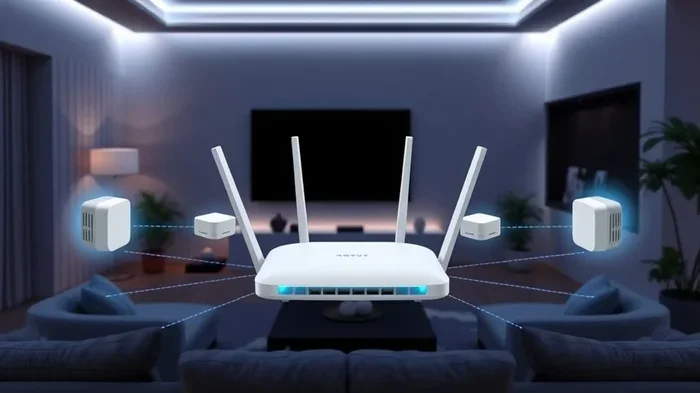
Some customers choose to use a mesh network system instead of the xFi Gateway. A mesh system uses multiple nodes to spread WiFi coverage throughout your home. These systems often provide better coverage than a single gateway device.
You can still use Comcast for your internet service while bringing your own wireless router. This gives you more control over your home network and lets you avoid the rental fee. Popular options include Google Nest WiFi and Netgear Orbi. You can also use Google WiFi as an access point to extend your coverage without paying extra.
Option 4: Negotiate with Comcast Customer Service
Many people do not know this, but you can negotiate your monthly bill breakdown with Comcast. Call customer service and ask for a review of your charges. Mention that you are considering switching to a competitor. This often triggers a retention offer that includes waived equipment fees.
Tips for a successful negotiation:
- Be polite but firm
- Know your current charges before calling
- Ask specifically about the wireless gateway rental fee
- Mention competitor offers if you have them
- Consider switching to a plan with fewer add-on charges
Even if negotiation does not remove all fees, it can often reduce them. Every dollar saved on your internet bill adds up over time.
Understanding Your Comcast Monthly Bill
Reading a Comcast bill can feel like decoding a foreign language. But once you know what to look for, it becomes much simpler. Let us walk through the typical monthly bill breakdown so you can identify every WiFi-related charge.
Line Items to Watch For
When you receive your bill, scan for these specific items:
- Internet Service: This is your base plan charge. It covers the internet speed you subscribed to.
- Wireless Gateway Rental: This is the fee for the xFi Gateway. It is the main WiFi-related charge.
- Equipment Protection Plan: This is optional. It covers damage or loss of equipment but adds to your bill.
- Xfi Advanced Security: Another optional charge for enhanced network protection.
- Taxes and Regulatory Fees: These are standard and apply to all services.
If you see the “Wireless Gateway Rental” line item, that is your WiFi equipment fee. This is the charge that most people want to eliminate. The good news is that it is entirely removable if you bring your own compatible equipment.
How to Check Your Bill Online
Comcast makes it easy to review your bill through the Xfinity app or website. Log in to your account and navigate to your recent billing statement. You can view a detailed monthly bill breakdown that lists every charge. Look for any line items that mention “gateway,” “router,” or “equipment.”
If you are unsure about a charge, call Comcast customer service. They can explain every line item and help you identify charges you can remove. Being informed puts you in a much better position to reduce your internet costs.
WiFi Performance and Coverage Tips
Even after you understand the charges, you want your WiFi to work well. A strong home network depends on more than just your plan. Let us look at some practical tips to improve your WiFi performance.
Position Your Router Strategically
The placement of your wireless router affects your WiFi coverage significantly. Place your router in a central location in your home. Avoid hiding it in a closet or behind furniture. Walls, mirrors, and metal objects can weaken the WiFi signal.
For best results:
- Place the router on a high shelf
- Keep it away from microwaves and cordless phones
- Position it in an open area
- Elevate it off the floor
Consider a WiFi Extender or Mesh System
If your WiFi signal does not reach every room, consider adding a WiFi extender or a mesh system. These devices boost your WiFi coverage and eliminate dead zones. A mesh system is especially effective for larger homes.
You can also add an antenna to your WiFi router to improve signal strength. This is a simple and affordable upgrade that can make a big difference in your home network performance.
Optimize Your WiFi Settings
Your router settings can impact your WiFi speed and reliability. Access your router settings through the xFi app or a web browser. Here are a few adjustments to consider:
- Switch to the 5GHz band for faster speeds
- Change your WiFi channel to reduce interference
- Update your router firmware regularly
- Set a strong password to prevent unauthorized use
These small changes can significantly improve your WiFi connection and overall internet experience. If you want to learn more about optimizing your WiFi band, you can explore how to force your phone to use the 2.4 GHz WiFi band for better range.
Comcast WiFi vs. Other Internet Providers
How do Comcast WiFi charges compare to other internet providers? Let us take a quick look at the competition.
Many other ISPs charge similar equipment rental fees. AT&T, for example, also includes a gateway rental fee on their bills. However, some providers like T-Mobile and Verizon offer wireless home internet with no equipment rental fee. This makes them an attractive alternative for some customers.
Before you commit to any provider, compare the total cost including all fees. The advertised price is rarely the final price you pay. Always look at the monthly bill breakdown to understand the full picture. If you are considering alternatives, check whether buying your own portable wifi could save you money in the long run.
When to Call Comcast About WiFi Charges
There are certain situations where you should reach out to Comcast about your WiFi charges. If you notice a new charge that you do not recognize, call customer service right away. Sometimes fees appear due to billing errors or plan changes.
You should also call if:
- You recently cancelled a rental device but still see the fee
- You switched to your own equipment but the charge persists
- You want to explore plans with lower equipment fees
- You need help understanding a specific line item on your bill
Comcast customer service can often resolve these issues quickly. Being proactive about your internet bill saves you money and prevents surprises.
Final Thoughts on Comcast WiFi Charges
So, does Comcast charge extra for WiFi? The answer is that WiFi itself is included in your internet plan. But the equipment that delivers WiFi comes with a rental fee. This WiFi equipment fee can add $14 to $15 to your monthly bill. Over time, these charges add up to a significant amount of money.
The good news is that you have options. You can buy your own compatible equipment, self-install to save on setup fees, negotiate with customer service, or switch to a different provider. Each option has its own benefits and trade-offs. The best choice depends on your budget, your technical comfort level, and how long you plan to stay with Comcast.
Understanding your monthly bill breakdown is the key to taking control of your internet costs. Once you know what you are paying for, you can make informed decisions. You can eliminate unnecessary fees and get the best value from your Comcast Xfinity internet plan.
Take action today. Review your bill, explore your options, and start saving on your WiFi charges. Your wallet will thank you at the end of every month.
Frequently Asked Questions
Is WiFi included in my Comcast internet plan?
Yes, WiFi is included in your base internet plan. However, Comcast charges a separate rental fee for the xFi Gateway or wireless router that delivers WiFi to your home. This equipment fee typically appears as a line item on your bill.
How much does Comcast charge for WiFi equipment?
Comcast charges approximately $14 to $15 per month for the xFi Gateway rental. This fee covers the modem-router combo device that provides your WiFi connection. The exact amount may vary slightly depending on your plan and location.
Can I use my own router with Comcast?
Yes, you can use your own compatible wireless router with Comcast. You will need to return the xFi Gateway or purchase a compatible modem and router. This eliminates the equipment rental fee and can save you $14 to $15 every month.
What is the difference between a modem and a wireless router?
A modem connects your home to the Comcast network. A wireless router broadcasts the WiFi signal throughout your home. The xFi Gateway from Comcast combines both functions into one device. You can also use separate devices for each function.
How can I remove the WiFi fee from my Comcast bill?
You can remove the WiFi fee by purchasing your own compatible modem and router. Self-installing your equipment eliminates the rental charge. You can also call Comcast customer service to negotiate the fee or ask about plans that bundle equipment costs differently.
Does Comcast offer any WiFi plans without extra charges?
Some promotional plans may include the gateway rental fee for a limited time. However, most plans eventually include the equipment fee. The best way to avoid ongoing charges is to bring your own compatible equipment and set up your own home network.
=== CONCLUSION ===
Does Comcast charge extra for WiFi on your monthly bill? The answer is clear: your internet plan includes WiFi, but the equipment fee is separate. The xFi Gateway rental charge is the primary culprit, adding $14 to $15 to your bill every month. By understanding your monthly bill breakdown and exploring your options, you can take control of these charges. Whether you choose to buy your own equipment, self-install, or negotiate with Comcast, the power is in your hands. Start today and enjoy a smarter, more affordable internet experience.