Can You Use A Hard Drive For Usb Loader Gx Right Here
Yes, you can use a hard drive with USB Loader GX to play Wii and GameCube backups directly from an external drive. This method eliminates the need for discs, speeds up load times, and gives you more storage for your game library. We walk you through setup, formatting, compatibility, and common troubleshooting steps.
This is a comprehensive guide about Can You Use A Hard Drive For Usb Loader Gx.
Key Takeaways
- Hard drives work great: USB Loader GX fully supports external hard drives for Wii and GameCube game backups.
- Format matters: You must format your drive to FAT32 or WBFS for compatibility with the Wii console.
- Capacity is flexible: Drives from 128GB up to 2TB or more are commonly used without issues.
- Setup is straightforward: With the right software and a few simple steps, you can have your games running in minutes.
- Common problems have fixes: Most USB loading issues can be resolved with driver updates or reformatting.
- Power supply is key: Use a powered USB hub if your hard drive needs more juice than the Wii USB port can provide.
[FEATURED_IMAGE_PLACEHOLDER]
Can You Use A Hard Drive For Usb Loader Gx Right Here
So you want to know if you can use a hard drive with USB Loader GX? The short answer is yes. The longer answer is that it works really well, and once you set it up, you will never want to go back to swapping discs again. USB Loader GX is one of the most popular homebrew applications for the Nintendo Wii console. It lets you load game backups directly from a USB storage device. Whether you are a casual gamer or a dedicated retro enthusiast, using a hard drive with this loader opens up a whole new world of convenience.
Many people wonder about the ins and outs of this setup. Can any hard drive work? Do you need special software? What format should the drive be in? This guide answers all of those questions and more. We will walk you through everything step by step. By the end, you will feel confident setting up your own USB loading station. Let us dive right in.
What Is USB Loader GX and Why Use It?
USB Loader GX is a homebrew application designed for the Nintendo Wii. It reads game files from USB storage devices like hard drives and flash drives. Instead of inserting a physical disc, you simply plug in your drive and browse your library on screen. The experience is fast, clean, and very user friendly.
There are several reasons why people love using USB Loader GX. First, it saves wear and tear on your original discs. Second, load times are significantly faster than reading from a disc. Third, you can carry your entire game collection on a single drive. And fourth, it supports both Wii and GameCube titles, which is a huge bonus.
The loader also offers features like custom themes, save game management, and region free playback. These extras make it a standout choice among Wii homebrew users. If you are exploring the world of Wii modding, USB Loader GX is almost always recommended as a top pick.
How USB Loader GX Works
USB Loader GX communicates directly with your Wii console through the Homebrew Channel. It accesses the file system on your connected USB drive and reads game image files. These files are typically in formats like WBFS, NTFS, or FAT32. The loader then launches the game as if you had inserted the original disc. The process is seamless and very reliable when set up correctly.
Can You Actually Use A Hard Drive With USB Loader GX?
The answer is a definitive yes. USB Loader GX supports a wide range of USB storage devices. Hard drives, both internal and external, work perfectly fine. You can use a 2.5-inch portable hard drive or a 3.5-inch desktop drive with an external power source. Flash drives also work, but hard drives give you much more storage space for larger game libraries.
The key is making sure your drive is compatible with the Wii console. The Wii has specific limitations when it comes to USB storage. Understanding these limitations helps you avoid frustration later on. Let us break down exactly what you need to know.
Supported Drive Types
Most USB hard drives are compatible with USB Loader GX. Here are the common types that work well:
- Portable 2.5-inch drives: These are powered by the USB port itself. They are convenient and do not need an extra power outlet.
- Desktop 3.5-inch drives: These require a powered USB hub or a separate power adapter. They offer more storage but are less portable.
- External SSDs: Solid state drives are faster than traditional hard drives. They work great with USB Loader GX and reduce load times even further.
- USB flash drives: Smaller capacity but very portable. Good for a handful of games on the go.
When choosing a drive, think about how many games you want to store. A typical Wii game backup ranges from 1 to 8GB. A 500GB drive can hold anywhere from 60 to 400 games depending on file sizes. For most users, a 1TB external hard drive hits the sweet spot between price and capacity.
How To Set Up A Hard Drive For USB Loader GX
Setting up your hard drive is the most important part of the process. A proper setup ensures smooth gameplay and avoids errors. Follow these steps carefully and you will be gaming in no time.
Step 1: Choose and Prepare Your Drive
Start by selecting a hard drive that is in good working condition. Make sure it has enough space for the games you want to store. Connect the drive to your computer using a USB cable. You will need to format the drive before use. Formatting erases all existing data, so back up any important files first.
The Wii console supports a few file systems. FAT32 is the most universally compatible option. WBFS is a custom format designed specifically for Wii game files. It saves space by removing the need for a full disc image structure. However, WBFS has some limitations when used with non-Wii systems.
Step 2: Format the Drive
You can format your drive using tools like WBFS Manager or the built-in Windows disk management tools. For FAT32 formatting, you can use the standard format option in Windows or macOS. If you prefer WBFS, download WBFS Manager from a trusted source.
Here is a quick comparison of the two formats:
- FAT32: Works on almost any device. Maximum file size is 4GB, which is enough for most Wii games. Compatible with Windows, Mac, and Linux.
- WBFS: Optimized for Wii game storage. No 4GB file size limit. Can only be read by Wii-specific tools. Saves some disk space compared to FAT32.
For most users, FAT32 is the safer and more versatile choice. It also makes it easy to transfer files between your computer and the drive.
Step 3: Copy Games to the Drive
Once your drive is formatted, you can start copying game files. Use WBFS Manager or a similar tool to transfer Wii game images to the drive. Each game file is called an ISO or WBF file. Make sure the files are not corrupted before transferring them.
Organize your games by title or genre to make browsing easier later. Some users also create folders for Wii games and GameCube games separately. This keeps things tidy and prevents confusion.
Step 4: Connect the Drive to Your Wii
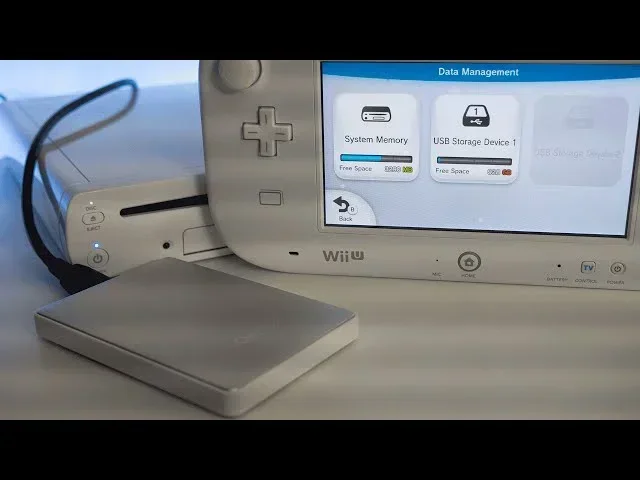
Plug the formatted hard drive into one of the USB ports on your Wii console. Launch the Homebrew Channel and select USB Loader GX. The loader should detect your drive automatically. Browse your game list, select a title, and hit launch. That is really all there is to it.
If the drive does not appear, try unplugging it and plugging it into a different USB port. Sometimes the Wii only recognizes drives on specific ports. You can also try restarting the Homebrew Channel.
Formatting Options: FAT32 vs WBFS vs NTFS
Choosing the right file system for your hard drive is critical. Each format has its own strengths and weaknesses. Let us look at them side by side.
- FAT32: The most compatible format. Works with the Wii, computers, and even some other devices. The 4GB file size limit can be a minor inconvenience for larger game files.
- WBFS: Purpose built for Wii games. Efficient storage and no file size limits within the WBFS structure. However, it is not recognized by standard computers without special software.
- NTFS: Windows native format. Supports large files and partitions. However, the Wii does not natively support NTFS without additional homebrew patches. Some versions of USB Loader GX can handle NTFS with the right configuration.
For the best experience, FAT32 is the recommended choice for most users. It balances compatibility, ease of use, and performance. If you need more storage efficiency, WBFS is a solid alternative for dedicated Wii users.
Common Problems and How To Fix Them
Even with a proper setup, you might run into issues from time to time. Here are the most common problems and their solutions.
Drive Not Recognized by the Wii
This is the most frequent issue. It usually happens because of a formatting problem or a power supply issue. First, double check that your drive is formatted to FAT32 or WBFS. If you are using a desktop hard drive, make sure it is connected to a powered USB hub. The Wii USB ports may not provide enough power for larger drives.
Also, try a different USB cable. Sometimes cables are faulty or incompatible. If none of these steps work, try a different hard drive entirely. Some drives have firmware that does not play well with the Wii console.
Games Freeze or Crash During Loading
Game crashes can be caused by corrupted game files or an incompatible drive. Try re-copying the game files to the drive. Use a verified source for your game images. Also, check if your USB Loader GX version is up to date. Developers regularly release updates that fix bugs and improve compatibility.
Slow Load Times
If your games take a long time to load, the drive speed might be the culprit. Traditional spinning hard drives are slower than SSDs. Consider upgrading to an external SSD for much faster load times. Also, make sure your drive is connected directly to the Wii USB port rather than through a long USB extension cable.
Tips for Getting the Best Performance
Want to squeeze every bit of performance out of your setup? Here are some expert tips that make a real difference.
- Use a powered USB hub: This ensures your hard drive gets consistent power. It prevents disconnections during gameplay.
- Keep your drive defragmented: On FAT32 formatted drives, regular defragmentation improves read speeds. Use Windows built-in tools for this.
- Update USB Loader GX regularly: New versions often include better drive compatibility and bug fixes.
- Use a short USB cable: Longer cables can cause signal loss. A short, high quality cable gives the best connection.
- Store your drive safely: Hard drives are mechanical and can be damaged by drops or bumps. Handle with care.
These small steps go a long way toward keeping your USB loading setup running smoothly. A little maintenance now saves you headaches later.
Expert Insights on USB Loading
From years of experience in the Wii homebrew community, a few things stand out. First, not all hard drives are created equal. Some brands and models have better compatibility with the Wii console than others. Seagate and Western Digital portable drives tend to work very well in most cases.
Second, the way you manage your game files matters. Keep backups of your game files on your computer. If your drive ever fails, you do not lose your entire library. A simple external hard drive backup routine can save you a lot of trouble.
Finally, stay informed about updates and community discussions. The Wii homebrew scene is active and constantly evolving. New tools and fixes are always emerging. Being part of the community helps you stay ahead of any issues that come up.
It is also worth noting that the principles of using external storage with gaming consoles have parallels in other areas of technology. For instance, understanding network communication in electronic commerce involves similar considerations around data transfer and device compatibility. If you are curious about how networks handle data for commerce purposes, the advantages and disadvantages of using a value added network for electronic commerce communication offer interesting insights into data management and transfer protocols.
Similarly, the operating system that manages your storage device plays a big role in performance and compatibility. Just like how a proprietary operating system has its own strengths and limitations, the file system you choose for your hard drive directly impacts how well it works with USB Loader GX. Both scenarios highlight the importance of choosing the right system for your specific needs.
Frequently Asked Questions
Do I need to modify my Wii console to use USB Loader GX with a hard drive?
Yes, you need to have your Wii console soft modded to use USB Loader GX. This involves installing the Homebrew Channel and custom IOS files. The process is well documented and safe when followed correctly. Soft modding does not brick your console and can be reversed if needed.
Can I use a 2TB hard drive with USB Loader GX?
Yes, USB Loader GX supports drives up to 2TB and even larger. The Wii console itself has some limitations with very large partition sizes, but most modern versions of USB Loader GX handle large drives without any issues. Just make sure to format the drive properly before use.
Will using a hard drive void my Wii warranty?
Using a hard drive with USB Loader GX requires soft modding your console, which does void the manufacturer warranty. However, soft modding is reversible. You can restore your Wii to its original factory settings if needed. Keep this in mind before proceeding.
Can I play GameCube games from a hard drive with USB Loader GX?
Yes, USB Loader GX supports both Wii and GameCube game backups. You can store and play GameCube ISO files from your hard drive just like Wii games. Some additional configuration may be needed for GameCube-specific settings, but the process is straightforward.
Is it legal to use USB Loader GX with backed up games?
The legality of using USB Loader GX depends on your country and how you obtain your game files. In many regions, backing up games you already own falls into a legal gray area. Downloading copyrighted game files without owning the original is illegal in most places. Always make sure you comply with local laws.
What is the best hard drive brand for USB Loader GX?
Portable drives from Seagate and Western Digital are widely recommended for Wii USB loading. They offer good compatibility, reliable performance, and compact size. That said, most standard USB hard drives will work fine as long as they are properly formatted and powered.
Final Thoughts
Using a hard drive with USB Loader GX is one of the best upgrades you can make to your Wii gaming experience. It is simple, affordable, and incredibly convenient. Once you have your games loaded onto a drive, you will wonder how you ever managed with disc swapping. The setup process is manageable even for beginners, and the payoff is immediate.
Remember to format your drive correctly, keep your software updated, and take care of your hardware. These small habits will keep your setup running smoothly for years to come. Whether you are revisiting classic Wii titles or discovering GameCube gems, USB Loader GX with a hard drive makes it all effortless.
So go ahead, grab a compatible hard drive, follow the steps in this guide, and start building your digital game library today. The world of USB loading on the Wii is waiting for you, and it is easier than you think.
Frequently Asked Questions
What is Can You Use A Hard Drive For Usb Loader Gx?
Can You Use A Hard Drive For Usb Loader Gx is an important topic with many practical applications.