Can You Use Airplay With Hotspot For Wireless Streaming
Yes, you can use AirPlay with a hotspot to stream content wirelessly from your iPhone, iPad, or Mac to a TV or receiver. This guide explains how to set it up, fix common problems, and get the best streaming experience using mobile hotspot AirPlay connections.
Key Takeaways
- AirPlay works with hotspots: You can mirror your screen or stream media using a personal hotspot connection.
- Setup is simple: Just enable your hotspot, connect both devices, and use AirPlay as usual.
- Performance varies: Hotspot speed and bandwidth can affect streaming quality and stability.
- Common issues have fixes: Most problems like lag or disconnections can be solved with simple steps.
- Data usage matters: Streaming via hotspot uses your cellular data, so keep an eye on limits.
- Security is important: Use a strong password on your hotspot to protect your connection.
📑 Table of Contents
- Can You Use AirPlay With Hotspot? Here Is Everything You Need to Know
- What Is AirPlay and How Does It Work?
- Can You Use AirPlay With Hotspot? The Short Answer Is Yes
- How to Set Up AirPlay Through a Hotspot
- Common Problems When Using AirPlay With Hotspot
- Tips for Better AirPlay Hotspot Streaming
- Is It Safe to Use AirPlay With a Hotspot?
- Comparing AirPlay Hotspot Vs Wi-Fi Router Streaming
- Expert Insights on AirPlay and Hotspot Streaming
- Key Takeaways
- Conclusion
Can You Use AirPlay With Hotspot? Here Is Everything You Need to Know
Have you ever been in a hotel room, a car, or a place with no Wi-Fi and thought, “Can I still AirPlay to my TV?” The short answer is yes. You can use AirPlay with a hotspot and stream content wirelessly from your Apple device to a screen or receiver. It works, but there are a few things you should know first.
Using AirPlay streaming through a personal hotspot is handy. Maybe you are traveling. Maybe your home Wi-Fi is down. Or maybe you just want to share a movie with friends and there is no router in sight. Whatever the reason, this guide will walk you through everything you need to know about wireless screen mirroring with a hotspot.
We will cover how it works, how to set it up, what problems you might face, and how to get the best experience. Let us dive in.
What Is AirPlay and How Does It Work?
AirPlay is Apple’s wireless streaming technology. It lets you send audio, video, and screen images from one Apple device to another. You can mirror your iPhone screen to an Apple TV. You can stream music to HomePod speakers. You can send photos to a compatible smart TV.
AirPlay uses Wi-Fi to connect devices. Both the sender (your iPhone or iPad) and the receiver (Apple TV, smart TV, or AirPlay-compatible speaker) need to be on the same network. That is the key point. AirPlay relies on a shared network connection to work properly.
Here is how the basic process works:
- Your device finds the receiver on the same network.
- It sends a signal with the content you want to play.
- The receiver displays or plays the content.
- You control playback from your device.
This is why Wi-Fi hotspot AirPlay can work. A hotspot creates a local network. Your Apple devices can connect to it and communicate just like they would at home.
How AirPlay Handles Streaming Quality
AirPlay adjusts the quality of your stream based on your network speed. When the connection is strong, you get smooth, high-quality video. When the connection is weak, the quality drops to keep the stream going. This is called adaptive streaming.
With a hotspot, your speed depends on your cellular signal. A strong 5G signal gives you great results. A weak 4G signal might cause buffering or lower quality. This is something to keep in mind when you set up media streaming through a hotspot.
Can You Use AirPlay With Hotspot? The Short Answer Is Yes
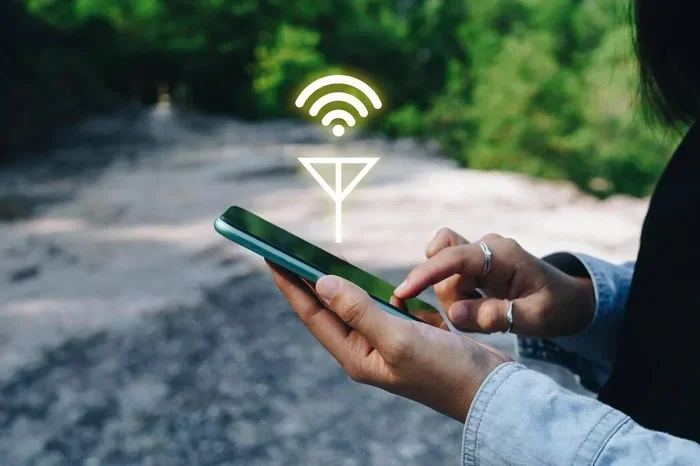
So, can you use AirPlay with a hotspot? Yes, you absolutely can. A mobile hotspot acts like a mini Wi-Fi router. When you turn it on, it creates a local network that your devices can join.
Here is the basic setup idea:
- Turn on your iPhone hotspot.
- Connect your iPad or Mac to that hotspot.
- Connect your Apple TV or AirPlay receiver to the same hotspot.
- Use AirPlay to stream content from one device to the other.
It sounds simple, and it mostly is. But there are some important details to understand. Not all hotspot setups work perfectly. The device connectivity depends on several factors.
Why People Use AirPlay With Hotspots
People use AirPlay with hotspot for many reasons. Here are the most common ones:
- Traveling: Hotels often have bad Wi-Fi. A hotspot gives you a reliable connection.
- Road trips: You want to watch movies in the back seat during a long drive.
- Outdoor gatherings: You want to play music or show photos at a park or beach.
- Home Wi-Fi is down: Your router stopped working and you need a quick fix.
- Presentations: You need to screen mirror in a meeting space without Wi-Fi.
Each of these situations works well with wireless screen mirroring through a hotspot. The key is knowing how to set it up correctly.
How to Set Up AirPlay Through a Hotspot
Setting up AirPlay streaming with a hotspot is straightforward. Follow these steps and you will be watching your favorite show in minutes.
Step 1: Enable Your Hotspot
First, turn on your personal hotspot. On an iPhone, go to Settings and tap Personal Hotspot. Toggle it on. Set a password that is strong but easy to remember.
Make sure your cellular data is working. Check your signal strength. A strong signal means better streaming quality for AirPlay receiver devices.
Step 2: Connect Your Devices
Now connect all the devices you want to use. Go to Wi-Fi settings on each device. Find your hotspot name and enter the password.
Make sure both the sender device and the receiver device are connected to the same hotspot. This is the most important step. If one device is on Wi-Fi and the other is on the hotspot, screen cast will not work.
Step 3: Start AirPlay
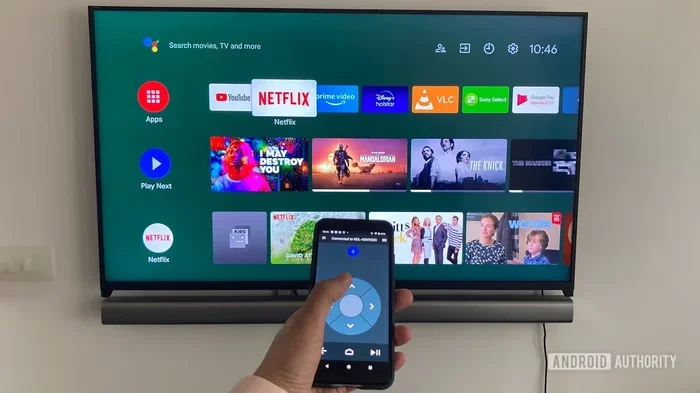
Open the content you want to stream. Tap the AirPlay icon. Select your receiver device. The content should start playing on the big screen.
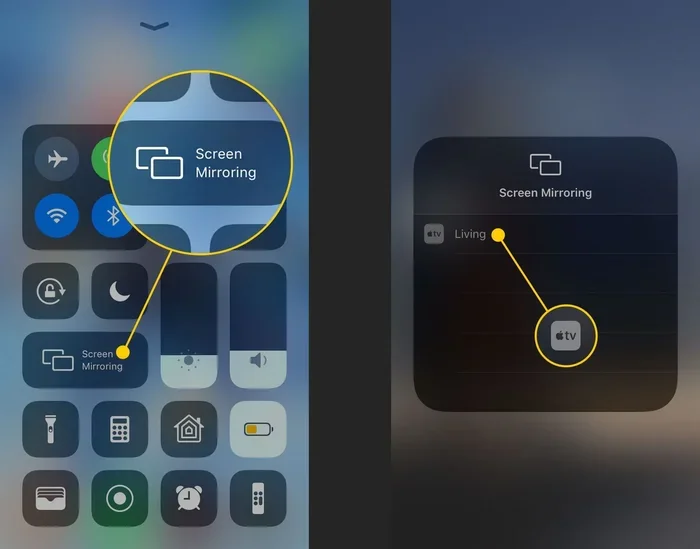
If you are mirroring your entire screen, go to Control Center and tap Screen Mirroring. Choose your receiver. Your whole screen will now appear on the TV or display.
Step 4: Control Your Stream
You control everything from your sending device. You can pause, play, adjust volume, and skip content. The connection stays between your devices on the hotspot network.
Quick Tips for a Smooth Setup
- Restart both devices before starting.
- Keep your devices close together for a stronger signal.
- Turn off other apps that use bandwidth.
- Use the latest version of iOS or iPadOS.
- Check that your hotspot name is visible and not hidden.
Common Problems When Using AirPlay With Hotspot
Using AirPlay streaming through a hotspot is not always perfect. You might run into some issues. Here are the most common ones and how to fix them.
AirPlay Does Not Find the Receiver
This is the number one problem people face. Your device cannot see the Apple TV or smart TV on the hotspot network. The fix is usually simple. Make sure both devices are on the same network. Sometimes restarting Wi-Fi on both devices helps. You can also try turning the hotspot off and back on.
Streaming Is Laggy or Choppy
Lag happens when the hotspot signal is weak. Your cellular connection might not be fast enough to handle video streaming. Try moving closer to a window or outside to get a better signal. Lowering the video quality can also help. You can do this in your streaming app settings.
Audio and Video Are Out of Sync
Sometimes the sound and video do not match. This is called audio sync issues. It happens when the bandwidth limitations of the hotspot cannot handle the stream smoothly. Pausing the video for a few seconds and then resuming often fixes this.
Hotspot Disconnects Frequently
If your hotspot keeps dropping, the stream will stop. This usually happens when your cellular signal is weak. Check your signal bars. If they are low, move to a different location. You can also try changing your hotspot band from 5GHz to 2.4GHz for better range.
Devices Keep Losing Connection
Some devices disconnect from the hotspot after a while. This can be a power-saving feature. Go to your device settings and turn off low power mode. Also make sure your hotspot does not go to sleep too quickly. Adjust the auto-lock settings on your phone.
Tips for Better AirPlay Hotspot Streaming
Want to get the most out of wireless streaming with a hotspot? These tips will help you improve your experience.
Choose the Right Hotspot Band
Most modern phones offer two Wi-Fi bands for hotspots: 2.4GHz and 5GHz. The 2.4GHz band has a longer range but slower speeds. The 5GHz band is faster but has a shorter range. For AirPlay streaming, 5GHz is usually better if your devices are close together.
Manage Your Data Usage
Streaming video uses a lot of data. A one-hour movie can use 3 to 5 GB. If you have a limited data plan, this can add up fast. Keep an eye on your data usage. You can check this in your phone settings under Cellular or Mobile Data.
Here is a quick look at approximate data usage:
- Standard definition video: about 1 GB per hour
- High definition video: about 3 GB per hour
- 4K video: about 7 GB per hour
- Music streaming: about 150 MB per hour
Keep Devices Close Together
Hotspot signals are not as strong as a home router. Keep your sending device and receiver device within 10 to 15 feet of each other. Walls and furniture can weaken the signal. Less distance means a stronger, more stable connection.
Close Unnecessary Apps
Background apps use bandwidth and processing power. Close any apps you are not using. This frees up resources for your AirPlay hotspot stream. You will get smoother performance as a result.
Update Your Devices
Always keep your iPhone, iPad, Apple TV, and other devices updated. Software updates often fix device connectivity bugs and improve AirPlay performance. Check for updates before you start streaming.
Use an External Hotspot If Possible
If you stream often, consider buying a dedicated mobile hotspot device. These are more powerful than phone hotspots. They have better antennas and longer battery life. They also free up your phone for other tasks while you stream.
Is It Safe to Use AirPlay With a Hotspot?
Security is an important concern with any wireless connection. When you use AirPlay with hotspot, your data travels through the air. Anyone nearby could potentially try to access your network.
Here are some simple steps to keep your connection safe:
- Use a strong password: Make your hotspot password at least 12 characters long with a mix of letters, numbers, and symbols.
- Turn off hotspot when not in use: This prevents unwanted connections.
- Hide your network name: You can set your hotspot to not broadcast its name.
- Use WPA2 or WPA3 encryption: This is the standard for secure Wi-Fi connections.
- Do not share your password publicly: Only give it to people you trust.
These steps are easy to follow. They keep your network troubleshooting to a minimum and your data secure. Most modern phones use strong encryption by default. Just make sure you have set a good password.
How Hotspot Security Affects AirPlay
A secure hotspot actually helps AirPlay work better. When your network is protected, there are fewer interruptions from outside devices trying to connect. This means a more stable streaming to TV experience.
Some people think that hiding their network or using strong security will block AirPlay. This is not true. AirPlay works perfectly fine with WPA2 and WPA3 encryption. Your devices will connect normally as long as they have the password.
Comparing AirPlay Hotspot Vs Wi-Fi Router Streaming
How does streaming through a hotspot compare to using a regular Wi-Fi router? Here is a quick look at the differences.
| Feature | Hotspot Streaming | Router Streaming |
|---|---|---|
| Connection Type | Cellular data to Wi-Fi | Home broadband to Wi-Fi |
| Speed | Varies by signal strength | Usually faster and more stable |
| Data Usage | Uses cellular data | Uses home data plan |
| Range | Limited, about 30 feet | Wider, can cover a whole home |
| Setup | Quick, no router needed | Requires a home router |
| Cost | Uses your cellular data plan | Included in home internet bill |
| Best For | Travel, emergencies, outdoor use | Home streaming and daily use |
As you can see, both options have their place. A home router is better for everyday streaming. A hotspot is your go-to solution when you are on the go or when your regular Wi-Fi is not available.
When to Use Each Option
Use a hotspot when you are traveling, at a location without Wi-Fi, or when your home internet is down. Use a router for daily home streaming where you want the best quality and most stable connection. Both support AirPlay streaming and wireless screen mirroring equally well.
Expert Insights on AirPlay and Hotspot Streaming
Network experts agree that AirPlay over a hotspot is a practical solution for many situations. The technology has improved a lot over the years. Apple has made tethering and hotspot connections much more reliable for streaming.
One thing experts emphasize is the importance of signal strength. Your streaming quality is directly tied to your cellular signal. If you are in an area with weak coverage, expect lower quality and more buffering. On the other hand, a strong 5G signal can deliver surprisingly good results.
Another expert tip is to use Wi-Fi Direct features when available. Some newer devices can create direct peer-to-peer connections that do not rely on a traditional hotspot setup. This can reduce latency and improve the streaming experience.
Experts also recommend monitoring your data usage closely. Streaming through a hotspot eats through data fast. If you have an unlimited plan, this is less of a concern. But if you have a capped plan, you could face extra charges or throttling.
Key Takeaways
- AirPlay works with hotspots: You can mirror your screen or stream media using a personal hotspot connection.
- Setup is simple: Just enable your hotspot, connect both devices, and use AirPlay as usual.
- Performance varies: Hotspot speed and bandwidth can affect streaming quality and stability.
- Common issues have fixes: Most problems like lag or disconnections can be solved with simple steps.
- Data usage matters: Streaming via hotspot uses your cellular data, so keep an eye on limits.
- Security is important: Use a strong password on your hotspot to protect your connection.
- Proximity helps: Keep your devices close to each other for the best signal and streaming experience.
Conclusion
So, can you use AirPlay with hotspot for wireless streaming? The answer is a clear yes. It is a practical, useful, and surprisingly reliable way to stream content when you are away from your home Wi-Fi network.
Whether you are on a road trip, staying in a hotel, or dealing with a broken router, AirPlay streaming through a hotspot gets the job done. The setup is easy, the connection works, and the experience is getting better with every iOS update.
Just remember to watch your data usage, keep your devices close, and use a strong hotspot password. These small steps make a big difference in your streaming quality and security.
Now that you know how it all works, go ahead and try it. Set up your hotspot, connect your devices, and enjoy wireless screen mirroring wherever you are. You will be glad you did.
Frequently Asked Questions
Can I use AirPlay with an Android phone hotspot?
AirPlay is an Apple technology and works best with Apple devices. You can connect an Apple device to an Android hotspot, but the experience may vary. The Android phone acts as a router, and your Apple device can join that network. However, some features may not work as smoothly as with an iPhone hotspot.
Does using AirPlay with a hotspot drain my phone battery?
Yes, it does. Hotspot usage and AirPlay streaming both use a lot of power. Your phone battery will drain faster than normal. Keep your phone plugged in or near a charger when streaming for long periods. Using a portable battery pack is also a great idea.
Can I use AirPlay with a hotspot without Wi-Fi?
Yes, that is exactly what a hotspot does. It creates a Wi-Fi network using your cellular data. Your devices connect to this Wi-Fi network, and AirPlay works through it. You do not need a separate internet connection or router.
How much data does AirPlay use through a hotspot?
Data usage depends on the quality of the content. Standard definition uses about 1 GB per hour. High definition uses about 3 GB per hour. 4K content can use up to 7 GB per hour. Music streaming uses much less, around 150 MB per hour. Keep these numbers in mind if you have a limited data plan.
Why does my AirPlay keep disconnecting on a hotspot?
Disconnections usually happen because of a weak cellular signal. Move to an area with better coverage. You can also try switching your hotspot between 2.4GHz and 5GHz bands. Restarting your devices and the hotspot often fixes temporary connection issues too.
Can I stream 4K video through a hotspot using AirPlay?
You can, but it depends on your cellular signal and data speed. A strong 5G connection can handle 4K streaming. A weak 4G connection will likely struggle. 4K uses a lot of data, so make sure you have enough data available. Expect some quality adjustments if your signal is not strong.