Can A Laptop Be Used As A Gaming Pc For Work And Play
The short answer is yes, but with some smart tweaks. Can A Laptop Be Used As A Gaming Pc for both work and play? Absolutely, if you choose the right hardware and know a few tricks. This guide breaks down everything you need to know, from external GPUs to cooling solutions, so you can game without a bulky desktop.
So you want to game on your laptop. Maybe you love the idea of a single device that handles spreadsheets and shootouts. Or you travel a lot and hate leaving your gaming rig behind. The question is simple: Can A Laptop Be Used As A Gaming Pc? The answer is a confident yes, but the details matter a lot.
Many people assume a desktop is the only way to play the latest AAA titles. That was true ten years ago. Today, laptops have caught up in a big way. You can find machines with powerful graphics cards, fast processors, and high-refresh screens. Some even rival mid-range desktops. But not every laptop is built the same. A thin office notebook will struggle. A dedicated gaming laptop will thrive. This guide will walk you through exactly what you need to know. You will learn about hardware limits, external upgrades, and smart tweaks that make laptop gaming feel great.
We will also talk about using one laptop for both work and play. That is a huge draw for many people. You do not want to buy two expensive machines if one can do both. I will share real-world examples, practical tips, and honest drawbacks. By the end, you will know if a laptop can truly replace your gaming desktop. Let us dive in.
Key Takeaways
- Yes, a laptop can handle gaming: With the right setup, a laptop can deliver solid gaming performance for most titles.
- An external GPU is a game-changer: It transforms any laptop into a powerful gaming machine without replacing it.
- Cooling matters more than you think: A good laptop cooling pad prevents thermal throttling and keeps frame rates stable.
- Work and play don’t have to conflict: Many modern laptops balance productivity and gaming with ease.
- Check your ports and bandwidth: Thunderbolt 3 or USB4 is essential for eGPU enclosures to work at full speed.
- Optimize settings before buying: Lowering in-game settings can make even an older laptop run modern games smoothly.
- Portability is the real advantage: You get a gaming setup that fits in a backpack, not a dedicated room.
📑 Table of Contents
What Does It Mean to Use a Laptop as a Gaming PC?
Using a laptop as a gaming PC means running modern video games on a portable computer. The goal is to get smooth frame rates, good graphics, and a responsive experience. A true gaming setup should handle today’s titles at medium to high settings without constant stuttering. It should also survive long gaming sessions without overheating.
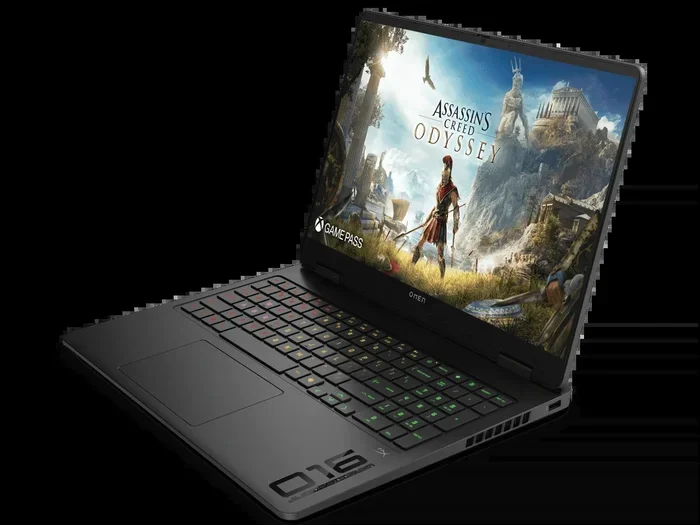
The term laptop as a gaming pc covers a wide range of machines. A bulky, expensive gaming laptop with an RTX 4070 is very different from a slim ultrabook with integrated graphics. Both can technically run games, but the experience is worlds apart. The key is matching the hardware to the games you want to play. A gaming laptop usually has a dedicated graphics card, a fast processor, and plenty of RAM. That is the sweet spot for serious laptop gaming.
The Hardware Reality
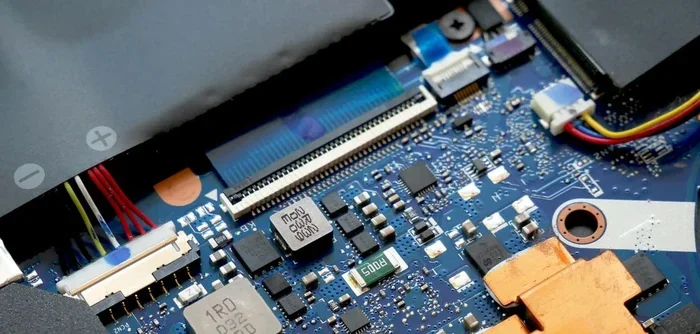
Let us look at what makes a laptop capable of gaming. The graphics card is the most important part. In a desktop, you can swap in a new GPU anytime. In a laptop, the GPU is soldered to the motherboard. You are stuck with what you have. That is why buying the right machine from the start is so critical.
Next comes the processor. A modern Intel Core i7 or AMD Ryzen 7 chip handles gaming and multitasking with ease. You also need enough RAM—16 GB is the current sweet spot for gaming on a laptop. Storage matters too. A fast NVMe SSD cuts down load times dramatically. No one wants to stare at a loading screen for minutes.
Do not forget the display. A laptop for work and play should have a screen with a high refresh rate, like 120Hz or 144Hz. That means smoother motion in fast-paced games. IPS panels offer great viewing angles and color accuracy. OLED screens are even better but can be pricey. All of these pieces work together to create a solid gaming performance experience.
When a Laptop Can Do the Job
A laptop can absolutely handle many popular games. Esports titles like League of Legends, Valorant, and Fortnite run beautifully on mid-range hardware. Indie games and older AAA releases also shine. Even some modern games look great on a gaming laptop when you tweak the settings. The real limit appears with ray tracing and ultra-high resolutions. Those demand desktop-class power. But for 1080p gaming at medium to high settings, a good laptop is more than enough.
How to Turn Your Laptop into a Gaming Machine
If you already own a laptop, you might think it is too weak for gaming. That is not always true. There are several ways to boost a regular laptop into a capable gaming setup. The most powerful option is an external GPU enclosure. This lets you add a desktop graphics card to your portable machine.
External GPU Enclosures: The Game-Changer
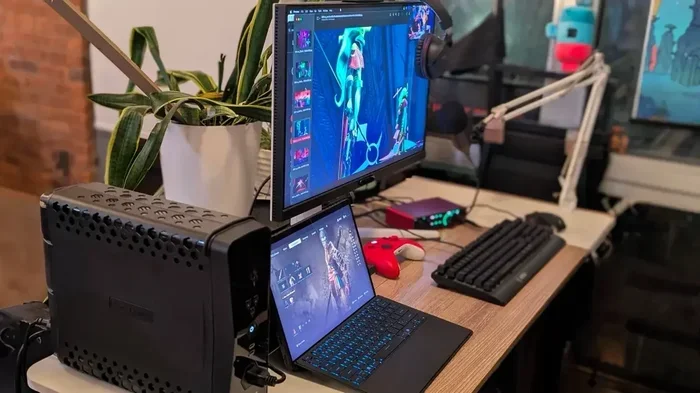
An external GPU (eGPU) is a box that houses a full-sized graphics card. You connect it to your laptop with a Thunderbolt 3 or USB4 cable. The connection gives the laptop access to a much more powerful GPU. This is the single best way to turn any laptop into a gaming pc.
The catch is bandwidth. Thunderbolt 3 uses a PCIe 3.0 x4 link, which is about 40 Gbps. That is slower than a direct desktop PCIe 4.0 x16 connection. You lose some performance, usually around 10 to 20 percent. But for most games, the difference is barely noticeable. You still get a massive upgrade over integrated graphics.
To use an eGPU, your laptop needs a Thunderbolt 3 or USB4 port. Check your machine first. Not all laptops support this feature. If yours does, an eGPU enclosure can cost between $200 and $400 for the box alone. Then you add a graphics card like an NVIDIA GeForce RTX 4060 or AMD Radeon RX 7700 XT. Suddenly your thin office laptop can run AAA titles at high settings.
Optimizing Settings for Smooth Gameplay
Even without an eGPU, you can make any laptop play games better. Start by lowering the in-game resolution. Running at 1080p instead of 4K reduces the load on your GPU. Turn off heavy features like ray tracing and ambient occlusion. Use the game mode in Windows 11 to prioritize performance. You can also undervolt your laptop processor. This reduces heat and power use without sacrificing much speed.
Keep your graphics drivers up to date. NVIDIA and AMD release regular updates that improve game compatibility. A laptop cooling pad helps too. It pushes more air across the bottom vents. Lower temperatures mean less thermal throttling. That keeps your frame rate steady during intense matches.
Quick Tips: – Close background apps before gaming to free up RAM. – Plug in your laptop; gaming on battery hurts performance. – Use a wired internet connection for competitive games to reduce input lag. – Elevate the back of your laptop with a stand for better airflow.
Common Mistakes to Avoid
Many people make simple mistakes that hurt their laptop gaming experience. One big error is blocking the vents. Using your laptop on a bed or a pillow traps heat. That causes the processor to slow down. Another mistake is running games at maximum settings on a weak machine. You will get stuttering and frustration. Do not ignore driver updates either. Outdated graphics drivers can cause crashes and low frame rates. Finally, avoid cheap power strips. A stable power supply keeps your system running consistently.
Work and Play: Can One Laptop Handle Both?
This is the question on everyone’s mind. Can you use a single laptop for work and gaming without making compromises? The answer depends on your workload and your gaming expectations. For many people, a modern thin and light laptop does both jobs well. You can edit documents in the morning, join a video call at noon, and play Cyberpunk 2077 at night.
Productivity Without Compromise
When you are working, you need a comfortable keyboard, a sharp display, and plenty of ports. A gaming laptop often checks all those boxes. The keyboards are usually backlit and have good key travel. The screens are bright and color-accurate, which is great for photo or video editing. You also get fast storage and lots of RAM, which speeds up multitasking.
The downside is that gaming laptops tend to be heavier and bulkier than ultrabooks. They do not fit as easily into a small bag. Battery life is often shorter because the powerful hardware draws more energy. If you are a digital nomad who works from coffee shops, a lighter business laptop might be better. But if your office is a home desk, the weight is not a big issue.
Best Laptops for the Dual Role
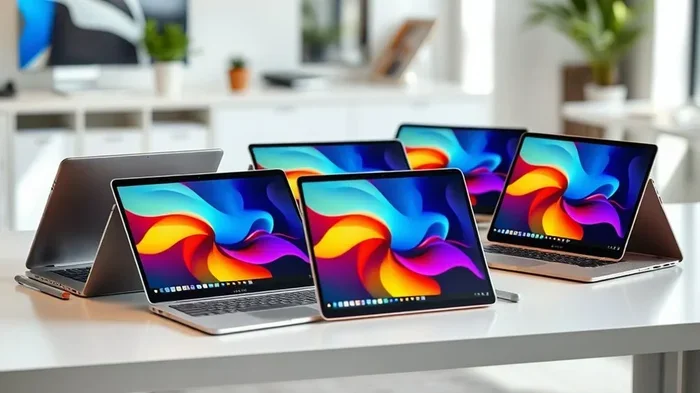
Some machines stand out as excellent laptops for work and play. Look for models with a dedicated GPU but a slim profile. The Lenovo Legion Slim 5 and ASUS ROG Zephyrus G14 are popular choices. They offer strong gaming performance in a relatively portable package. Apple’s MacBook Pro with M-series chips also handles creative work and casual gaming well, though it lacks upgrade options.
When shopping, compare the processor, RAM, and storage side by side. A comparison table can help you see the trade-offs clearly.
| Feature | Gaming Laptop | Business Ultrabook |
|---|---|---|
| Graphics | Dedicated GPU (RTX 4060+) | Integrated graphics only |
| Weight | 2.0–2.5 kg | 1.0–1.4 kg |
| Battery Life | 4–6 hours (gaming less) | 8–12 hours |
| Ports | Many USB, HDMI, Ethernet | Fewer, often USB-C only |
| Price Range | $1,000–$2,500 | $800–$1,800 |
As you can see, the choice comes down to your priorities. If gaming is a must, a dedicated GPU is non-negotiable. If portability is king, a business ultrabook wins. Some people buy both. But if you want one device, a capable gaming laptop can surprise you with its productivity skills.
The Pros and Cons of Laptop Gaming
Every setup has trade-offs. Laptop gaming is no different. Understanding the advantages and limits helps you set realistic expectations. Let us break down the big ones.
Advantages You Will Love
- Portability: You can game anywhere. Take it to a friend’s house, a LAN party, or the couch. A gaming laptop turns any room into your personal arcade.
- All-in-one convenience: No need for a separate monitor, keyboard, or mouse (though a mouse helps). Everything is built in. You just open the lid and play.
- Space saving: A laptop takes up a fraction of the desk space a desktop does. Perfect for small apartments or shared rooms.
- Upgrade path with eGPU: Even if the internal GPU is weak, you can add an external graphics card later to extend the life of your machine.
- Work and gaming in one: You do not need to switch devices during the day. This saves money and reduces clutter.
Limitations You Need to Know
- Thermal limits: Laptops pack powerful hardware into a tiny chassis. Heat builds up fast. This leads to thermal throttling, where the processor slows down to protect itself. Your frame rate can drop during long sessions.
- Upgradeability: You cannot swap out the CPU or GPU in most laptops. RAM and storage are often upgradeable, but the core components are fixed.
- Battery life during gaming: Gaming drains the battery quickly. You will likely need to keep it plugged in, which limits true portability.
- Screen size: A 15- or 17-inch laptop screen is great for travel, but it cannot match the immersion of a 27-inch desktop monitor.
- Cost per performance: You often pay a premium for the portability. A desktop with the same GPU will usually be cheaper.
Expert Insight
Many PC builders say that a laptop is a compromise, not a replacement. That is true, but the compromise is smaller than ever. An external GPU and a good cooling pad can close the gap significantly. If you accept the limits, a laptop as a gaming pc can deliver a very satisfying experience.
Expert Tips to Maximize Laptop Gaming Performance
You have your laptop, and you want to squeeze every bit of power from it. Here are some hands-on tips that make a real difference. These are the same tricks I use when I am testing gaming laptops on my desk.
Cooling Solutions That Actually Work
Heat is the enemy of performance. A laptop cooling pad with large fans is a great first step. Look for one that aligns with your machine’s vents. Some pads even have adjustable fan speeds. You can also use a laptop stand to elevate the back. This opens up the bottom for better airflow. In hot rooms, a small desk fan pointed at the laptop helps too.
Another trick is to remove the bottom panel and clean the dust from the fans and heatsinks. This sounds scary, but it is often simple. Check your laptop’s manual for instructions. Clean internals can drop temperatures by 5 to 10 degrees Celsius. That is enough to prevent thermal throttling and keep your gaming performance steady.
Software Tweaks for Better FPS
Windows has a built-in Game Mode that prioritizes resources for your game. Turn it on in Settings. You can also use the NVIDIA Control Panel or AMD Software to create a game-specific profile. Set the power management mode to “Prefer Maximum Performance.”
Undervolting is a more advanced trick. You use a tool like ThrottleStop or Intel XTU to reduce the voltage supplied to the processor. This lowers heat without cutting speed. Many gamers undervolt their laptops and gain 5 to 15 percent more sustained performance. It takes a little experimentation, but the results are worth it.
Do not forget to close background apps. Browsers with many tabs, Spotify, and Discord all use memory and CPU. A clean desktop gives your game the resources it needs. You can also set your power plan to “High Performance” when plugged in.
Common Mistakes: – Playing on battery: Always plug in for best performance. – Ignoring driver updates: Check for GPU drivers weekly during a new game release. – Using a soft surface: Beds and couches block vents and cause overheating. – Overclocking without cooling: This can shorten your laptop’s lifespan.
Quick Tips: The 5-Minute Setup
Before you launch any game, do this quick checklist. Plug in your power cable. Close all unnecessary programs. Turn on Game Mode. Update your GPU drivers. Adjust your in-game resolution to match your laptop’s native screen. Then sit back and enjoy smooth laptop gaming. These five steps take almost no time and can boost your frame rate noticeably.
Final Verdict: Is a Laptop Enough for Your Gaming Needs?
So, back to the original question. Can A Laptop Be Used As A Gaming Pc for work and play? Yes, absolutely. A modern gaming laptop can handle most games at good settings. With an external GPU, it can even tackle the latest releases at higher fidelity. The portability factor is a huge win for people who game on the go or in small spaces.
Who Should Choose a Laptop Over a Desktop
A laptop makes sense if you travel often, live in a small apartment, or simply want one device for everything. Students, remote workers, and digital nomads benefit greatly. A thin and light machine lets you switch from a Zoom meeting to a gaming session without moving to another room. You also avoid the clutter of multiple cables and boxes.
On the other hand, if you want the absolute highest frame rates at 4K resolution, or you plan to build a custom rig with water cooling, a desktop is still the king. Laptops are about convenience and versatility, not raw peak performance.
The Bottom Line
The days when a laptop could not handle serious gaming are long gone. Today, a laptop for work and play is a very real possibility. You just need to choose the right machine for your needs, manage your expectations, and use a few smart tweaks. Whether you are battling enemies in Elden Ring or editing a video for work, a good laptop can do it all. Embrace the portability, invest in cooling, and enjoy the freedom of a gaming setup that fits in your bag.
Remember, the best gaming pc is the one that fits your life. If that is a laptop, go for it. You will not regret it.
Frequently Asked Questions
Can a regular laptop be used for gaming?
Yes, a regular laptop can run many games, especially older titles and esports games. However, it will struggle with the latest AAA releases if it has only integrated graphics. You can still improve the experience by lowering settings and using a cooling pad.
How much does an external GPU cost?
The eGPU enclosure itself costs between $200 and $400. Then you need to buy a desktop graphics card, which can range from $300 to $1,000 or more. So the total investment is significant, but it can breathe new life into an older laptop.
Is a gaming laptop good for work?
Absolutely. Gaming laptops usually have powerful processors, plenty of RAM, and fast SSDs. They handle office tasks, video editing, and multitasking with ease. The main downside is that they are heavier and have shorter battery life than business ultrabooks.
Does gaming on a laptop damage it?
Not if you take care of it. Regular gaming can cause more heat and wear on the battery over time. Using a cooling pad, keeping vents clear, and avoiding battery-only gaming sessions will help your laptop last longer.
What is the best screen size for a gaming laptop?
15.6 inches is the most popular size because it balances portability and screen space. 17.3-inch models give a more immersive experience but are less portable. For work, a 14-inch or 16-inch thin and light laptop is often the best compromise.
Can you connect a mouse and external monitor to a laptop for gaming?
Yes, and it is highly recommended. A mouse gives you better precision and comfort. An external monitor with a high refresh rate can make your games look and feel much smoother. Most laptops have HDMI or USB-C ports that support external displays easily.