Does Airdrop Turn On Wi Fi Without You Even Knowing
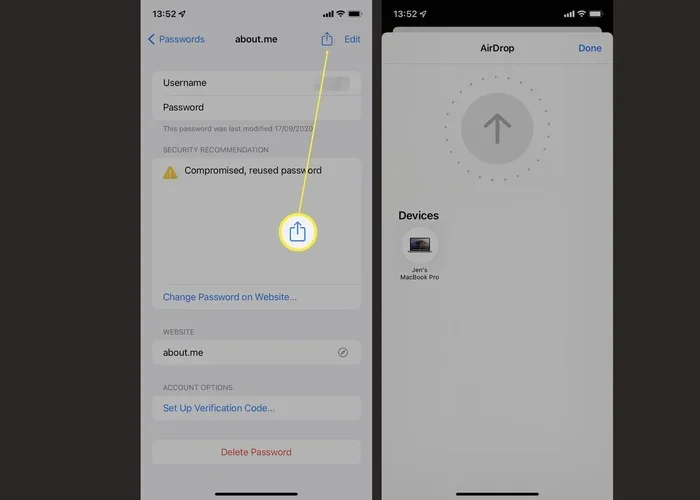
Does AirDrop turn on Wi-Fi automatically? The short answer is yes, but only under specific conditions. When you use AirDrop to share files between Apple devices, it temporarily activates your Wi-Fi connection and Bluetooth to create a direct peer-to-peer wireless transfer link. This happens without a popup notification, which catches many users off guard. Understanding how AirDrop interacts with your wireless settings helps you manage data usage and device discovery more effectively.
Key Takeaways
- AirDrop turns on Wi-Fi automatically: When you use AirDrop, your device activates Wi-Fi to create a direct peer-to-peer connection for fast file transfers.
- No internet data is used: AirDrop creates a local connection that does not go through your Wi-Fi router or use your mobile data plan.
- Bluetooth handles discovery, Wi-Fi handles transfer: AirDrop uses Bluetooth to find nearby devices and Wi-Fi to move files quickly between them.
- You can control AirDrop behavior: Adjusting your AirDrop settings to “Contacts Only” or “Receiving Off” helps manage Wi-Fi and Bluetooth activity.
- AirDrop works without internet: You do not need an active internet connection to send or receive files via AirDrop.
- Wi-Fi stays active only during transfers: In most cases, Wi-Fi turns off shortly after an AirDrop transfer completes, saving battery life.
- Older devices may behave differently: Single-radio devices might briefly disconnect from your Wi-Fi network during an AirDrop transfer.
📑 Table of Contents
- Does Airdrop Turn On Wi Fi Automatically?
- The Role of Bluetooth in AirDrop
- AirDrop Wi-Fi vs Bluetooth: A Comparison
- When Does AirDrop Activate Your Wi-Fi Network?
- How to Control AirDrop’s Wi-Fi Behavior
- Common Mistakes People Make with AirDrop and Wi-Fi
- Quick Tips for Managing AirDrop and Wi-Fi Settings
- Expert Insights on AirDrop and Wireless Connectivity
- Conclusion
Does Airdrop Turn On Wi Fi Automatically?
AirDrop is one of the most convenient features in the Apple ecosystem. It lets you send photos, videos, documents, and more between Apple devices instantly. You do not need cables, email, or any third-party app. Everything happens wirelessly right from your iPhone, iPad, or Mac.
But here is the question many people ask. Does AirDrop turn on Wi-Fi without you knowing? The answer is not as simple as yes or no. AirDrop uses a combination of Bluetooth and Wi-Fi to work. Understanding how these two technologies interact helps you take control of your device settings.
When you open AirDrop, your device starts looking for nearby Apple devices. It does this through Bluetooth low energy. At the same time, it sets up a direct Wi-Fi connection for the actual file transfer. This dual-technology approach is what makes AirDrop so fast and seamless.
The short answer to “does AirDrop turn on Wi-Fi” is yes. But it is not the mysterious, data-hogging behavior that some people fear. AirDrop simply uses Wi-Fi in a smart, local way to make file sharing fast and seamless. Let us break down exactly what happens behind the scenes.
What Happens When You Toggle AirDrop On
The moment you turn on AirDrop, your device begins a two-step process. First, it activates Bluetooth to broadcast your presence. Second, it powers up the Wi-Fi radio to prepare for data transfer. Both of these happen automatically and without a notification.
This is why many users are surprised the first time they notice their Wi-Fi icon lit up. They did not manually turn it on. AirDrop did it for them. This is by design. Apple built AirDrop this way to ensure the fastest possible transfer speeds between devices.
If you are someone who likes to keep Wi-Fi off to save battery, this behavior might be frustrating. The good news is that you can manage it. We will cover how to control AirDrop’s Wi-Fi behavior later in this article.
The Role of Bluetooth in AirDrop
Bluetooth plays a big role in AirDrop. It handles the initial discovery process. When you toggle AirDrop on, your device broadcasts a Bluetooth signal. Nearby Apple devices pick up this signal and show up in your AirDrop menu.
However, Bluetooth alone cannot handle large file transfers. That is where Wi-Fi comes in. Bluetooth has a very limited data transfer speed. It would take forever to send a high-resolution photo or a long video clip. So Apple designed AirDrop to use Wi-Fi for the actual data transfer.
Here is the key part. AirDrop creates a peer-to-peer Wi-Fi network between the two devices. This means it does not need your regular Wi-Fi router. The devices connect directly to each other. This is why your Wi-Fi toggle may turn on even when you are not connected to any network.
Bluetooth Low Energy vs Classic Bluetooth
AirDrop uses Bluetooth low energy for discovery. This is a power-efficient version of Bluetooth that uses very little battery. It is perfect for the quick handshake that happens before a file transfer.
Classic Bluetooth, on the other hand, is used for longer-range connections. AirDrop does not rely on classic Bluetooth for the actual transfer. It only uses it to say “hello” to nearby devices. The heavy lifting is done by Wi-Fi.
This division of labor is what makes AirDrop so efficient. Bluetooth handles the introductions. Wi-Fi handles the file delivery. Both work together seamlessly in the background.
AirDrop Wi-Fi vs Bluetooth: A Comparison
Understanding the difference between how AirDrop uses Wi-Fi and Bluetooth helps clarify why both are needed. Here is a side-by-side comparison of the two technologies within AirDrop.
| Feature | Bluetooth | Wi-Fi |
|---|---|---|
| Role in AirDrop | Device discovery and pairing | Actual file transfer |
| Speed | Up to 2 Mbps | Up to 300+ Mbps |
| Range | About 30 feet | About 30-60 feet |
| Power Usage | Very low | Moderate |
| Needs Router? | No | No |
| Turned On By AirDrop? | Yes | Yes |
As you can see from the table, both Bluetooth and Wi-Fi are essential to AirDrop. Neither can do the job alone. Bluetooth is too slow for large files. Wi-Fi cannot discover nearby devices on its own. Together, they make AirDrop the powerful tool it is.
If you are curious about how far your Wi-Fi signal can reach during an AirDrop transfer, check out our guide on extending Wi-Fi to 200 feet away for more insights on wireless range.
When Does AirDrop Activate Your Wi-Fi Network?
There is a common misconception about AirDrop and Wi-Fi networks. Many people think AirDrop connects to their home Wi-Fi or a public network. This is not true. AirDrop creates its own isolated connection. But there are situations where AirDrop and your regular Wi-Fi network interact.
When You Are Already Connected to Wi-Fi
If your device is already connected to a Wi-Fi network and you use AirDrop, both connections can run at the same time. Your device handles this gracefully. It uses one Wi-Fi radio for your internet connection and another for the AirDrop transfer.
On older devices with a single Wi-Fi radio, things work a bit differently. The device may briefly disconnect from your Wi-Fi network to handle the AirDrop transfer. Once the transfer is complete, it reconnects to the network. This is why you might see your internet connection drop for a second during an AirDrop send.
On newer devices with dual-band Wi-Fi, this is less of an issue. The device can handle both connections simultaneously. This is especially true for iPhones and iPads that support Wi-Fi 5 or Wi-Fi 6.
In Public Wi-Fi Environments
Using AirDrop in a public Wi-Fi environment, like a coffee shop or airport, is perfectly safe. AirDrop does not use the public Wi-Fi network for file transfers. It creates its own direct connection. Your personal files stay private and do not travel through the public network.
That said, being visible on AirDrop in public comes with risks. If your AirDrop is set to “Everyone,” strangers nearby can send you files. To stay safe, set AirDrop to “Contacts Only” when you are in crowded public spaces.
Some users also wonder whether using AirDrop in a public place drains their battery faster. The answer is yes, slightly. Keeping both Bluetooth and Wi-Fi active uses more power than using just one. But the effect is usually minimal for short transfers.
If you are traveling and need better connectivity for other tasks, you might consider whether you can connect to Xfinity Wi-Fi away from home to stay online while away from your regular network.
How to Control AirDrop’s Wi-Fi Behavior
You have more control over AirDrop than you might think. Apple has built in several settings that let you manage how AirDrop interacts with your Wi-Fi and Bluetooth.
Adjusting AirDrop Settings
Open the Control Center on your iPhone or iPad. Press and hold the connectivity block in the top left corner. Tap the AirDrop icon. You will see three options: Receiving Off, Contacts Only, and Everyone.
Choosing “Receiving Off” disables AirDrop completely. This means your device will not turn on Wi-Fi or Bluetooth for AirDrop discovery. It is the best option if you want to conserve battery and keep your device invisible.
“Contacts Only” is the sweet spot for most people. It allows people in your contacts list to send you files. It also limits the Wi-Fi and Bluetooth activity to known contacts, reducing unnecessary network scanning.
“Everyone” is the most open setting. It makes your device visible to all nearby Apple devices. This uses the most Wi-Fi and Bluetooth resources. You should only use this setting when you actively need to receive files from people you do not know.
Managing Wi-Fi and Bluetooth Separately
If you want to stop AirDrop from turning on Wi-Fi, you can turn off Wi-Fi manually. Go to Settings and toggle Wi-Fi off. When Wi-Fi is off, AirDrop will not work properly. You may still see Bluetooth-based discovery, but file transfers will fail.
Similarly, turning off Bluetooth will stop AirDrop discovery entirely. Without Bluetooth, your device cannot broadcast its presence to nearby Apple devices. No AirDrop menu will appear, and no files can be sent or received.
Some people prefer to keep both Bluetooth and Wi-Fi on at all times. This is fine if you are comfortable with it. But if you are concerned about battery life or data usage, it is worth being intentional about when you leave these radios active.
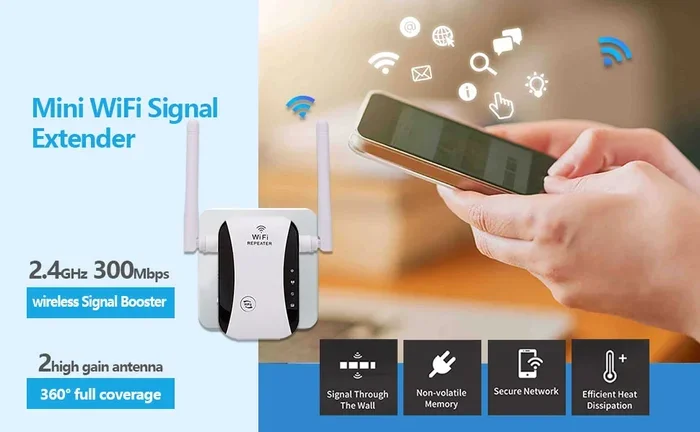
If you often need better Wi-Fi coverage around your home, you might want to explore options like getting a Wi-Fi range extender. This can help ensure your regular Wi-Fi network covers your entire home, separate from AirDrop’s direct connections.
Common Mistakes People Make with AirDrop and Wi-Fi
Even though AirDrop is simple to use, people make mistakes that cause frustration. Here are the most common ones and how to avoid them.
Mistake 1: Leaving AirDrop on “Everyone” All the Time
This is the most common mistake. Leaving AirDrop open to everyone makes your device visible to strangers. It also keeps your Wi-Fi and Bluetooth radios active longer than needed. Switch to “Contacts Only” or “Receiving Off” when you are not actively sharing files.
Mistake 2: Assuming AirDrop Uses Internet Data
Many people worry that AirDrop eats through their data plan. This is not true. AirDrop creates a local connection. It does not use your internet data. You can use AirDrop anywhere, even without an internet connection.
Mistake 3: Not Checking Wi-Fi Signal Strength
Even though AirDrop creates a direct connection, physical obstacles can weaken the signal. Walls, metal objects, and even your own body can interfere. If your transfers are slow, try moving closer to the other device.
Mistake 4: Expecting AirDrop to Work with Non-Apple Devices
AirDrop is an Apple-only feature. It does not work with Android devices or Windows PCs. If you need to share files with non-Apple devices, look for alternatives like Google Nearby Share or third-party apps.
Mistake 5: Ignoring Software Updates
Apple regularly improves AirDrop performance through software updates. Keeping your iPhone, iPad, or Mac updated ensures you get the best speeds and most reliable connections. Ignoring updates can lead to compatibility issues.
Quick Tips for Managing AirDrop and Wi-Fi Settings
Here are some practical tips to help you get the most out of AirDrop while keeping your Wi-Fi settings under control.
- Turn Off AirDrop When Not in Use: Make it a habit to turn off AirDrop when you are done sharing. This prevents unnecessary Wi-Fi and Bluetooth activity. It also protects your privacy by making your device invisible to strangers.
- Use Contacts Only for Everyday Sharing: For daily use, set AirDrop to Contacts Only. This limits who can send you files and reduces the amount of network scanning your device does.
- Check Wi-Fi Signal Strength Before Large Transfers: Before sending a large file, make sure both devices have a strong signal. Move closer if needed. A strong signal means faster transfer times and fewer errors.
- Restart Your Device if AirDrop Acts Up: If AirDrop is not working properly, a quick restart often fixes the issue. This refreshes both your Wi-Fi and Bluetooth radios. It clears any temporary glitches that might be causing problems.
- Keep Your Devices Updated: Apple regularly improves AirDrop performance through software updates. Keeping your devices updated ensures you get the best speeds and most reliable connections.
If you find that your Wi-Fi signal is weak in certain areas of your home, you might want to look into whether you can extend your Wi-Fi to 200 feet away to improve coverage throughout your space.
Expert Insights on AirDrop and Wireless Connectivity
From a networking perspective, AirDrop is a clever use of existing wireless technology. Apple did not invent a new radio or protocol. Instead, they combined Bluetooth and Wi-Fi in a smart way. This is why AirDrop works so well across the Apple ecosystem.
The peer-to-peer Wi-Fi connection that AirDrop creates is essentially a temporary local network. Both devices act as a client and a server simultaneously. One device hosts the file, and the other downloads it. This happens entirely on the local level, without any internet involvement.
Network engineers often point out that AirDrop is a great example of Wi-Fi Direct in action. Wi-Fi Direct is a standard that allows devices to connect without a traditional router. It is used in many applications, from wireless printers to screen casting. AirDrop is one of the most consumer-friendly implementations of this technology.
For those who want to learn more about how Wi-Fi works behind the scenes, understanding your router settings can be helpful. For instance, you can change your Wi-Fi from 5GHz to 2.4GHz to see how different frequency bands affect your wireless performance. This knowledge can also help you troubleshoot slow AirDrop transfers if they are related to interference on your local network.
If you are looking to improve your overall Wi-Fi experience beyond AirDrop, consider exploring options like buying a Wi-Fi booster to strengthen your home network signal and extend coverage to every corner of your space.
Conclusion
So, does AirDrop turn on Wi-Fi? Yes, it does. But it is not the mysterious, data-hogging behavior that some people fear. AirDrop simply uses Wi-Fi in a smart, local way to make file sharing fast and seamless.
Understanding how AirDrop interacts with your wireless settings gives you more control over your device. You can use it confidently, knowing exactly what is happening behind the scenes. Whether you are sending a quick photo to a friend or transferring large files between your Apple devices, AirDrop makes it easy.
The next time you see that Wi-Fi icon flash on when you use AirDrop, you will know exactly why. It is just your device doing what it needs to do to deliver your files quickly and securely. Take control of your AirDrop settings today and enjoy faster, smarter file sharing across all your Apple devices.
Frequently Asked Questions
Can I Use AirDrop if My Wi-Fi Is Turned Off?
No, you cannot. AirDrop requires Wi-Fi to be turned on in order to work. Even though it does not connect to a Wi-Fi network, the Wi-Fi radio must be active for file transfers to happen. If Wi-Fi is off, AirDrop will not be able to send or receive files.
Does AirDrop Use Mobile Data?
No, AirDrop does not use mobile data. It creates a direct, local connection between two Apple devices. The files transfer over this local link without ever touching your cellular data plan or internet connection. You can use AirDrop anywhere, even without internet access.
Why Does My Wi-Fi Icon Flash When I Use AirDrop?
This happens because AirDrop activates your Wi-Fi radio to create a peer-to-peer connection. The flash is simply your device turning on Wi-Fi temporarily for the transfer. Once the file is sent or received, the Wi-Fi radio may turn off again depending on your settings and device model.
Is AirDrop Safe to Use in Public Places?
AirDrop is generally safe, but you should be careful with your settings. If your AirDrop is set to “Everyone,” strangers nearby can send you files. To stay safe, switch to “Contacts Only” in public. This ensures only people in your contact list can reach you through AirDrop.
Can I Turn Off Wi-Fi and Still Use Bluetooth for File Sharing?
You can use Bluetooth for basic file sharing, but it will be very slow. AirDrop specifically requires both Bluetooth and Wi-Fi. If you turn off Wi-Fi, AirDrop will not work. Bluetooth alone is not designed for the kind of fast file transfers that AirDrop provides.
How Fast Is AirDrop Compared to Regular Wi-Fi Transfers?
AirDrop is extremely fast because it uses Wi-Fi Direct technology. It can reach speeds of up to 300 megabits per second on supported devices. This is much faster than sending files through email, messaging apps, or cloud storage. Most transfers finish in just a few seconds.