Does Nest Wifi Pro Need Ethernet For Best Performance
The Nest Wifi Pro can work without ethernet, but plugging in a cable unlocks faster speeds, lower latency, and a more stable connection. Whether you are streaming 4K video, gaming, or running a smart home, a wired backhaul makes a real difference. This guide covers exactly when ethernet matters and when you can skip it.
You just unboxed your Nest Wifi Pro and you are ready to get online. But then you look at the back of the unit and see an ethernet port. Do you actually need to plug in a cable? Or can you just set it up and forget about it?
The short answer is no, your Nest Wifi Pro does not need ethernet to function. It is a mesh wifi system that works great on its own. But here is the thing, the long answer is where it gets interesting. Adding a cable can change everything. Your speeds go up. Your connection gets more stable. And your smart home devices stay connected without dropping off.
In this article, we are going to break down exactly when ethernet matters for your Nest Wifi Pro. We will look at what happens with and without a wired connection. We will also cover real-world setups and give you practical advice you can use today. By the end, you will know exactly what to do with your own setup.
Key Takeaways
- Ethernet is optional but recommended: The Nest Wifi Pro works wirelessly, but a wired connection boosts performance significantly.
- Wired backhaul reduces latency: Plugging in your points cuts lag, which helps gaming and video calls.
- Gigabit ethernet ports are built in: Each Nest Wifi Pro point has a port ready for a cable.
- Mesh wifi systems shine with wires: A wired mesh setup delivers the best of both worlds.
- Placement matters more than cables: Even without ethernet, smart router placement improves your signal.
- Smart home devices benefit too: A wired network handles more connected devices without slowdowns.
📑 Table of Contents
- What Is the Nest Wifi Pro and How Does It Work
- Does Nest Wifi Pro Need Ethernet to Work
- Why Ethernet Matters for Network Performance
- When You Should Use Ethernet with Nest Wifi Pro
- How to Set Up Ethernet with Your Nest Wifi Pro
- Can You Skip Ethernet and Still Get Great Performance
- Expert Tips for Maximizing Nest Wifi Pro Performance
- Final Thoughts
What Is the Nest Wifi Pro and How Does It Work
The Nest Wifi Pro is Google’s mesh wifi router system. It replaces a single traditional router with multiple points that spread coverage around your home. Each point talks to the others and creates one seamless network. You walk from room to room and your device stays connected.
At its core, the Nest Wifi Pro uses a tri-band wifi setup. That means it has three frequency bands. One band handles the connection between your points. The other two bands serve your phones, laptops, and smart home devices. This design helps keep things fast even when many devices are online at once.
How Mesh Wifi Systems Create a Network
A mesh wifi system works differently from a regular router. Instead of one box pushing signal in all directions, you get multiple points. These points talk to each other and share the load. Think of it like a team of helpers instead of one person doing all the work.
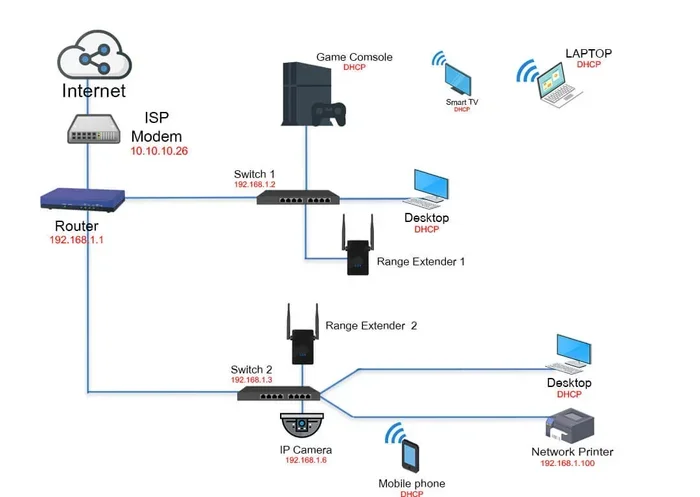
Each point in your mesh network is called a node. The main node connects to your modem. The other nodes talk to the main node and pass data along. This creates what is called a backhaul. The backhaul is the path data travels between points. And this is where ethernet comes into the picture.
Does Nest Wifi Pro Need Ethernet to Work
The honest answer is no. Your Nest Wifi Pro will work just fine without any cables at all. You plug in the main point, connect it to your modem, and you are good to go. The satellite points connect wirelessly to the main point. Everything runs through the air. It is that simple.
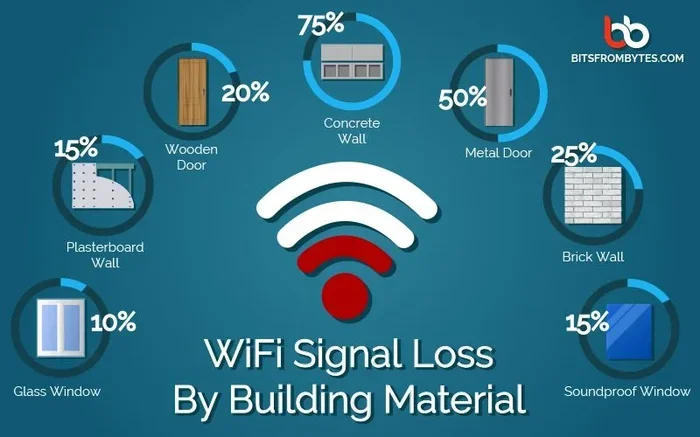
But here is the catch. Wireless connections have limits. Walls, floors, and even microwaves can weaken your signal. When your points talk to each other wirelessly, they share bandwidth. That means your speed can drop as data hops from point to point. The further your data has to travel, the slower it gets.
So while your Nest Wifi Pro does not need ethernet to function, it definitely benefits from one. The question is not really about needing it. It is about whether you want the best possible performance.
Wireless Setup vs Wired Setup
Let us compare the two approaches side by side. A fully wireless setup is easy. You place your points around the house and let them connect automatically. There are no cables to run. No drilling holes. No climbing ladders. It is the simplest way to get a mesh network up and running.
A wired setup means you connect each point to the main router using an ethernet cable. This takes more effort. You might need to run cables through walls or along baseboards. But the payoff is huge. Each point gets a direct, dedicated connection to the network. Your speeds stay consistent. Your latency drops. And your whole network becomes more reliable.
For most people, a hybrid approach works best. You wire the points that are farthest from the main router. The closer points can stay wireless. This gives you the best of both worlds without turning your house into a cable maze.
Why Ethernet Matters for Network Performance
If you care about speed and stability, ethernet is your best friend. A wired connection simply cannot be beaten by wireless when it comes to raw performance. Let us look at why this matters for your Nest Wifi Pro setup.
Speed Differences Between Wired and Wireless
Your Nest Wifi Pro supports wifi 6E, which is the latest wifi standard. On paper, it can deliver speeds up to 2.4 Gbps. But those speeds are for ideal conditions. In real life, walls and distance reduce your actual throughput.
An ethernet cable delivers consistent speeds. A gigabit ethernet connection gives you up to 1 Gbps. And a 2.5GbE port (found on some Nest Wifi Pro models) can go even faster. The key difference is consistency. A wired connection does not fluctuate based on where you walk in your house.
Here is a quick comparison of what you can expect:
- Wireless backhaul: Speeds vary based on distance and walls. Expect 40 to 70 percent of your total bandwidth.
- Wired backhaul: Speeds stay near full capacity. You get close to 100 percent of your bandwidth.
- Latency: Wireless adds 5 to 20 milliseconds of delay. Wired adds less than 1 millisecond.
- Stability: Wireless can drop packets during interference. Wired stays rock solid.
Understanding Backhaul and Why It Matters
The term backhaul gets thrown around a lot in networking. Simply put, it is the connection between your mesh points. When your points connect wirelessly, they use part of their wifi bands to talk to each other. This is called wireless backhaul. It works, but it takes away from the bandwidth available to your devices.
When you use ethernet cables for backhaul, your wifi bands are freed up completely. Every band can now serve your phones, tablets, and smart home devices. This is the single biggest reason to wire your mesh points. It gives your wireless devices more room to breathe.
If you want to learn more about how different networking setups handle data transmission, check out our guide on Can HDMI Be Transmitted Over Wifi. It covers how wireless technology handles heavy data loads.
When You Should Use Ethernet with Nest Wifi Pro
Not everyone needs to wire their Nest Wifi Pro points. But there are clear situations where ethernet makes a big difference. Let us go through them so you can decide what makes sense for your home.
Large Homes with Multiple Floors
If your house is big, ethernet becomes more important. On a single floor, wireless backhaul can handle the load. But when you have two or three floors, signals have to travel through ceilings and walls. Each hop weakens the connection. Adding a cable between points on different floors keeps your speeds strong.
For large homes, consider wiring at least the farthest point from your main router. This gives that area a strong, direct connection. The rest of your points can stay wireless without hurting performance too much.
Gaming and Video Conferencing
If you game online or spend a lot of time on video calls, ethernet is a game changer. Latency is the enemy of smooth gameplay. Even small delays can make the difference between winning and losing. A wired backhaul keeps your ping low and your connection stable.
Video conferencing has similar needs. A stable connection means no frozen screens or choppy audio. When your Nest Wifi Pro points are wired, your calls stay clear even when other devices are streaming in the background.
Smart Home Setups with Many Devices
Smart homes are getting more connected every year. You might have smart cameras, smart locks, smart lights, and smart speakers all running at the same time. Each of these devices needs bandwidth. When your mesh points are connected wirelessly, they share the load. This can cause slowdowns.
Wiring your points gives your smart home devices a faster, more reliable connection. Your cameras can stream in high resolution without buffering. Your smart locks respond instantly. And your voice assistants stay responsive even when the house is busy.
Running an Access Point for Better Coverage
Some people use their Nest Wifi Pro points as dedicated access points. An access point is a device that creates a new wifi zone in your home. When you wire a point directly to your network, it acts as a pure access point. It does not need to use any of its wifi bands to talk to other points.
This setup is ideal for home offices or media rooms where you need the strongest possible signal. If you are curious about how access points work in a mesh system, our article on Can Google Wifi Be An Access Point dives deeper into this topic.
How to Set Up Ethernet with Your Nest Wifi Pro
Setting up a wired connection with your Nest Wifi Pro is straightforward. You do not need to be a networking expert. Here is how to do it step by step.
- Check your ports: Each Nest Wifi Pro point has an ethernet port on the back. Look for the LAN port.
- Get the right cable: You need a Cat 5e or Cat 6 ethernet cable. These cables support gigabit speeds easily. Longer cables work fine, but try to keep runs under 100 feet for best results.
- Connect the main point to your modem: Use one ethernet cable to link your modem to the main Nest Wifi Pro point. This is the backbone of your network.
- Wire your satellite points: Run a cable from the main point to each satellite point you want to wire. Plug one end into the main point and the other into the satellite point.
- Set up in the Google Home app: Open the app and follow the setup prompts. Wired points should be recognized automatically and configured as part of your mesh network.
- Test your speeds: After setup, run an internet speed test to confirm everything is working. You should see improved speeds and lower latency on wired points.
Tips for Running Ethernet Cables in Your Home
Running cables can feel intimidating, but it does not have to be. Here are some quick tips to make it easier:
- Use flat ethernet cables for running under rugs or along baseboards.
- Cable raceways are great for hiding wires along walls without damaging them.
- Pre-made ethernet cables come in standard lengths. Buy the length you need and avoid cutting or splicing.
- If you cannot run cables through walls, try baseboard raceways or door frame clips. They keep cables neat and out of the way.
Common Mistakes to Avoid
Even with a simple setup, people make mistakes that hurt performance. Here are a few to watch out for:
- Using old cables: Cat 5 cables are too slow for modern mesh systems. Always use Cat 5e or higher.
- Running cables near power lines: Electrical interference can degrade your signal. Keep ethernet cables at least 6 inches away from power cords.
- Over-tightening connections: Ethernet cables should click in firmly but not require force. Forcing them can damage the port.
- Ignoring cable length: Very long cables can cause signal loss. Keep runs under 100 meters (about 328 feet) for best results.
Can You Skip Ethernet and Still Get Great Performance
The good news is yes. Many people run their Nest Wifi Pro entirely wirelessly and have a great experience. If your home is small to medium-sized, wireless backhaul works well. You get fast speeds and reliable coverage without any cables.
The key is proper placement. Put your main router in a central location. Keep it elevated and away from walls. Avoid placing it near metal objects or appliances that cause interference. Your satellite points should be within good range of the main point.
If you are not sure where to place your points, you can always start wireless and add cables later. The Nest Wifi Pro makes it easy to expand your network over time. You can also learn more about optimizing your wifi setup by reading our guide on Can I Force My Phone To Use 2 4 Ghz Wifi for tips on managing your wifi bands.
When Wireless Is Enough
Wireless setups work great when you have a small home or apartment. If your points are close together, the signal stays strong. Streaming, browsing, and light gaming all work fine without any cables. Most casual users will not notice a big difference between wired and wireless backhaul.
Wireless is also great for renters who cannot run cables through walls. You get the benefits of a mesh network without making any permanent changes to your home. The Nest Wifi Pro is designed to be flexible and work well in any situation.
When You Should Definitely Add Ethernet
On the other hand, there are times when ethernet is almost essential. Large homes with thick walls benefit greatly from wired connections. Home offices that need rock-solid connections should always be wired. And anyone who streams 4K video or plays competitive games will notice a clear improvement with a wired setup.
Think of ethernet as an upgrade, not a requirement. Your Nest Wifi Pro will work without it. But if you want to push your network to its limits, a few cables can make a world of difference.
Expert Tips for Maximizing Nest Wifi Pro Performance
Whether you wire your points or keep them wireless, there are a few things you can do to get the most out of your Nest Wifi Pro. These tips come from networking best practices and real-world testing.
Update Your Firmware Regularly
Google releases firmware updates for the Nest Wifi Pro that improve performance and fix bugs. Check the Google Home app regularly for updates. Keeping your system up to date ensures you get the latest features and optimizations.
Monitor Your Network Usage
Your Nest Wifi Pro handles many devices at once, but there is a limit. If you notice slowdowns, check how many devices are connected. Smart home devices, streaming boxes, and gaming consoles all compete for bandwidth. Consider using your wired points for the heaviest data users.
Position Your Points Strategically
Even the best mesh system suffers from poor placement. Keep points within range of each other. Avoid placing them in closets or behind large furniture. A good rule of thumb is to keep points within 30 to 40 feet of each other for wireless connections. For wired connections, placement is more flexible since the cable handles the backhaul.
Use the Right Wifi Band for Each Device
The Nest Wifi Pro uses multiple bands. The 6GHz band is fastest but has shorter range. The 5GHz band offers a good balance of speed and range. The 2.4GHz band reaches further but is slower. If you want to learn more about managing these bands, check out our article on Can I Force My Phone To Use 2 4 Ghz Wifi for practical tips.
Consider Adding a Wired Access Point
If one area of your home still has weak coverage after setting up your mesh, you can add a wired access point. This is different from a mesh point. An access point connects directly to your network with a cable and broadcasts a strong signal in a specific area. It takes the load off your mesh points and gives you targeted coverage where you need it most.
Final Thoughts
The Nest Wifi Pro is a fantastic mesh wifi system that works beautifully with or without ethernet. You do not need cables to enjoy fast wifi throughout your home. But if you want the best performance, a wired connection is hard to beat.
For most people, a hybrid approach makes the most sense. Wire the points that need the most stability and let the rest run wirelessly. This keeps your setup simple while still delivering top-notch performance. Your smart home devices will stay connected. Your streaming will be smooth. And your gaming will be lag-free.
Start with what works for you. You can always add cables later as your needs change. The beauty of the Nest Wifi Pro is its flexibility. It grows with you and adapts to your home. So plug in when you can, go wireless when you must, and enjoy the fast, reliable connection you deserve.
Frequently Asked Questions
Can Nest Wifi Pro work without any ethernet cables at all?
Yes, the Nest Wifi Pro functions perfectly without any cables. It is a wireless mesh system that connects its points over the air. You just plug in the main point, set it up through the Google Home app, and you are online. However, adding ethernet cables can significantly improve your speed and stability.
What kind of ethernet cable should I use with Nest Wifi Pro?
Use a Cat 5e or Cat 6 ethernet cable for the best results. These cables support gigabit speeds and work well with the Nest Wifi Pro’s gigabit ethernet port. Avoid using very old Cat 5 cables as they are too slow for modern networking. Keep your cables as short as practical for the strongest signal.
Does wiring your Nest Wifi Pro points improve wifi speed?
Wiring your points improves the backhaul, which is the connection between mesh points. This frees up your wifi bands for your devices, which can improve overall speed. Wired backhaul also reduces latency and makes your connection more stable. You will notice the biggest difference in larger homes or when many devices are connected at once.
Can I use the Nest Wifi Pro as a standalone router without mesh points?
Yes, you can use a single Nest Wifi Pro point as a standalone router. It works just like a regular wifi router when used alone. You connect it to your modem and it creates a wifi network for your home. However, adding mesh points extends your coverage and helps eliminate dead zones in larger spaces.
Is wireless backhaul on the Nest Wifi Pro good enough for streaming 4K video?
For most homes, wireless backhaul handles 4K streaming just fine. The Nest Wifi Pro’s tri-band design gives it plenty of bandwidth. But if you have multiple 4K streams running at the same time, or if your points are far apart, a wired backhaul will provide a smoother experience with fewer buffering issues.
How many ethernet cables do I need for a fully wired Nest Wifi Pro setup?
You need one ethernet cable per satellite point you want to wire. So if you have three points total, you need two cables to wire the satellite points (one for each). The main point connects to your modem with its own cable. If you are wiring all points including the main one, add one more cable for the modem-to-router connection.
=== CONCLUSION ===
The Nest Wifi Pro does not require ethernet to work, but it truly shines when you add one. A wired backhaul transforms your mesh network into something faster, more stable, and more reliable. Whether you are a casual user or a power user, understanding when to use cables and when to go wireless helps you get the most from your system.
Start simple, add cables where they make the biggest impact, and enjoy a fast, seamless wifi experience throughout your home. Your Nest Wifi Pro is built to flex, and with the right setup, it will deliver performance that keeps up with your connected life.