How Can I Improve My Deco Signal Strength Right Now
Want to improve your Deco signal strength right now? You can boost your mesh Wi-Fi coverage by adjusting router placement, updating firmware, and reducing wireless interference. These simple steps help you eliminate dead zones, strengthen your wireless signal, and get better connectivity throughout your home.
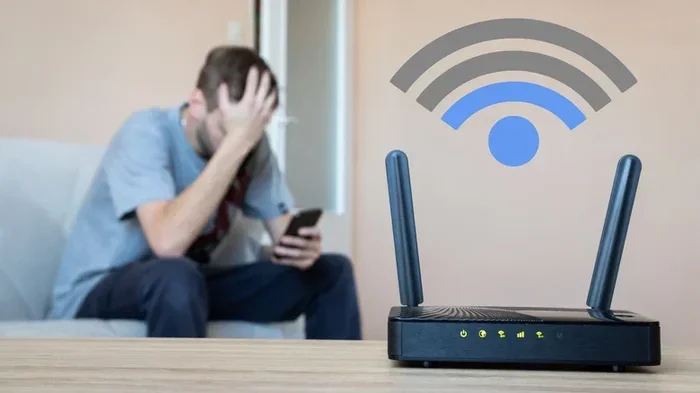
Your home network should work everywhere. But let’s be honest. Sometimes the Deco signal strength drops in certain rooms. You get that frustrating buffering wheel. Your video call freezes. The smart home device stops responding.
If you have a TP-Link Deco mesh system, you already have a great foundation. Mesh networks are designed to spread Wi-Fi evenly across your home. But even the best mesh setups can suffer from weak spots. The good news is that fixing weak signal is usually straightforward. You do not need to be a tech expert.
In this guide, I will walk you through every practical step you can take to improve your Deco signal strength right now. From simple placement tricks to advanced settings, you will find everything you need. Let us get your home network running at full power.
Key Takeaways
- Strategic Placement Matters: Where you position your Deco unit has a huge impact on signal strength and coverage.
- Firmware Updates Are Essential: Keeping your Deco firmware current ensures optimal performance and bug fixes.
- Reduce Interference: Moving your unit away from thick walls and electronics can dramatically improve your wireless signal.
- Use the Right Frequency Band: Switching between 2.4 GHz and 5 GHz can help you get better range or speed where you need it.
- Consider a Wi-Fi Extender: Adding an extender or second unit can expand your coverage to hard-to-reach areas.
- Restart Regularly: A simple reboot can clear temporary issues and refresh your network performance.
📑 Table of Contents
- Understanding Your Deco Mesh Network
- Best Placement Tips for Your Deco Units
- Update Your Deco Firmware and Settings
- Reduce Wireless Interference
- Extend Your Coverage When Needed
- Quick Tips to Boost Signal Right Now
- Common Mistakes That Weaken Your Deco Signal
- When to Contact TP-Link Support
- Conclusion
Understanding Your Deco Mesh Network
Before we jump into fixes, it helps to understand how your Deco system works. A mesh network uses multiple units to create one unified wireless network. Each unit, or node, talks to the others and to your devices. Together they cover your entire home with a single network name.
Your Deco signal strength depends on several factors. The number of units you have matters. The layout of your home matters. Even the materials in your walls play a role. Metal, concrete, and thick brick can block wireless signals. Wood and drywall are much more friendly to Wi-Fi.
The goal is simple. Every Deco unit should communicate clearly with the others and with your devices. When that connection weakens, your signal drops. Understanding this helps you make smarter decisions about placement and settings.
Why Signal Strength Varies Around Your Home
You might notice strong signal in the living room but nothing in the bedroom. This is normal and very common. Wi-Fi signals weaken as they travel through space. They also lose strength when passing through obstacles like walls and furniture.
Distance is the biggest enemy of wireless signal. The further you are from a Deco unit, the weaker the connection. And if the signal has to pass through multiple walls, it gets even worse. This is why a Wi-Fi extender or adding another Deco unit can make such a big difference.
Other devices in your home can also cause problems. Microwaves, baby monitors, and even Bluetooth speakers operate on similar frequencies. They can interfere with your Wi-Fi and make your signal seem weaker than it really is.
Best Placement Tips for Your Deco Units
Placement is the single most important thing you can control. Where you put each Deco unit directly affects your mesh Wi-Fi coverage. A small change in position can lead to a big improvement in signal strength.
Find the Center of Your Home
Your main Deco unit should sit as close to the center of your home as possible. This gives the signal the best chance to reach every room. If your modem is in a corner, try moving the Deco unit a few feet toward the middle.
Think of each Deco unit as a light bulb. The closer you are to it, the brighter the light feels. The further away, the dimmer it gets. You want every room to be well lit, so to speak.
Keep Units Away From Obstacles
Do not hide your Deco unit behind a TV or inside a closed cabinet. These spots block signal. Instead, place your unit on a high shelf or a table. Elevating the unit helps the signal spread outward and downward.
Keep your Deco unit away from large metal objects and thick appliances. Refrigerators, washing machines, and filing cabinets can all weaken your wireless signal. Even large fish tanks can cause problems because water absorbs Wi-Fi waves.
Space Your Units Properly
If you have multiple Deco units, space them evenly. You do not want to stack them right next to each other. But you also do not want them too far apart. A good rule of thumb is to place them about 25 to 30 feet apart in a typical home.
Each unit should be within good range of at least one other unit. This creates a strong backhaul connection, which is the link between your Deco units. A strong backhaul means better overall performance for every device in your home.
Update Your Deco Firmware and Settings
Keeping your Deco system updated is one of the easiest ways to maintain strong signal strength. TP-Link regularly releases firmware updates that fix bugs and improve performance. These updates can directly impact your wireless coverage.
How to Check for Firmware Updates
Open the Deco app on your phone. Go to the settings menu for your main unit. Look for a section called “Firmware Update” or “System Update.” If an update is available, the app will prompt you to install it.
It is a good habit to check for updates once a month. New firmware often includes improvements to network performance and signal stability. It only takes a few minutes and can make a noticeable difference.
Optimize Your Deco Settings
The Deco app gives you access to several settings that affect signal strength. One important setting is band steering. This feature automatically directs your devices to the best frequency band available.
You can also adjust the channel width. A wider channel means more bandwidth, but it can also mean more interference in crowded areas. If your neighborhood has many Wi-Fi networks, a narrower channel might give you a cleaner, stronger signal.
Another useful setting is the wireless schedule. You can set your Deco units to reboot automatically during off-hours. This clears memory and refreshes the connection, which helps maintain strong performance over time.
Reduce Wireless Interference
Interference is one of the most common causes of weak Wi-Fi signal. Many household devices operate on the same frequencies as your wireless network. When they all compete, your signal suffers.
Identify Sources of Interference
Start by looking around your Deco units. What electronic devices are nearby? Cordless phones, baby monitors, and wireless cameras all operate on the 2.4 GHz band. So do microwave ovens. If your Deco unit sits next to any of these, move it.
Your neighbors Wi-Fi networks can also cause interference. In apartment buildings or dense neighborhoods, dozens of networks may overlap on the same channel. This creates congestion and weakens your signal.
Switch to the Right Frequency Band
Your Deco system broadcasts on both 2.4 GHz and 5 GHz bands. Each has its strengths. The 2.4 GHz band travels farther and penetrates walls better. The 5 GHz band is faster but has a shorter range.
If you are far from your Deco unit, try connecting to the 2.4 GHz band. If you are close and need speed, use 5 GHz. You can also force specific devices to use a particular band. For help with this, check out how to force your phone to use 2.4 GHz Wi-Fi.
Using the right band for the right situation is one of the simplest ways to improve your Deco signal strength. It reduces congestion and gives each device the best possible connection.
Extend Your Coverage When Needed
Sometimes placement and settings are not enough. If your home is large or has unusual layouts, you may need extra help to cover every corner. Fortunately, there are several ways to extend your wireless coverage.
Add Another Deco Unit
The best way to extend coverage is to add another Deco unit to your mesh network. TP-Link Deco systems are designed to work together seamlessly. You can add units one by one until your entire home has strong signal.
Each additional unit creates a new node in your mesh. This means the signal has more paths to travel. It also means devices can connect to the nearest unit, which gives them a stronger connection.
Use a Wi-Fi Extender
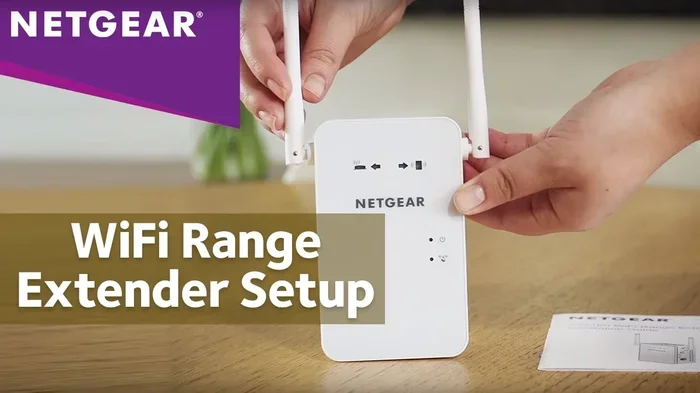
If you cannot add another Deco unit, a Wi-Fi extender can help. An extender picks up your existing signal and rebroadcasts it to areas that need coverage. It is not as seamless as a full mesh system, but it works well for filling in gaps.
You can learn more about extending your Wi-Fi range by reading this guide on getting an extension on your Wi-Fi. It covers practical tips for choosing and setting up an extender that works with your existing network.
Consider a Powerline Adapter
For areas with very thick walls or long distances, a powerline adapter can be a game changer. It uses your home electrical wiring to carry the network signal. You plug one adapter near your router and another in the room that needs coverage.
This gives you a wired connection in a spot where Wi-Fi cannot reach. From that adapter, you can then set up a small Deco unit or extender to broadcast Wi-Fi in that room.
Quick Tips to Boost Signal Right Now
If you want fast results, try these quick fixes. They take just a few minutes and can make an immediate difference in your Deco signal strength.
- Restart your Deco units. Unplug them for 30 seconds, then plug them back in. This clears temporary glitches and refreshes connections.
- Move your main unit closer to the center of your home. Even a few feet can make a big difference.
- Remove obstacles around your units. Clear away large furniture, appliances, or metal objects nearby.
- Check for firmware updates. A quick update can resolve known performance issues.
- Switch your devices to the less crowded band. Try 5 GHz if you are close, or 2.4 GHz if you are far away.
- Reboot your modem and router. This refreshes the entire connection chain from your internet provider to your devices.
- Reduce the number of connected devices temporarily. Too many devices streaming at once can slow everything down.
These tips are simple but effective. Many people see an immediate improvement just by restarting their units and moving them to a better spot. Before you buy any new equipment, try these steps first.
Common Mistakes That Weaken Your Deco Signal
Sometimes the problem is not what you do. It is what you do not do. Here are common mistakes that can weaken your mesh Wi-Fi signal and how to avoid them.
Hiding Your Deco Unit
It is tempting to hide your router or Deco unit out of sight. Behind a TV, inside a closet, under a desk. But hiding it also hides the signal. Every wall and barrier between your unit and your device weakens the connection.
Keep your Deco unit in an open, visible spot. It does not need to be the centerpiece of your room. A shelf or a side table works perfectly. The goal is clear line of sight as much as possible.
Ignoring Firmware Updates
Firmware updates are not just about new features. They often include important fixes for signal strength and stability. If you ignore updates, you may be missing out on performance improvements.
Set a reminder to check for updates once a month. It takes just a couple of minutes in the Deco app. This small habit can keep your network running at its best.
Placing Units Too Far Apart
Mesh networks work best when units are close enough to communicate well. If you space them too far apart, the backhaul connection weakens. This slows down the entire network for every device.
Start with units closer together and spread them out gradually. Test the signal in each room as you go. Find the sweet spot where coverage is strong without sacrificing speed.
Using Too Many Devices on One Band
If all your devices connect to the 2.4 GHz band, it gets crowded fast. This is especially true in homes with smart devices, phones, tablets, laptops, and streaming boxes.
Let your Deco system distribute devices across both bands. If you need help managing this, you can learn more about band settings by reading how to change your Wi-Fi from 5 GHz to 2.4 GHz.
When to Contact TP-Link Support
Most signal issues can be fixed with the steps above. But sometimes the problem is deeper. If you have tried everything and your Deco signal strength is still weak, it may be time to contact TP-Link support.
They can help diagnose hardware issues, guide you through advanced settings, or arrange a replacement if your unit is defective. Before you reach out, have your Deco model number and firmware version ready. This speeds up the support process.
You can also visit the TP-Link community forums. Other Deco users share their experiences and solutions. You might find someone who has solved the exact same problem you are facing.
Conclusion
Improving your Deco signal strength does not have to be complicated. Start with placement. Move your units to open, central locations. Keep them away from obstacles and electronics that cause interference. Update your firmware regularly to get the latest performance improvements.
Use both frequency bands wisely. Add more units or an extender if your home is large. And do not overlook the simple fixes like restarting your system. These steps can transform your wireless coverage and give you a faster, more reliable network.
Your home should be fully connected everywhere. With the right setup and a little attention, your Deco mesh network can deliver strong signal to every room. Start with one tip today and build from there. Your better Wi-Fi experience is just a few steps away.
Frequently Asked Questions
Why is my Deco signal weak in certain rooms?
Weak signal in specific rooms usually comes down to distance and obstacles. Thick walls, metal objects, and large appliances can block your wireless signal. Moving your Deco unit closer to the weak spot or adding another unit can solve this problem quickly.
How many Deco units do I need for my home?
A good starting point is one unit for every 1,000 to 1,500 square feet. If you have a larger home or multiple floors, add more units. Each unit extends your mesh network and strengthens your overall coverage and signal strength.
Does updating Deco firmware really improve signal strength?
Yes, it can. Firmware updates often include fixes for known performance issues and improvements to how your units handle wireless connections. Checking for updates monthly is a simple habit that keeps your network running at its best.
Can I use a Wi-Fi extender with my Deco system?
You can, but it is not always the best solution. Deco systems work best as a full mesh. An extender can fill in gaps, but it may create a separate network name or reduce speed. Adding another Deco unit is usually a better option for seamless coverage.
What is the difference between 2.4 GHz and 5 GHz on my Deco?
The 2.4 GHz band has a longer range and penetrates walls better, making it great for distant devices. The 5 GHz band is faster but has a shorter range. Use 2.4 GHz for devices far from your unit and 5 GHz for devices close by that need speed.
How can I check my current Deco signal strength?
Open the Deco app and go to the home screen. It shows signal strength for each connected device. You can also walk around your home with your phone and check the Wi-Fi signal indicator. This helps you identify weak spots that need attention.