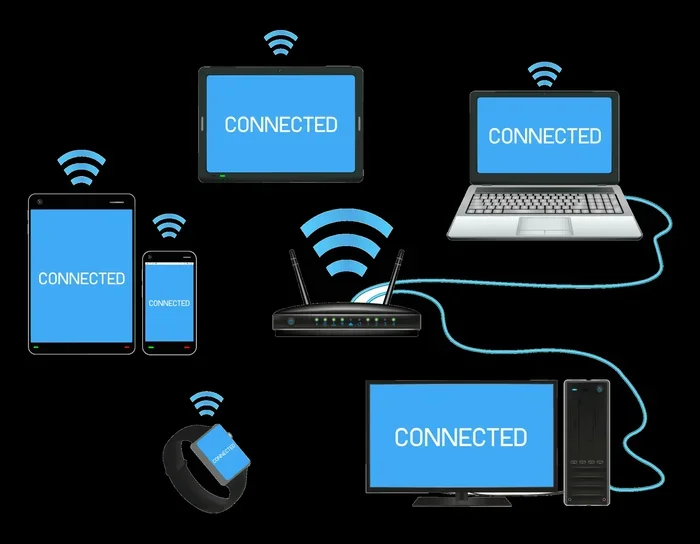
How Can I Share My Wi Fi With Other Devices Easily
Sharing your Wi-Fi with other devices is simpler than most people think. You can use a mobile hotspot, Wi-Fi Direct, or router settings to connect multiple gadgets. This guide covers every method so you can share Wi-Fi with other devices quickly and safely.
Have you ever been in a situation where your friend needs internet, or your laptop won’t connect to the home network? Maybe you want to share Wi-Fi with other devices while traveling, or you need to get your smart TV online without running a cable. Whatever the reason is, sharing a Wi-Fi connection is a skill everyone should know.
The good news is that there are several straightforward ways to do this. You don’t need to be a tech expert. Whether you use an iPhone, Android phone, or a standard router, the process is easier than you might expect. In this article, we walk you through every method step by step. You’ll learn how to set up a mobile hotspot, use Wi-Fi Direct, adjust router settings, and keep your network safe while doing it.
By the time you finish reading, you’ll have all the tools you need to share your internet connection with confidence. Let’s dive right in.
Key Takeaways
- Mobile Hotspot: The easiest way to share your phone’s data connection with other devices.
- Wi-Fi Direct: Lets devices connect without a router or password in many cases.
- Router Settings: You can adjust your router to allow guest access and more connections.
- Security Matters: Always use strong passwords and limit shared access to protect your network.
- Multiple Methods Exist: Choose the one that fits your device, data plan, and needs best.
📑 Table of Contents
- What Does It Mean to Share Wi-Fi With Other Devices?
- Methods to Share Your Wi-Fi Connection
- How to Set Up a Mobile Hotspot on Popular Devices
- Using Wi-Fi Direct for Quick Device Connections
- Tips for Secure Wi-Fi Sharing
- Common Problems When Sharing Wi-Fi and How to Fix Them
- When to Use a Portable Wi-Fi Device Instead
- Frequently Asked Questions
- Conclusion
What Does It Mean to Share Wi-Fi With Other Devices?
When you share Wi-Fi, you let another device use your existing internet connection. This can happen in a few different ways. The most common method is through a mobile hotspot. Your phone acts like a mini router and broadcasts a Wi-Fi signal that other devices can tap into.
Another way is through Wi-Fi Direct. This technology lets two devices connect directly without needing a router at all. Think of it like a wireless bridge between two gadgets. You can also share Wi-Fi by adjusting your router settings to allow more devices or create a guest network.
Each method has its own strengths. Mobile hotspots are great for on-the-go sharing. Wi-Fi Direct works well for file transfers and screen mirroring. Router adjustments help when you have many devices at home. We’ll explore all three in detail below.
Methods to Share Your Wi-Fi Connection
Method 1: Using a Mobile Hotspot
A mobile hotspot is the most popular way to share Wi-Fi with other devices. Almost every smartphone today has this built in. It uses your cellular data to create a Wi-Fi network that nearby devices can join.
Here’s how to set it up on most phones:
- Open your Settings app.
- Look for Network & Internet or Connections.
- Tap on Hotspot & Tethering or Personal Hotspot.
- Turn the hotspot On.
- Set a name and password for your hotspot.
- On the other device, find the Wi-Fi network and connect using the password.
That’s it. Your other device now has internet through your phone. This method works great when you’re traveling, at a coffee shop, or anywhere else without a fixed Wi-Fi network. If you want to get unlimited hotspot data, check with your carrier about adding a hotspot plan to your line.
One thing to keep in mind: using a hotspot drains your phone battery fast. It also uses your data allowance. If you have a limited data plan, monitor your usage carefully. You can set a data limit in your hotspot settings to avoid surprises.
Method 2: Using Wi-Fi Direct
Wi-Fi Direct is a different approach. Instead of going through a router, two devices talk directly to each other. This is useful for sharing files, printing documents, or casting content without needing a full internet connection.
Many Android phones support Wi-Fi Direct. Here’s how to use it:
- Go to Settings and find Wi-Fi.
- Look for an option called Wi-Fi Direct or Peer-to-Peer.
- Turn it on and wait for your phone to find nearby devices.
- Select the device you want to connect to.
- Accept the connection request on the other device.
Once connected, you can transfer files or share content directly. Wi-Fi Direct is much faster than Bluetooth for large files. It also doesn’t need an internet connection, which makes it handy in areas with no network coverage.
Some smart TVs and printers also support Wi-Fi Direct. This means you can connect your phone to your TV for Wi-Fi streaming without needing a home network. Just make sure both devices are compatible before you try.
Method 3: Adjusting Router Settings
If you’re at home and want multiple devices to connect to the same Wi-Fi network, your router is the key. Most modern routers support many connections at once. But sometimes you need to tweak settings to get the best performance.
Here are a few things you can do:
- Check your router’s device limit: Most routers allow 15 to 30 devices. Log into your router’s admin panel to see the current count.
- Set up a guest network: This lets visitors use your internet without accessing your main network. It keeps your personal devices safe.
- Boost your signal: If devices are far from the router, consider moving the router or adding a Wi-Fi extender.
- Change the Wi-Fi channel: Interference from neighbors can slow things down. Switching to a less crowded channel helps.
If you don’t have a router at all, you might wonder if you can still share internet. The answer is yes. You can get Wi-Fi without a router by using your phone’s hotspot or a portable Wi-Fi device. These options work well for temporary setups or small spaces.
How to Set Up a Mobile Hotspot on Popular Devices
Setting up a hotspot varies slightly depending on your phone. Here’s a quick guide for the most common devices.
iPhone Hotspot Setup
iPhone users have a simple process:
- Open Settings.
- Tap Personal Hotspot.
- Toggle Allow Others to Join to On.
- Set a password using WPA2 for security.
- On the other device, find your iPhone’s name under Wi-Fi networks and enter the password.
You can also share your iPhone’s connection via Bluetooth or USB cable. USB tethering is the most stable option and charges your phone at the same time.
Android Hotspot Setup
Android phones follow a similar path:
- Open Settings.
- Go to Network & Internet or Connections.
- Tap Hotspot & Tethering.
- Select Wi-Fi Hotspot and turn it on.
- Set the network name and password.
Some Android phones let you choose between 2.4 GHz and 5 GHz bands. The 2.4 GHz band reaches farther but is slower. The 5 GHz band is faster but has a shorter range. Choose based on your needs.
If you’re having trouble connecting, try forcing your phone to use 2.4 GHz Wi-Fi. This can help older devices that don’t support 5 GHz connect more easily.
Using Wi-Fi Direct for Quick Device Connections
Wi-Fi Direct is perfect for situations where you don’t need internet access but still want to share content between devices. It creates a direct wireless link between two gadgets.
Here are some common uses for Wi-Fi Direct:
- File sharing: Send photos, videos, or documents between phones or from phone to laptop.
- Printing: Print directly from your phone to a Wi-Fi Direct printer without a router.
- Screen mirroring: Cast your phone screen to a TV or monitor that supports Wi-Fi Direct.
- Gaming: Connect controllers or headsets directly to your device for a lag-free experience.
Wi-Fi Direct is built into many modern devices. Android phones, Windows laptops, and some smart TVs all support it. Apple devices use a similar technology called AirDrop, which works between iPhones, iPads, and Macs.
If you want to connect your phone to a boombox or portable speaker wirelessly, Wi-Fi Direct or Bluetooth are your best options. Both are easy to set up and work without an internet connection.
Tips for Secure Wi-Fi Sharing
Sharing your Wi-Fi connection comes with security risks. When you open your network to other devices, you also open the door to potential threats. Here’s how to stay safe.
Use Strong Passwords
Always set a strong password for your hotspot or guest network. Use a mix of letters, numbers, and symbols. Avoid common passwords like “12345678” or your name. A password manager can help you create and store complex passwords safely.
Limit the Number of Connected Devices
Don’t let just anyone connect to your hotspot. Set a limit on how many devices can join. Most phones let you see which devices are currently connected and kick off any unknown ones.
Turn Off Hotspot When Not in Use
This is a simple but important habit. Leaving your hotspot on when you’re not sharing it wastes battery and creates a security risk. Make it a practice to turn it off after each use.
Monitor Your Data Usage
When other devices use your hotspot, they consume your data. Keep an eye on your usage through your phone settings or your carrier’s app. If you’re worried about running out, consider buying your own portable Wi-Fi device. These dedicated hotspot gadgets have their own data plans and don’t drain your phone battery.
Keep Your Software Updated
Software updates often include security patches. Make sure your phone and all connected devices are running the latest software. This helps protect against vulnerabilities that hackers could exploit.
Common Problems When Sharing Wi-Fi and How to Fix Them
Even with the best setup, you might run into issues. Here are the most common problems and their solutions.
Devices Won’t Connect to the Hotspot
This is the most frequent issue. Try these fixes:
- Make sure your hotspot is turned on and visible.
- Restart both the host device and the connecting device.
- Double-check the password. Passwords are case-sensitive.
- Move the devices closer together. Wi-Fi signals weaken with distance.
- Check if your carrier is blocking hotspot usage. Some plans require an add-on.
Slow Connection Speeds
When multiple devices share one connection, speeds drop. To improve performance:
- Limit the number of connected devices.
- Use the 5 GHz band if your devices support it.
- Move closer to the hotspot source.
- Check your data speed with a speed test app.
- If you need faster uploads, try boosting your upload speed through your carrier settings or a VPN.
Phone Battery Drains Too Fast
Running a hotspot uses a lot of power. To save battery:
- Plug your phone into a charger while sharing.
- Reduce the number of connected devices.
- Turn off the hotspot when nobody is using it.
- Use USB tethering instead of Wi-Fi hotspot. It’s more energy-efficient.
Interference from Other Networks
If you live in a crowded area, neighboring Wi-Fi networks can cause interference. Changing your Wi-Fi channel can help. You can also try switching your router or hotspot to the 2.4 GHz band, which handles interference better than 5 GHz in dense areas.
Can’t Find the Wi-Fi Network
If other devices can’t see your hotspot, try these steps:
- Make sure your SSID is set to broadcast. Some phones hide the network name by default.
- Check if airplane mode is on and turn it off.
- Reset your network settings on the host device.
- If you want to change your network name, you can change the SSID on your router or hotspot settings.
When to Use a Portable Wi-Fi Device Instead
Sometimes sharing Wi-Fi through your phone isn’t the best option. If you’re traveling for days or hosting a group, a dedicated portable Wi-Fi device works better. These devices, also called mobile hotspots or pocket Wi-Fi, have their own SIM cards and data plans.
You can buy your own portable Wi-Fi device from most electronics stores or your carrier. They’re compact, battery-powered, and can connect 10 or more devices at once. Some models even work internationally, which is great for travelers.
Portable Wi-Fi devices are especially useful if you don’t want to drain your phone battery or use up your personal data. They keep your phone free for calls, texts, and apps while still giving every device reliable internet access.
Frequently Asked Questions
Can I share my Wi-Fi password with someone nearby?
Yes, you can. On most phones, you can share your Wi-Fi password directly through a QR code or by sending the password text message. On Android, go to your Wi-Fi settings, tap the connected network, and select Share. The other person scans the QR code with their phone to connect instantly.
Is it safe to share my Wi-Fi with strangers?
It’s generally not recommended. Sharing your network with strangers can expose your personal data and slow down your connection. Always use a guest network if you need to give visitors access. This keeps your main network and devices protected.
Can I share Wi-Fi without a password?
Some devices support Wi-Fi Direct and Wi-Fi Protected Setup (WPS), which allow connections without typing a password. However, these methods are less secure. If you must use them, limit the connection time and disconnect once you’re done.
How many devices can connect to a mobile hotspot at once?
Most phones allow 5 to 10 devices to connect to a hotspot simultaneously. The exact number depends on your phone model and carrier. Keep in mind that more connected devices means slower speeds for each one. If you need to connect many devices reliably, consider a dedicated portable hotspot device.
Can I share my Wi-Fi connection with a smart TV or gaming console?
Absolutely. You can connect smart TVs, gaming consoles, and other devices to your mobile hotspot just like you would with a laptop or phone. Make sure the hotspot password is saved on the device for easy reconnection. If you want to connect your phone to your TV for Wi-Fi, you can also use screen mirroring or casting features once both are on the same network.
What’s the difference between a mobile hotspot and portable Wi-Fi?
A mobile hotspot uses your phone’s data plan to create a Wi-Fi network. A portable Wi-Fi device is a separate gadget with its own data plan and battery. Portable Wi-Fi devices typically offer longer battery life, more simultaneous connections, and don’t drain your phone. For short-term sharing, your phone’s hotspot works great. For extended use or group settings, a portable Wi-Fi device is the better choice.
Conclusion
Sharing your Wi-Fi with other devices doesn’t have to be complicated. Whether you use a mobile hotspot, Wi-Fi Direct, or router settings, the methods are straightforward and work with almost any device. The key is choosing the right method for your situation and keeping your network secure while doing it.
Start by trying the mobile hotspot method on your phone. It’s the fastest way to get another device online. If you need a longer-term solution, consider a portable Wi-Fi device or adjusting your router settings for a guest network. Always use strong passwords and monitor connected devices to keep your data safe.
With the tips and methods in this guide, you now have everything you need to share Wi-Fi with other devices confidently. Try these steps today and stay connected no matter where you are.